![brioHR-logo-color.svg]](https://support.briohr.com/hubfs/brioHR-logo-color.svg)
Audience & Scope
Audience: HR Admin
Module: General Login Data
Country: Global
Pre-requisites: Access as the Admin of the account enabled.
Admins can now easily monitor user account and login activity with the new Employee Activity Report in brioHR.
This report provides a consolidated view of key user information, including account creation, activation, login activity, employment dates, and account status.
Enable Permission to Access the Report
Before users can access the Employee Activity Report, the relevant permission must be enabled for their user group.
- Go to Settings > User Groups.
- Select the relevant User Group and click Edit.
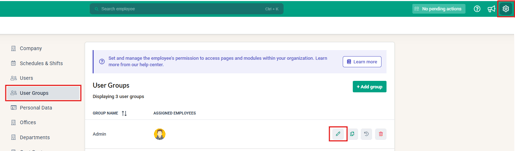
- Navigate to Pages Access and scroll down to Admin Settings.
- Enable Allow to download employee activity report.
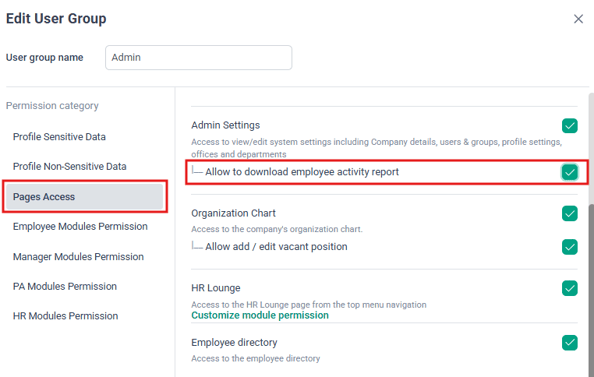
- Click Save to apply the changes.
Where to Access the Report
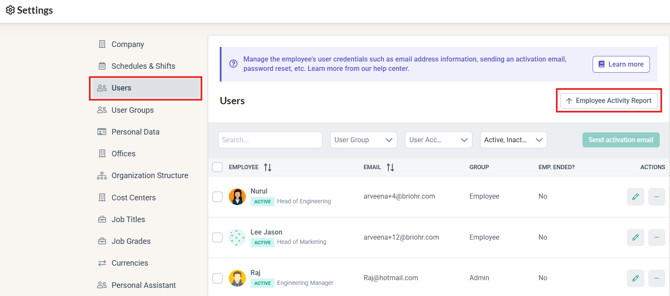
The Employee Activity Report is available to Admin users under:
Settings > User > Employee Activity Report
From the User page, admins can access the report to view the last login information of users within their brioHR account.
Information Available in the Report
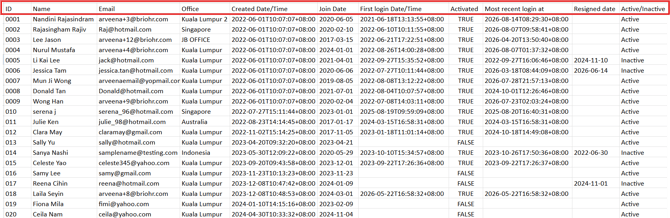
The report includes the following information for each user:
- Employee ID
- Employee Name
- Employee Email
- Office
- Created Date/Time – The date and time the user account was created.
- Join Date – The employee's employment start date.
- First Login Date/Time – The date and time the user first logged in to brioHR.
- Activated – Indicates whether the user's account has been activated.
- Most Recent Login – The latest date and time the user logged in to brioHR.
- Resigned Date – The employee's resignation date, where applicable.
- Active/Inactive – Indicates the current status of the user account.
Supporting Billing Enquiries
The user's account billing period can be referenced based on the Created Date to Resign Date, where applicable. This report provides Account Admins a clearer reference when reviewing user accounts and addressing billing-related enquiries.
Easy Access to User Information
With the Employee Activity Report, admins have a convenient way to review user account details and login activity in one place. This helps support user access management, account monitoring, and billing-related checks.
Ownership
By: Arveena