![brioHR-logo-color.svg]](https://support.briohr.com/hubfs/brioHR-logo-color.svg)
Audience & Scope
Audience: HR Admin
Module: Core HR (Employee Management)
Country: Global
Prerequisites: User group settings: -
- Admin access to account Settings
-
Under Profile Sensitive Data - View and Modify permission for Employment end date and Job grade
-
Under HR Modules Permission - Global: Create, import employee
Part 1: Configuring Termination Reasons
1. Click into Settings then click into Job & Employment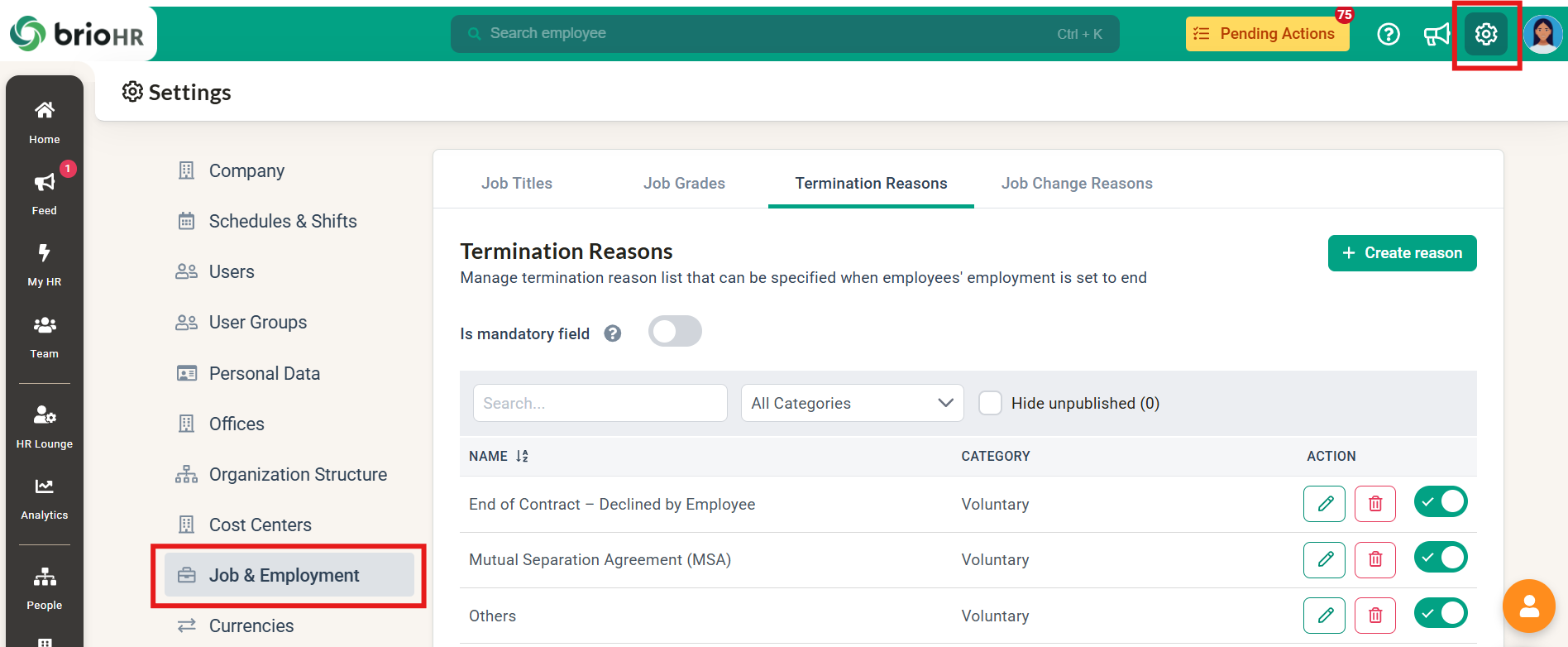
2. Click into Termination Reasons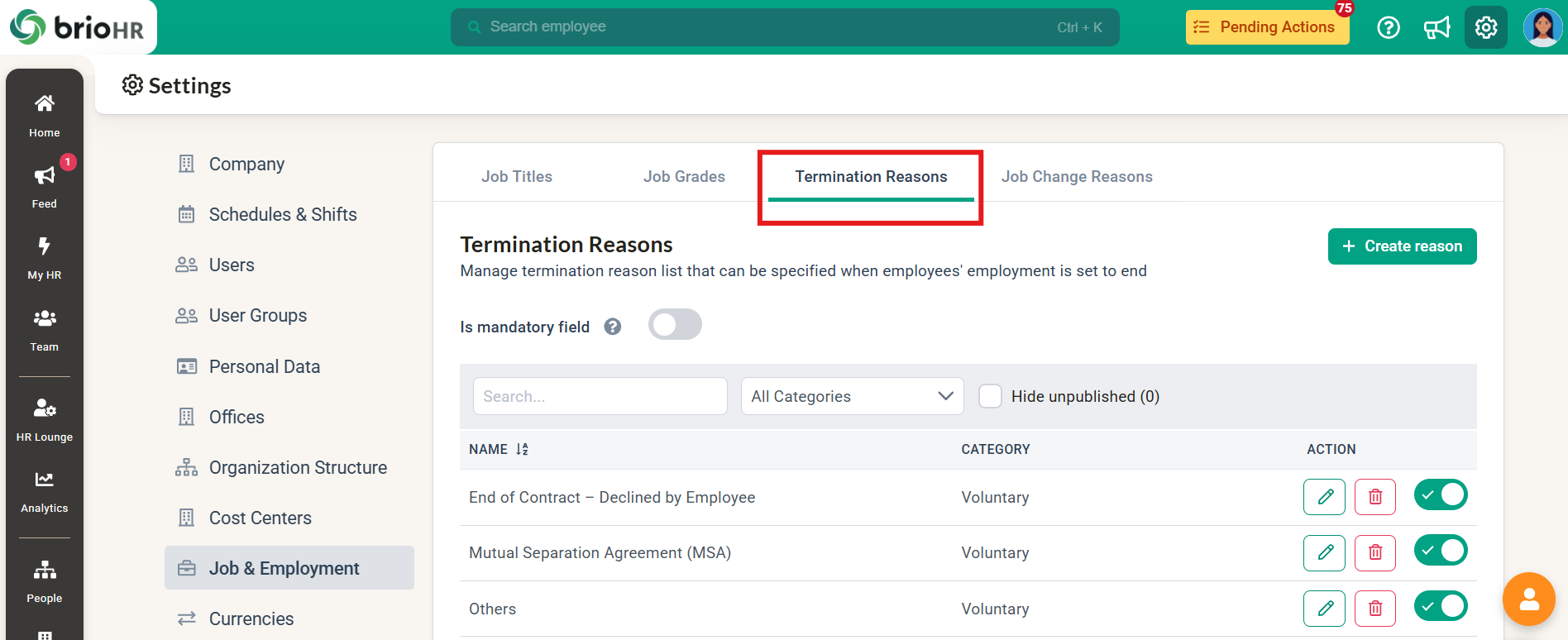
3. Click +Create Reason to add on termination reasons preferred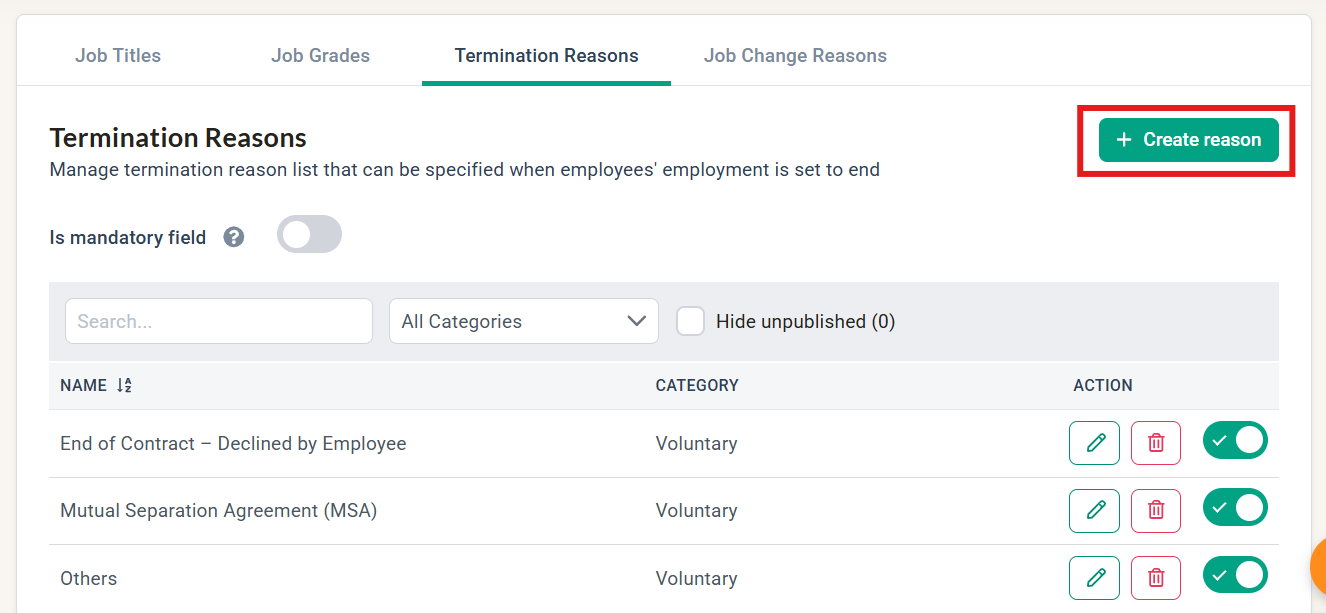
4. Provide the Name and choose the Category

5. Click Save to save the termination reason created.

6. Toggle on Is mandatory field if you want a Termination Reason to be required before ending an employee's employment. This is OFF by default for all companies. 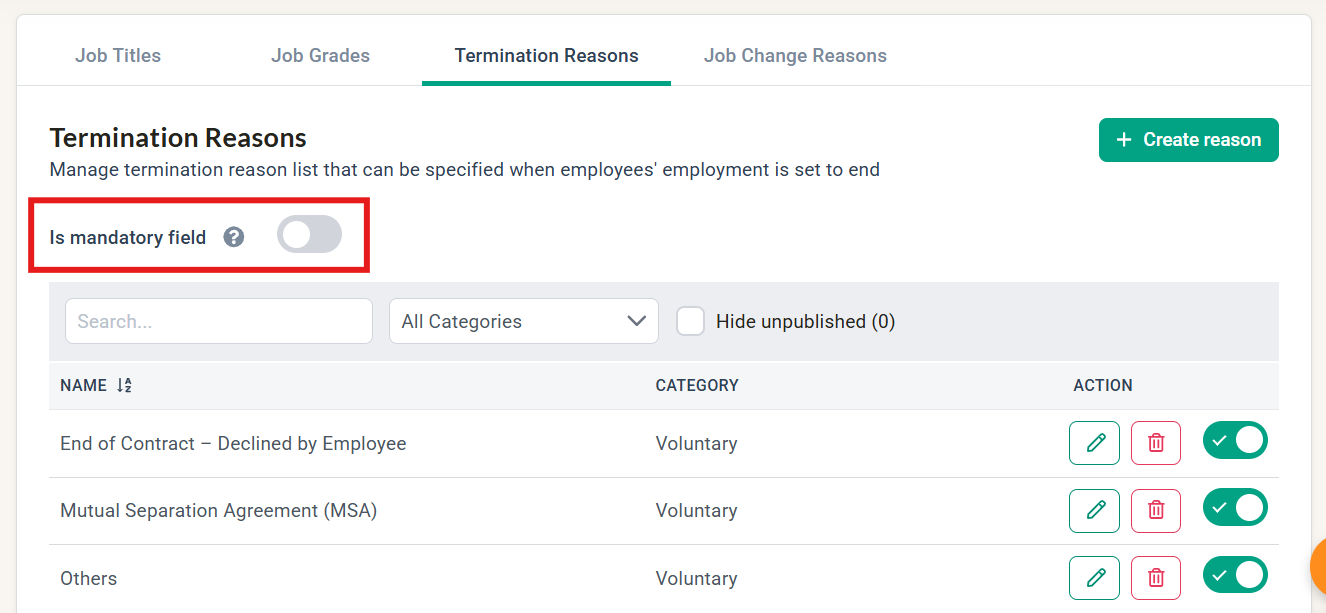
NOTE:
- Turning Is mandatory field ON only applies to End Employment actions saved from that point forward. It does not retroactively require a reason on employees already terminated.
- If every reason in the list is deactivated while Is mandatory field is ON, HR won't be able to end an employee's employment until a reason is reactivated or the toggle is switched off.
- If an employment end date was already scheduled for a future date before this toggle was turned on, that termination will still complete on its scheduled date without a reason. The daily job that processes future-dated terminations does not re-check the mandatory setting retroactively.
Part 2: Entering Termination Reason
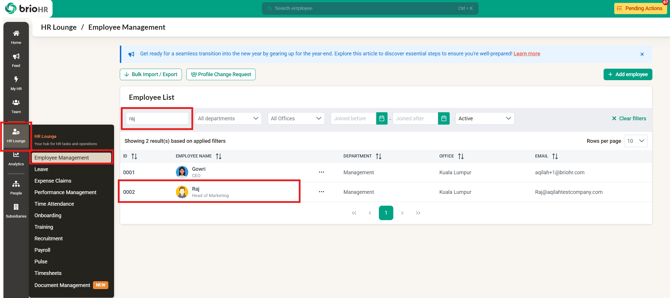
1. Go to HR Lounge > Employee Management.
2. Search for the employee's Name or ID in the search column.
3. Click on the employee's name to navigate to their profile.
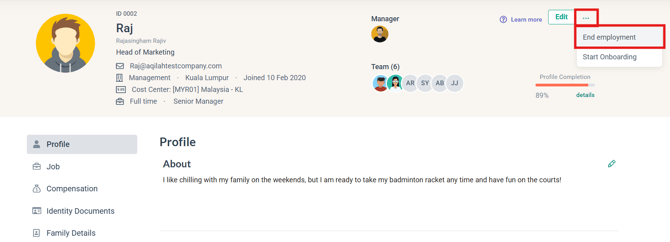
4. On the resigned employee's profile, click the ellipsis ('...') icon next to the Edit button.
5. Select 'End Employment' from the dropdown menu.
6. Input the Employment End Date
7. Choose the termination reason from the dropdown

NOTE:
Termination Reason is optional by default. If your Company Admin has made it mandatory (see Part 1), the Reason field shows a red asterisk (*) and the Save/Confirm button stays disabled until a reason is selected.
The 'Reason' dropdown is split between 2 categories, VOLUNTARY and INVOLUNTARY reasons. Please scroll to the bottom of the list to view all available reasons. The category can be used/included in reports that contain Employment Details.
The options in the resignation ‘Reason’ dropdown are fixed and cannot be customized.
8. Enter in any Comment (optional).
9. Click Save to complete the action or Cancel to abort.
Part 3: Including the Termination Reason in Employee Information Report
1. Go to Analytics > Report Builder
2. Click on Employee Information Report
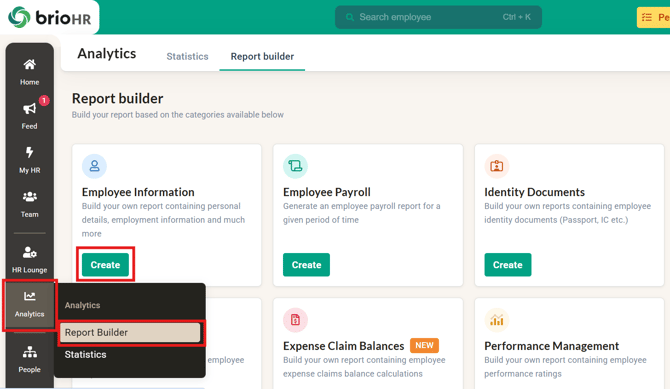
3. Click Field & Filters

4. Go to Employment Details

5. Scroll down to find the 'Termination Category', 'Termination Reason', and 'Termination Comment'. You may choose to include or exclude the fields and add filters depending on your reporting needs.

TIP:
The termination category, termination reason, and termination comment fields and filters are also available in reports that include employment details.
6. Click Apply Changes to apply your chosen fields and filters to the report.

7. Click 'Save as' and name your report if you would like to use the same format in the future.

Common Issues/FAQ
Q1: Why can't I see the 3 dots to enter the employment end date?
A1: You may not have the necessary permissions. Your user group permissions need to be configured correctly; refer to the 'pre-requisite' section at the beginning of this article.
Q2: I want my report only to include employees who resign within a certain time period (e.g., June 2026). How do I do this?
A2: In the Field & Filters, under Employment details, add a date filter for Employment End Date, and click 'Apply Changes'.
Q3: Can I make the Termination Reason mandatory?
A3: Yes. Your Company Admin can turn on Is mandatory field under Settings > Job & Employment > Termination Reasons (see steps above). Once ON, the Save/Confirm button on the End Employment screen stays disabled until a reason is selected.
Q4: I turned on the mandatory toggle, but a scheduled termination still went through without a reason — why?
A4: Terminations that were already scheduled for a future end date before the toggle was turned on will still process on their scheduled date without a reason. The mandatory requirement only applies to new End Employment actions saved after the toggle is turned on.
Related Articles
How to Set an Employee’s Employment End or Resign Date
How to Deactivate or Remove a Resigned Employee's Account in BrioHR
Last Updated
By: Arveena