![brioHR-logo-color.svg]](https://support.briohr.com/hubfs/brioHR-logo-color.svg)
Audience & Scope
Audience: HR Admin / Payroll Processor
Module: Payroll
Country: Malaysia
Step 1: Setting Up The Bank Account
-
In HR Lounge, navigate to the Payroll module.
-
Click on Settings and scroll down to the Bank Account column.
-
In the "Bank Account" field, select Alliance Bank
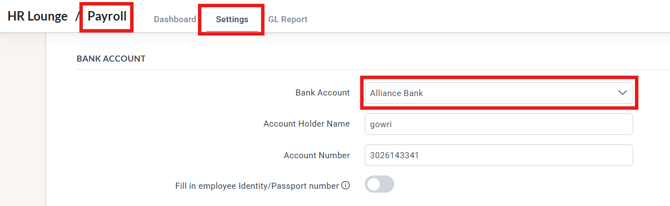
- Enter the required information in the fields provided (refer to the sample screenshot below)
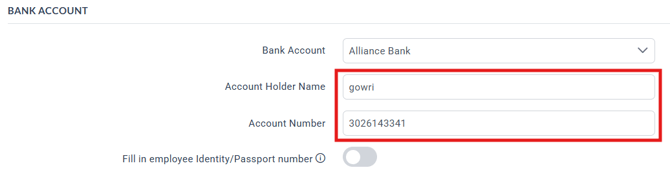
- Click Save at the bottom of the Settings page to complete the setup.
NOTE:
The function to 'Fill in employee Identity/Passport number' is optional as some bank specifications require for this information to be filled in when the bank file is generated. Therefore, you may proceed to enable this function before the bank file is generated. 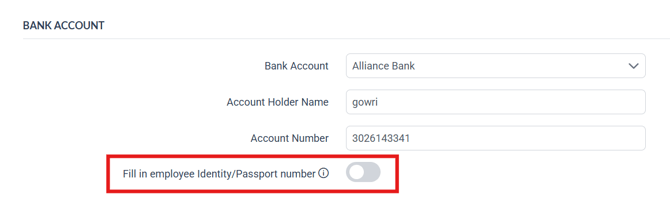
Step 2: Downloading The Bank File
- In HR Lounge, navigate to the Payroll module.
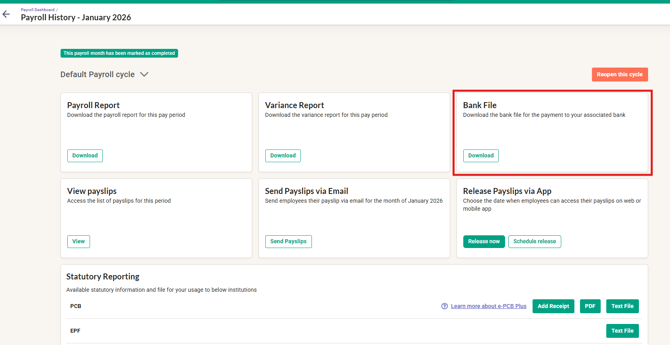
- In the Payroll Dashboard, click on the COMPLETED payroll cycle for which you want to process payments.
- Scroll down to the Bank File column and, based on your payroll cycle, click the Download button (as shown in the sample screenshots below) to download the bank file.
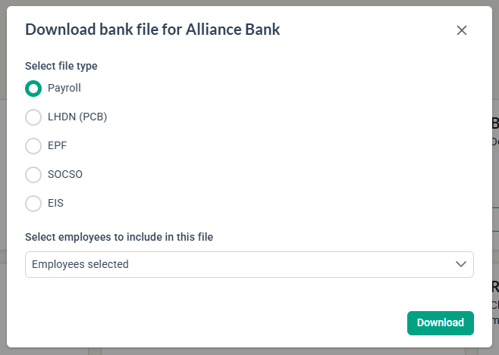
- In the "Generate bank file for Alliance Bank" pop-up window:
- Select the bank file type.
- Select the employee(s).
- Click Generate to download the file.
- Once you have downloaded the bank file for Payroll, EPF, SOCSO, or any other purpose, proceed to upload the file to the Bank's Portal for payment.
NOTE:
If any information is missing, you will be unable to generate the bank file, and a warning prompt will appear (as shown in the screenshot below).
To resolve this, input the missing information and then attempt to generate the bank file again.

IMPORTANT: The SOCSO bank file format changes on 1 November 2026. brioHR picks the right format automatically based on the date you download the file. See SOCSO Bank File Format: Before and From 1 November 2026 below.
Step 3: Downloading The Text File For Statutory Portal Upload
- If you prefer to upload Statutory Text Files directly via the Statutory Portal, you will need to generate the text file from the Statutory Reporting category below.
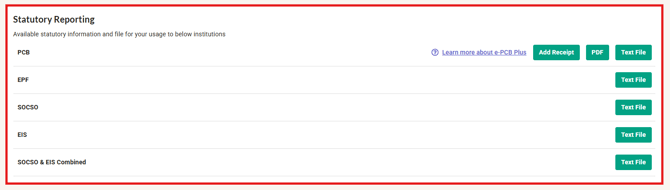
- After downloading the text files from the system, proceed to upload them to the relevant Statutory Portals (e.g., KWSP, LHDN portals).
NOTE:
1) Ensure that the files generated from the system are correct. If you upload a file from the Statutory Reporting category to the Bank Portal, an error message indicating an incorrect format will be received.
2) Successful uploads will only occur if the files are downloaded from the correct category and uploaded to the corresponding portals.
SOCSO Bank File Format: Before and From 1 November 2026
Alliance Bank has introduced a new SOCSO bank file format that reports SKBBK (PERKESO Lindung 24 Jam, the non-occupational accident scheme) contributions separately from SOCSO. Alliance Bank has advised that the new format is required from 1 November 2026, and that the previous format should be used until then.
IMPORTANT: brioHR selects the format automatically, based on the date you download the file (Malaysia time). There is no setting to change.
|
You download the SOCSO bank file |
Format generated |
What's in the file |
|---|---|---|
|
Up to 31 October 2026, 11:59 PM |
Previous format |
One Contribution Amount per employee. SKBBK, if any, is included in this amount. |
|
From 1 November 2026, 12:00 AM |
New format |
The employee's Salary, the SOCSO Contribution Amount and the SKBBK Amount are reported separately. The file total is SOCSO + SKBBK. Employees who opted out of SKBBK show an SKBBK Amount of zero. |
IMPORTANT: The format follows the download date, not the payroll month.
- If you download a SOCSO bank file in October but upload it to the bank on or after 1 November, the bank may reject it. Download it again on or after 1 November, then upload the new file.
- A file downloaded on or after 1 November always uses the new format, even for an earlier payroll month.
NOTE: Only the SOCSO bank file is affected. The Alliance Bank Payroll, EPF, EIS and PCB bank files are unchanged.
Common Issues/ FAQ
1. The bank file that is uploaded shows an error message of invalid format
Ans: Ensure that the correct file is being used to upload onto the correct portal. For example, if the bank file downloaded is being uploaded onto the Statutory portal, this error message will appear.
2. The bank file uploaded states that there is incomplete information - missing Identity/Passport Number
Ans: Ensure the toggle to Fill in the Identity/Passport Number has been enabled before the bank file is generated.
3. My SOCSO bank file was rejected by Alliance Bank because of its format.
Ans: Check when you downloaded the file. Files downloaded before 1 November 2026 use the previous format; files downloaded from 1 November 2026 use the new format. If you're uploading on or after 1 November, download the SOCSO bank file again from brioHR and upload the new file.
4. Can I choose between the previous and new SOCSO format?
Ans: No. brioHR selects the format automatically based on the download date, so there is no option to choose.
Related Articles
1. How to Process Payroll in the Correct Order with BrioHR
2. Payroll Malaysia: Step-by-Step Guide to Download Statutory Contribution Text Files (EPF, SOCSO, EIS, PCB)
3. How to Manage BrioHR Multicycle Payroll: Guide + Video
Ownership
By: Arveena