![brioHR-logo-color.svg]](https://support.briohr.com/hubfs/brioHR-logo-color.svg)
Audience & Scope
Audience: HR Admin and Payroll Manager
Module: Payroll
Country: Global
Pre-requisites: User group permission for Employee Profile and Payroll Module
How it Works
When you add a new salary for an employee with an effective date in the past, the system identifies the need for retro pay.
-
Triggering the Calculation: When adding a salary in the Employee Profile > Compensation tab, if the effective date is earlier than the current month and the amount is higher than the previous salary, a prompt will ask if you want to calculate arrears.
-
System Simulation: The system simulates all completed payroll cycles between the "Effective Date" and the current payroll month.
-
Automatic Comparison: It compares what was actually paid against what would have been paid with the new salary. This includes:
-
Basic Salary
-
Overtime and other salary-based additions
-
Unpaid Leaves and other salary-based deductions
- Any other daily and hourly (salary-based) unit additions/deductions
-
-
Review and Approve: In the Run Payroll page, you will see an "Arrears of Salary" tab. You can then:
-
Calculate: Trigger the background process to determine exact amounts.
-
Add to Payroll: Include the calculated difference in the current payroll cycle.
-
Skip/Cancel: Defer the payment to a future cycle or cancel the arrears entirely.
-
- 12-Month Limit: You can only calculate arrears for up to 12 months prior to the employee's latest completed payroll month.
- Monthly Salaries Only: This feature currently applies to employees with a Monthly salary type in Malaysia (MY) or Singapore (SG) payroll centers.
- No Overlapping Arrears: You cannot create a new backdated salary that overlaps with an existing, active arrears calculation.
- Statutory Contributions: The system automatically calculates relevant statutory contributions (such as EPF, SOCSO, or PCB) on the arrears amount during the payroll run.
Step-by-Step Instructions
Setting up Arrears of Salary in the Payroll Module
1. Go to HR Lounge > Payroll > Settings > Arrears of Salary
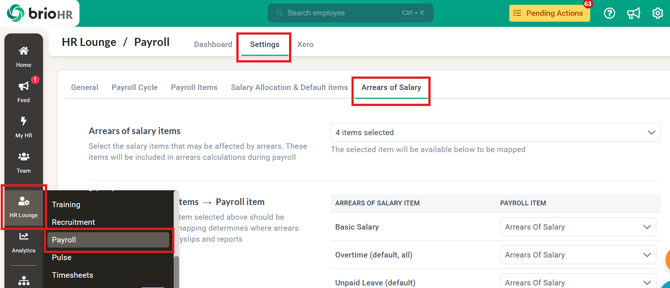
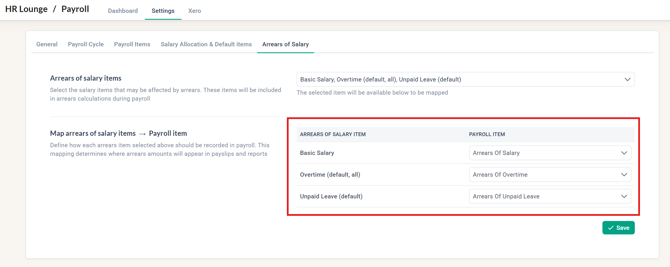
2. Define which payroll items you also want to include in the arrears calculation, i.e., overtime, and unpaid leaves.
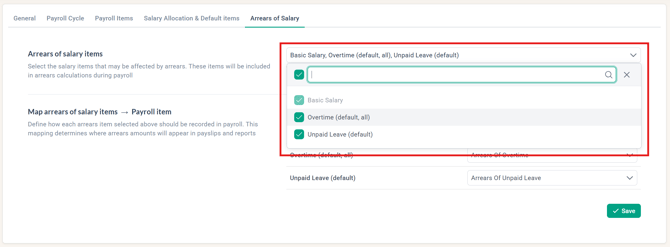
NOTE:
Only payroll items with 'Hours' or 'Days' unit type can be added as a salary item. Fixed rate per unit options ('Fixed amount' and 'Full shift') are not supported.
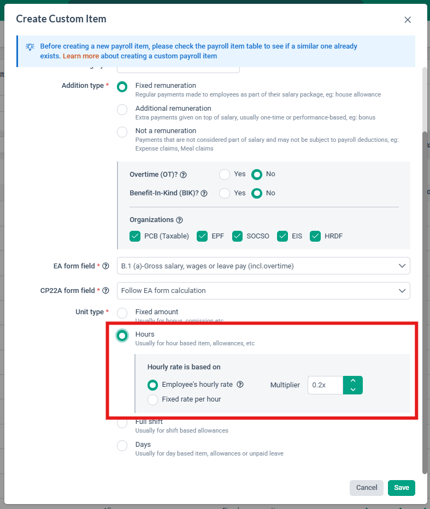
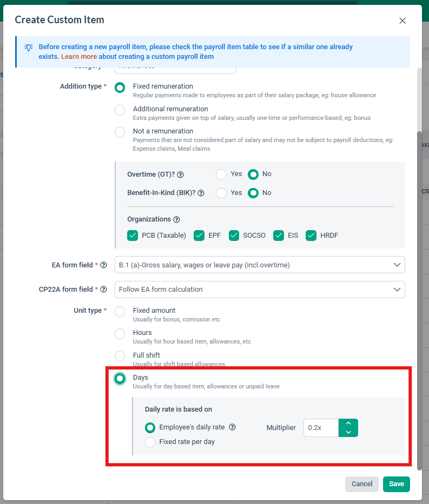
3. Choose how you want to record each arrears item in your payroll process (choose the payroll item).
NOTE:
The dropdown selection is based on the available payroll item (addition/deduction). If you would like to have a new payroll item created for a specific item, create it first under the payroll item tab.
LEARN MORE: How to Use the New Payroll Items Table in Malaysia and Singapore Payroll
4. Click Save
Entering Backdated Salary through the employee profile
1. Go to HR Lounge > Employee Management > Choose employee
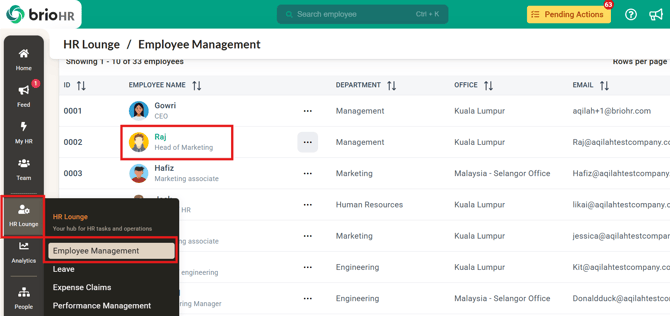
2. In the employee's profile > go to Compensation > Add new salary
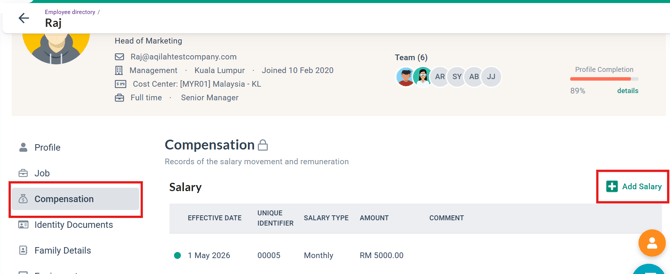
3. Enter the new salary details in the pop-up. Make sure to choose 'Yes' for 'Calculate as Arrears of Salary in payroll?'
IMPORTANT:
Arrears of Salary will only be added if:
1. There is a new salary record
2. The effective date is on or before the previous payroll month
3. Salary type is monthly
4. Salary is 1 MYR/SGD higher than the previous salary
5. The employee must be assigned to a MY/SG payroll center
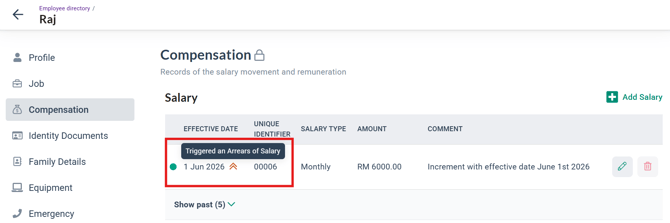
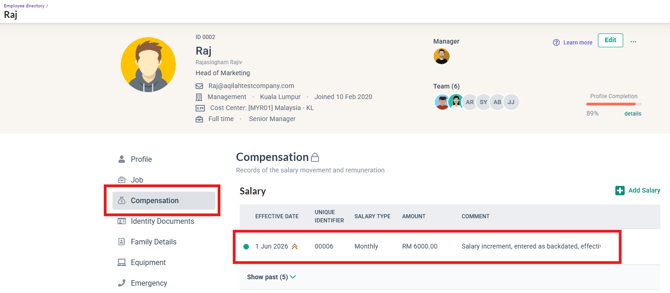
4. There will be a special icon next to the effective date for the salary record to indicate there is an arrears of salary
Entering Backdated Salary through bulk upload
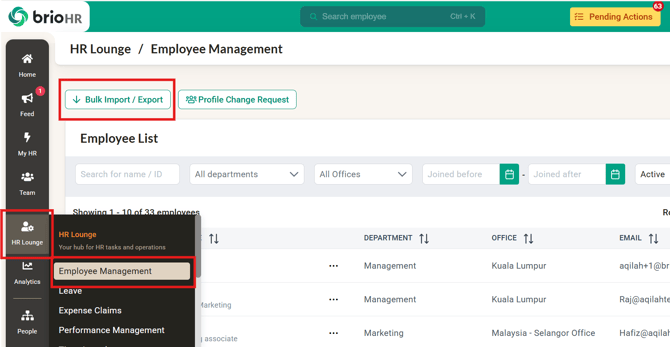
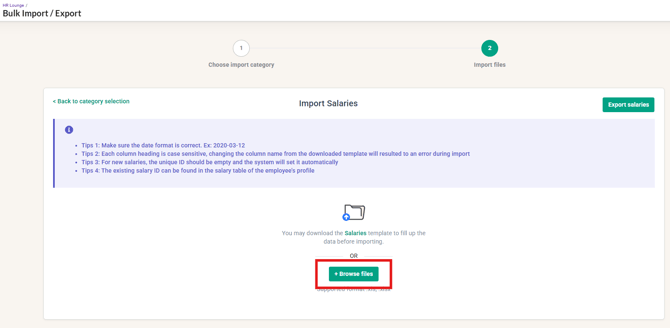
1. Go to HR Lounge > Employee Management >Bulk Import/Export
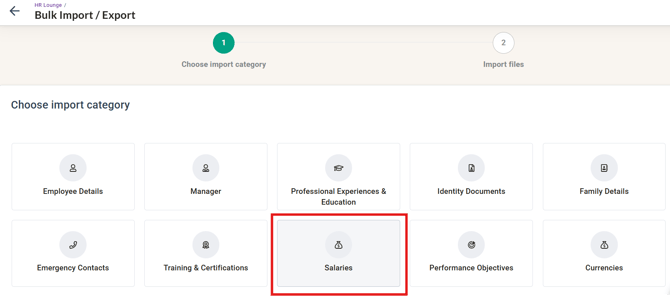
2. Click on the Salaries option.
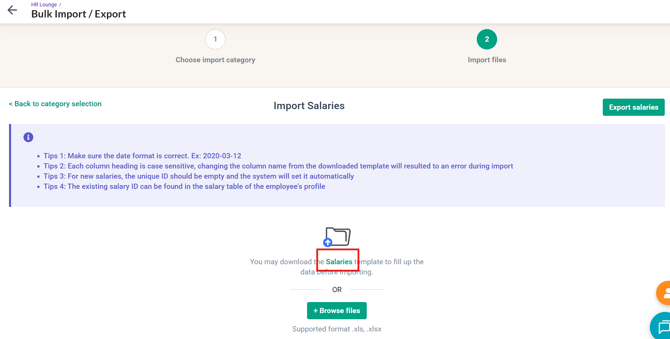
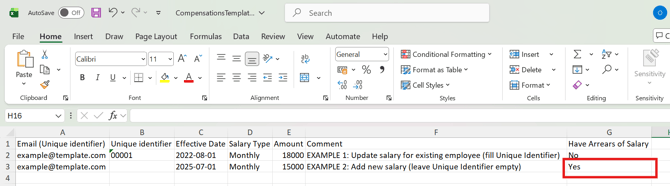
3. Click on Salaries to download the Excel template
4. Type 'Yes' for the column 'Have Arrears of Salary' to ensure the system will calculate arrears of salary.
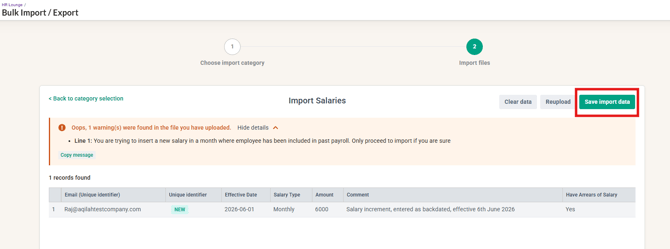
5. Once you've finished editing the Excel, upload it to the Salaries page, check that there are no errors, and click 'Save import data'. If you have any errors, please edit your Excel file and upload it again.
6. Check that the salary record (under employee profile > Compensation > Salary) is reflecting correctly with the arrears of salary symbol next to the effective date.
Calculating Arrears when running payroll
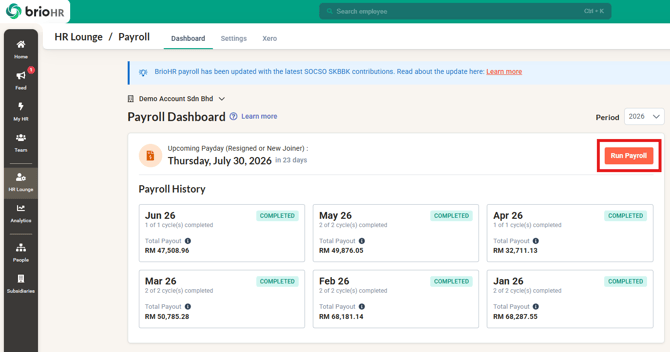
1. In HR Lounge > Payroll > Dashboard, click Run Payroll.
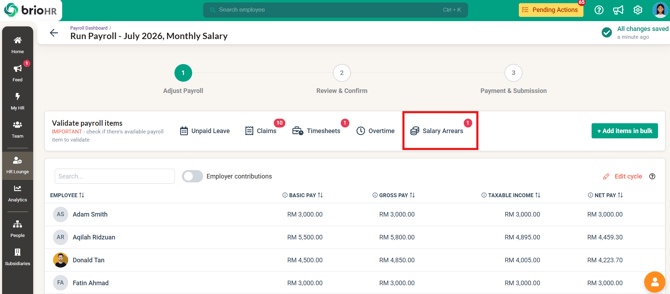
2. In the Adjust stage of your payroll run, click the 'Salary Arrears' button
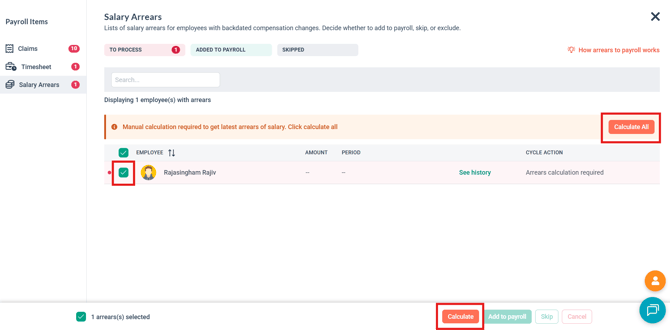
3. Select which employee you want to calculate the arrears for or click 'Calculate All' to calculate for everyone with arrears. This is helpful if you uploaded salary records with arrears in bulk.
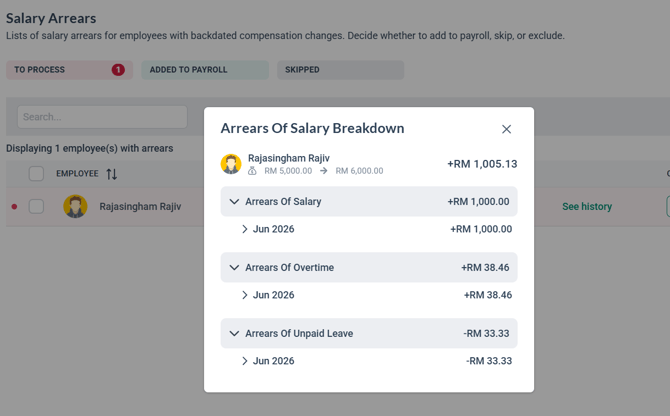
 4. Once the calculation is done, you can check the breakdown for the arrears by clicking 'See breakdown'.
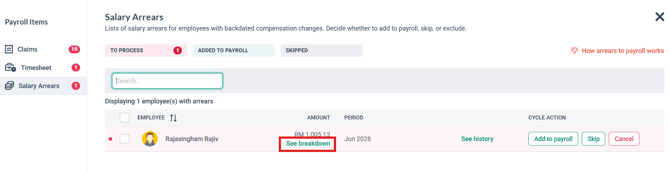
5. The breakdown will show all arrears (e.g., overtime, unpaid leave, etc) based on what you include in the arrears of salary settings.
CLARIFICATION ON EXAMPLE:
In the example below, the employee had an increment effective in June, but only entered it into the system in July, creating arrears for one month's pay.
In June, the employee also had:
-
overtime hours and
-
an unpaid leave deduction
The image below shows 3 types of arrears (not just arrears of salary) as additional pay for overtime hours, and an additional deduction for unpaid leave is also calculated.
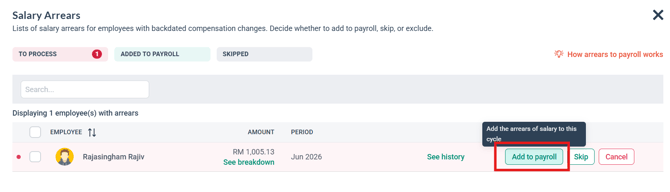
6. Click 'Add to payroll' if you would like to pay out the arrears in the current cycle.
NOTE:
-
Select 'Skip' if you want to process the arrears in a different cycle.
-
Select 'Cancel' if you would like to cancel the arrears. Please note that this action will not remove the salary change. Deleting the salary will need to be done in the employee profile. To trigger arrears again, you will need to delete the salary change from the employee profile and add a new one.
7. Check that the payroll item for the arrears reflects correctly under the employee(s).
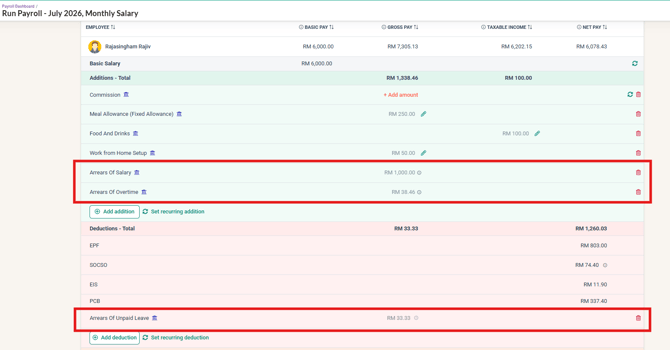
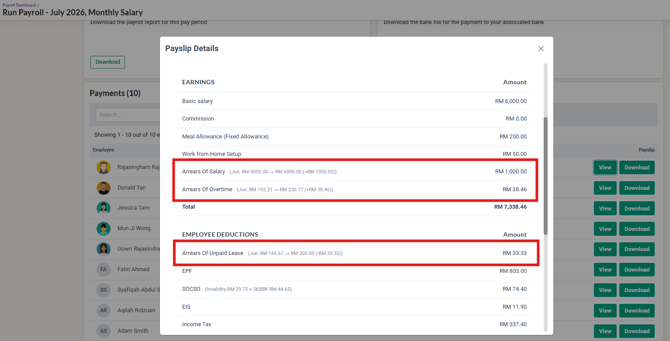
8. Continue processing payroll until completion and payout. The employee's payslip should reflect the arrears processed.
Common Issues/FAQ
Q1: Can I edit a salary record after arrears have been calculated?
A1: To maintain data integrity, you cannot edit or delete a compensation record while it has an "active" arrears status (Calculated or Added to Payroll). You must first cancel the arrears in the Run Payroll page.
Q2: How is the amount displayed to the employee?
A2: Once processed in payroll, the total difference could show as -
- Salary -> Arrears of Salary
- Overtime -> Arrears of Overtime
- Unpaid leave -> Arrears of Unpaid leave
Note: This depends on how your 'Arrears of Salary' settings are configured.
Q3: If an increment is RM 1,000 per month and it is backdated 3 months, how much is the arrears?
A3: The system would calculate the arrears as:
Q4: What if the effective date starts in the middle of a month?
A4: The system will automatically prorate the calculation for that specific month.
Related Articles
How to Bulk Import Salary by Bulk
How to Manage BrioHR Multicycle Payroll: Guide + Video
How to Use the New Payroll Items Table in Malaysia and Singapore Payroll
Ownership
By: Aqilah