![brioHR-logo-color.svg]](https://support.briohr.com/hubfs/brioHR-logo-color.svg)
Audience & Scope
Audience: HR Admin
Module: Expense Claims
Country: Global
Pre-requisites: User group settings (Access to Admin Settings and HR Admin Permission for Expense Claim Module)
Step-by-Step Instructions
Part 1: Setting the Head of Department
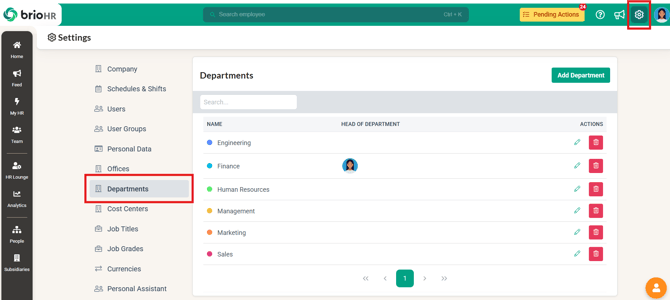
1. Go to Admin Settings > Departments
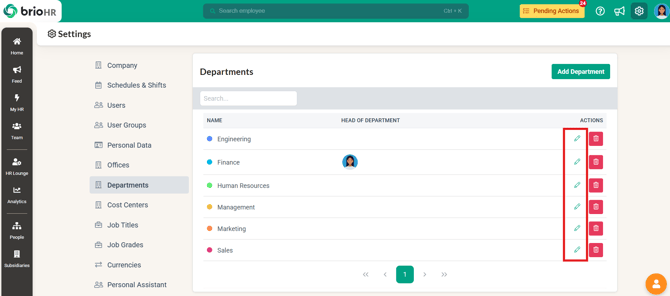
2. Click the edit button for the department you want to add the HOD of
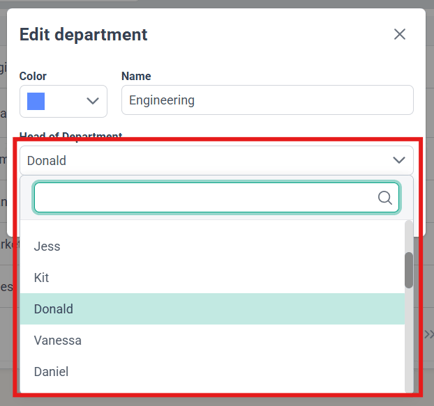
3. Choose the name of the HoD from the dropdown
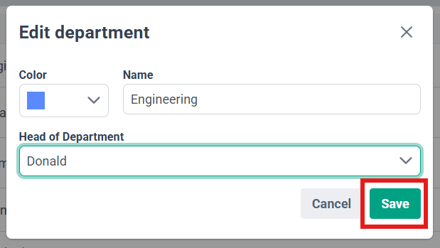
4. Click Save
Part 2: Assign/Add HoD to Claim Approval Workflow
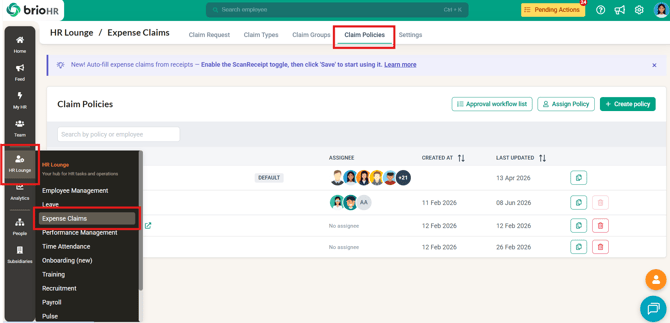
1. Go to HR Lounge > Expense Claims > Claim Policies
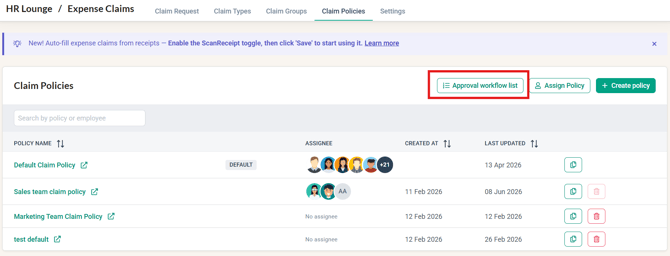
2. Click on the 'Approval workflow list'.
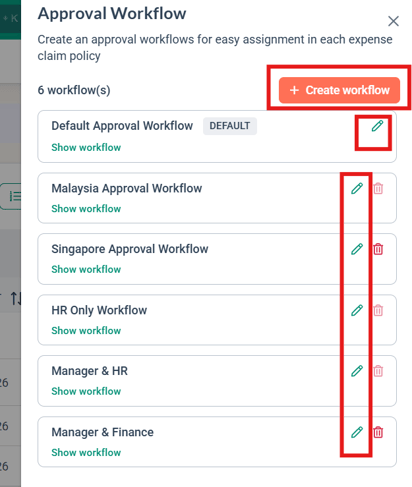
3. You can create a new workflow or edit an existing workflow
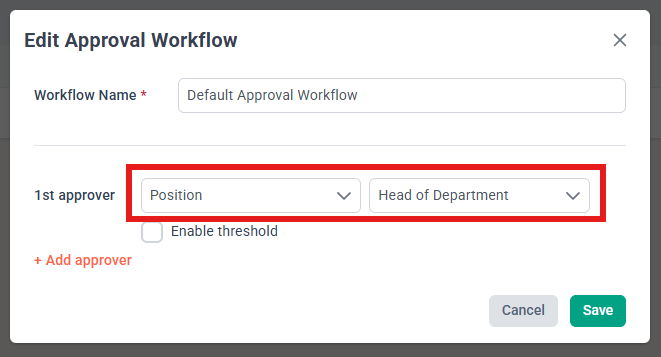
4. When choosing the approver, choose Position for the first dropdown, and Head of Department for the second dropdown.
IMPORTANT:
The approval step where the Head of Department is selected is skipped if:
- An employee's department has no HoD set (refer to Part 1 above)
- The HoD is the submitter of the claim
- the HoD has ended employment (inactive)
5. If needed, check and update the approval workflow for the specific claim policies.
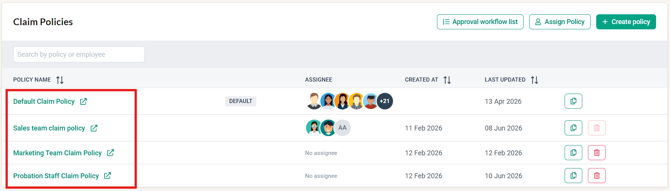
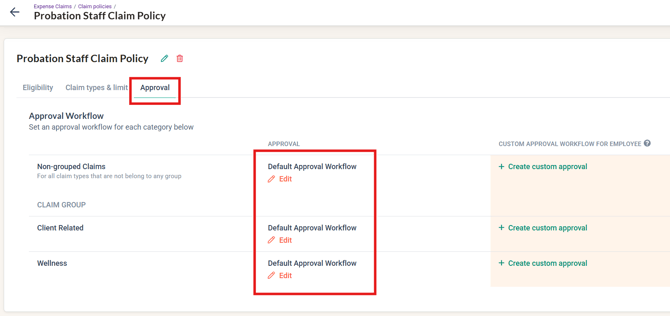
Learn more: For more details on how to create/edit approval workflow in claim policies, refer to the article here
NOTE:
Changes in the claim approval workflow will only affect future claim submissions. Claims that are submitted will follow the approval workflow at the time of submission.
Common Issues/FAQ
Q1: Can I select multiple people as HoD?
A1: No. Only one person can be selected as the HoD for each department.
Q2: Can the same employee be set as HoD of multiple departments?
A2: Yes. The same employee can be HoD of multiple departments.
Q3: If the HoD cannot approve/reject a claim due to being out of the office, who can approve on behalf?
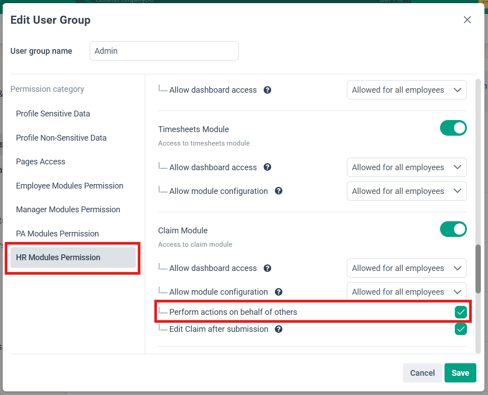
A3: Admins with access to the expense claims module and permission to perform actions on behalf of others will be able to approve/reject on behalf. Refer to the picture below for user group settings that allow this behaviour.
Related Articles
How to Create and Manage Claim Policies
Ownership
By: Aqilah