![brioHR-logo-color.svg]](https://support.briohr.com/hubfs/brioHR-logo-color.svg)
Audience & Scope
Audience: Manager
Module: Time Attendance
Country: Global
Step-by-Step Instructions for Flexible schedule employees
-
Click into Team and into the Time Attendance module
-
Proceed to click into the Rostering page and search for the Employee required

-
Click on the 'Add' button and click into the Add Pre-Approved overtime (OT)
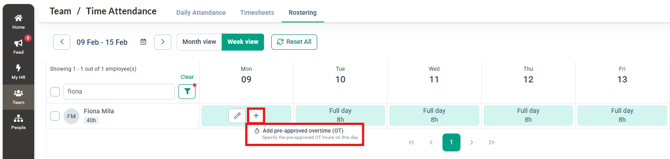
-
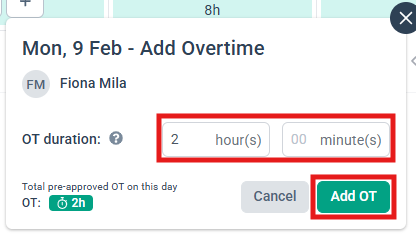
Fill in the number of hours/minutes for the Pre-Approved overtime and click Add OT
-
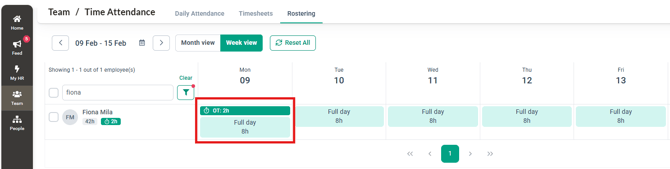
You will then be able to see the Pre Approved OT showing for the employee's roster
Step-by-Step Instructions for Shift schedule employees
-
Click into Team and into the Time Attendance module
-
Proceed to click into the Rostering page and search for the Employee required

- Click on the 'Add' button and click into the Add Pre-Approved overtime (OT)
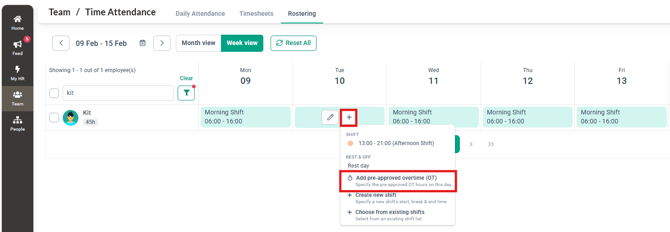
- Fill in the number of hours/minutes for the Pre-Approved overtime and click Add OT
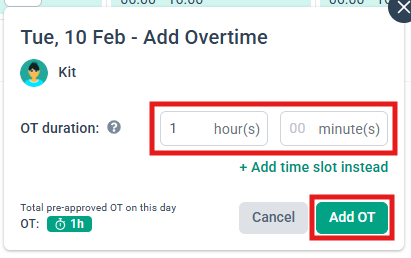
- You will then be able to see the Pre Approved OT showing for the employee's roster
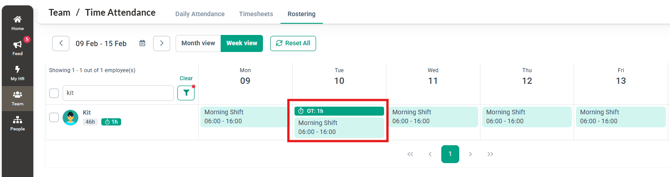
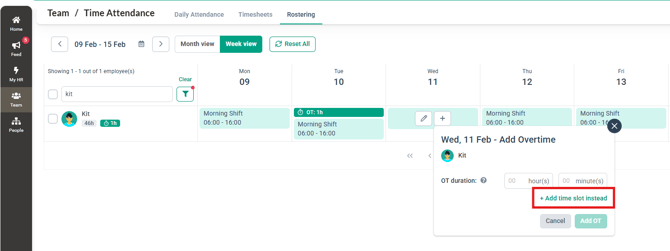
- If you wish to add this Overtime as another shift, click on the 'Add time slot instead' button
- Fill in the necessary information and click 'Create'
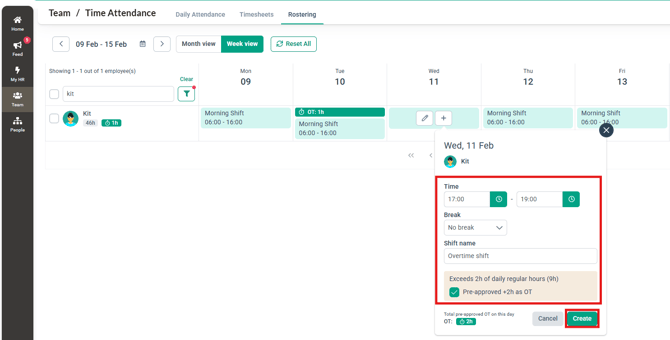
- You will then be able to see the Overtime added as an additional shift for this employee
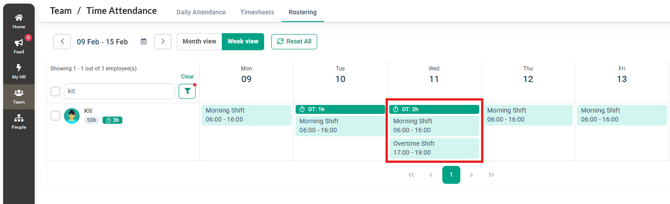
NOTE:
The Pre-Approved Overtime can still be edited even after the Roster has been published. You will need to hover over the Overtime added and click to modify the hours accordingly.
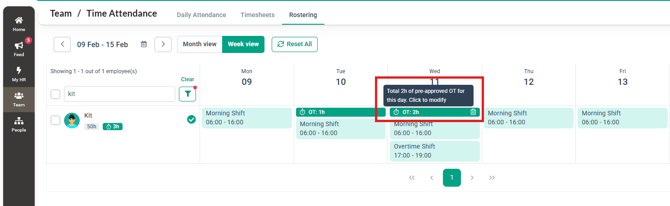
NOTE:
-
Pre-approved OT (assigned by manager) is visible in:
-
HR Lounge > Time Attendance > Rostering (for HR Admin)
- HR Lounge > Time Attendance > Timesheets (for HR Admin)
- Team > Time Attendance > Rostering (for manager)
- Team > Time Attendance > Timesheets (for manager)
-
-
Calculated OT (from actual clock-in/out) is auto-calculated when employee works beyond scheduled hours and IF 'Calculate Overtime' is enabled in the employee's TA policy. The overtime hours can be checked at HR Lounge > Time Attendance > Timesheet (not in Roster).
Common Issues/FAQ
Q: Who can assign pre-approved overtime in the system?
A: Pre-approved overtime can be assigned by managers with access to the Team and Time Attendance modules.
Q: Can I assign pre-approved overtime for both flexible and shift schedule employees?
A: Yes. Pre-approved overtime can be added for both flexible schedule and shift schedule employees by accessing the Rostering page in the Time Attendance module.
Q: Will the pre-approved overtime appear on the employee’s roster immediately?
A: Yes. Once added, the pre-approved overtime will be displayed directly on the employee’s roster.
Q: Can pre-approved overtime be added as an additional shift?
A: Yes. For shift schedule employees, you can select Add time slot instead to create the overtime as an additional shift by filling in the required details and clicking Create.
Q. Can pre-approved overtime be edited after the roster is published?
A: Yes. Pre-approved overtime remains editable even after the roster has been published. Simply hover over the overtime entry on the roster and click to modify the hours.
Related Articles
1. How Manager Manage Rostering for Team Members
2. How to Assign Shifts on Rest Day in BrioHR Time Attendance Rostering
3. How Managers Can Manually Assign and Replace Employee Shifts in BrioHR Rostering
Last Updated & Ownership
Last Updated: 9 February 2026
By: Arveena