![brioHR-logo-color.svg]](https://support.briohr.com/hubfs/brioHR-logo-color.svg)
Audience & Scope
Audience: Manager
Module: Time Attendance
Country: Global
Pre-requisites: Access to Time Attendance module in Teams Dashboard
Step-by-Step Instructions for Managers to request Pre-Approved Overtime
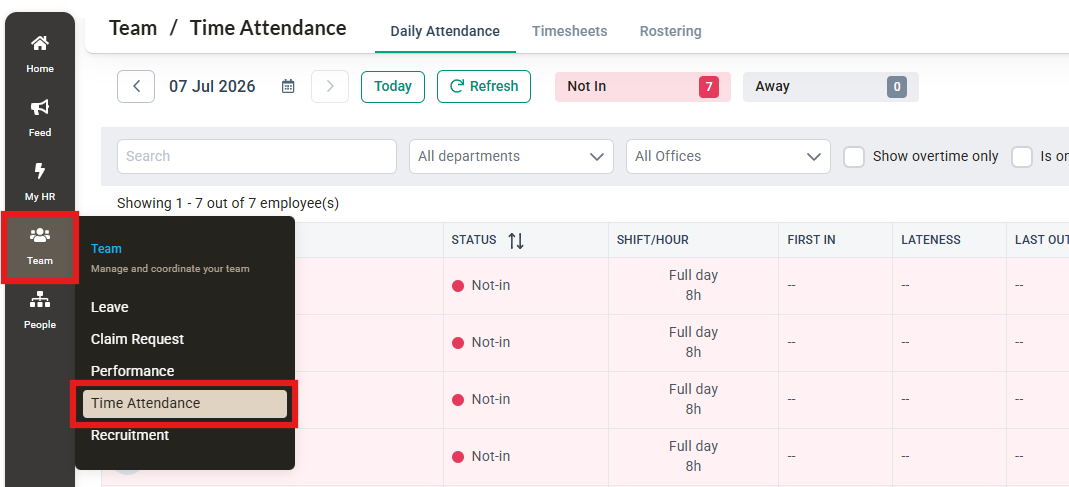
- Hover over Teams and click into the Time Attendance module
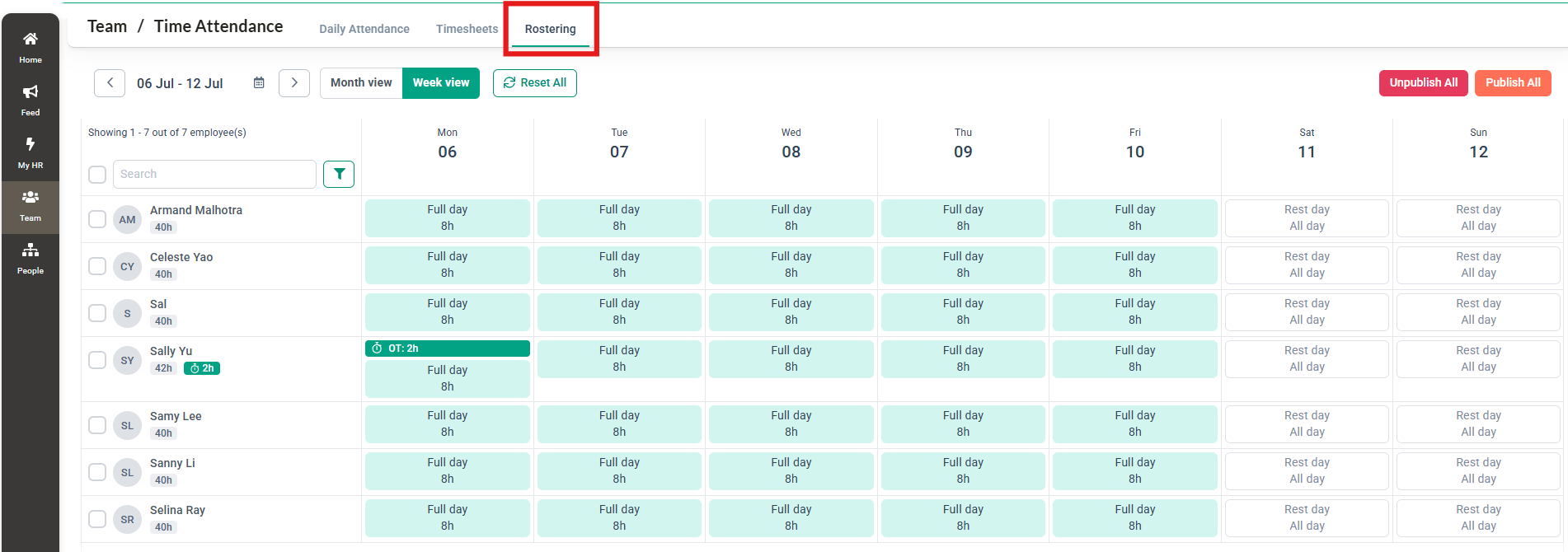
- Proceed to click into the Rostering page
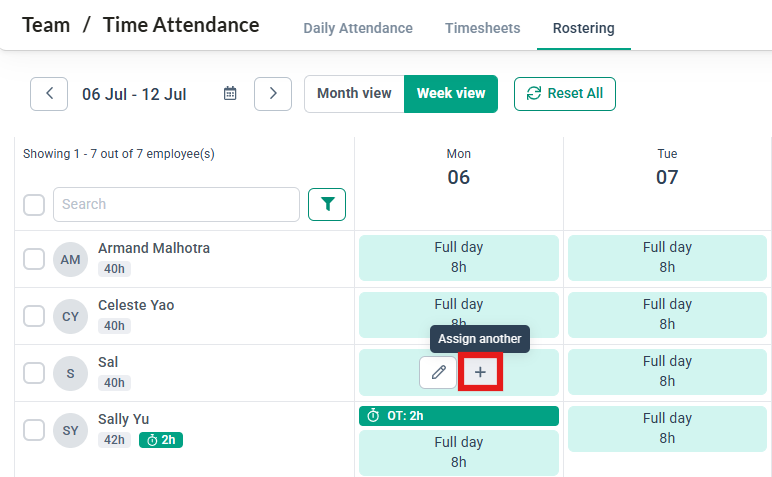
- Click on the + Assign Another button
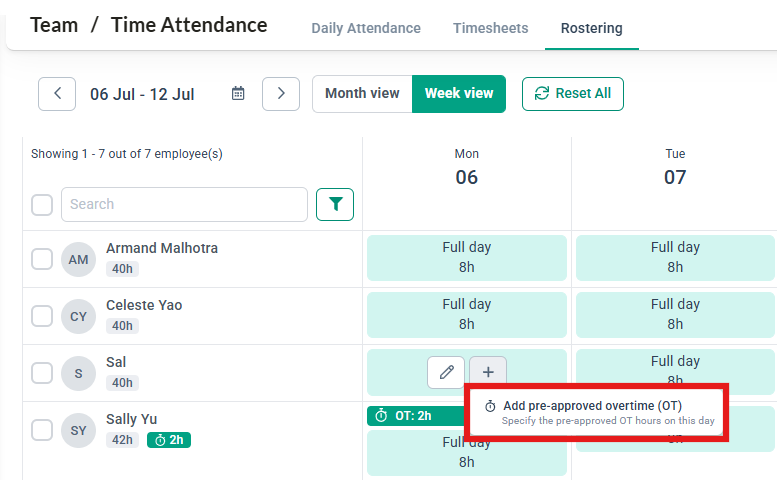
- Then click on Add Pre Approved Overtime
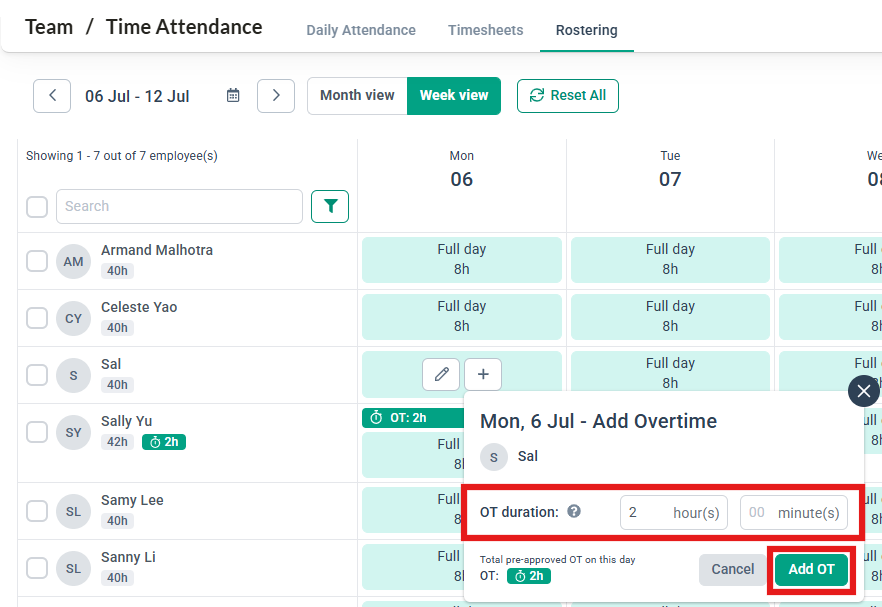
- Fill in the Overtime duration and then click on Add OT
- A success message appears to indicate the Overtime has been added successfully
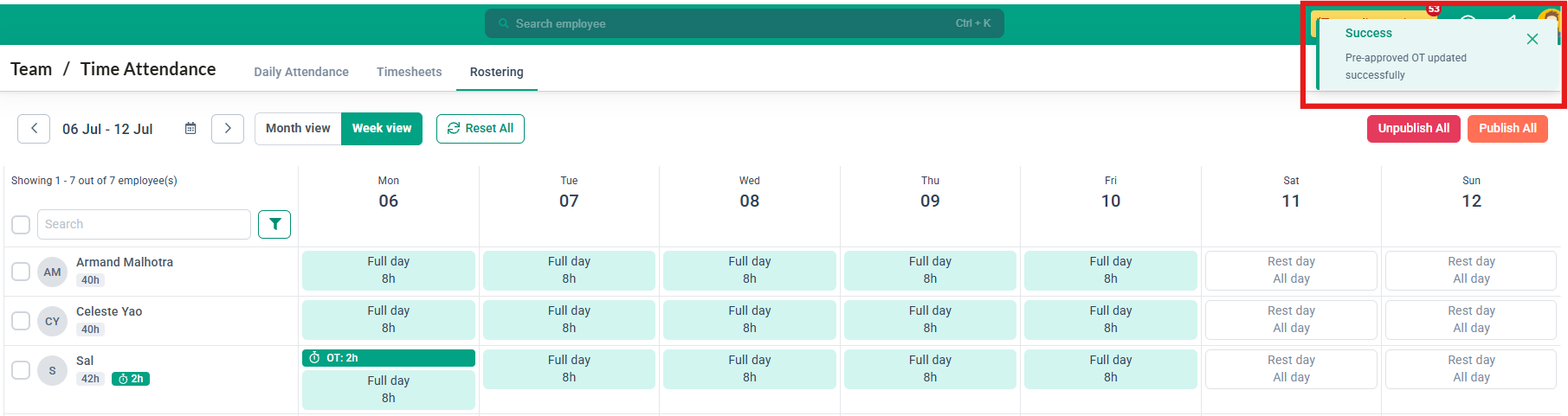
- Next, once the Roster has been published, the Employee will be able to see the Pre-Approved Overtime appearing in their schedules.
Ownership
By: Arveena