![brioHR-logo-color.svg]](https://support.briohr.com/hubfs/brioHR-logo-color.svg)
Great news! BrioHR now supports generating bank files for employers using CitiBank Singapore. Here's a simple guide to get started:
Step 1: Setting Up Your Bank Account
1. In the HR Lounge, navigate to the Payroll section.
2. Click on Settings, scroll down to Bank Account, and select CitiBank in the "Bank Account" field.
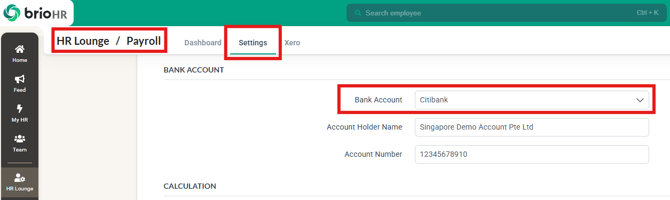
3. Enter the required details, including the Account Holder Name and Account Number.
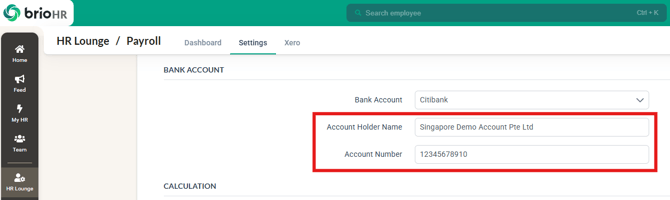
4. Then click Save at the bottom of the page to complete the setup.
Step 2: Downloading the Bank File
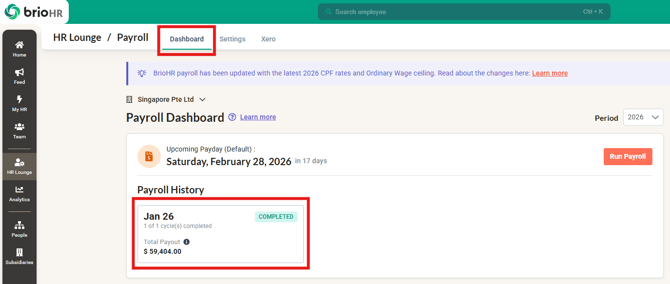
1. In the HR Lounge, navigate to the Payroll section.
2. On the Payroll History dashboard, select the completed payroll month for which you wish to process payments.
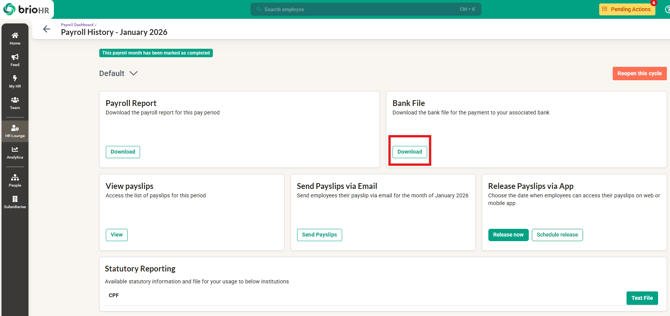
3. Click the Download button for the bank file.
4. Choose the employees to be included in the file, select the Bank Crediting Date, and click Download.
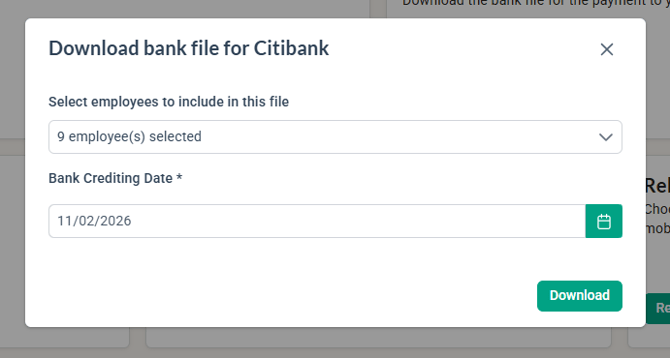
With these steps, your CitiBank bank file will be ready for payroll processing!
Note:
If any required information is missing, the bank file cannot be generated, and a warning prompt will appear (as shown in the screenshot below).
To resolve this, kindly update the missing information and then regenerate the bank file.

Common Issues/ FAQ
1. The bank file that is uploaded shows an error message of invalid format
Ans: Ensure that the correct file is being used to upload onto the correct portal. For example, if the bank file downloaded is being uploaded onto the Statutory portal, this error message will appear.
Related Articles
1. How to Process Payroll in the Correct Order with BrioHR
2. How to Manage BrioHR Multicycle Payroll: Guide + Video
Last Updated & Ownership
Last Updated: 11 February 2026
By: Aqilah Ridzuan