![brioHR-logo-color.svg]](https://support.briohr.com/hubfs/brioHR-logo-color.svg)
This article explains how employees clock on the TimeTec TC10, when their records appear in BrioHR, and how to fix common problems. It's part 5 of 5 in the TC10 setup series.
Watch: Clocking in and out (Full Action Log)
How employees clock in and out
| Mode | What employees do |
|---|---|
| Full Action Log | Press Up for Check-In on arrival or Down for Check-Out when leaving, including going on and returning from break. Check the action on screen, then scan face or finger. |
| First & Last Log | Scan face or finger. The first scan of the day is Clock In and the last is Clock Out. |
| First & Last Log with Break | As above, plus scan once when leaving for break and once when returning. |
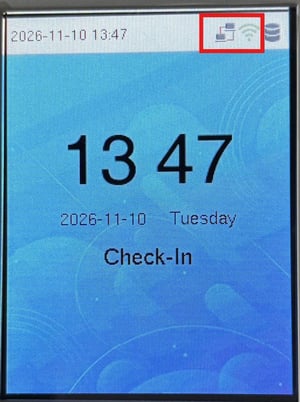
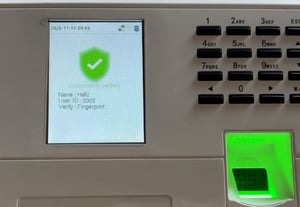
For a good scan, keep the face inside the frame, with no mask or sunglasses, or use a clean, dry finger placed flat.
When records appear in BrioHR
| Record | When it appears |
|---|---|
| Clock In (all modes) | Within minutes, while the device is online. |
| Clock Out, Full Action Log | Within minutes, while the device is online. |
| Clock Out and breaks, First & Last Log | After the split shift time (usually 12:00 AM), once the day has ended. Until then the day shows no last out. |
| Clockings while a device is offline | When the device is back online. |
Good to know
- Forgot to clock out: the next day's first scan counts for the new day, and the previous day shows as incomplete. Correct it with Edit Entry.
- No shift assigned: clockings on days with no shift, such as rest days, aren't recorded and aren't pulled in later. Assign the shift before employees clock in, or enter the time manually.
- Hybrid Attendance with First & Last Log: the mobile app may still show Clock Out after an employee clocks out on the device, until the split shift time. Employees shouldn't tap it.
- Door access: clockings are recorded even if the door is already open.
Troubleshooting
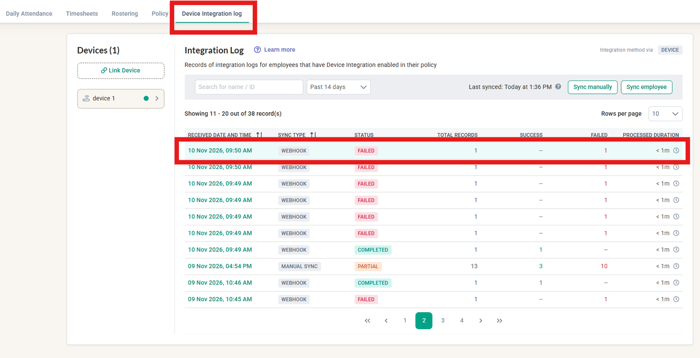
To see why a record failed, go to HR Lounge > Time Attendance > Device Integration Log and click a Failed or Partial entry.
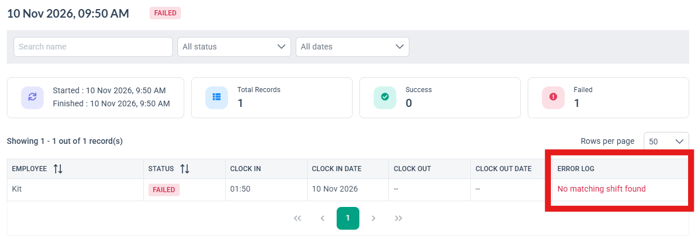
Integration log errors
| Error | Cause and fix |
|---|---|
| Invalid action type | A Full Action Log device isn't set up to send Check-In or Check-Out. Complete the key setup in Install and Set Up Your TimeTec TC10 Device, Step 7. |
| Consecutive clock ins not allowed | The employee scanned in Check-In mode when leaving, or didn't clock out the day before. Remind them to press Down for Check-Out, set up Set Switch Time, and correct the timesheet with Edit Entry. |
| Employee ID not found or not matched | The person on the device was added manually or under an old ID. Use the BrioHR-synced profile and enroll again. |
| Failed for some employees only | Their attendance policy doesn't have Use Integration turned on. |
Device and connection
| Problem | Check |
|---|---|
| Device offline | WiFi is 2.4 GHz, not 5 GHz. Server address is exactly https://sg-push.zkclouds.com with Enable Domain Name on. Firewall allows that server. Wait 5 minutes, then reconnect WiFi. Try another 2.4 GHz network to rule out the router. |
| Device keeps dropping offline | Move it to a LAN cable or a stronger 2.4 GHz network. Frequent drop-outs cause missing, duplicate or out-of-order records. |
| Want to stop using a device | Contact BrioHR Support. Unlinking resets the device and deletes all employees and biometrics on it. |
Employees and records
| Problem | Check |
|---|---|
| Employee isn't on the device | They're active. Their Employee ID has letters and numbers only. They match the device's sync selection. The device has fewer than 800 employees and is online. Wait 10 minutes, then click Sync Employees. |
| Duplicate profiles on the device | Employees were added manually, or IDs were changed in BrioHR. Delete the old profiles and enroll under the BrioHR ID. |
| Clock-outs missing for everyone | One of your linked devices is offline or switched off. All linked devices must be online. Ask Support to remove devices you no longer use. |
| Last out not showing yet (First & Last Log) | Expected until the split shift time has passed. |
| Random, duplicate or out-of-order records after an outage | Correct affected days with Edit Entry, and fix the connection. |
| Double scans, or break shows as Incomplete | Set the Duplicate Punch Period. HR reviews Incomplete records. |
Contact BrioHR Support
Use live chat in your BrioHR account or email support@briohr.com. Include:
- Your company name
- Device serial number(s)
- Clocking mode (Full Action Log or First & Last Log)
- Affected employee's name and Employee ID, with the date and approximate time
- A screenshot of the Device Integration Log entry, if available
Operational hours: Monday to Friday, 9:00 AM – 6:00 PM (Malaysia Time, UTC+8).
Back to the start: TimeTec TC10 First Time Setup: Overview and Requesting Integration