![brioHR-logo-color.svg]](https://support.briohr.com/hubfs/brioHR-logo-color.svg)
Audience & Scope
Audience: HR Admin
Module: Onboarding, Mobile App
Country: Global (statutory body registration is Malaysia only)
Pre-requisites: brioHR mobile app version 2.16.0 or later, and onboarding tasks assigned to you as HR
Probation steps, contract drafting and statutory body registration are always assigned to HR. On the mobile app, you’ll find these tasks in your Task list, the same way they appear in Pending Actions on the web browser.
Tasks you can complete on the mobile app
|
Task |
What you do |
|---|---|
|
Probation setup |
Keep or change the new joiner’s planned probation end date |
|
Probation decision |
Confirm employment, extend probation, or terminate employment |
|
Probation extension decision |
Confirm employment or terminate employment after an extension |
|
Probation extension letter |
Download the template and upload the final letter |
|
Probation end letter |
Download the template and upload the final letter |
|
Contract drafting |
Download the template and upload the contract |
|
Statutory body registration (Malaysia) |
Confirm the registration is completed |
Open your onboarding tasks
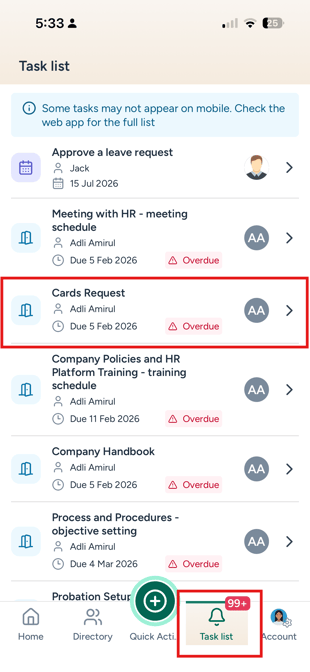
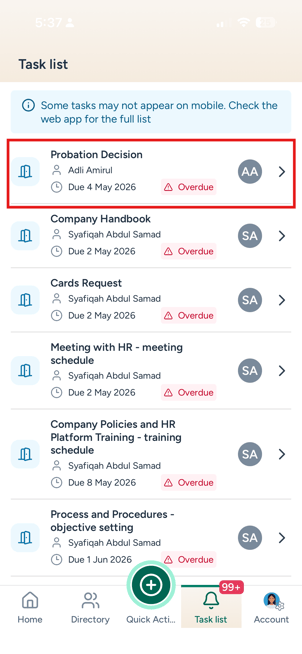
- Open the brioHR mobile app and tap the Task list tab.
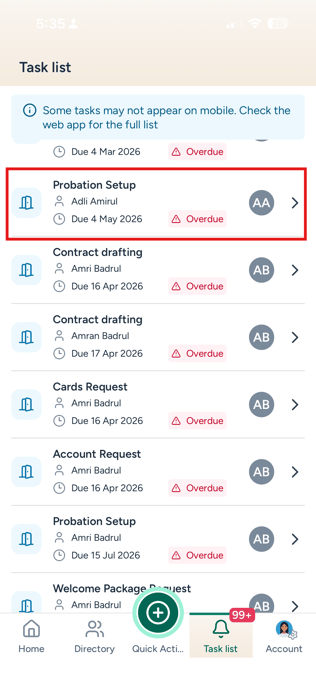
- Find the onboarding task. Each task names the new joiner it’s for.
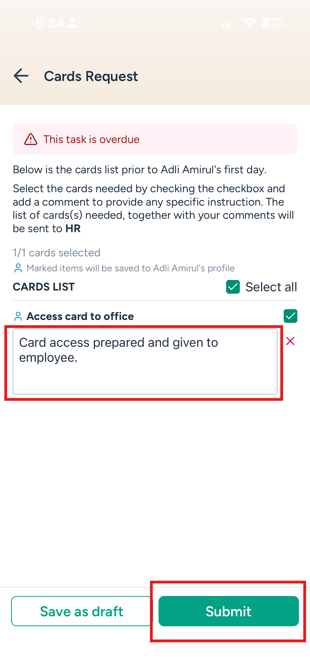
- Tap the task to open it, complete it, and tap Submit.
Once submitted, a success message appears and the task is removed from your list.
Set up probation
This task becomes available on the new joiner’s joined date.
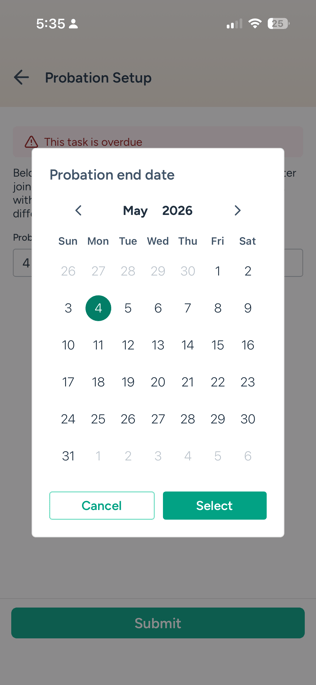
- Open the probation setup task. It shows the planned probation end date and the probation period set in the onboarding process.
- Keep the date, or change it. The date can’t be earlier than the minimum allowed.
- Tap Submit.
Make a probation decision
This task appears when the end of probation is near and a decision is needed.
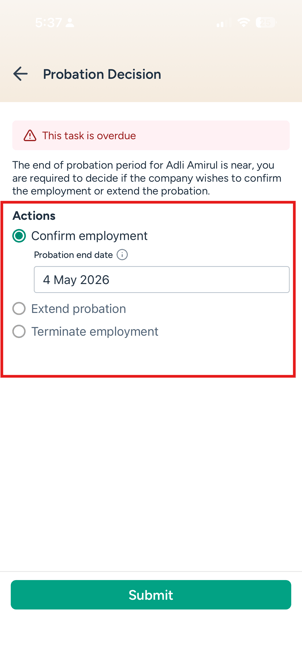
- Open the probation decision task.
- Under Actions, choose one option:
- Confirm employment
- Extend probation
- Terminate employment
- Set the date that appears for your chosen option.
- Tap Submit.
If you extended probation, you’ll get a probation extension decision task later. It works the same way, but only offers Confirm employment and Terminate employment. Confirm employment is prefilled with the extended end date.
NOTE:
The probation decision has no field for a justification or comments.
Upload letters and contracts
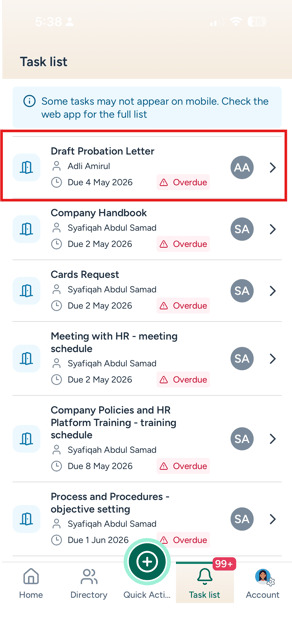
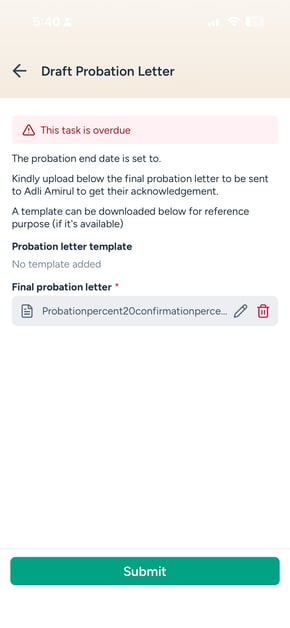
The probation extension letter, probation end letter and contract drafting tasks all work the same way.
- Open the task. It shows the relevant date.
- Download the template. If the onboarding process has no template, the row reads No template added.
- Prepare the final document, then upload it. The upload is required.
- Tap Submit.
TIP:
If the contract is rejected at the contract validation step, the contract drafting task comes back to you with the rejection reason shown in a red banner and the previous contract still attached.
Confirm statutory body registration (Malaysia)
- Open the statutory body registration task.
- Tick Statutory registration completed. Submit stays disabled until it’s ticked.
- Tap Submit.
Other onboarding tasks assigned to HR
If HR is the reviewer for a new joiner’s submitted information, or a custom task is assigned to HR, you can complete those on mobile too. See Complete Onboarding Tasks on the brioHR Mobile App (Stakeholders).
LIMITATIONS:
- HR Lounge > Onboarding isn’t available on the mobile app, so you won’t see the new joiner’s full onboarding progress before making a decision. Check it on the web browser if you need the full picture.
- Only tasks assigned to you appear. You can’t complete tasks on behalf of other stakeholders from the mobile app. This can only be done on the web browser.
- Initiating onboarding, changing stakeholders, resetting onboarding, and changing probation settings are only available on the web browser.
- The new joiner’s own probation acknowledgements aren’t part of these tasks.
Common Issues/FAQs
Q: Why can’t I see the probation setup task yet?
A: It becomes available on the new joiner’s joined date.
Q: Why is there no Extend probation option?
A: You’re on the extension decision task. After one extension, you can only confirm or terminate employment, the same as on the web browser.
Q: Can I add a reason to my probation decision?
A: No. The probation decision doesn’t have a justification or comment field.
Q: Why is Submit greyed out on a letter or contract task?
A: The final document upload is required. Upload the file to enable Submit.
Related articles
- How HR Can Complete Onboarding Tasks in BrioHR
- How to Set Up Probation End Reminders in BrioHR Onboarding Module
- Complete Onboarding Tasks on the brioHR Mobile App (Stakeholders)
- Use the My Team Page on the brioHR Mobile App
Ownership
By: Aqilah