![brioHR-logo-color.svg]](https://support.briohr.com/hubfs/brioHR-logo-color.svg)
Audience & Scope
Audience: Employee
Module: Onboarding
Country: Global
Pre-requisites: Access to brioHR; Admin has started onboarding for the new joiner
Getting Started: The Welcome Screen
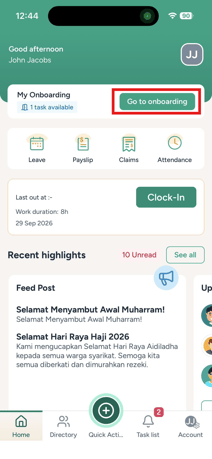
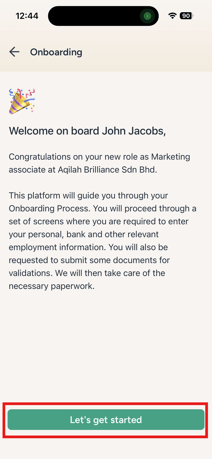
When you log into the brioHR mobile app for the first time, you will be greeted by a personalized welcome screen prepared by your HR team.
- View Welcome Content: Read or watch the welcome message, photo, or video provided by your HR team.
- Begin Onboarding: Tap Let's get started at the bottom of the screen.
- Access Dashboard: Once tapped, your welcome step completes, and you will land directly on your My Onboarding dashboard.
*Note: The welcome screen will not appear on subsequent logins.
Navigating the "My Onboarding" Dashboard
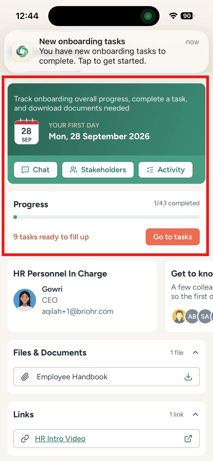
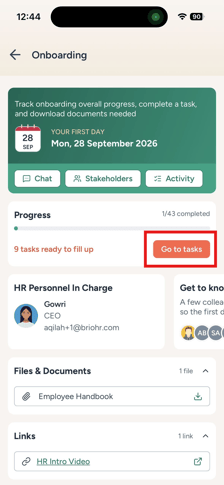
The dashboard serves as your central hub throughout your onboarding process.
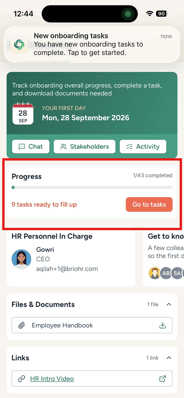
- Overall Progress: View your completion percentage bar at the top of the screen.
- Task Access: Tap Go to tasks to view all pending onboarding forms.
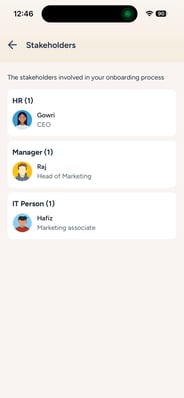
- HR & Stakeholders: View contact details for your assigned HR team members, manager, or buddies.
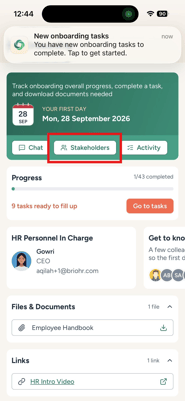
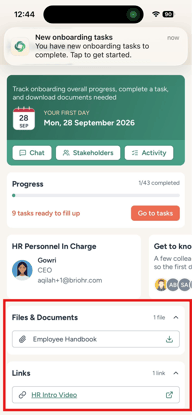
- Shared Files & Links: Access company policies, employee handbooks, or essential links shared by HR.
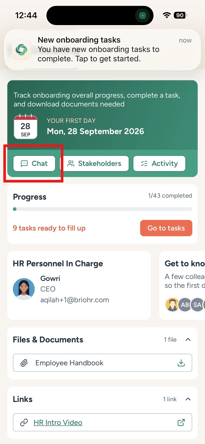
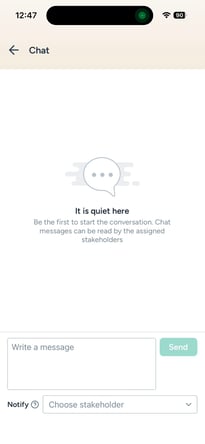
- Stakeholder Chat: Send messages directly to your manager or HR contact.
Managing and Completing Onboarding Tasks
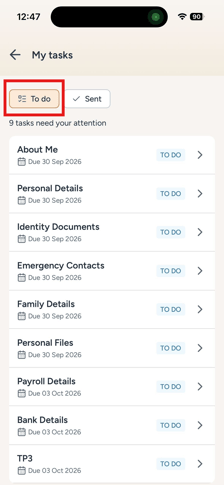
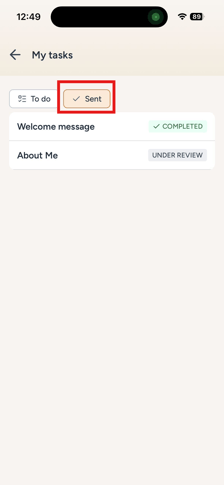
To view your tasks, click Go to tasks (will show My Tasks screen). Tasks are split into two tabs:
- To Do: Displays active tasks requiring your input or action. Tasks past their due date will display a red OVERDUE flag.
- Sent: Displays submitted tasks that are UNDER REVIEW by HR or marked complete.
Task Sections Overview
| Task Category | Key Actions Required | Special Notes |
| Personal Information | Complete About Me, Personal Details, Identity Documents, Emergency Contacts, Family Details, and Personal Files. | Upload required scans/photos (max 10 MB per file). Custom fields vary by office location. |
| Payroll Details | Fill in tax residency details, bank details, payroll files, and TP3 tax forms (Malaysia only). | Only visible if enabled for your region (e.g., Malaysia or Singapore). |
| Qualifications | Fill in Academic Details, Professional Experience, Certificates, and Qualification Files. | These tasks can be skipped by tapping Skip - not applicable if they do not apply to you. |
| Contract Approval & Finalization | Step 1: Read/download the draft contract inside the app. Tap Approve (or Reject with a required reason). Step 2: Download, print, sign offline, and upload the signed copy. |
Approving unlocks the finalization upload task. Rejection sends the contract back to HR for revision. |
| Orientation Feedback | Enter written feedback for scheduled orientation meetings or training sessions. | Meeting feedback unlocks once the session is scheduled. |
| Probation Acknowledgements | Download your probation extension or confirmation letter, tick the I hereby acknowledge checkbox, and submit. | Activates near your probation evaluation date. |
Key Actions & Tips
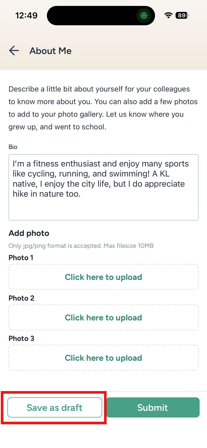
- Saving Drafts: If you need to stop midway through a form, tap Save as draft at the bottom. Your entered data will be preserved under the To Do list until you are ready to submit.
- Skipping N/A Tasks: Qualification tasks (e.g., prior work experience for fresh graduates) include a Skip - not applicable button. Tapping this immediately marks the task complete.
- Handling Sent-Back Tasks: If HR requests changes on a submitted form, the task will return to your To Do tab marked with a SENT BACK status. Open the form to read HR's feedback banner at the top, make the necessary corrections, and resubmit.
- Language Preferences: The app supports 7 languages (English, French, Malay, Chinese, Japanese, Korean, and Thai). App buttons and system text automatically adapt to your device language settings.
- Completion State: Once you complete all active tasks, your dashboard will display an "All set / All caught up" message while HR finalizes your onboarding journey.
Frequently Asked Questions (FAQs)
Q1: What file types and size limits apply to document uploads?
A1: Image slots accept JPG and PNG files. Document upload slots accept standard file formats. Any file larger than 10 MB will be rejected with an error message.
Q2: Can I pause a form and finish it later without losing my progress?
A2: Yes. Tap Save as draft at the bottom of any form. Your entries will be saved, and the task will stay under your To Do tab until you submit.
Q3: What should I do if a task doesn't apply to me (e.g., I have no prior work experience)?
A3:Tasks in the Qualification section (Academic Details, Professional Experience, Certificates, Qualification Files) feature a Skip - not applicable button. Tapping this immediately marks the task as done without requiring you to fill in any fields.
Q4: What does the "SENT BACK" status mean on a task?
A4: If HR or your reviewer finds incomplete or incorrect details on a submitted form, they will send it back. The task re-appears under your To Do list tagged SENT BACK. Open the task to see HR's feedback at the top, make the necessary updates, and resubmit.
Q5: How do I sign my contract on the mobile app?
A5: Contract signing is an offline, upload-based process:
- Open the Contract Approval task to read the drafted PDF directly in the app, then tap Approve.
- Open the Contract Finalization task, download the contract, print and sign it physically, and upload a scan or photo of the signed document.
Q6: I finished all my tasks, but why is my onboarding status still "In Progress"?
A6: Once you submit all actionable tasks, your dashboard will update to "All set. No active task at the moment". Your journey remains open until HR performs their final verification steps on the web platform. Once HR officially closes the journey, restricted mode will lift.
Q7: Why can't I see the Payroll section or TP3 form?
A7: The Payroll section is region-specific and renders only if HR has enabled it for Malaysian or Singaporean payroll centers. The TP3 tax form is exclusive to Malaysian tax declarations.
Q8: What happens if my internet connection drops while I am filling out or submitting a form?
A8: If your phone goes offline or the submission fails, the app will show a clear error message with a retry option. Your typed responses and attached files will not be lost.
Related Articles
How to Get Started on Your Onboarding Journey as a New Joiner
Ownership
By: Aqilah