![brioHR-logo-color.svg]](https://support.briohr.com/hubfs/brioHR-logo-color.svg)
Audience & Scope
Audience: HR Admin
Module: Core HR
Country: Global
Pre-requisites: 'Admin Settings' in the Pages Access of the User Group enabled
Introduction
Managing cost centers effectively is essential for accurate reporting, budgeting, and organizational structure. This guide walks Admins through the complete process of creating, editing, deleting, and assigning cost centers to employees—whether individually or in bulk.
Step-by-Step Instructions to Create, Edit and Delete Cost Centers
Creating a Cost Center
To create a cost center in the system, follow these steps:
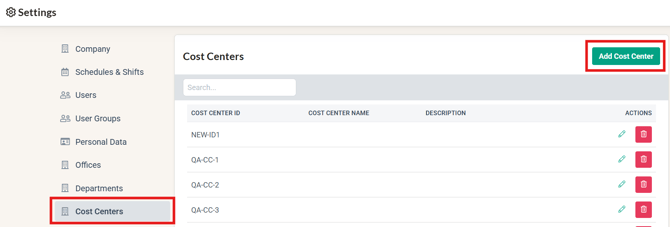
- Go to Settings > Cost Centers
- Click on Add Cost Center
- Fill in the required details
- Click Save once completed
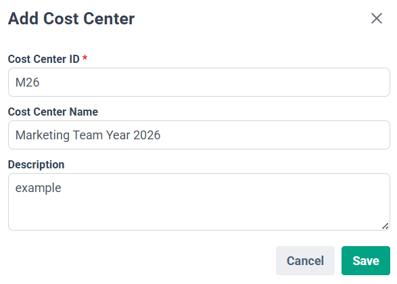
NOTE: The Cost Center ID is mandatory and must be provided in order to successfully create a cost center.
The Cost Center ID must be within 2 - 30 characters. Characters allowed are A-Z, hypen (-) & underscore (_).
Editing a Cost Center
If the cost enter needs to be edited for changes:
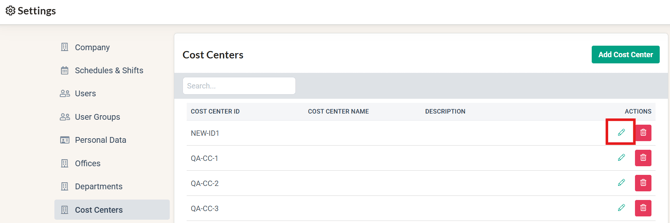
- Click on the Pencil Icon next to the cost center
- Make the necessary changes
- Save your updates
Deleting a Cost Center
If the cost center needs to be deleted, ensure:
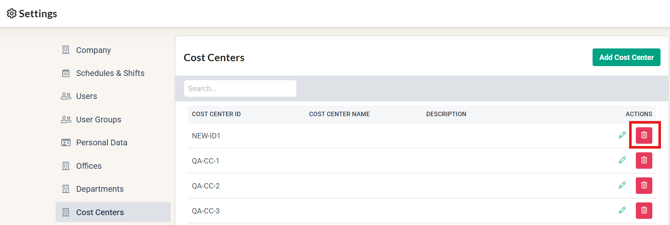
- The cost center is not assigned to any employee
- Then, click on the Delete button to remove the cost center from the system
Assigning Cost Centers to Employees
There are two main ways to assign cost centers to employees:
1. During Employee Creation
When adding a new employee:
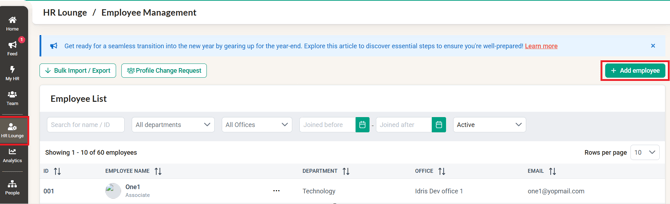
- In HR Lounge, click on Add Employee
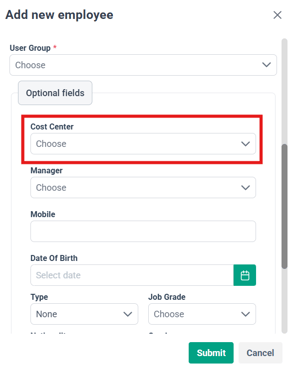
- Locate the Cost Center field under the Optional fields
- Select the appropriate cost center
- Complete the rest of the employee details and Submit
2. Assigning to Existing Employees
a) Assigning to Individual Employees
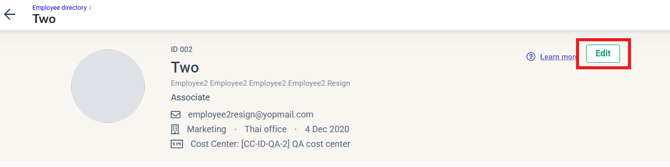
- Go to Employee Profile
- Click Edit
- Scroll down to find the Cost Center field
- Select the appropriate cost center
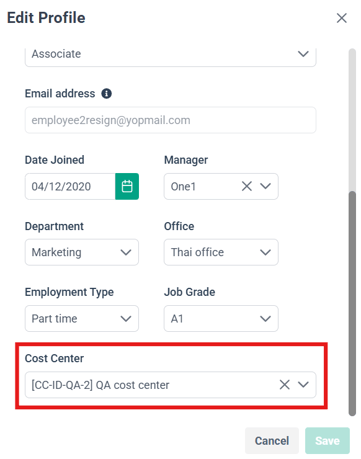
- Click Save
The assigned cost center will be recorded under the Job tab in Job History
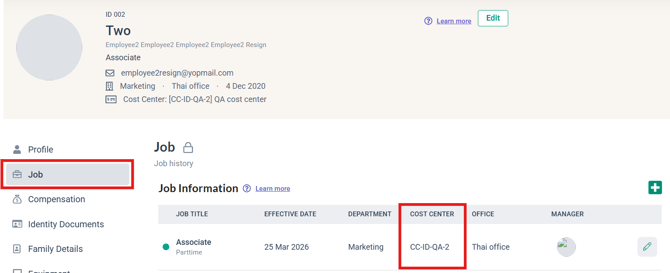
b) Bulk Assigning to Multiple Employees
To assign cost centers to multiple employees at once:
- Go to HR Lounge > Bulk Import/Export
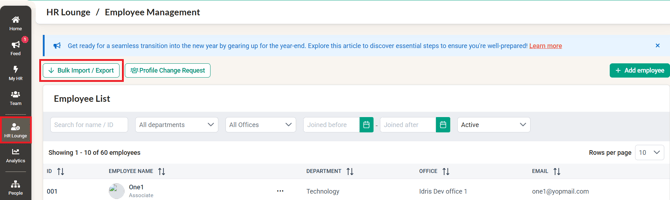
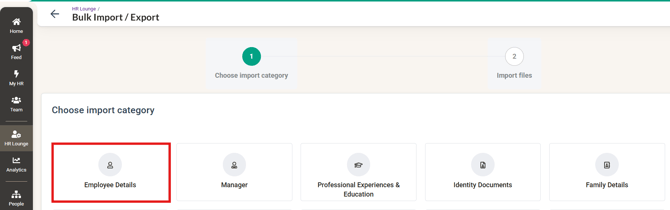
- Select Employee Details
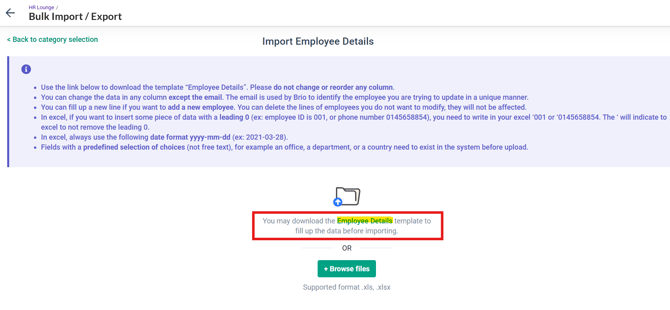
- Download the bulk template
- Update the Cost Center column in the file

- Reupload the completed file into the system and save the imported data.
- The Cost Center updated will be reflected at the employees profile.
NOTE: Ensure that the Cost Center ID already exists in the system before performing the upload.
Common Issues/FAQ
Q: Is the Cost Center ID required when creating a cost center?
A: Yes, the Cost Center ID is a mandatory field and must be filled in before saving.
Q: Can I delete a cost center that is already assigned to employees?
A: No, you must first ensure the cost center is not assigned to any employee before deleting it.
Q: Where can I find the assigned cost center in an employee’s profile?
A: The assigned cost center will be reflected under the Job tab, within the employee’s Job History.
Q: Can I assign cost centers to multiple employees at once?
A: Yes, you can use the Bulk Import/Export feature to assign cost centers to multiple employees efficiently.
Q: Can I assign more than one cost center to an employees ?
A: No, each employee can only be assigned one cost center.
Ownership
By : Arveena