![brioHR-logo-color.svg]](https://support.briohr.com/hubfs/brioHR-logo-color.svg)
Audience & Scope
Audience: HR Admin
Module: Analytics > Report Builder
Country: Global
Pre-requisites: Permission to view performance management reports
Introduction
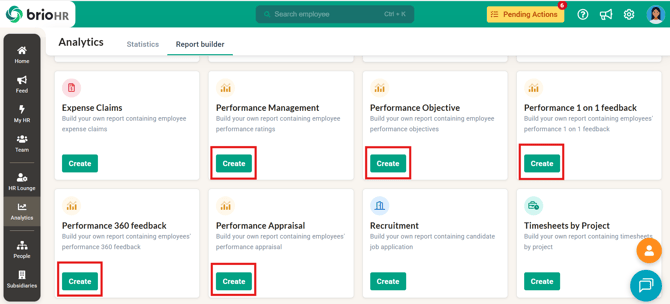
There are 5 different reports for the performance management module that can be found under the Analytics > Report Builder:
- Performance Management
- Performance Objective
- Performance 1-on-1 feedback
- Performance 360 feedback
- Performance Appraisal
All these reports can be generated for ad-hoc performance cycles.
Step-by-Step Instructions
-
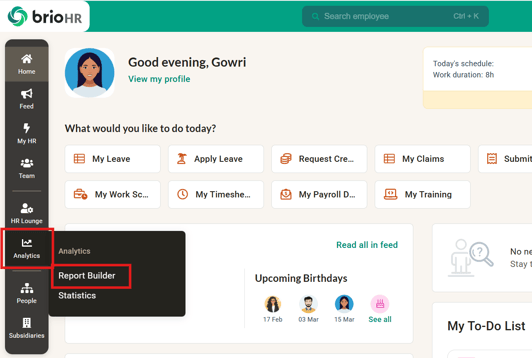
On the main navigation bar, go to Analytics > Report Builder.
- Click 'Create' for the performance report you wish to generate.
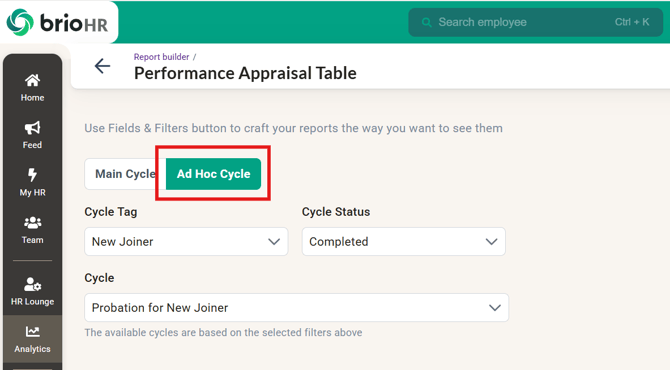
- Click on 'Ad Hoc Cycle'
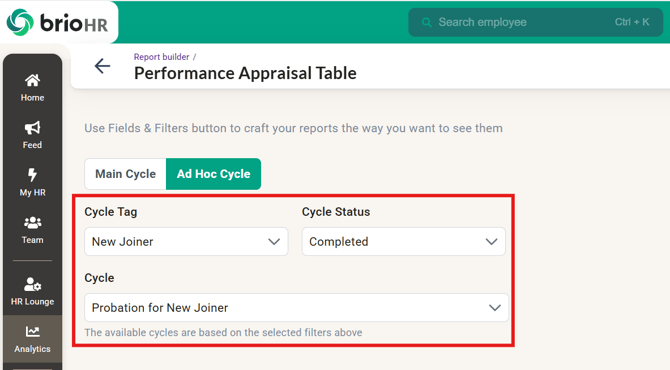
- Choose the specific fields to customize your report:
- Cycle Tag (available for all performance reports)
- Cycle Status (available for all performance reports)
- Cycle (available for all performance reports)
- Report Granuality (only for Performance Objective Report)
- If needed, you may refine the report using the Fields and Filter. Click the "Fields & Filters" button to customize the items included in the report.
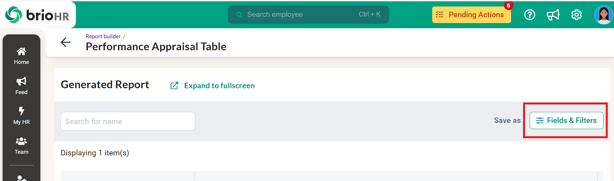
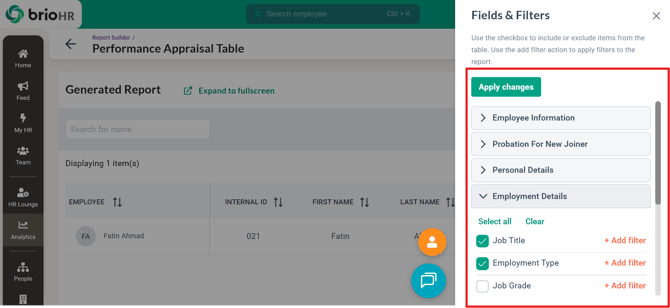
- Select which items you want to include in the report by ticking or unticking the checkboxes. Use the "+ Add Filter" option if necessary.
- Click "Apply Changes" to save your selections.
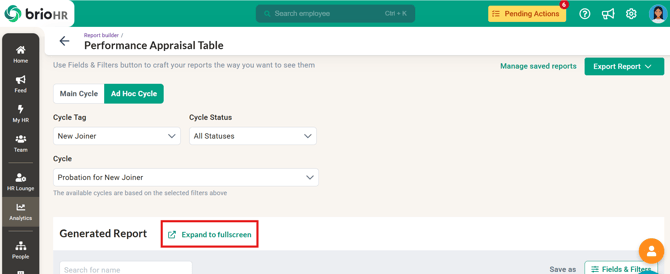
- An overview of how your report will look will be displayed. Click "Expand" to view it in fullscreen if needed.
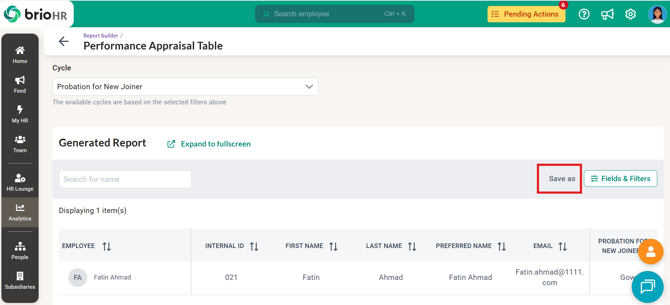
- Once you have your desired data and format, you may save the template for future use using the 'Save as' function. Click "Save As" to save your customized report format.
- A "Save Report as Template" pop-up will appear. Enter a name for your report.
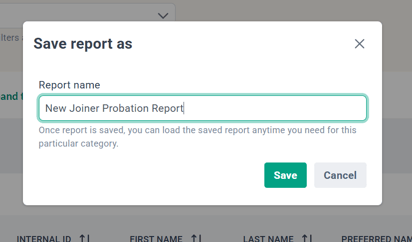
- Click "Save."
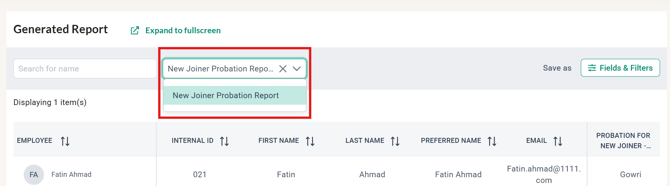
- The saved report will appear under the Generated Reports section. If you have multiple reports, click on the one you wish to display.
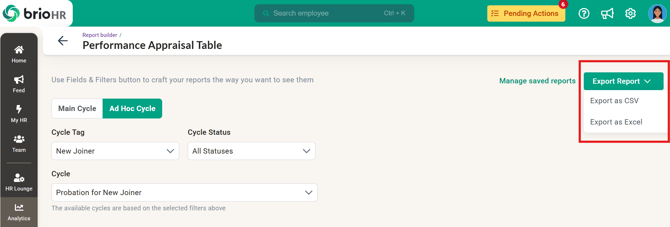
- Click "Export Report" to download the selected report. You can choose to download it in CSV or Excel format.
- The same steps can be applied to create other ad hoc performance cycle reports.
Common Questions
Q: Why can't I see any data?
A: You may not have the necessary permission to view the report. Please check with your company admin on your user group permission settings including office manager settings if needed.
Related Articles
How to Create an Ad-Hoc Performance Appraisal Cycle in BrioHR
Last Updated & Ownership
Last Updated: 12 February 2026
By: Aqilah Ridzuan