![brioHR-logo-color.svg]](https://support.briohr.com/hubfs/brioHR-logo-color.svg)
Audience & Scope
Audience: HR Admin, Claims and Payroll Managers
Module: Payroll
Country: Malaysia & Singapore
Pre-requisites: HR Modules Permission for the Payroll module
Step-by-Step Instructions
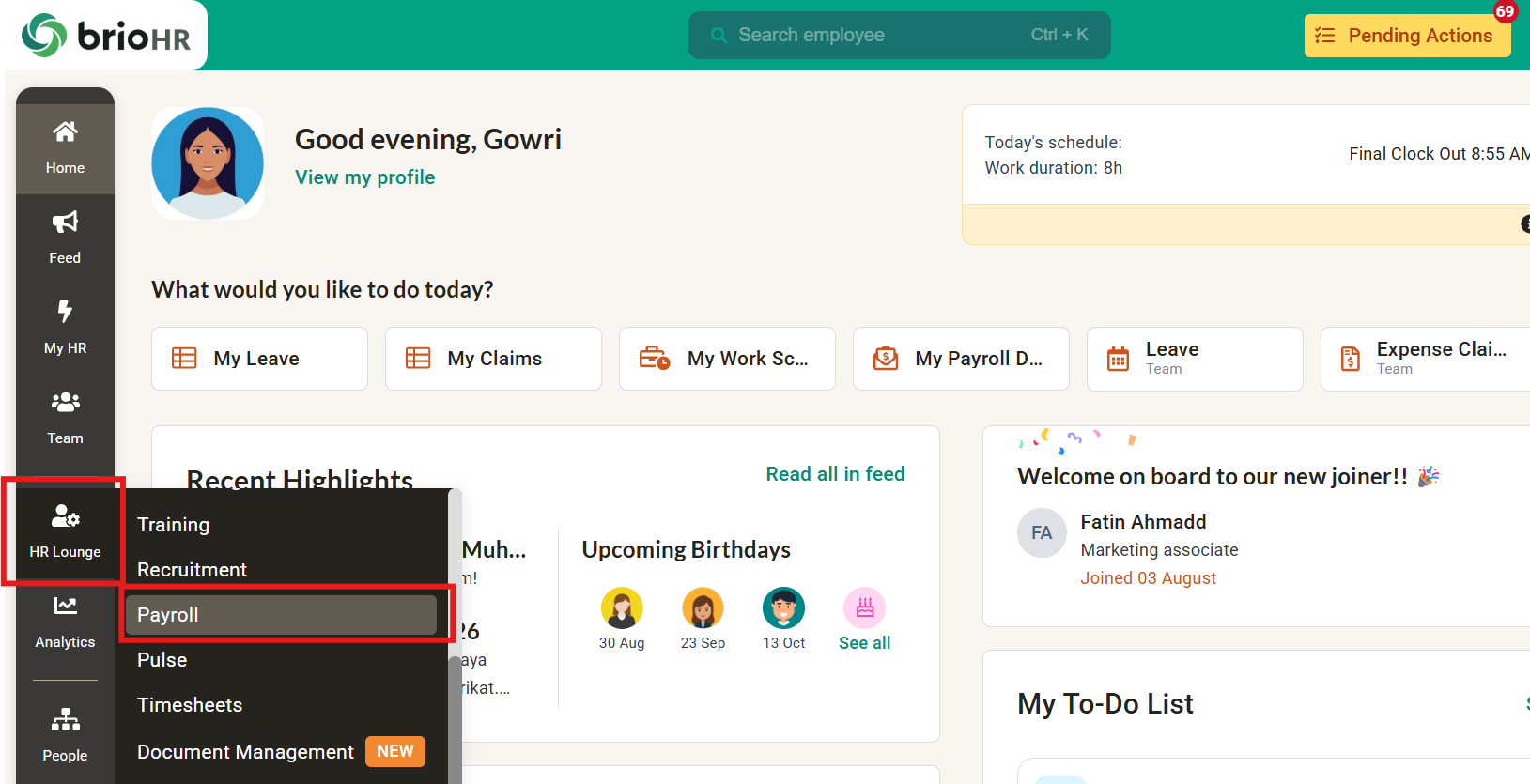
1. Go to HR Lounge > Payroll
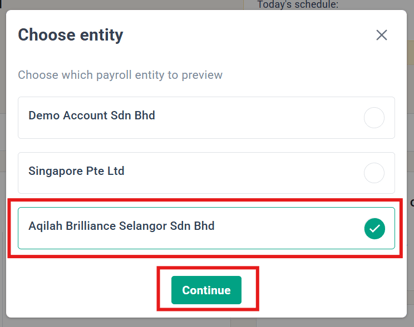
2. Choose your Payroll Center (if more than one)
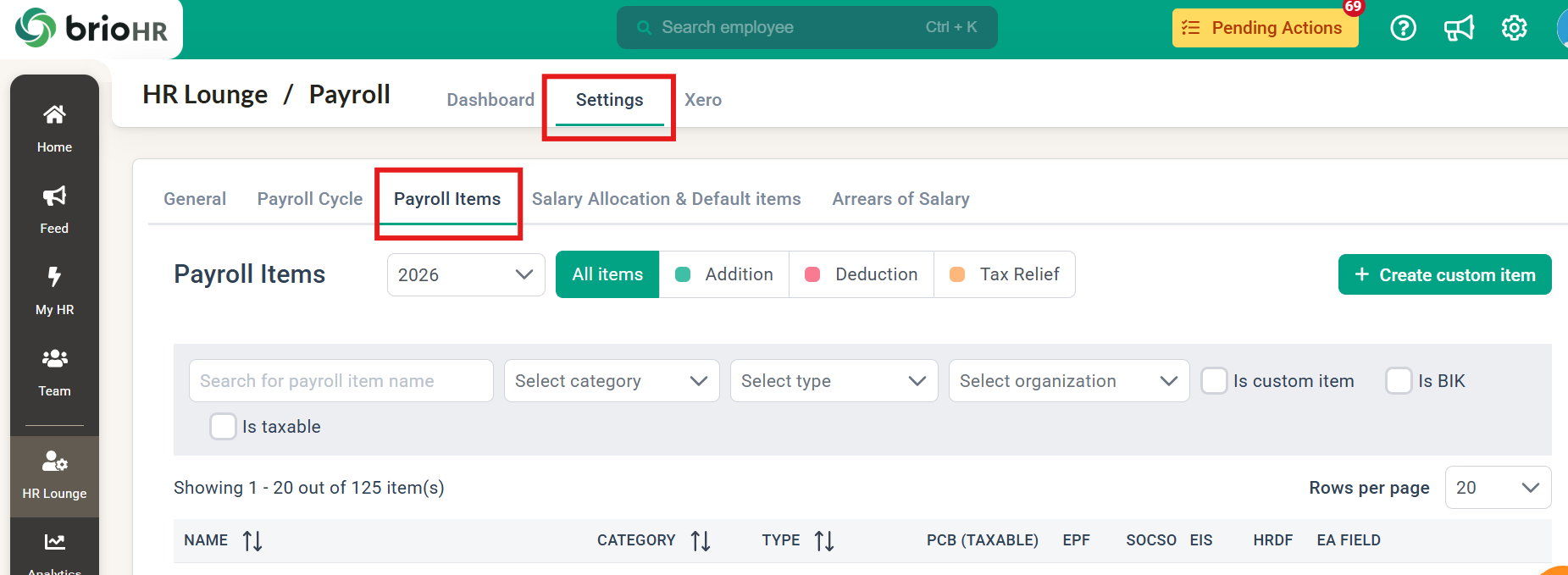
3. Go to Settings > Payroll Items
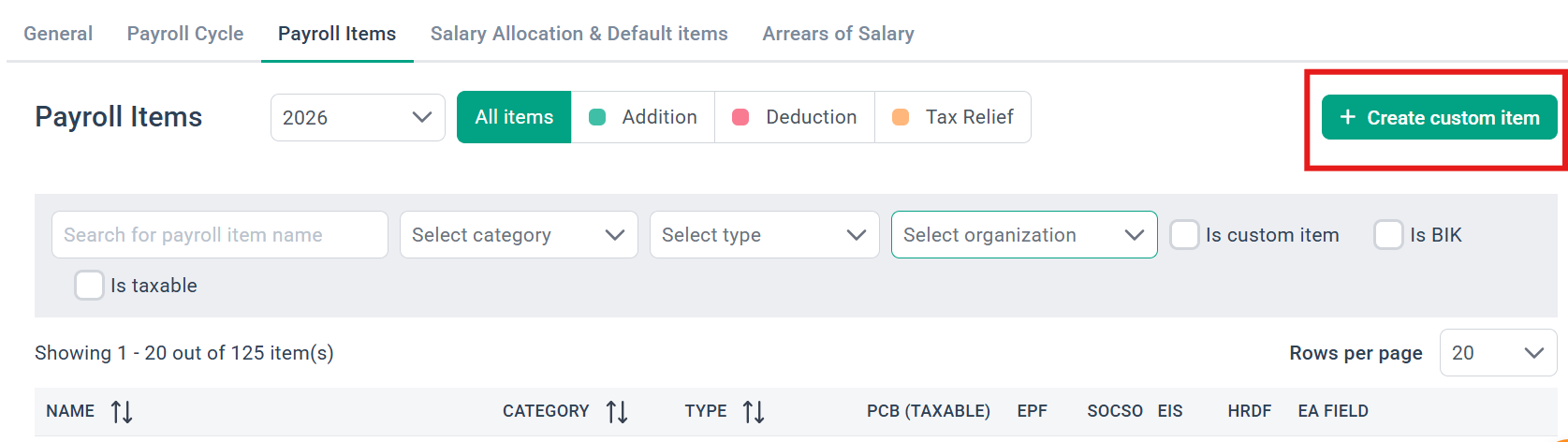
4. Click + Create custom item
5. Give your reimbursement item a name. This name will appear in reports and payslips when you process this item in payroll.
6. Select Reimbursement as the category. Addition type will be fixed to Not a remuneration once Reimbursement is selected.
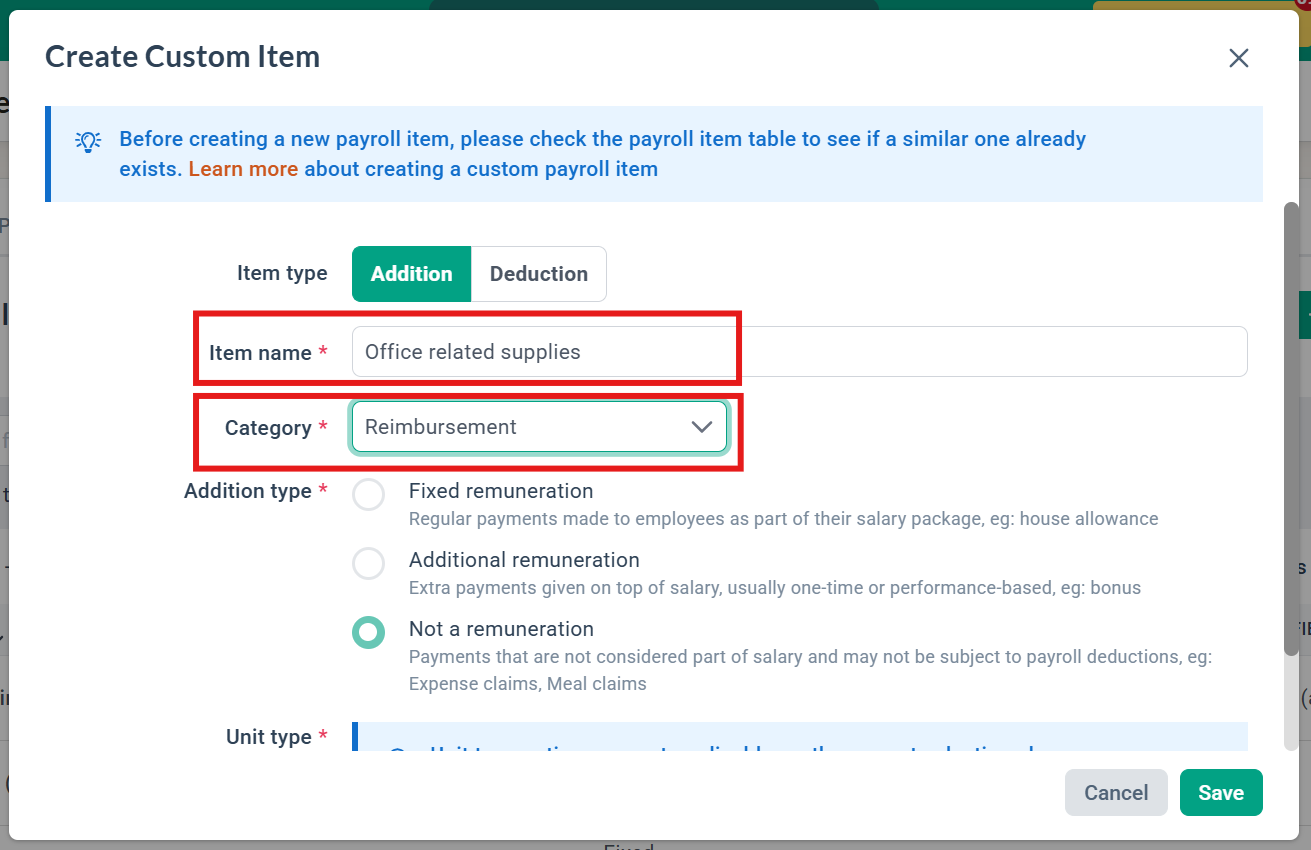
7. Click Save
TIP:
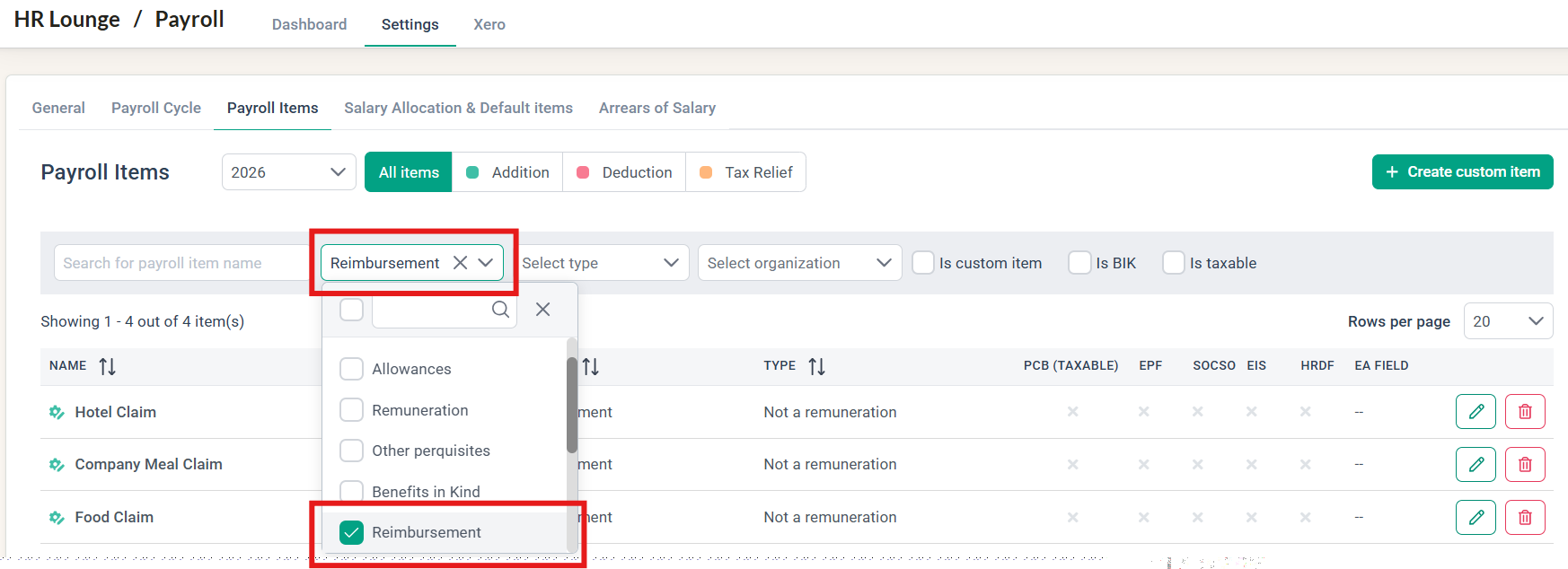
View existing Reimbursement items by selecting the 'Reimbursement' category in the filter
Common Issues/FAQ
Q1: Why can't I edit the 'Expense Claims' item?
A1: That item is a default payroll item in the system. Default items cannot be edited or deleted. You can create a new reimbursement item if needed.
Q2: Can I delete a reimbursement item if it has been used in payroll?
A2: No. You will not be able to delete any items once it is used in payroll.
Related Articles
How to Connect the Expense Claims Module to the Payroll Module
How to Create a Custom Pay Item in BrioHR
Ownership
By: Aqilah