![brioHR-logo-color.svg]](https://support.briohr.com/hubfs/brioHR-logo-color.svg)
Audience & Scope
Audience: HR Admin
Module: Time Attendance, Payroll
Country: Malaysia, Singapore
Pre-requisites: Access to HR Lounge Time Attendance & Payroll module
What Is the Overtime Pay Items Setting?
BrioHR automatically calculates different types of overtime based on the employee's work schedule and attendance records. Each overtime type is linked to a default payroll pay item.
With the Overtime Pay Items setting, HR Admins can now customise which existing payroll pay item is used for each overtime type.
This allows your organisation to align overtime calculations with your existing payroll structure without requiring manual reclassification or assistance from the BrioHR Support team.
NOTE:
Custom overtime pay item selection is currently available for Malaysia (MY) Payroll only. Singapore (SG) overtime pay item mappings cannot be customised at this time.
How to Customize Overtime Pay Items
IMPORTANT:
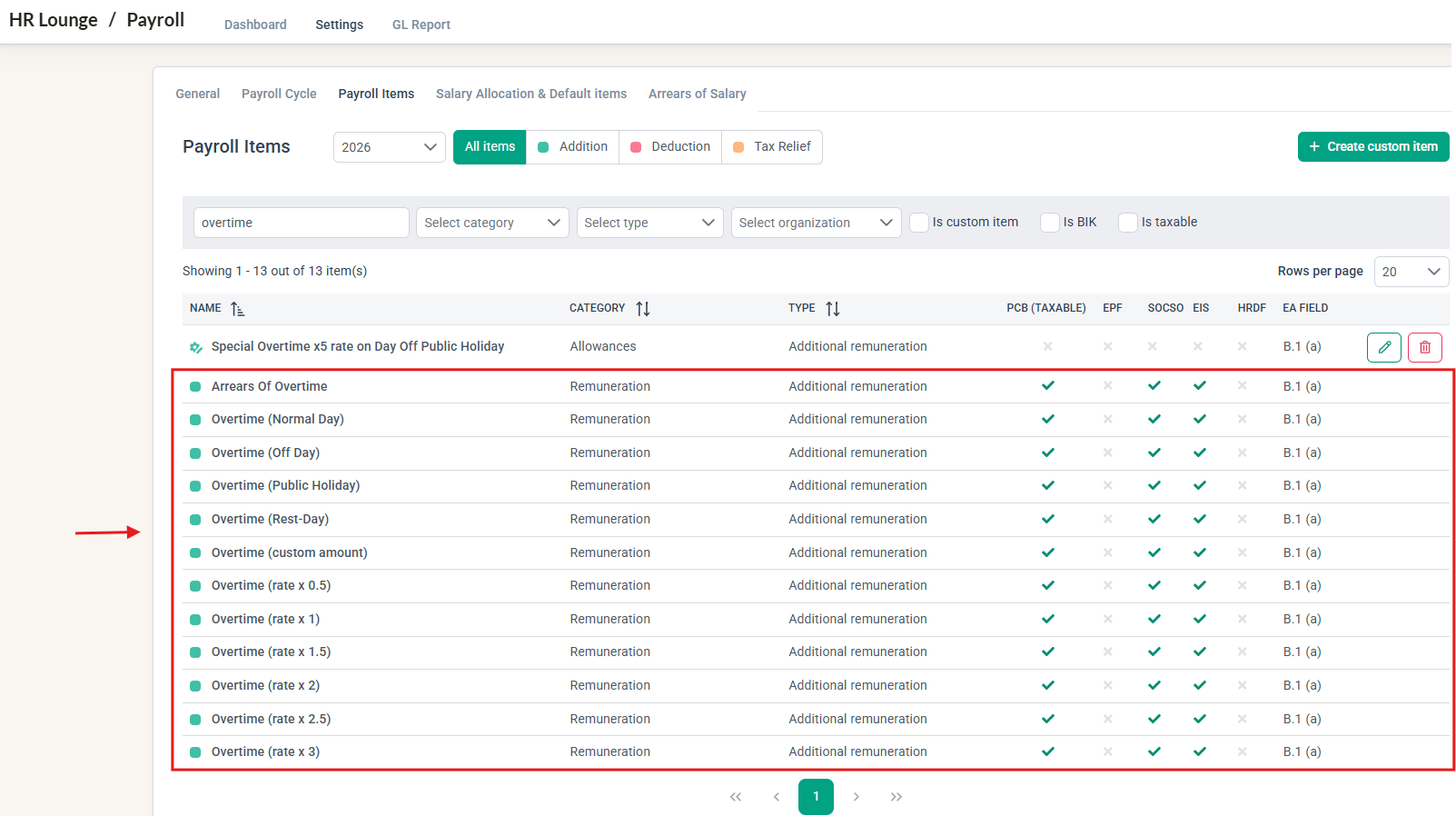
Before customising the overtime pay item mapping in Time Attendance, make sure the required pay items have already been configured in the relevant Payroll Center.
If you need to create a new custom pay item, refer to our How to Create a Custom Pay Item in BrioHR guide for step-by-step instructions.
1. Once the custom payitems have been created, navigate to HR Lounge > Time Attendance > Policy > OT Payroll Mapping
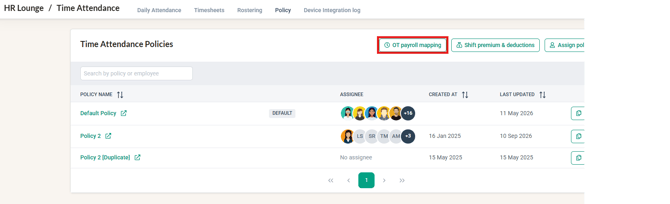
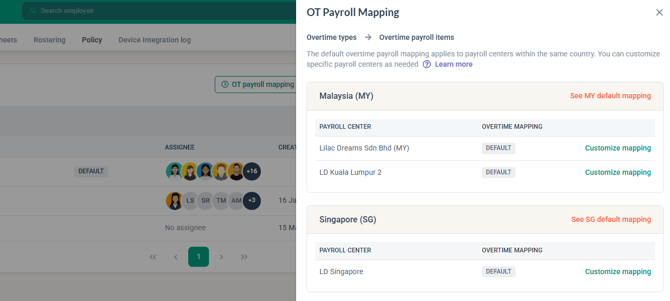
Click into OT Payroll Mapping and the Overtime Pay Items section displays the available payroll centers and their default assigned payitem mapping.
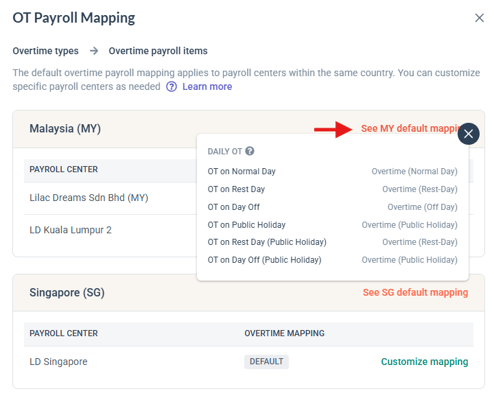
2. Click on See MY/SG default mapping to review the current payitem mapping. The default pay item assigned to each overtime type will be displayed.
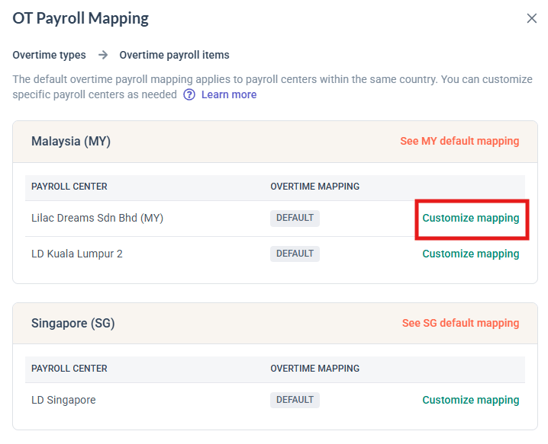
3. If a Payroll Center needs a different overtime pay item structure from the company default, this can be customized by clicking on Customize mapping.
By clicking on this button, any customization made only applies to the selected Payroll Center. Other Payroll Centers will continue using their existing mappings.
For example:
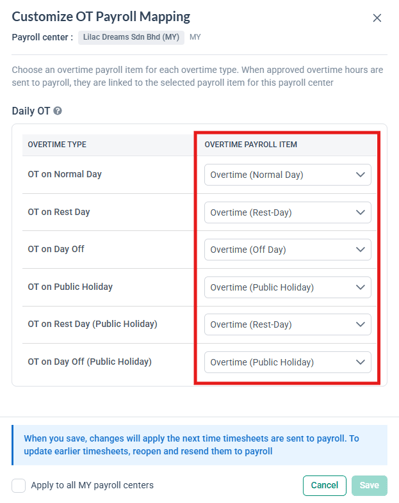
The actual pay item names displayed will depend on the pay items configured in your Payroll module.
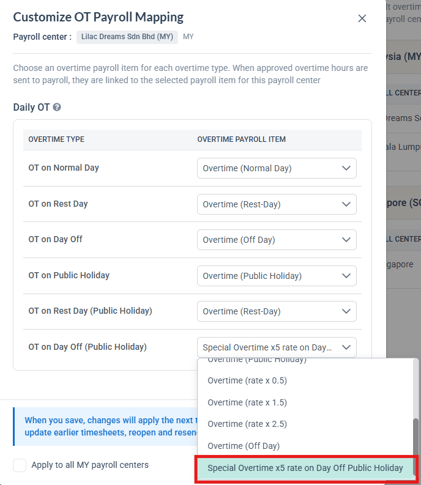
3. For Malaysia Payroll, you can select a different pay item for an overtime type if required.
For example, if your company has separate pay items for different overtime categories or GL codes, you can map the relevant overtime type to the appropriate pay item.
NOTE:
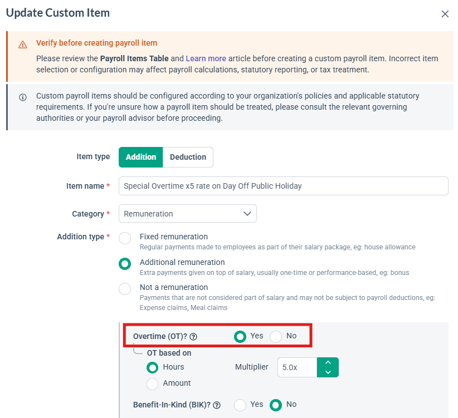
Only Payroll pay items where "Overtime (OT)?" = Yes during custom payitem configuration can be selected for overtime mapping.
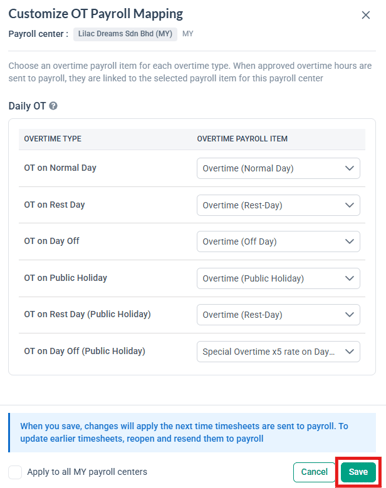
4. Once the required mappings have been selected, save your changes. The updated mapping will be applied to the selected Payroll Center.
Duplicate Overtime Mapping to Other Payroll Centers
If two Payroll Centers use a similar overtime structure, you can save time by applying the mapping from the current payroll center to the other payroll centers within the country.
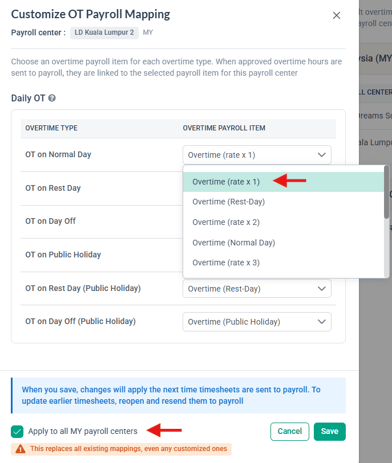
Select Apply to all MY payroll centers and the overtime pay item mappings will be copied to the other payroll centers. You can then make any necessary adjustments before saving.
IMPORTANT:
The 'Apply to all MY payroll centers' is only allowed if the Default Overtime payitems (provided by the system) are selected as options.
Allowed:
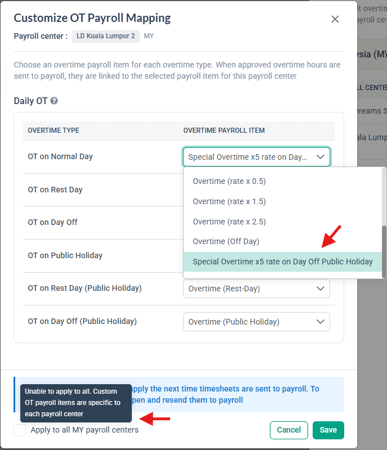
If the customization was performed and Custom Payitems have been selected, this cannot be applied to all payroll centers as custom payitems are specific to each payroll center each payroll center.
Not Allowed:
Frequently Asked Questions
Q1: What happens when an Overtime Mapping is changed?
The mapping used for overtime is applied based on the Payroll Center's current configuration. For example:
Payroll Center A is using the company default → it automatically receives any updates made to the default mapping.
Payroll Center B is customised → changes to the company default will not affect its customised mapping.
If Payroll Center B is changed back to follow the default, it will use the current company-level mapping.
This allows companies with multiple Payroll Centers to maintain different overtime structures where required.
Q2: What happens if an Overtime payitem is no longer available?
brioHR validates the overtime pay item mapping when overtime is transferred to Payroll.
If a mapped pay item has been deleted or is no longer configured as an overtime pay item, the affected Payroll Center cannot be transferred until the mapping is corrected.
This validation helps prevent overtime amounts from being transferred to an invalid or unavailable pay item.
If this happens:
- The affected Payroll Center will be blocked from transferring to Payroll.
- HR will be notified that there is an issue with the overtime pay item mapping.
- The affected mapping will be indicated in Overtime Pay Items.
- HR can select a valid overtime pay item to replace the invalid mapping.
- The timesheet can then be sent to Payroll again.
NOTE: The validation does not apply to the Weekly OT mapping.
Q3: What if the Payitem changes after a Timesheet is sent to payroll?
If a timesheet has already been sent to Payroll and the relevant pay item is subsequently deleted or changed so that it is no longer an overtime pay item, the timesheet cannot be added to the Payroll cycle using the unavailable mapping.
HR will need to:
- Exclude the affected timesheet from the Payroll cycle.
- Correct the overtime pay item mapping under Time Attendance > Policy > Overtime Payroll Mapping.
- Send the timesheet to Payroll again.
The re-sent timesheet will use the latest valid overtime pay item mapping.
Q4: What if Overtime Mappings are different within the same payroll cycle?
If an employee has multiple timesheets within the same Payroll cycle and those timesheets were sent at different times using different mappings for the same overtime type, BrioHR will identify the inconsistency.
The Payroll cycle will be blocked for the affected employee until the overtime mapping is aligned.
To resolve this:
- Exclude the affected timesheet(s).
- Review and align the overtime pay item mapping.
- Send the affected timesheets to Payroll again.
This ensures that the same overtime type is consistently mapped within the employee's Payroll cycle.
Q5: What if my Company does not subscribe to Payroll Module?
The Overtime Pay Items section is only available for configuration when the Payroll module is enabled. If your company does not subscribe to Payroll, the section will still be visible but will appear greyed out and non-editable.
A sample message as per screenshot below will be visible:
Related Articles
How to Create a Custom Pay Item in BrioHR
How HR Admin Can Send Approved Employees' Attendance Timesheets to Payroll in brioHR
Ownership
By: Arveena