![brioHR-logo-color.svg]](https://support.briohr.com/hubfs/brioHR-logo-color.svg)
Audience & Scope
Audience: HR Admin
Module: General Public Holidays
Country: Global
Pre-requisites: Admin access to Company Settings
If you're looking to disable public holidays in the brioHR system, this guide will walk you through the process step-by-step. Whether you need to remove a specific holiday or customize your holiday settings, brioHR makes it simple.
Why Disable a Public Holiday in brioHR ?
There may be instances where a public holiday does not apply to your company or certain office locations.
By disabling it, you allow employees to apply for leave using their regular entitlement on that date instead of treating it as an official holiday.
NOTE:
Once a public holiday is disabled, the system treats that day as a normal working day.
Employees can use their leave entitlement to apply for leave on that date.
Step-by-Step Guide: Disable a Public Holiday
1) Log in to your brioHR account using your admin credentials.
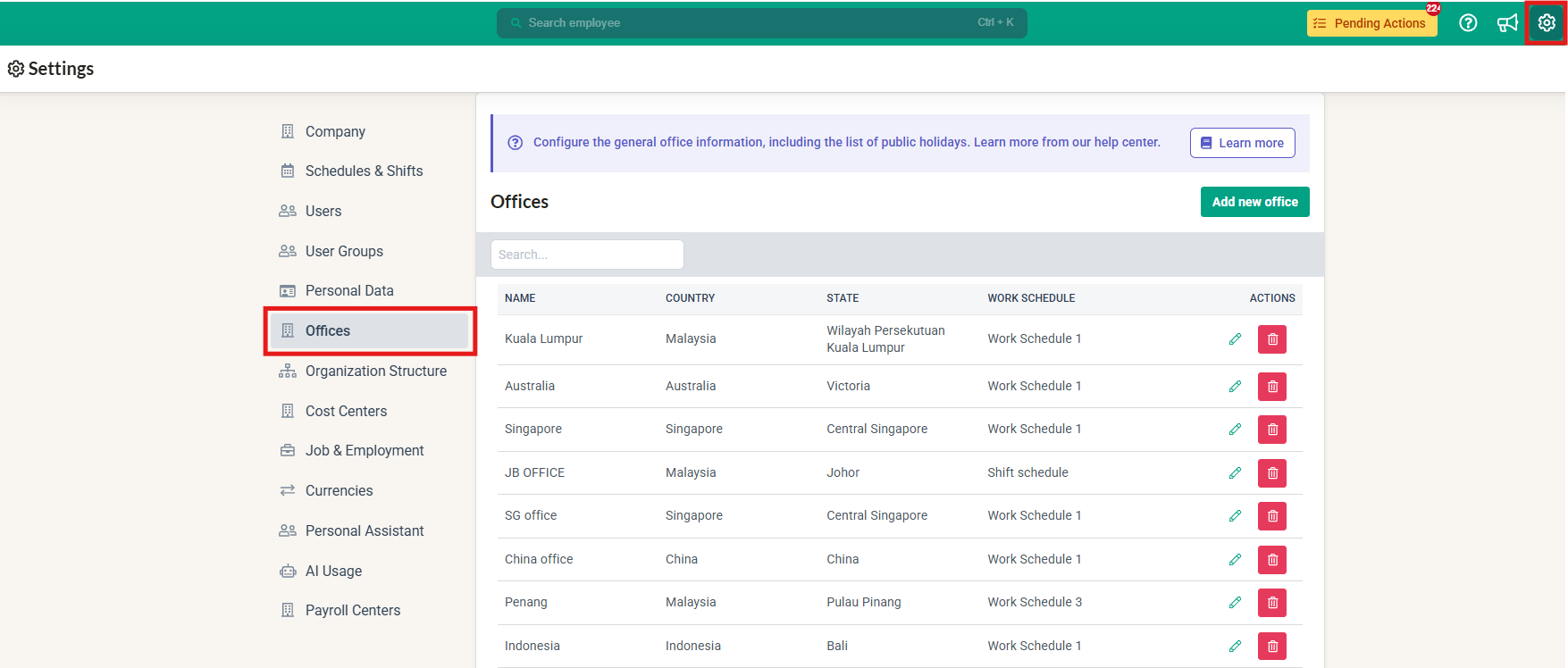
2) Click into Settings > Offices.
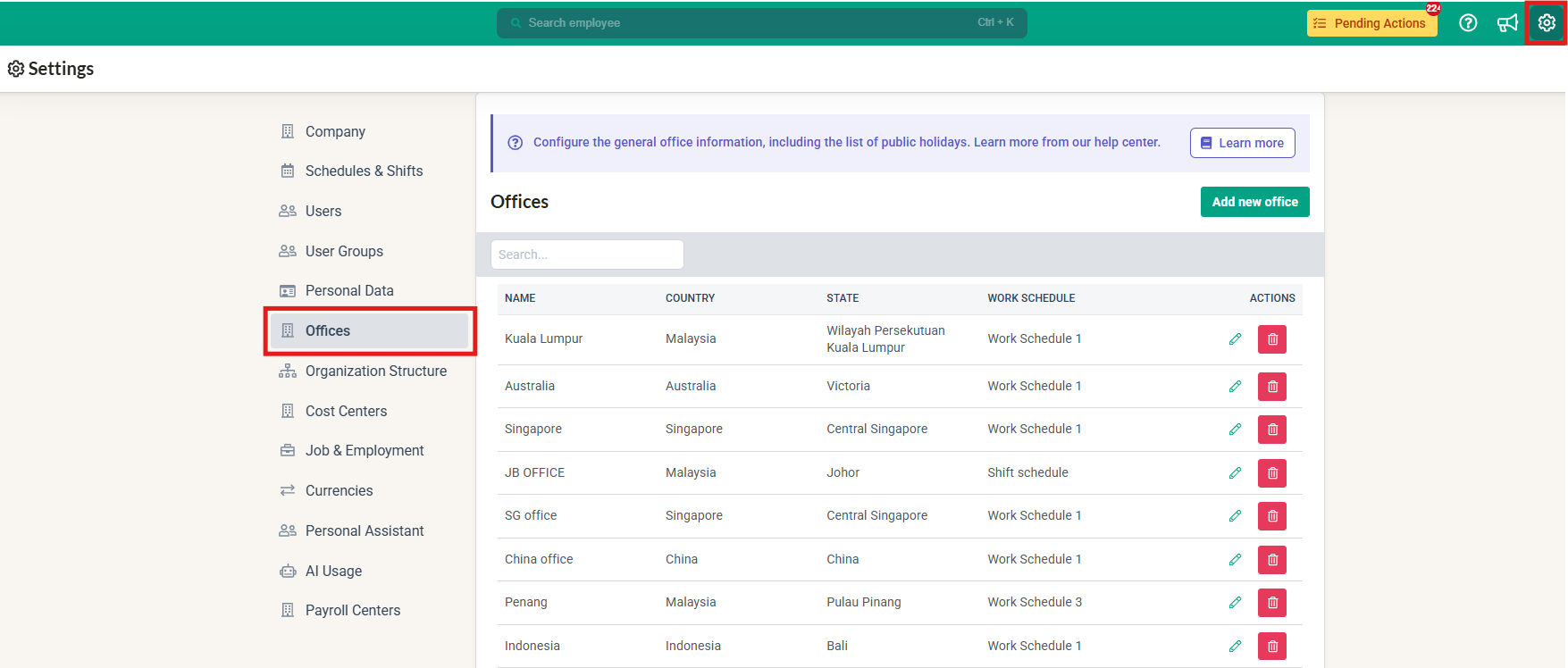
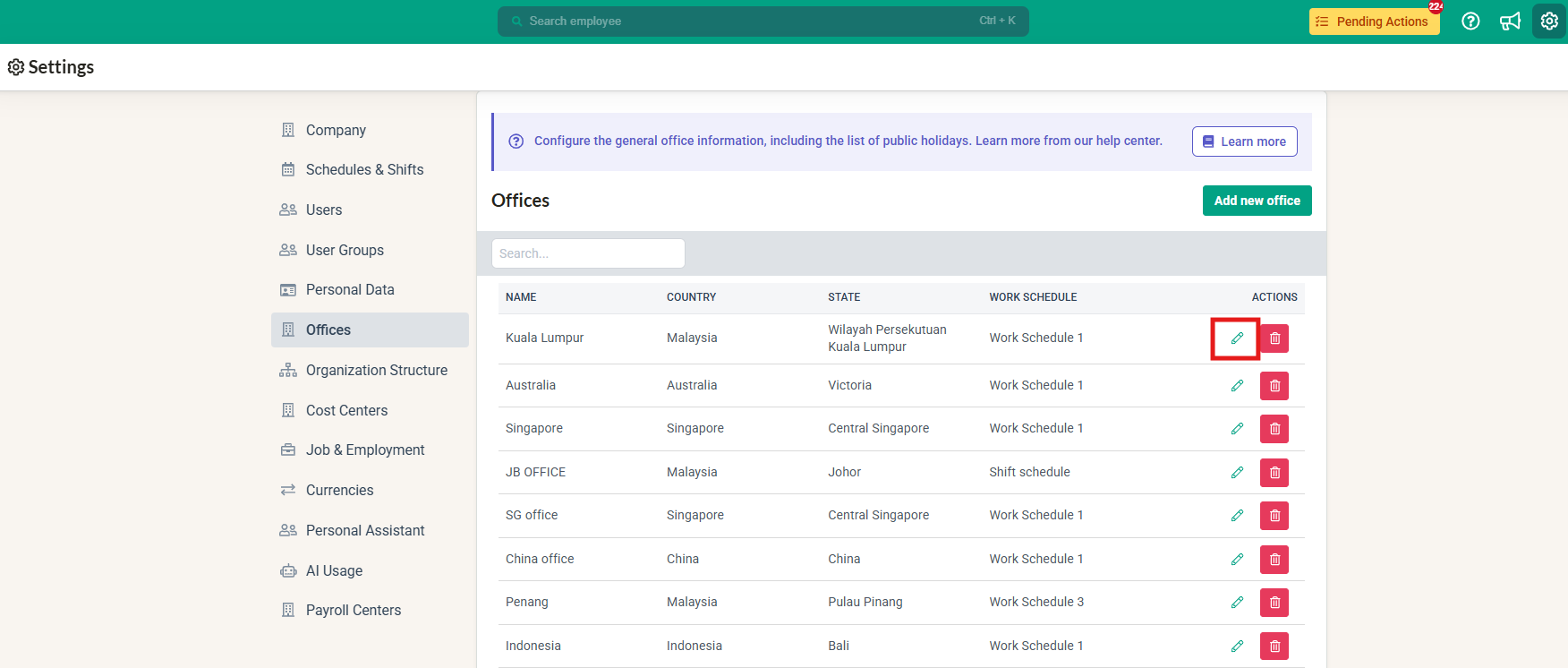
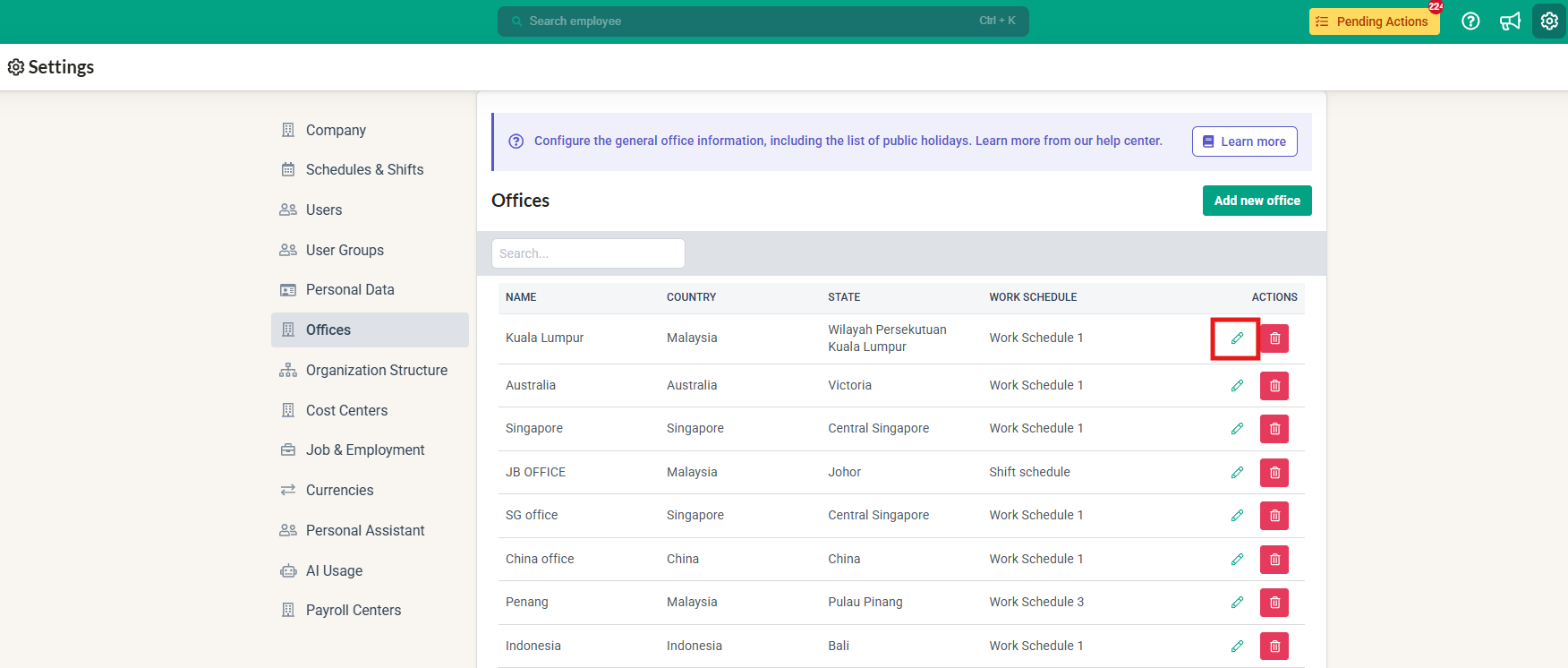
3) Select office and click the pencil icon to edit the office
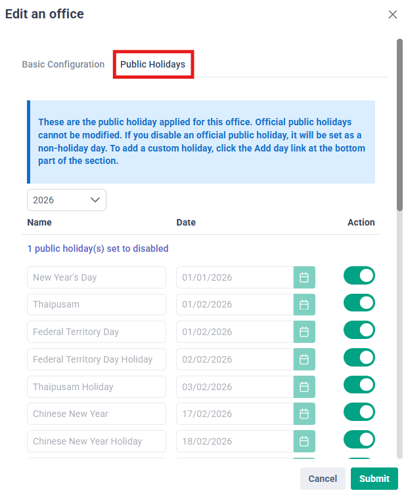
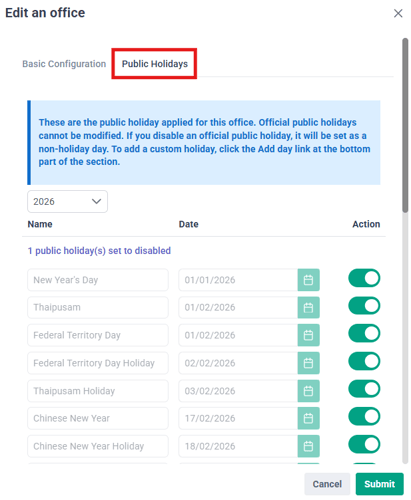
4) Click into the Public Holidays tab
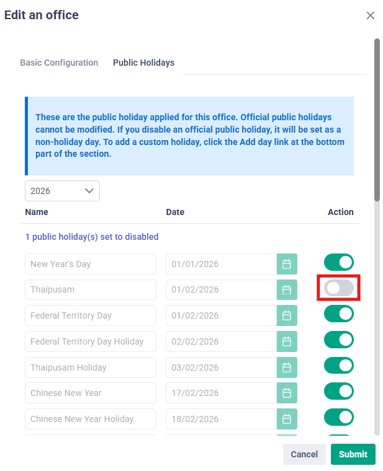
5) Locate the Public Holiday then toggle off to disable it.
6) Click Submit to save changes.
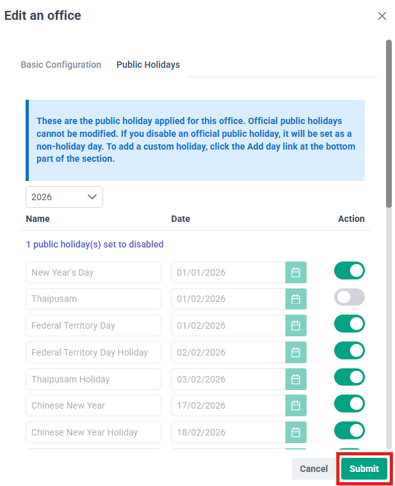
The selected date is no longer designated as a public holiday for employees assigned to that office. It will also no longer appear on the Home page Who's Away calendar as a public holiday.
Stop New brioHR-Added Holidays From Being Turned On Automatically
When a public holiday is declared during the year, brioHR adds it to the affected offices, and it is turned on automatically. If your company doesn't observe every declared holiday, you can change this for each office.
- Go to Settings > Offices.
- Click the pencil icon on the office you want to update.
- Open the Public Holidays section/tab.
- Scroll down to + Add day, then turn off Automatically enable new public holidays added by brioHR.
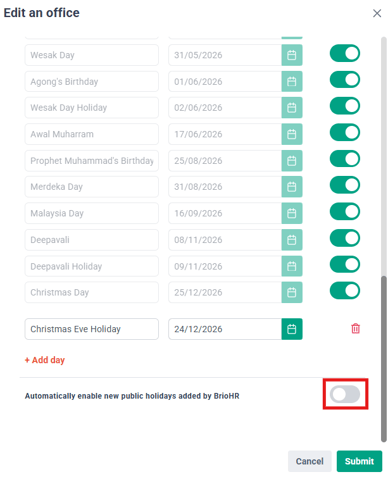
- Click Submit.
- Repeat for any other offices that need the same setting.
Once this setting is turned off, new holidays added by brioHR still appear in the office's public holiday list, but they are turned off. The date stays a normal working day:
- It doesn't appear on the Who's Away calendar.
- Employees need to use their leave entitlement to take the day off.
- Attendance and payroll treat it as a normal working day.
NOTE:
- The setting is on by default for all offices, so nothing changes unless you turn it off.
- It only applies to holidays brioHR adds during the year. Holidays you add yourself with + Add day and the yearly public holiday calendar are always turned on.
- Changing the setting doesn't affect holidays already on the office's list. They keep their current on or off status.
- If brioHR also adds a replacement day for a declared holiday, the replacement day follows the same setting.
Turn On a Holiday That Was Added as Turned Off
- Go to Settings > Offices and click the pencil icon on the office.
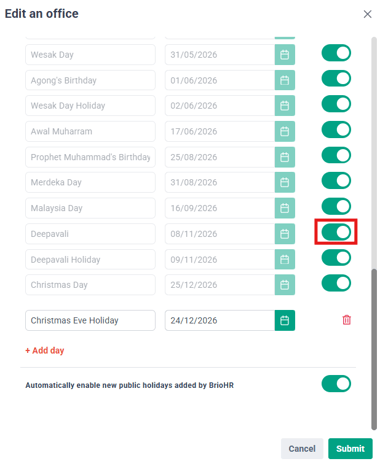
- Click Public Holidays and find the holiday.
- Switch its toggle on and click Submit.
Related Articles
Last Updated
By: Aqilah