![brioHR-logo-color.svg]](https://support.briohr.com/hubfs/brioHR-logo-color.svg)
Managing employee documents just got easier with BrioHR's dedicated Personal Files feature. This tool centralizes all employee-related files like employment forms, insurance documents, and more - into one streamlined location within employee profiles.
HR admins, managers, and employees can now access and manage these files securely. Plus, Personal Files can be separated from HR-specific categories using Custom Folders, allowing organization by type (e.g., Contracts, Certifications etc)
Important: Permission to Access Employee Documents
Before accessing employee documents, ensure you have the right permissions for the profile's Documents section (View and Modify, if needed)
How to Enable Permissions
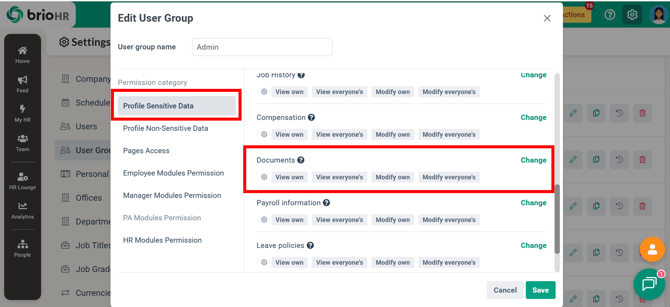
1. Go to Settings > User Groups.
2. Find the user group you want to modify, and click the pencil icon to edit.
3. Navigate to the category Profile Sensitive Data > Documents.
4. Click Change and enable:
- View
- View Own - Users can view their own documents in their profile.
- View Your Scope - Users can view documents based on their assigned scope:
- Office HR Manager - Can view documents of employees under the offices they manage.
- Manager Module Permission - Can view documents of their team members.
- View Everyone's - Users can view documents in all employees’ profiles (use with caution).
- Modify (if file management is required)
- Modify Own - Users can manage their own documents in their profile.
- Modify Your Scope - Users can manage documents within their assigned scope:
- Office HR Manager - Can modify documents of employees under the offices they manage.
- Manager Modules Permission - Can modify documents of their team members.
- Modify Everyone's - Users can modify documents in all employees’ profiles (use with caution).
5. Click Save.
NOTE:
Without the correct permissions, you will not be able to view or manage employee documents.
Step-by-Step Guide: Accessing Employee Profile Documents
Step 1 - Log In to BrioHR Account
Login to your BrioHR using the registered credentials.
Step 2 - Open Employee Profile and Documents
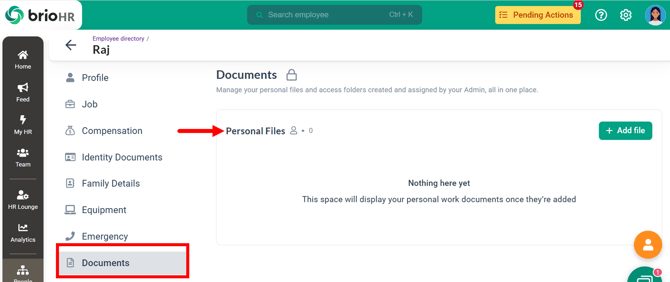
1. Go to HR Lounge > Employee Management.
2. Search for the employee's name in the Employee List and click it to open their profile.
3. In the profile, select Documents.
4. Locate the Personal Files section.
Managing Files in Personal Files
Access to Personal Files is restricted to the employee and users with the appropriate permissions.
Uploading Files to Personal Files
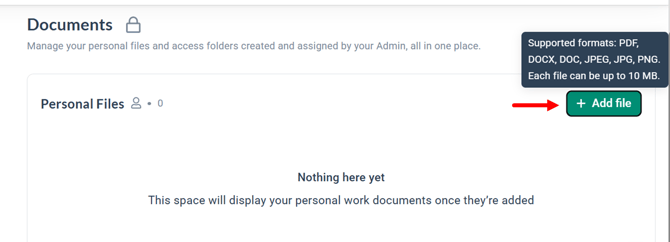
1. Click +Add Files.
2. Select your file and upload.
3. The file will appear in this section
NOTES:
Supported formats: PDF, DOC, DOCX, PNG, JPEG. Maximum file size: 10 MB.
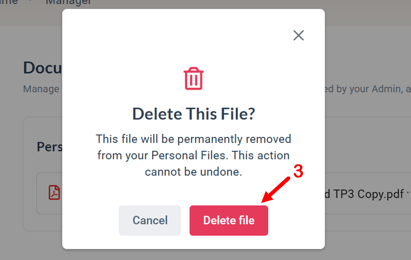
Deleting Files From Personal Files
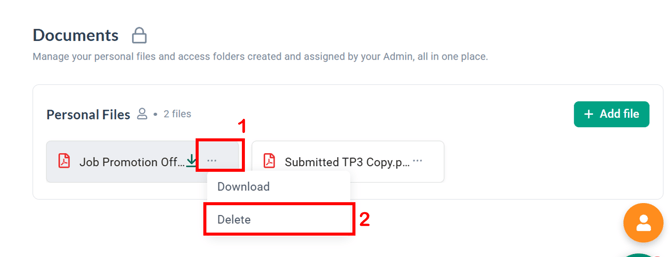
1. Find the file to delete.
2. Click the ellipsis icon (3 dots) icon.
3. Select Delete.
4. Confirm by clicking Delete File in the pop-up window.
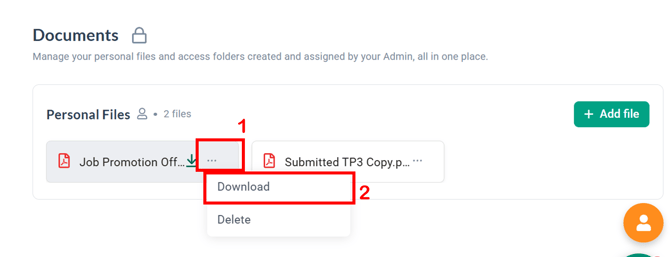
Downloading Files From Personal Files
1. Locate the file you want to download.
2. Click the ellipsis icon (3 dots) icon.
3. Click Download.
4. The file will be downloaded to your device.
Frequently Asked Questions (FAQs)
1. Who can access Personal Files in BrioHR?
Personal Files can be accessed by the employee and users (HR Admins or Managers) who have been granted document permissions.
2. What is the difference between Personal Files and Custom Folders?
Personal Files store employee-specific documents, while Custom Folders allow HR to organize documents into different categories for specific purposes.
3. What file types are supported in Personal Files?
BrioHR supports PDF, DOC, DOCX, PNG, and JPEG files, with a maximum size of 10 MB per file.
4. Why can't I see the Documents section in an employee profile?
You may not have the required permissions. Check your User Group settings under Profile Sensitive Data > Documents.
5. Can employees upload their own documents?
Yes, employees can access and manage their Personal Files if permission is enabled.
Need Assistance?
If you have any questions or require assistance, please reach out to our support team via live chat or email us at support@briohr.com.