![brioHR-logo-color.svg]](https://support.briohr.com/hubfs/brioHR-logo-color.svg)
Audience & Scope
Audience: HR Admin & Payroll Manager
Module: Payroll
Country: Malaysia & Singapore
Pre-requisites: HR Module Permission for Payroll Module including module settings
Step 1: Open Payroll Items
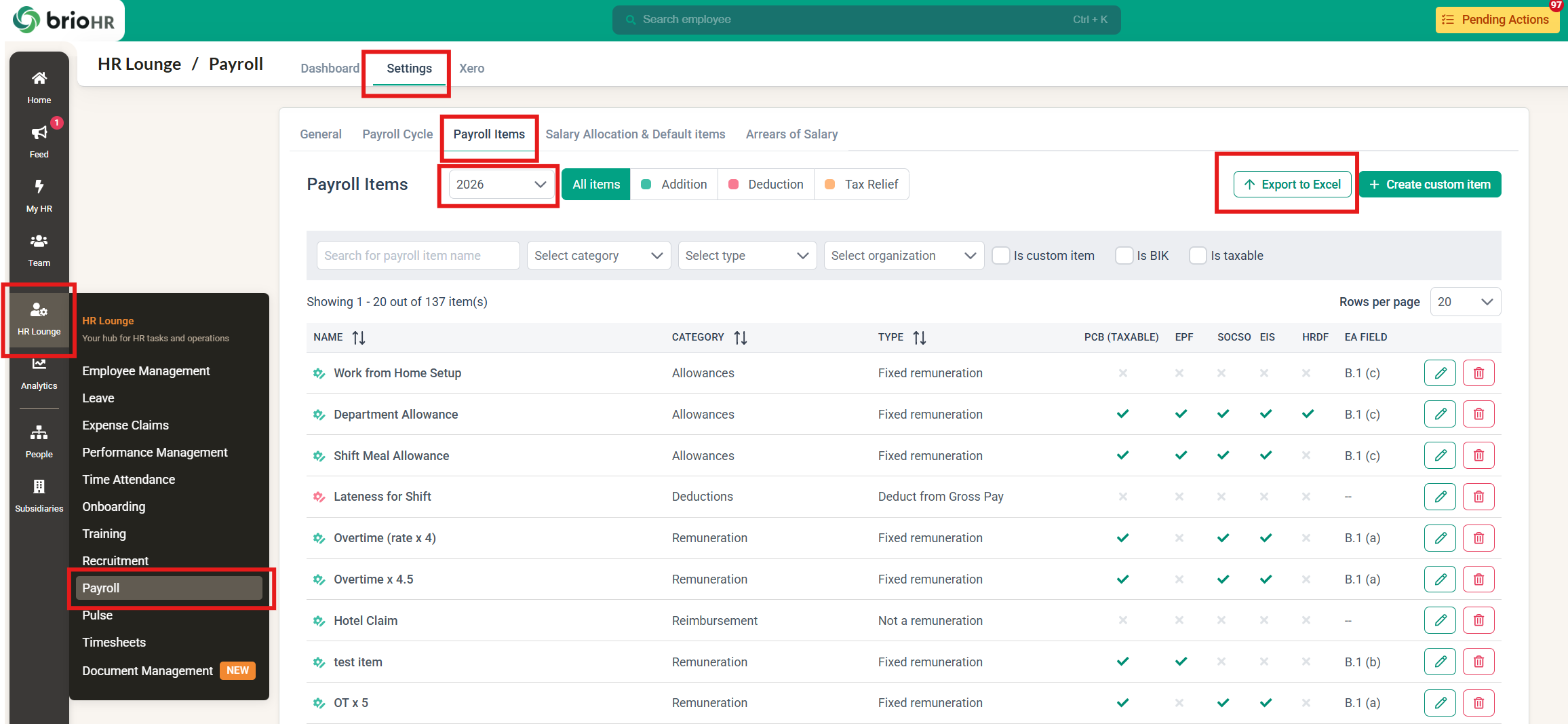
- Go to HR Lounge > Payroll > Settings > Payroll Items.
- Make sure you're in the payroll center you want to export.
- In the year dropdown, select the year you want.
Step 2: Click Export
- Click Export to Excel.
- Wait for the download to finish. The button shows a loading state and can't be clicked again until the file is ready.
TIP:
The file downloads as Payroll Items_{Payroll Center name}_{Year}.xlsx, for example, Payroll Items_ABC Sdn Bhd_2026.xlsx.
What's included in the file
- Every payroll item for the selected year in the current payroll center.
- All custom items. Custom items aren't tied to a year, so they're included in every year's export.
- Filters are ignored. Search, category, type, organization, Is custom item, Is BIK, Is taxable and the All / Addition / Deduction / Tax Relief toggle don't affect the export.
Tabs and columns
|
Payroll center |
Tabs (in order) |
Columns |
|---|---|---|
|
Malaysia |
Addition, Deduction, Tax Relief |
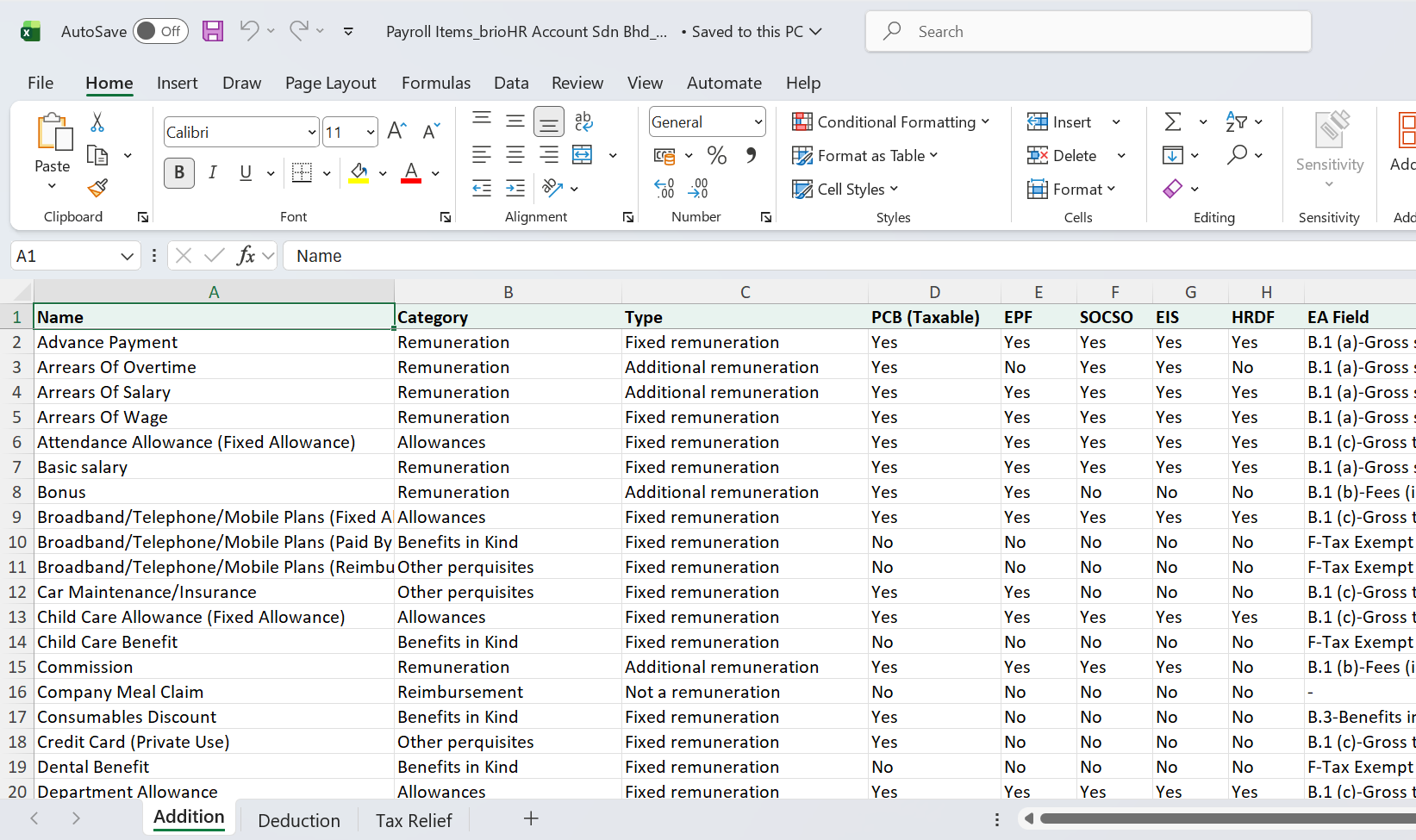
Name, Category, Type, PCB (Taxable), EPF, SOCSO, EIS, HRDF, EA Field |
|
Singapore |
Addition, Deduction |
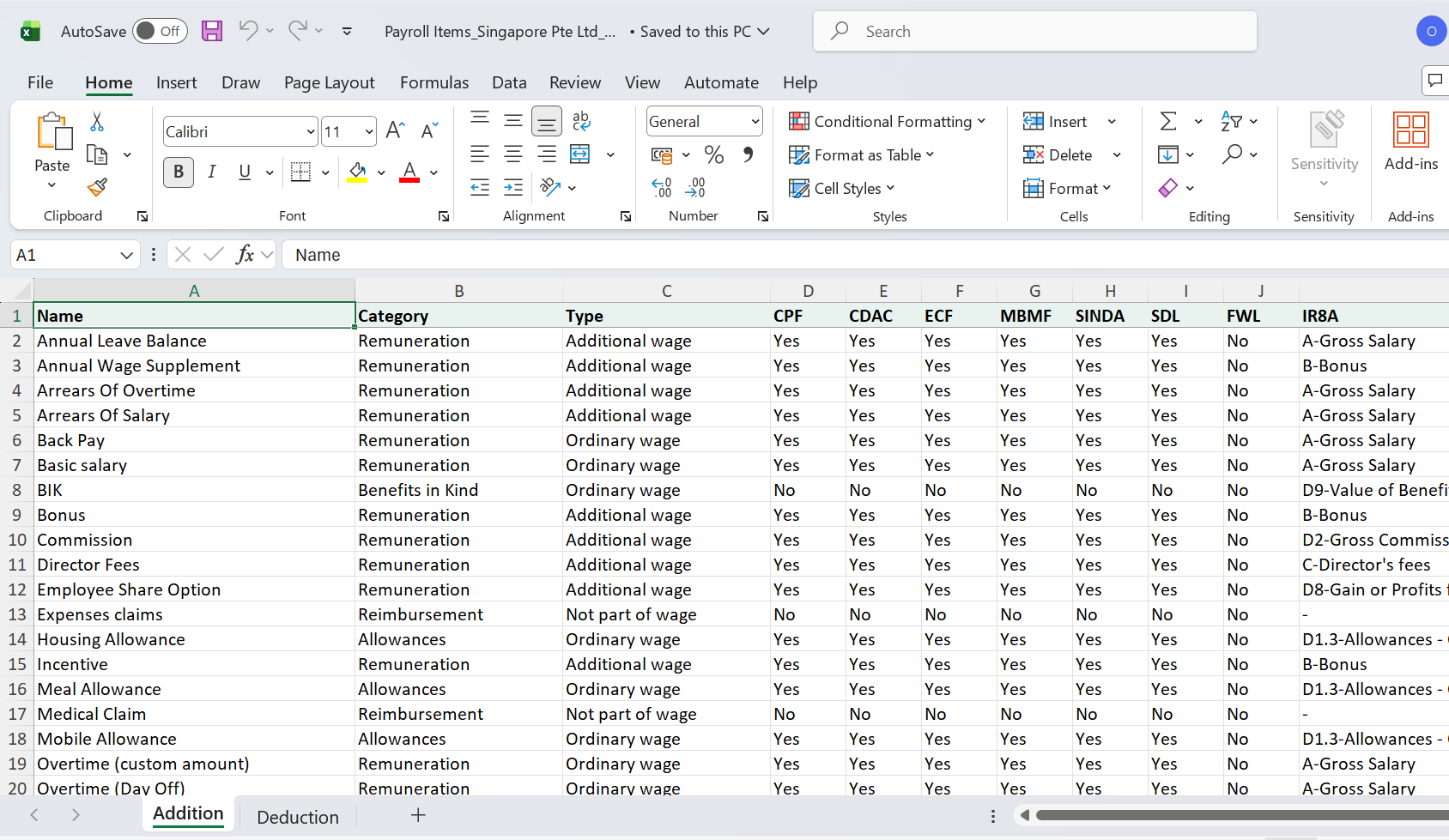
Name, Category, Type, CPF, CDAC, ECF, MBMF, SINDA, SDL, FWL, IR8A |
NOTE:
- Items on each tab are sorted by name, A to Z, starting on row 2 under the headers.
- A tab with no items for that year still appears, with only the header row.
How values appear
|
On the Payroll Items table |
In the Excel file |
|---|---|
|
Tick |
Yes |
|
Cross |
No |
|
-- |
- |
|
EA field (Malaysia) |
Position and label, for example "B.1 (a)-Gross salary, wages or leave pay (incl.overtime)" |
|
IR8A field (Singapore) |
Position and label, for example "D1.1-Allowances - Transport" |
|
Not applicable to IR8A Form (Singapore) |
- |
Example of Malaysian Payroll Center Export file
Example of Singaporean Payroll Center Export file
LIMITATIONS:
- You can only export one year at a time.
- You can't export a filtered list. The export always includes every item for the selected year.
- The file doesn't include settings that aren't shown on the table, such as the custom item flag, overtime, BIK flag, CP22A field, unit type, exempted amount or maximum yearly limit.
- You can't import or bulk edit payroll items from the exported file.
Common Issues/FAQs
Q: I exported 2025 but see custom items I created in 2026. Why?
A: Custom items aren't tied to a year, so every export includes all custom items.
Q: Why does the Tax Relief tab only have headers?
A: There are no Tax Relief items for that year in this payroll center.
Q: Why is there no Tax Relief tab in my Singapore export?
A: Tax Relief items are only used in Malaysia payroll centers.
Related articles
- How to Use the New Payroll Items Table in Malaysia and Singapore Payroll
- How to Create a Custom Pay Item in BrioHR
- Default Pay Items: Definition and Use
- How to Bulk Import Pay Items in Payroll
- Payroll Malaysia: How Pay Items Map to EA Form Fields in BrioHR Payroll Module
- Payroll Malaysia: How to Configure Statutory Contributions for Custom Pay Items
- Payroll Singapore: How to Release the IR8A Form
Ownership
By: Aqilah