![brioHR-logo-color.svg]](https://support.briohr.com/hubfs/brioHR-logo-color.svg)
Audience & Scope
Audience: HR Admin
Module: Payroll
Country: Global
Prerequisites: Assigned as Payroll Center Manager, Access to Payroll Module in HR Lounge and permission to view employee's payroll details enabled.
PCB (Potongan Cukai Bulanan), also known as Monthly Tax Deduction (MTD), is the monthly income tax deduction made by employers from an employee’s salary and paid to LHDN (Inland Revenue Board of Malaysia) on the employee’s behalf.
The purpose of PCB is to help employees spread their income tax payments throughout the year, instead of paying a large amount at the end of the tax year. The amount deducted depends on factors such as the employee’s income, tax reliefs, deductions, and other applicable details.
Review the PCB/MTD Calculation within Payroll Cycles
Verifying PCB calculations is now easier with enhanced visibility directly within the Payroll module. You can review and download the PCB calculation for reference, access the LHDN calculator directly, and copy the employee’s accumulated amounts to cross-check the PCB amount generated.
Step-by-Step Guide to Checking PCB Deductions within Payroll Module
1. Click into HR Lounge then click into the Payroll Module
2. Click on Run Payroll and select the payroll cycle to be run
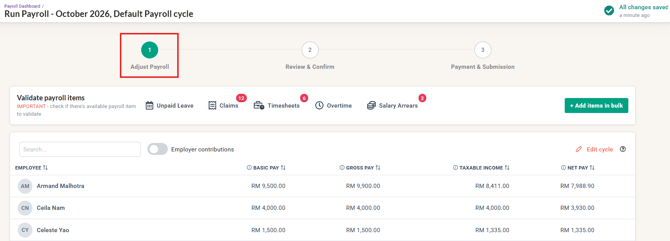
3. At Stage 1 (Adjust Payroll), search/click into the Employee Name
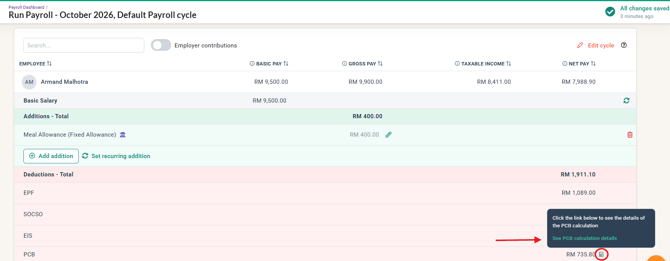
4. Hover over the calculator icon, then click 'See PCB calculation details'
5. Scroll through the calculator and check through the amounts and PCB contribution captured
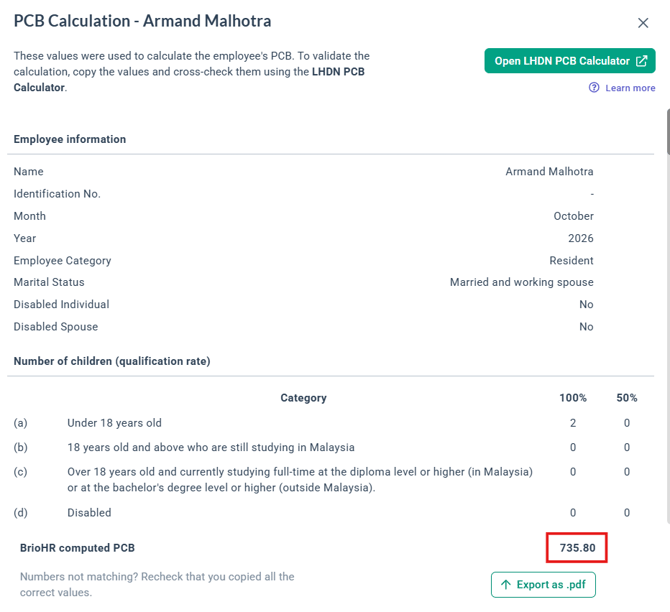
6. If you wish to download a copy of this calculation, click on the Export as .pdf button
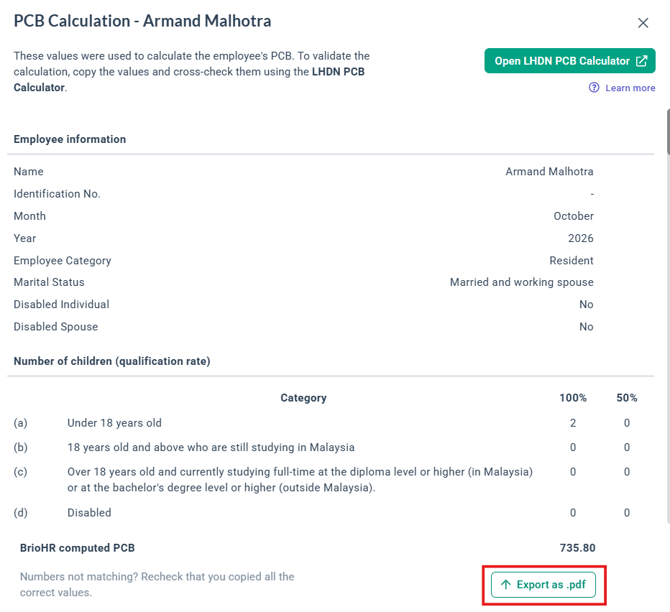
Here is a sample of the downloaded calculation.
7. Click on Open LHDN PCB Calculator, if you wish to calculate these amounts manually using the calculator. You have the option to copy the accumulated amounts to have them placed within the LHDN Calculator. 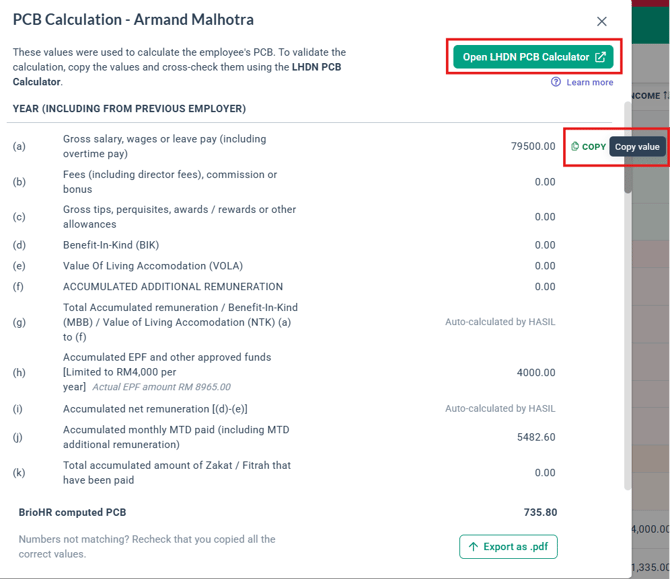
Once you click to open the LHDN Calculator, the calculator will appear in an extended tab. You can proceed to utilize the calculator for cross-checking:
NOTE:
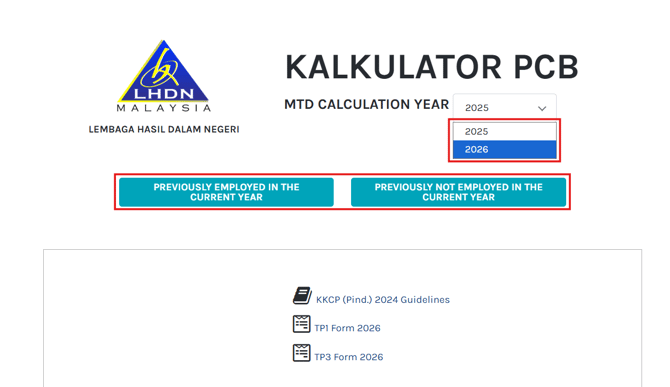
1) Be sure to select the correct Year at the dropdown of MTD Calculation Year.
2) Be sure to select the correct calculator as there are 2 options within the calculator:
i) Previously employed in the current year - to be used for employees that have accumulated remuneration within the year (earned income within the year)
ii) Previously not employed in the current year - to be used for employees who have not earned any salary previously within the year (first employment etc)
Step-by-Step Guide to Checking PCB Deductions using LHDN Calculator
1. Gather Required Details
From the information filled in on brioHR, note down:
-
Gross monthly salary / wages
-
Bonus or allowances (if any in that month)
-
Employee EPF contribution % (usually 11%)
-
Marital status, number of children (affects reliefs)
-
Any TP1 reliefs declared (insurance, lifestyle, spouse, etc.)
- Any TP3 form information filled in (usually for new joiners who have joined in the current year and was previously employed within the same year)
-
Zakat deduction (if applicable)
TIP:
Utilize the Employee Payroll Report from Analytics > Report Builder for a quick summary of the employee's YTD payroll data. 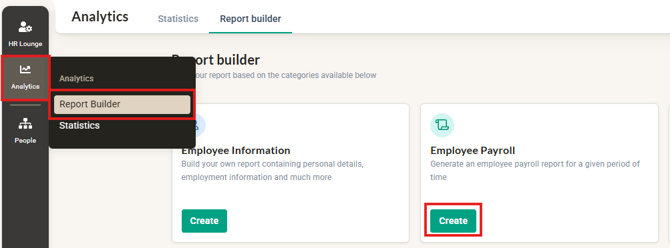
Ensure the permission to access this report has been enabled for your user group in order to be able to generate this report.
2. Input the Details
In the LHDN calculator, fill in the same values as you have in brioHR:
-
Monthly income (including fixed allowances)
-
Bonus amount (if applicable in that month)
-
EPF contribution %
-
Marital status & number of children
-
Any TP3 information for new joiners / TP1 reliefs (if declared to employer)
-
Zakat deduction (if any)
3. Compare the PCB Deduction
-
The calculator will generate the exact PCB deduction for that month.
-
Compare this with the PCB amount shown in the payroll cycle.
If they match → the system is correctly aligned with LHDN’s formula.
If there’s a difference → check whether:
-
There are any missed information (TP3 form not keyed in for new joiners).
-
Bonus/allowance was annualized differently.
-
Zakat was not deducted.
-
Wrong EPF % (some employees may have customized contributions instead of 11%).
TIP:
1) Explore our step-by-step article on how to use the LHDN calculator for PCB calculations.
2) Watch this video below for a quick understanding on how to utilize the calculator to cross check the PCB amounts
Frequently Asked Questions
Q1: How does brioHR calculate the monthly PCB?
A: brioHR applies the LHDN computerised calculation method on the employee's taxable remuneration for the month, using the tax details on the profile (marital status, number of children, tax number) and the year-to-date figures. Use the LHDN PCB calculator comparison to verify the PCB captured for the month.
Q2: LHDN sent a letter with a fixed monthly deduction amount.
A: First confirm what the letter is. A CP38 instruction (instalment of tax arrears) is keyed in via Employee Profile > Compensation > Deduction. Select CP38 (Tax Deduction Order) and have the amount filled in. This will be automatically captured within the payroll cycle selected when run.
Alternatively, this can be added directly into the payroll cycle being run during Stage 1: Adjust Payroll. Select the employee name, and then add the Deduction (CP38 Tax Deduction Order) and amount into the payroll cycle.
If the letter is not a CP38 instruction, please contact our support team before adding this into payroll.
Ownership
By: Arveena