![brioHR-logo-color.svg]](https://support.briohr.com/hubfs/brioHR-logo-color.svg)
Audience & Scope
Audience: HR Admin / Payroll Processor
Module: Payroll
Country: Malaysia
Step 1: Bank Account Setup
- In HR Lounge, click on Payroll
- Go to Settings, scroll down to the Bank Account section, and in the "Bank Account" field, select Hong Leong Bank Berhad and the version ConnectFirst
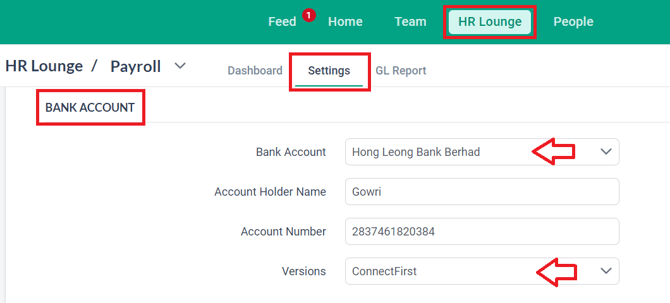
- Enter the required information in the provided fields (refer to the sample screenshot below) and click Save at the bottom of the Settings page to complete the setup
NOTE:
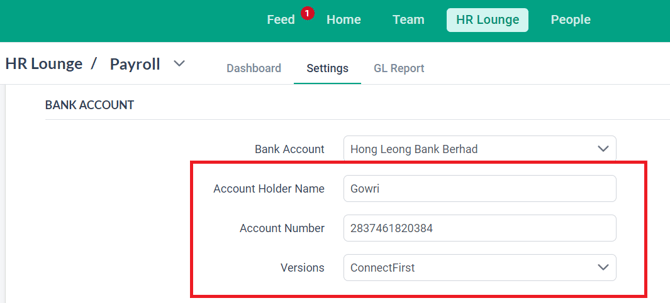
To successfully download the bank file with complete information, ensure that all required fields (highlighted in the screenshot below) are filled out.
Step 2: Downloading The Bank File
- In HR Lounge, click on Payroll
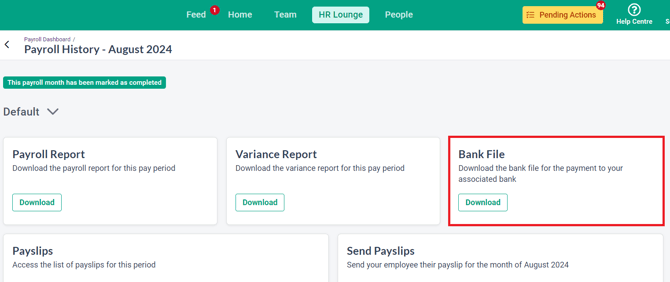
- In the Payroll History dashboard, click on the COMPLETED payroll month for which you want to process payments
- Scroll down to the Bank File column and, based on your payroll cycle, click the Download button (as shown in the sample screenshots below) to download the bank file.
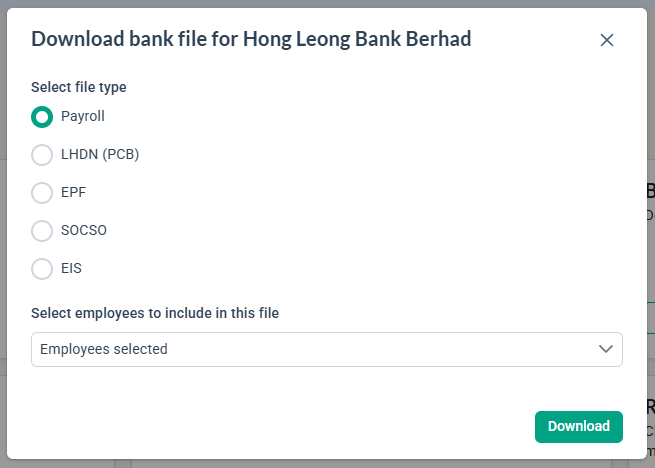
- In the "Generate bank file for Hong Leong Bank Berhad" pop-up window:
- Select the bank file type
- Select the employee(s)
- Click Generate to download the file
- After downloading the bank file, upload it to the bank's portal to process the payment
IMPORTANT:
When downloading the EPF Bank file for Hong Leong Bank (Connect First) please note that for Malaysians, the MyKad number is a required field and for Non-Malaysians, the Passport number is a required field in order to successfully generate the EPF Bank File from the system.
Therefore, please ensure this Identity Documents information has been updated accordingly in the Employee Profile > Identity Documents tab as per screenshot below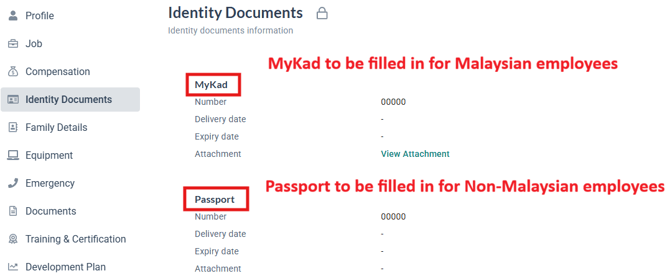
NOTE:
If any information is missing, you won’t be able to generate the bank file. A warning prompt will appear (refer to the screenshot below). In this case, enter the missing information and try generating the bank file again.

Step 3: Downloading The Text File For Statutory Portal Upload
- If you prefer to upload Statutory Text Files directly via the Statutory Portal, you will need to generate the text file from the Statutory Reporting category below.
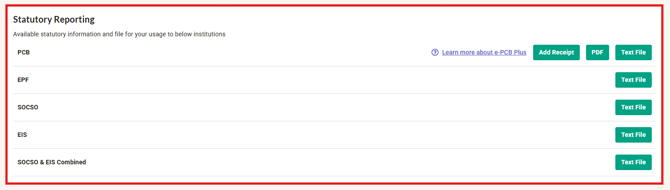
- After downloading the text files from the system, proceed to upload them to the relevant Statutory Portals (e.g., KWSP, LHDN portals).
NOTE:
Ensure that the files generated from the system are correct. If you upload a file from the Statutory Reporting category to the Bank Portal, an error message indicating an incorrect format will be received.
Successful uploads will only occur if the files are downloaded from the correct category and uploaded to the corresponding portals.
IMPORTANT:
BrioHR generates the Hong Leong ConnectFirst format only. ConnectPro is a different, incompatible template.
Refer to this article for supported Malaysian banks and bank file formats.
If your bank requires the Hong Leong ConnectPro format, please raise a Feature Request with BrioHR support (email: support@briohr.com or via BrioHR Live Chat).
Common Issues/ FAQ
1. The bank file that is uploaded shows an error message of invalid format
Ans: Ensure that the correct file is being used to upload onto the correct portal. For example, if the bank file downloaded is being uploaded onto the Statutory portal, this error message will appear.
2. The bank file uploaded states that there is incomplete information - missing Identity/Passport Number
Ans: Ensure the toggle to Fill in the Identity/Passport Number has been enabled before the bank file is generated.
Related Articles
1. How to Process Payroll in the Correct Order with BrioHR
2. Payroll Malaysia: Step-by-Step Guide to Download Statutory Contribution Text Files (EPF, SOCSO, EIS, PCB)
3. How to Manage BrioHR Multicycle Payroll: Guide + Video
Last Updated & Ownership
Last Updated: 29 January 2026
By: Arveena