![brioHR-logo-color.svg]](https://support.briohr.com/hubfs/brioHR-logo-color.svg)
Audience & Scope
Audience: HR Admin
Module: Time Attendance
Country: Global
Pre-requisites: Uses Third Party device, TimeTec as integration method for manual 'Clock In'
Introduction
Accurate attendance tracking is essential for maintaining reliable payroll and workforce records. One common issue that organizations face is employees accidentally tapping the clock in or out multiple times within a short period. This can lead to duplicate records, incorrect working hours, and inaccurate timesheets.
Duplicate Clock In Protection is designed to prevent this issue by restricting multiple clock taps within a defined time range. By enabling this feature, organizations can ensure that attendance data remains clean, accurate, and reliable.
What is Duplicate Clock In Protection?
Duplicate Clock In Protection on the TimeTec device is a system setting that blocks employees from tapping the clock in or out repeatedly within a short time period.
When this feature is enabled, the device will prevent another tap from being recorded until a specific time range has passed after the last tap.
For example, if the time range is set to 5 minutes, an employee who has just tapped the clock will not be able to tap again for the next 5 minutes.
This helps maintain consistent and accurate attendance records.
Benefits of Using Duplicate Clock In Protection
Enabling Duplicate Clock In Protection on the TimeTec device provides several key benefits for attendance management:
1. Prevents Accidental Multiple Taps
Employees may sometimes tap the clock more than once by mistake. This feature automatically blocks repeated taps within the restricted time range.
2. Avoids Incorrect Attendance Records
Duplicate punches can create incorrect timestamps that affect working hour calculations. By preventing repeated taps, attendance records remain clean and accurate.
3. Ensures Accurate Timesheet Data
With fewer duplicate entries, the timesheet data in the system remains reliable and easier for HR administrators to manage
How to Set Up Duplicate Clock In Protection
Follow these steps to configure Duplicate Clock In Protection on the TimeTec device.
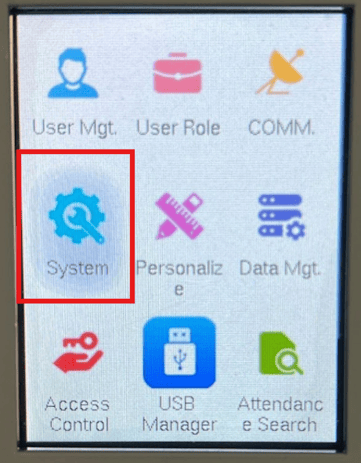
Step 1: Open System Settings
On the TimeTec device, navigate to:
System
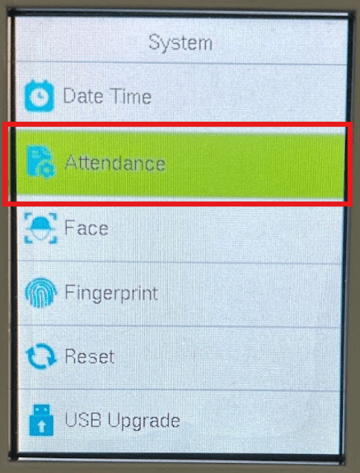
Step 2: Select Attendance
Within the System menu, select:
Attendance
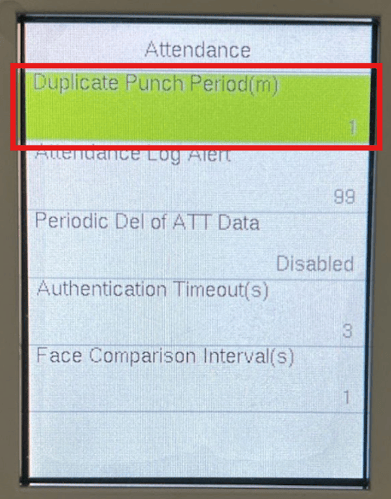
Step 3: Select Duplicate Punch Period
Tap on:
Duplicate Punch Period
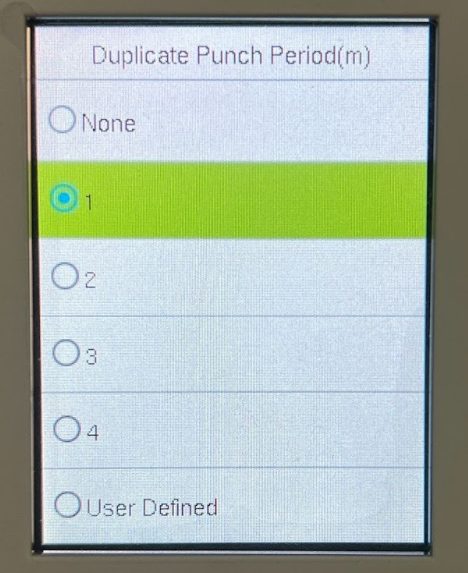
Step 4: Set the Time Range
Choose the time range that will block duplicate taps.
Available preset options include:
-
1 minute
-
2 minutes
-
3 minutes
-
4 minutes
If you need a different duration:
-
Select User Defined
-
Enter the desired time range (for example: 5 minutes)
Step 5: Save the Settings
After selecting the desired time range, the setup is completed and Duplicate Clock In Protection will take effect.
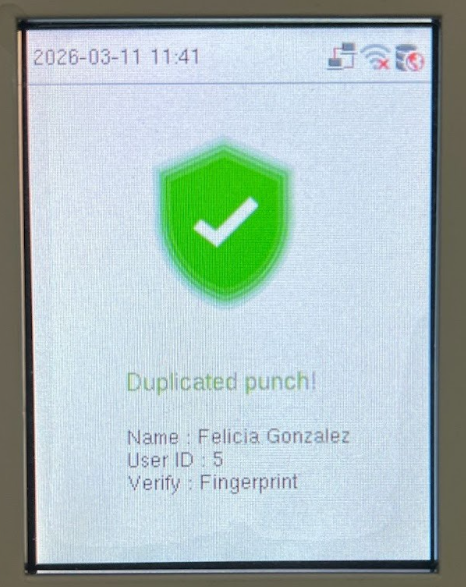
What Employees Will See
If an employee attempts to tap the clock again within the restricted time range, the TimeTec device will display a duplicate punch warning message.
This message informs the employee that they must wait until the defined time period has passed before tapping again.
Ownership
By : Arveena