![brioHR-logo-color.svg]](https://support.briohr.com/hubfs/brioHR-logo-color.svg)
1. Accessing the Performance Dashboard
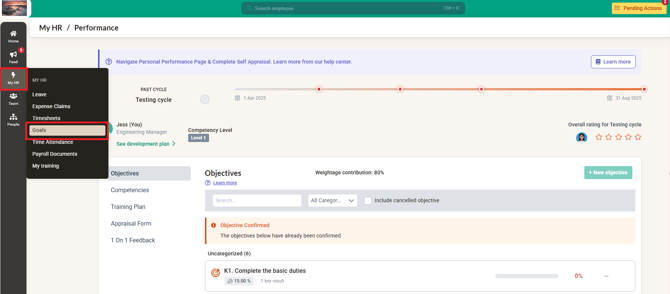
To begin, employees need to navigate to My HR > Goals within the BrioHR platform. This section displays the Performance Dashboard, where all performance-related activities are managed.
2. Reviewing and Creating Objectives
The first task is to review the company objectives. Employees can also add their own objectives if needed.
When creating a new objective, employees must decide whether the objective should be part of the appraisal form or set as a personal goal.
-
If the objective is not part of the appraisal process, select “This is a non-rated objective.”
Once all objectives are listed, employees should review them with their manager. The manager will then confirm the objectives.
Depending on system access, employees may still be able to edit objectives after manager confirmation.
It’s important for employees to update the progress regularly to reflect ongoing achievements and milestones.
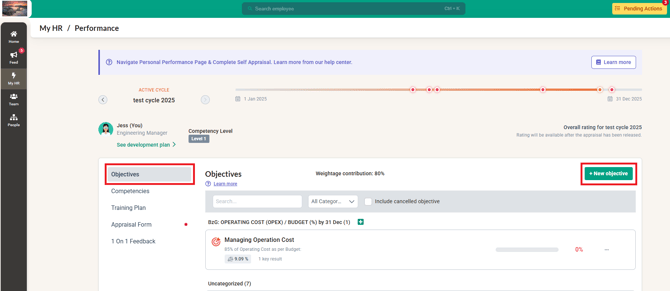
NOTE: Keeping objectives updated helps managers track employee performance more effectively and ensures accurate appraisal results.
3. Completing the Appraisal Form
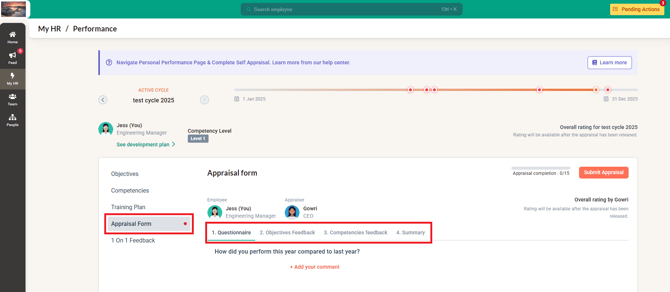
Once the Appraisal Form becomes available on the Performance page, employees can proceed to fill it out.
The appraisal form typically includes the following sections:
-
Questionnaire / Self Appraisal
-
Objectives Rating
-
Competencies Rating
-
Summary
Employees should:
-
Provide feedback and ratings for each objective, competency, and question.
-
Write an overall summary reflecting their performance.
After completing the appraisal, click Submit. Once submitted, the form will be pending manager review (Appraiser feedback).
4. Engaging in 1-on-1 Feedback
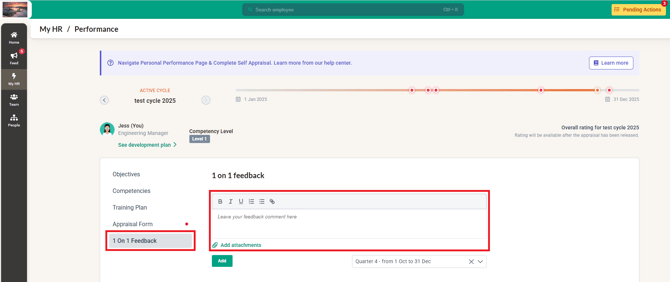
Some appraisal processes may include 1-on-1 Feedback sessions.
These are periodic discussions — daily, weekly, monthly, or quarterly — between employees and managers.
Both parties can use the comment section to document discussion notes. This feature is particularly helpful when referring back to previous conversations and tracking performance discussions over time.
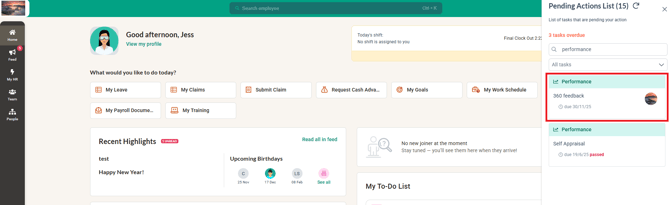
5. Participating in 360 Feedback
Another optional task in the Performance module is 360 Feedback.
In this process, employees may be assigned to give feedback on:
-
Their colleagues
-
Their superior
-
Their direct reports
When assigned as a 360 feedback giver, employees might be required to provide constructive feedback and ratings to complete the task.
Conclusion
BrioHR’s Performance module empowers employees to take an active role in managing their performance journey — from setting goals to completing appraisals and participating in feedback processes.
By regularly updating objectives, providing thoughtful appraisals, and engaging in feedback discussions, employees can gain valuable insights and contribute to a transparent performance culture.
Suggested FAQs
1. Where can I find my performance dashboard in BrioHR?
You can access it by navigating to My HR > Goals on your dashboard.
2. Can I edit my objectives after the manager confirms them?
Yes, depending on the access permissions set by your organization, you may still be able to edit your objectives after confirmation.
3. What is a non-rated objective?
A non-rated objective is a personal goal that is not included in the official appraisal rating.
4. When will the appraisal form become available?
The availability of the appraisal form depends on your company’s performance cycle setup. You will receive a notification once it is open.
5. What is 360 feedback and how does it work?
360 feedback involves providing feedback on peers, managers, or direct reports. If assigned, you will need to give ratings and comments as part of your performance tasks.