![brioHR-logo-color.svg]](https://support.briohr.com/hubfs/brioHR-logo-color.svg)
It is essential for HR/Admin to set up employees rosters to ensure clarity regarding work shifts and schedules. The video guide below provides a step-by-step overview of the rostering process.
Update: Create New Shift (Custom Shift)
If you need to customize a shift to have specific clock in/out and break timings and none of the pre-defined shifts (set by Admin in Admin Settings > Schedules & Shifts) work, you can choose to create a shift with custom timing. Now, the custom shift includes additional break settings.
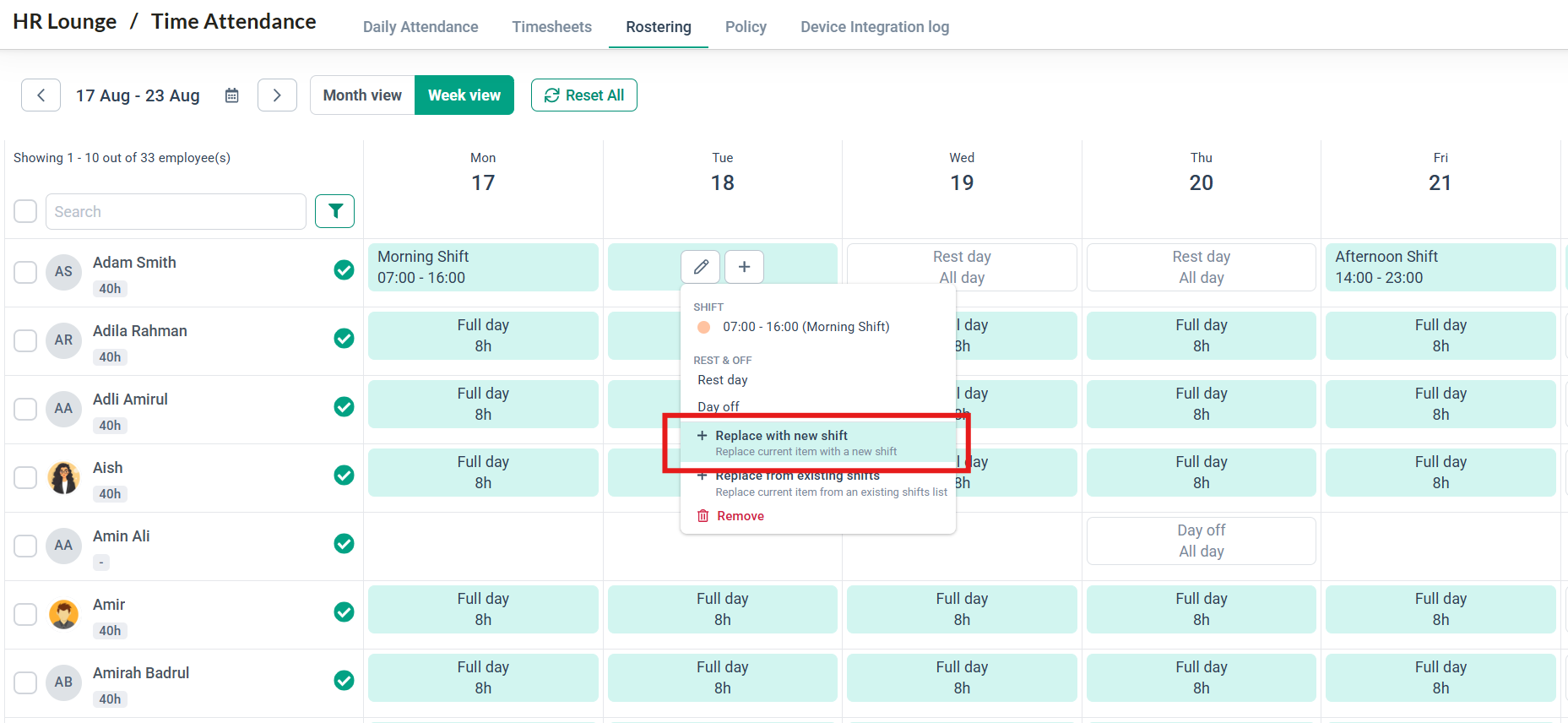
1. Choose the day you want to assign the custom shift, and click Create new shift.
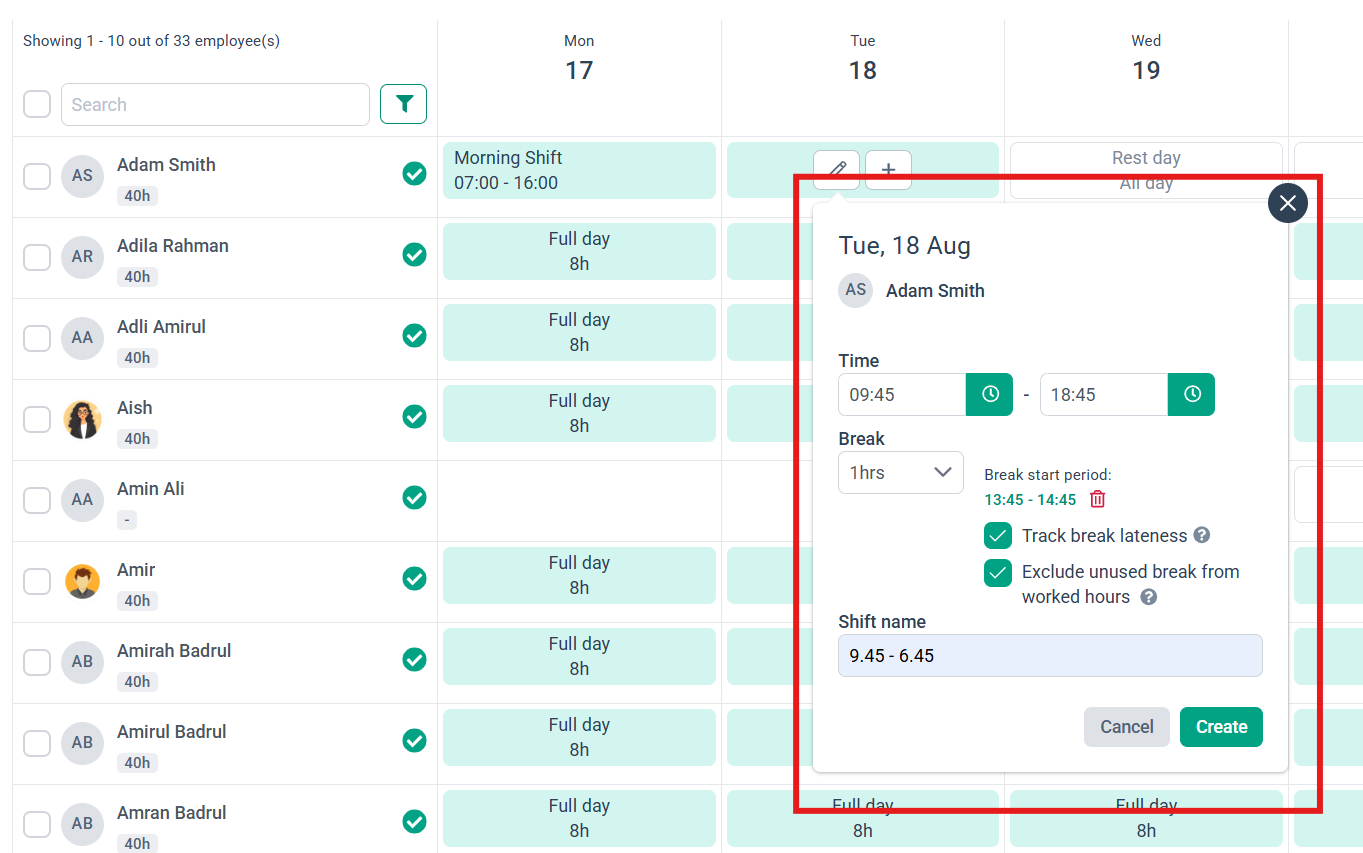
2. Enter the clock-in and clock-out times.
3. Add the break duration, break start period, choose to track break lateness, and choose to exclude unused break from worked hours. Hover over the '?' icon to learn more about the setting.
4. Give the shift a name and click Create to add the new shift.
NOTES:
- The custom shift cannot be replicated. Use pre-defined (existing) shifts if a shift will be used often in the roster.
- If the shift you assign has a break period configured, the employee will only be able to clock out for break (start break) within that defined time window.
Need Assistance?
If you have any questions or require assistance, please reach out to our support team via live chat or email us at support@briohr.com.