![brioHR-logo-color.svg]](https://support.briohr.com/hubfs/brioHR-logo-color.svg)
1. Accessing the Performance Dashboard
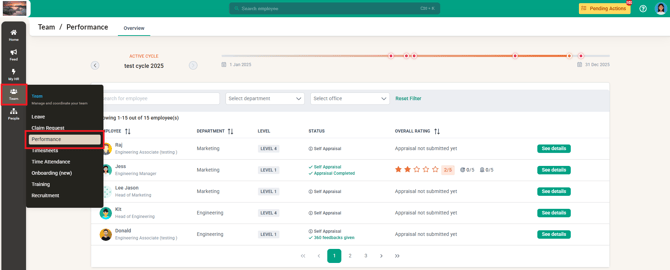
To begin reviewing your team’s performance activities, navigate to Team > Performance within the BrioHR platform. This section provides access to the Performance Dashboard, where you can oversee and manage all performance-related tasks for your team members.
2. Reviewing and Managing Objectives
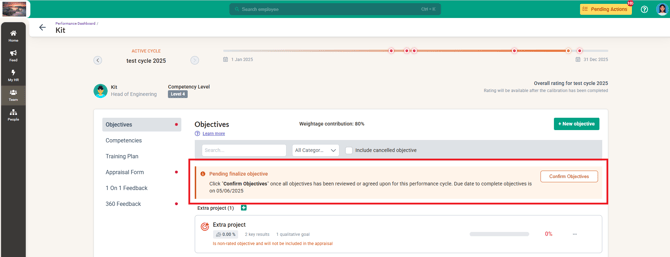
Your first responsibility is to review the objectives submitted by your employees. Employees may also create and propose additional objectives when necessary.
When an employee creates a new objective, they must determine whether it should be included in the appraisal form or treated as a personal (non-rated) goal. If the objective is not part of the appraisal, it should be marked as “This is a non-rated objective.”
Once employees have prepared their objectives, you will review and confirm them. Depending on your organization’s settings, employees may still have permission to edit their objectives even after your confirmation.
Employees are expected to update their progress regularly, and as a manager, you should encourage this habit to ensure accurate tracking and meaningful discussions during the appraisal process.
3. Reviewing the Appraisal Form
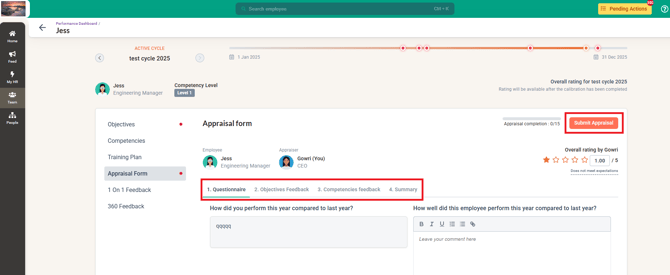
Once the appraisal form has been submitted by the employee, as a manager, it will appear in your queue for manager (appraiser) review.You will then need to evaluate their responses and provide your feedback.
The appraisal form typically includes:
-
Questionnaire / Manager Appraisal
-
Objectives Rating
-
Competencies Rating
-
Summary
4. Conducting 1-on-1 Feedback Sessions
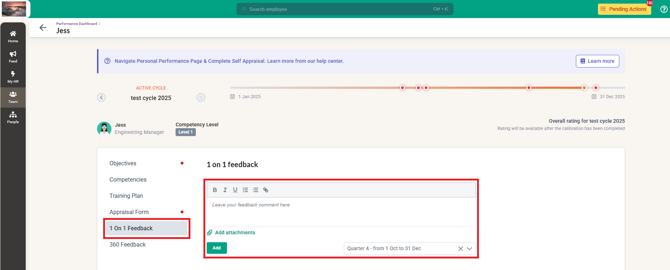
Some appraisal processes include 1-on-1 Feedback sessions. These may be scheduled daily, weekly, monthly, or quarterly depending on your workflow.
As a manager, this is your opportunity to:
-
Discuss performance progress
-
Address challenges
-
Provide guidance and support
Both you and your employees can use the comment section to record notes from each discussion. These notes serve as a helpful reference for future conversations and ongoing performance monitoring.
5. Overseeing 360 Feedback Participation
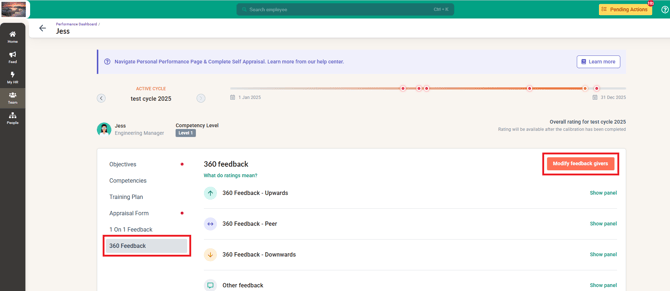
If your organization utilizes the 360 Feedback, employees may need to be assigned to provide feedback on colleagues, their superior, or their direct reports.
As a manager, you will need to assign the respective feedback givers for the employees and should ensure that employees complete their assigned feedback tasks thoughtfully and on time. Constructive feedback and ratings provided in this section contribute to a well-rounded evaluation for everyone involved.
Conclusion
BrioHR’s Performance module equips managers with the tools needed to guide, support, and evaluate their teams effectively. From reviewing objectives to assessing appraisals and facilitating feedback discussions, managers play a crucial role in shaping a transparent and growth-oriented performance culture.
By encouraging regular updates, meaningful self-appraisal, and active participation in feedback processes, managers can help employees gain valuable insights while maintaining alignment with organizational goals.
Suggested FAQs
-
Where can I view my team’s performance dashboard?
Go to Team > Performance from your dashboard. -
Can employees edit their objectives after I confirm them?
Yes, in some cases. This depends on the access permissions set by your organization. -
What is a non-rated objective?
A non-rated objective is a personal goal employees set that is not included in the official appraisal scoring. -
When will the appraisal form be available to my team?
The availability follows your company’s performance cycle setup. Employees will receive a notification when the form is open. -
How does 360 feedback work for employees?
Employees may be assigned to provide feedback on peers, managers, or direct reports. They must complete any assigned ratings and comments as part of their performance tasks.
Need Assistance?
If you have any questions or require assistance, please reach out to our support team via live chat or email us at support@briohr.com.