![brioHR-logo-color.svg]](https://support.briohr.com/hubfs/brioHR-logo-color.svg)
Audience & Scope
Audience: HR Admin
Module: Payroll
Country: Malaysia
Pre-requisites: Access to Malaysia payroll centre
Introduction
BrioHR allows employers to securely manage and distribute employee payroll documents in one centralized location. This article explains how to access and manage payslips, EA Forms, PCB II Forms and PERKESO Borang 2 step by step.
Step-by-Step Instructions
Step 1 - Log In to BrioHR Account
Log in to your BrioHR account using your registered credentials.
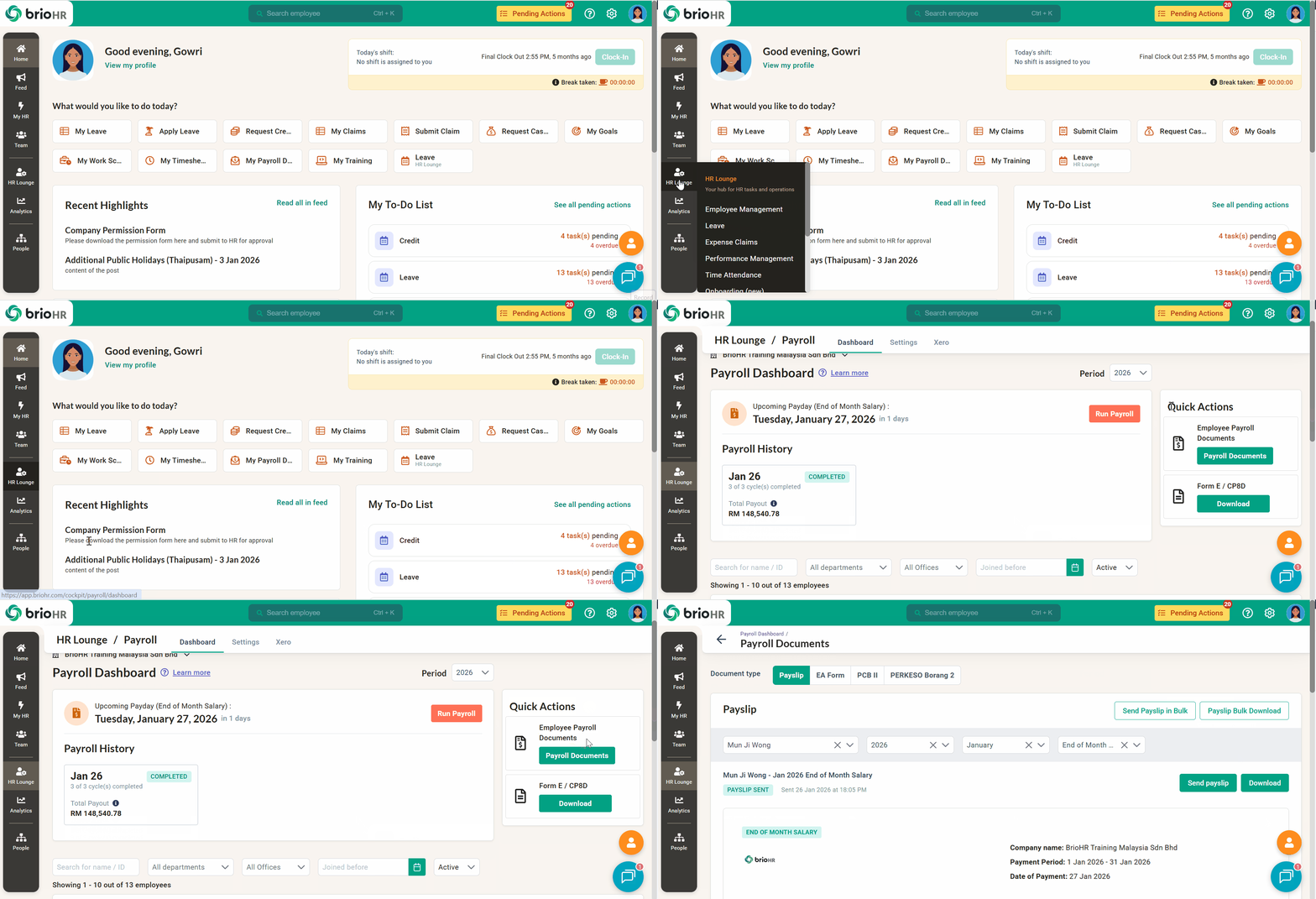
Step 2 - Access Payroll Documents
1. Go to HR Lounge > Payroll
2. Navigate to Quick Actions
3. Look for Employee Payroll Documents > Click Payroll Documents
Step 3 - Available Payroll Document Types
BrioHR supports the following payroll document types.
Document 1: Payslips
Payslips can be viewed, sent, or downloaded individually or in bulk
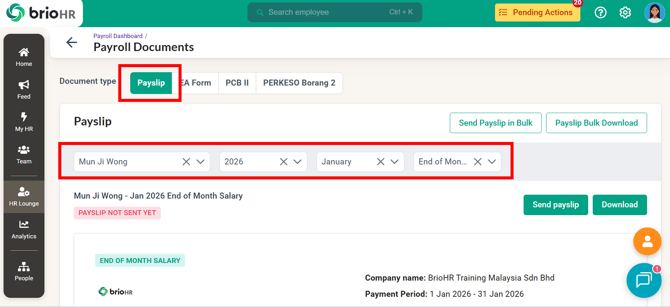
A. Filter Payslips
Use the filters to search by:
-
Employee name
- Year
- Month
This helps you quickly locate the correct payslip period.
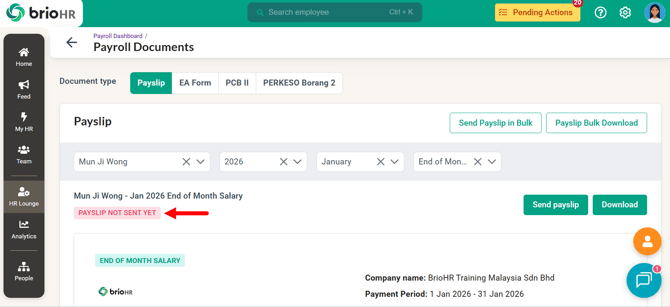
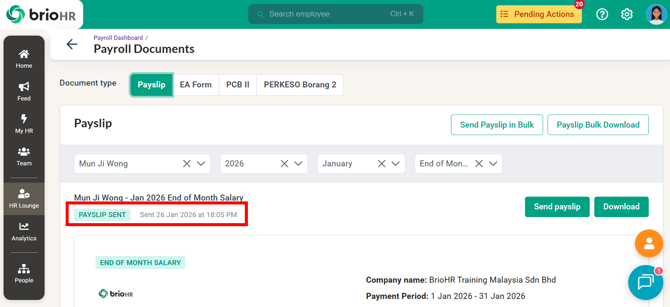
B. View Payslip Sending Status
Once a payslip has been sent, a "PAYSLIP SENT" status will appear with the date and time stamp indicating when it was sent.
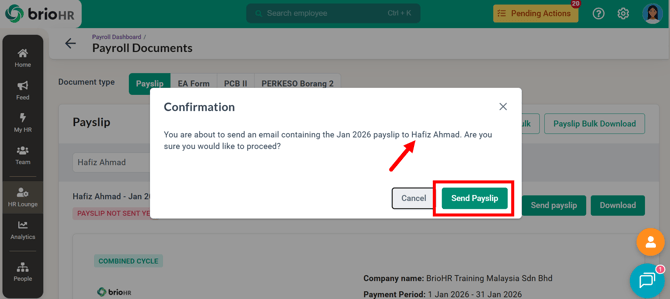
C. Send Payslips Individually
Click on the "Send Payslip" icon to a payslip directly to the selected employee.
NOTE:
The payslip will be sent to active employee's email address only.
If the employee has resigned, you need to download the payslip and send to their email separately.
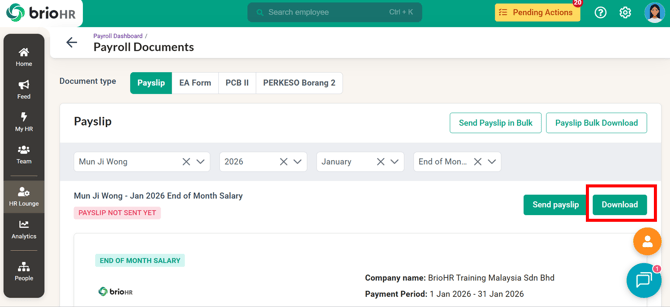
D. Download Payslips Individually
Click "Download" to save the selected payslip as a PDF file on your computer.
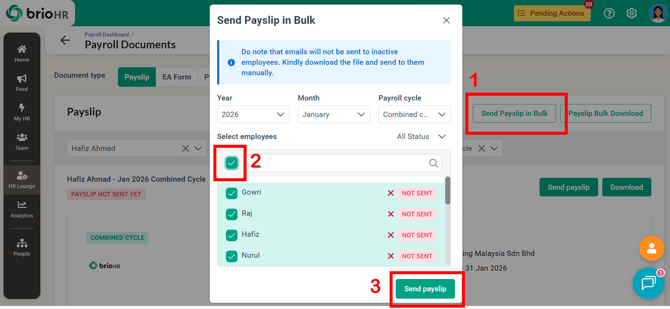
E. Send Payslips in Bulk
Click on the "Send Payslip in Bulk" icon, then:
-
Select the payslip period
- Choose the payroll cycle
- Select employees
Payslips will be sent to multiple employees at once.
NOTE:
Payslip can be resent even if they were previously sent. The system does not restrict multiple sends, and the timestamp will reflect the most recent activity.
The payslips will be sent to active employees only. For resigned employees, you need to download and send to their email address separately.
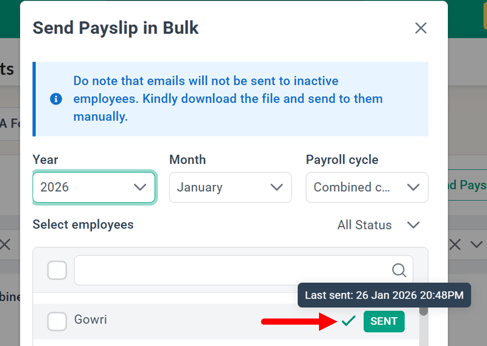
For payslips with a "SENT" status, hover over the status to view the date and time stamp indicating when the payslip was sent.
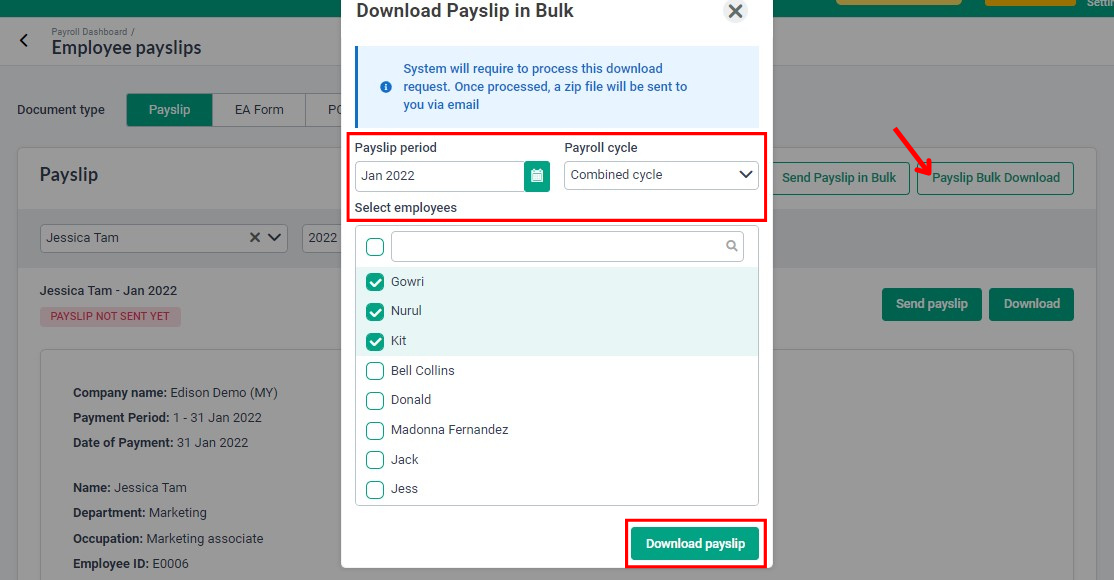
F. Download Payslips in Bulk
Click on the "Payslip Bulk Download" icon, then select:
-
Payslip period
-
Payroll cycle
-
Employees
NOTE:
Once processed, a ZIP file containing the payslips will be sent to you via email.
Document 2: EA Form
EA Forms can be released, revoked, emailed, or downloaded.
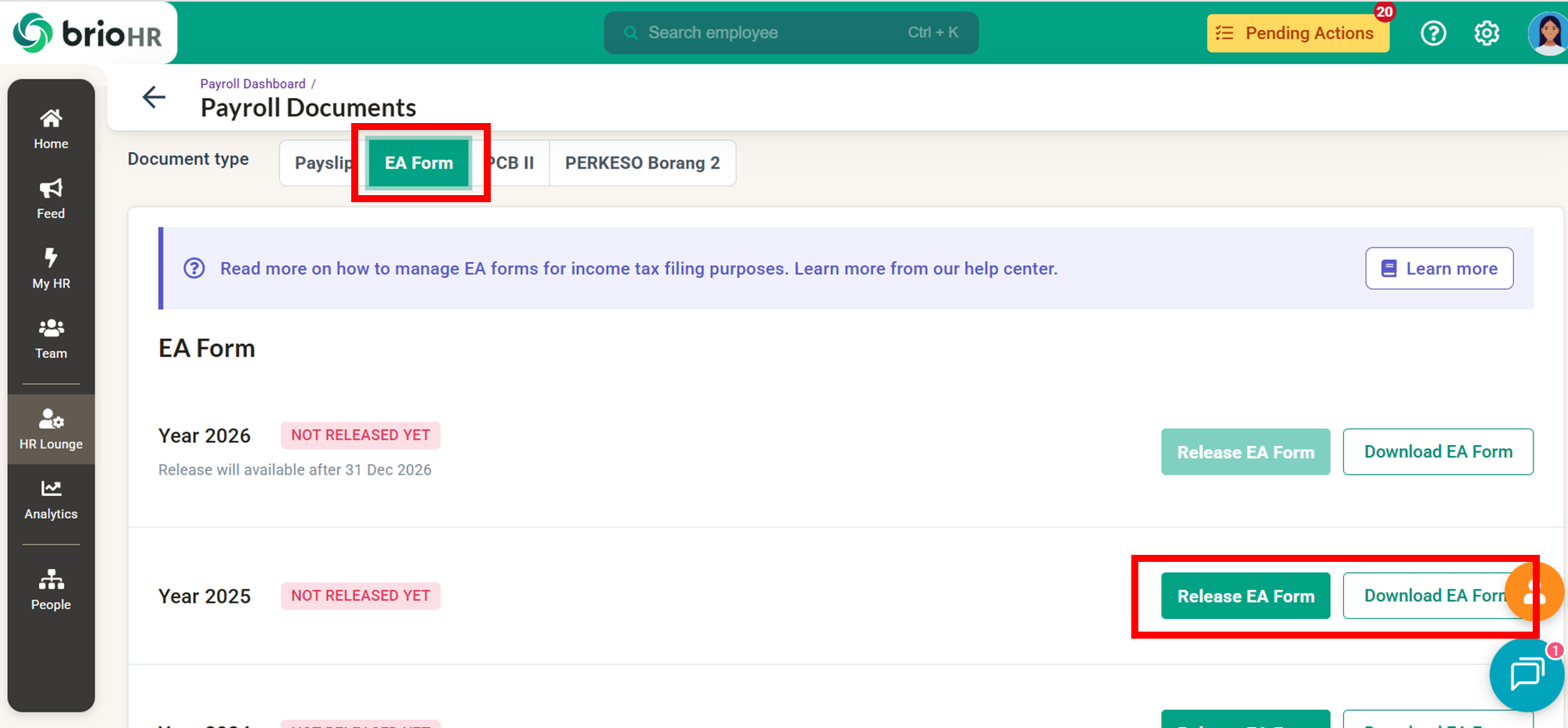
A. Release EA Form
After completing the payroll assessment year:
-
Click Release EA Form to release EA Forms to all employees (this won't send the EA Form to employees' email address. This is to release to their personal payroll documents page)
- Once released, employees can view and download the EA Form directly from their MyHR > Payroll Documents section.
- Alternatively, click Download EA Form to download the form.
B. Undo Release of EA Form
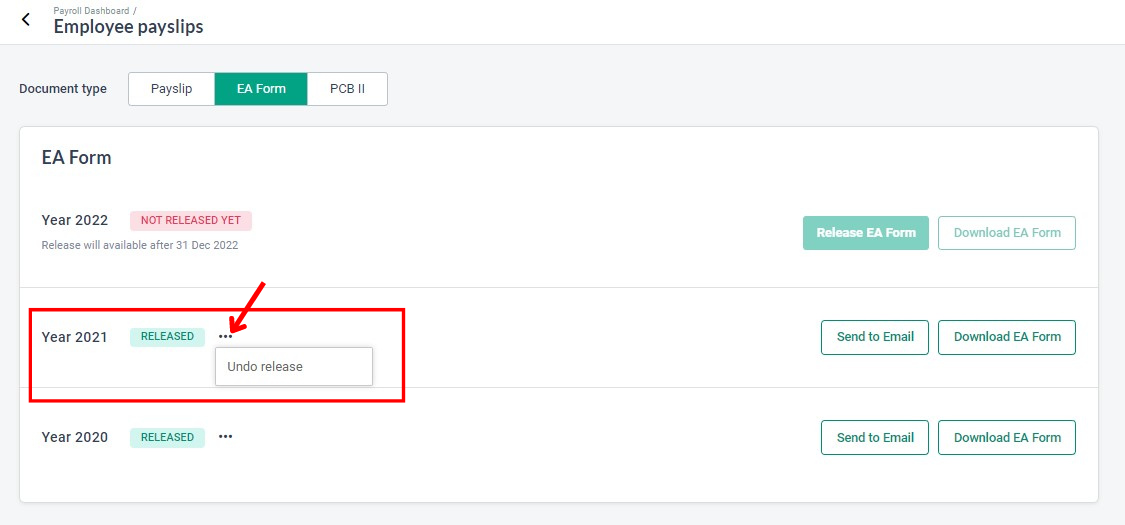
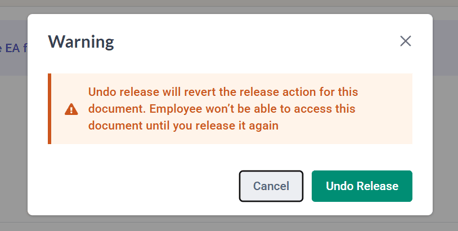
Click on the "..." icon, and select "Undo Release" to revoke the release of the EA Form.
NOTE:
Once the release was revoked will no longer be able to view the EA Form from their dashboard. However, any EA Forms already downloaded or emailed will remain accessible to them.
C. Send or Download Released EA Forms
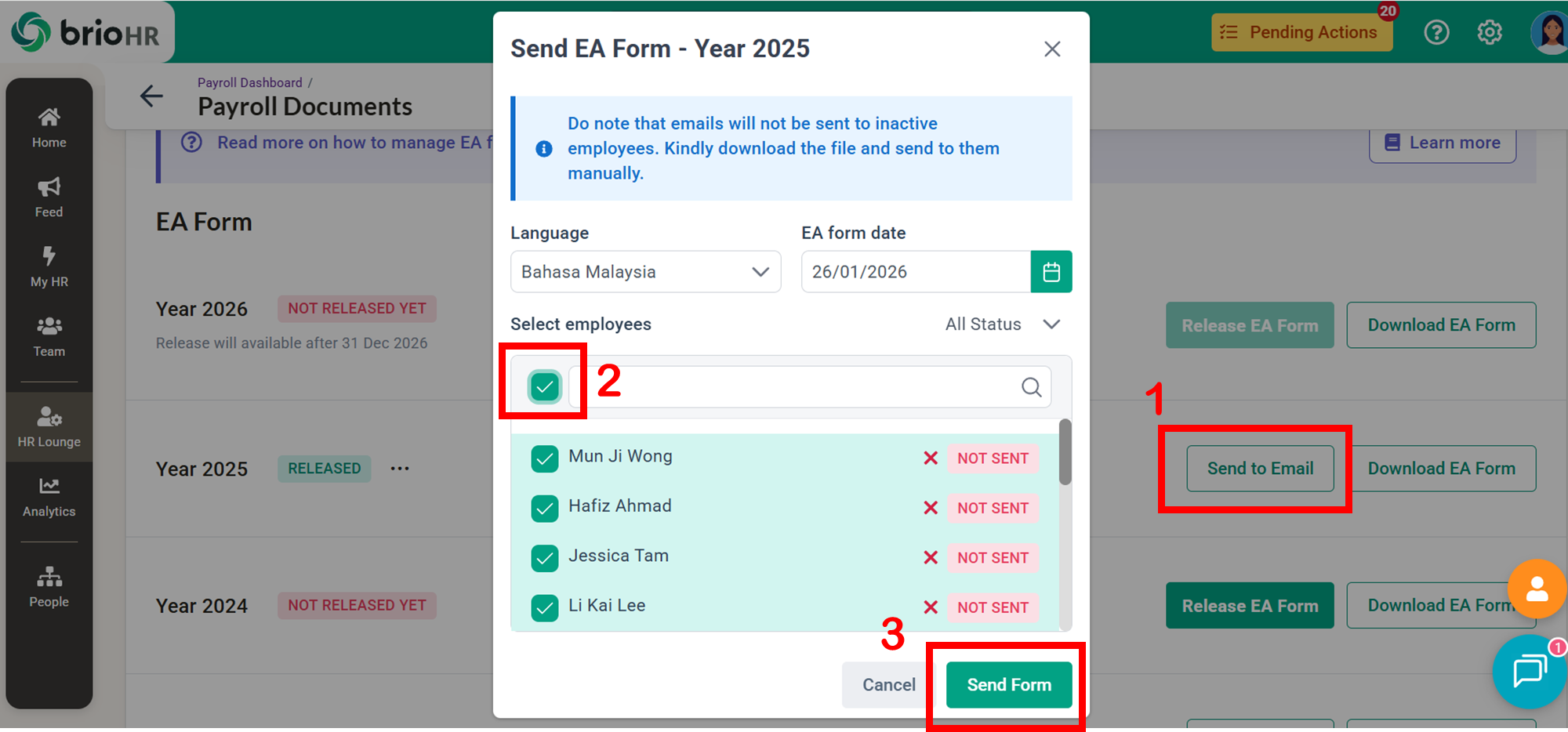
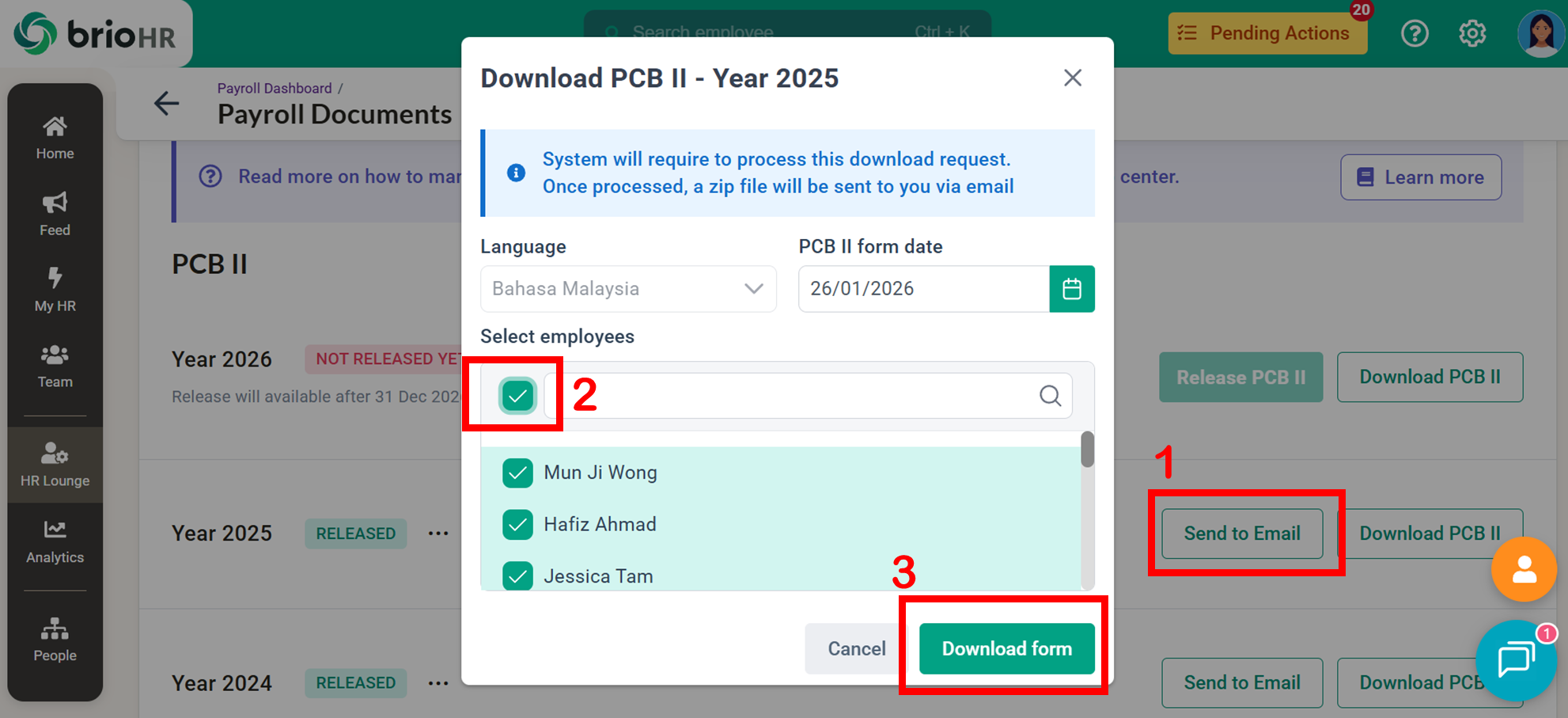
C (i) Send to Email
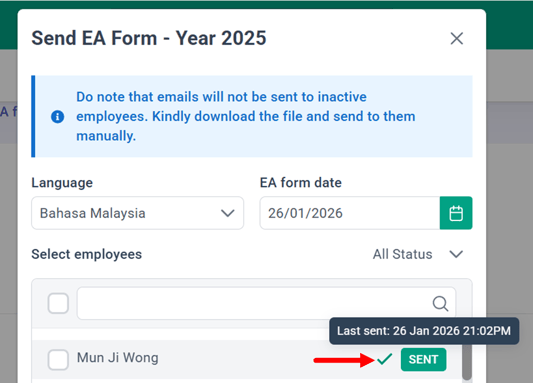
Click Send to Email to email EA Forms to active employees.
C (ii) Download EA Form
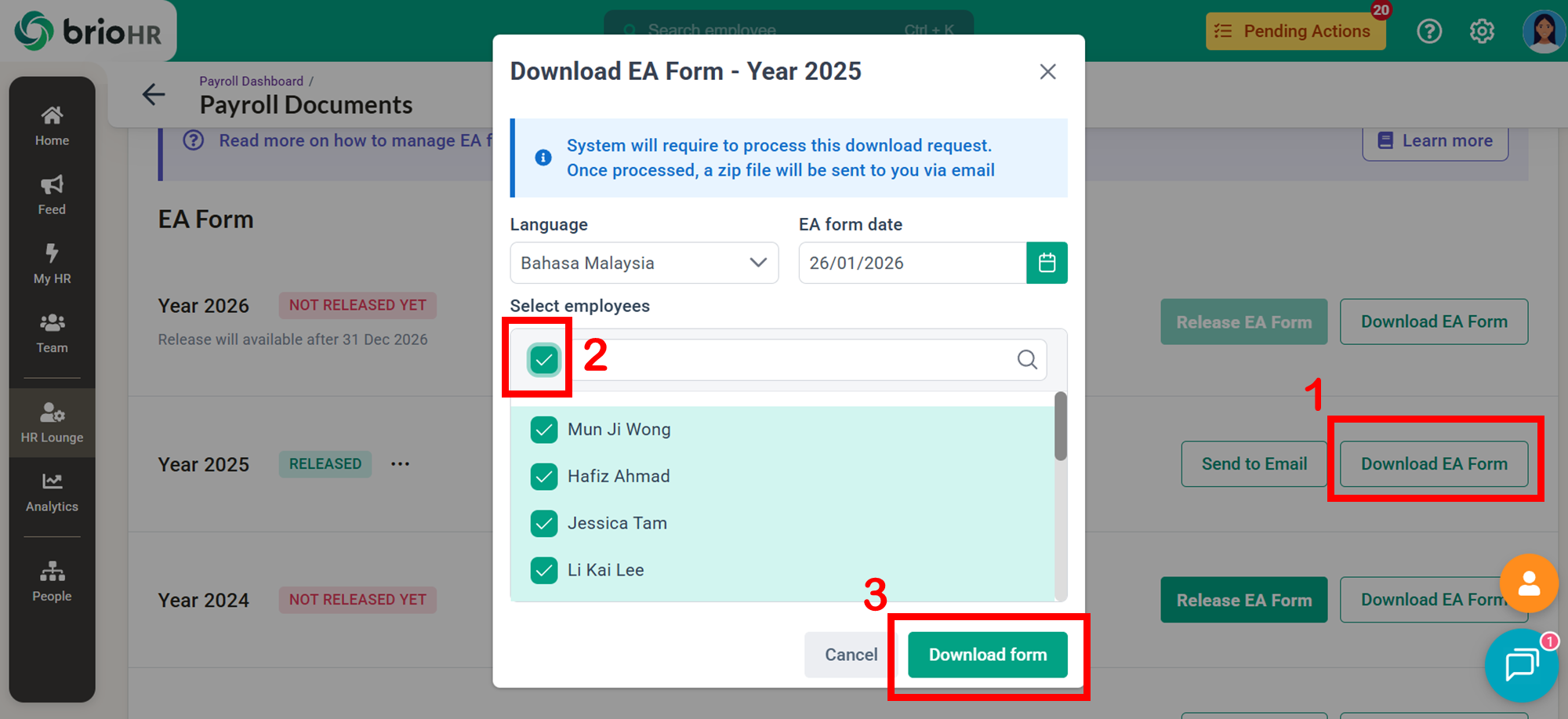
Click Download EA Form to download the released EA form.
The email will be sent to your email in zipped folder.
Document 3: PCB II Form
PCB II Forms follow a similar release and management process.
A. Release PCB II Form
When the payroll assessment year has been completed:
-
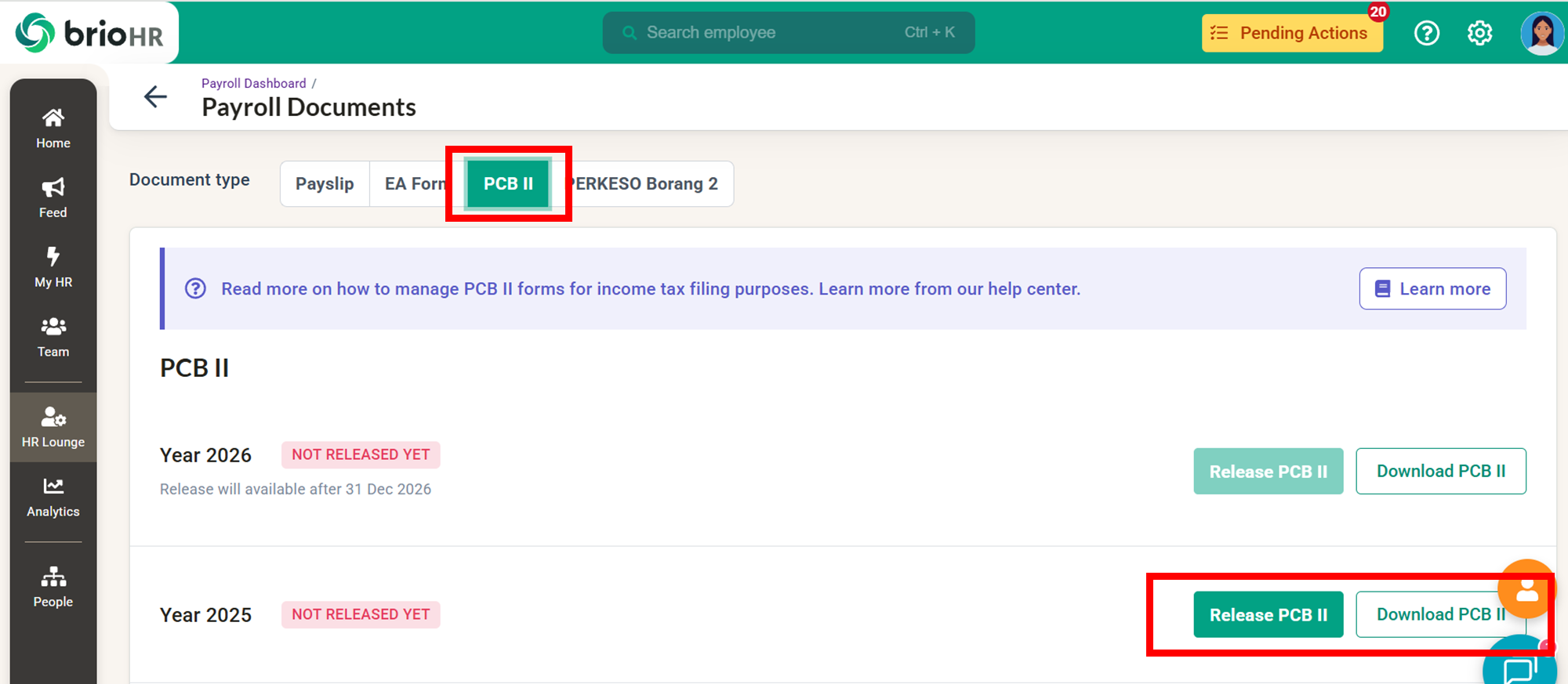
Click Release PCB II to release the form to employees.
- Or click Download PCB II to download the form.
B. Undo Release of PCB II Form
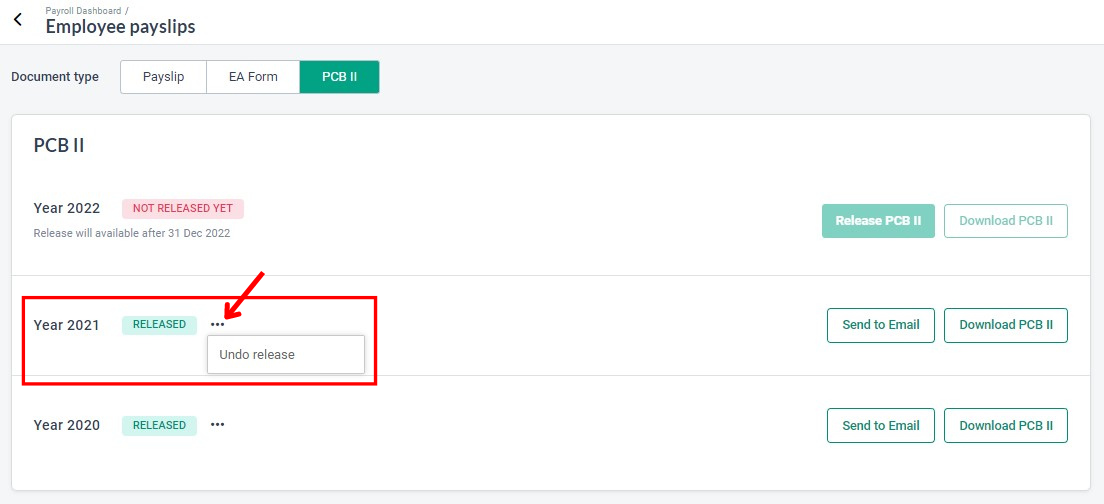
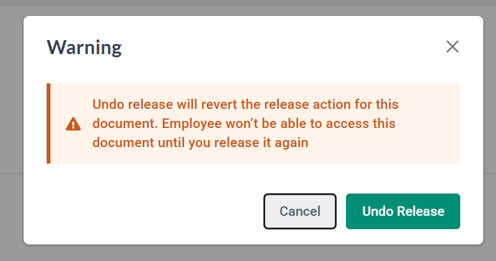
Click on the "..." icon, and select "Undo Release" to revoke the release of the PCB II Form.
NOTE:
Once undone, employees will no longer see the PCB II Form on their dashboard. Previously downloaded or emailed copies will still be accessible.
C. Send or Download Released PCB II Forms
C (i) Send to Email
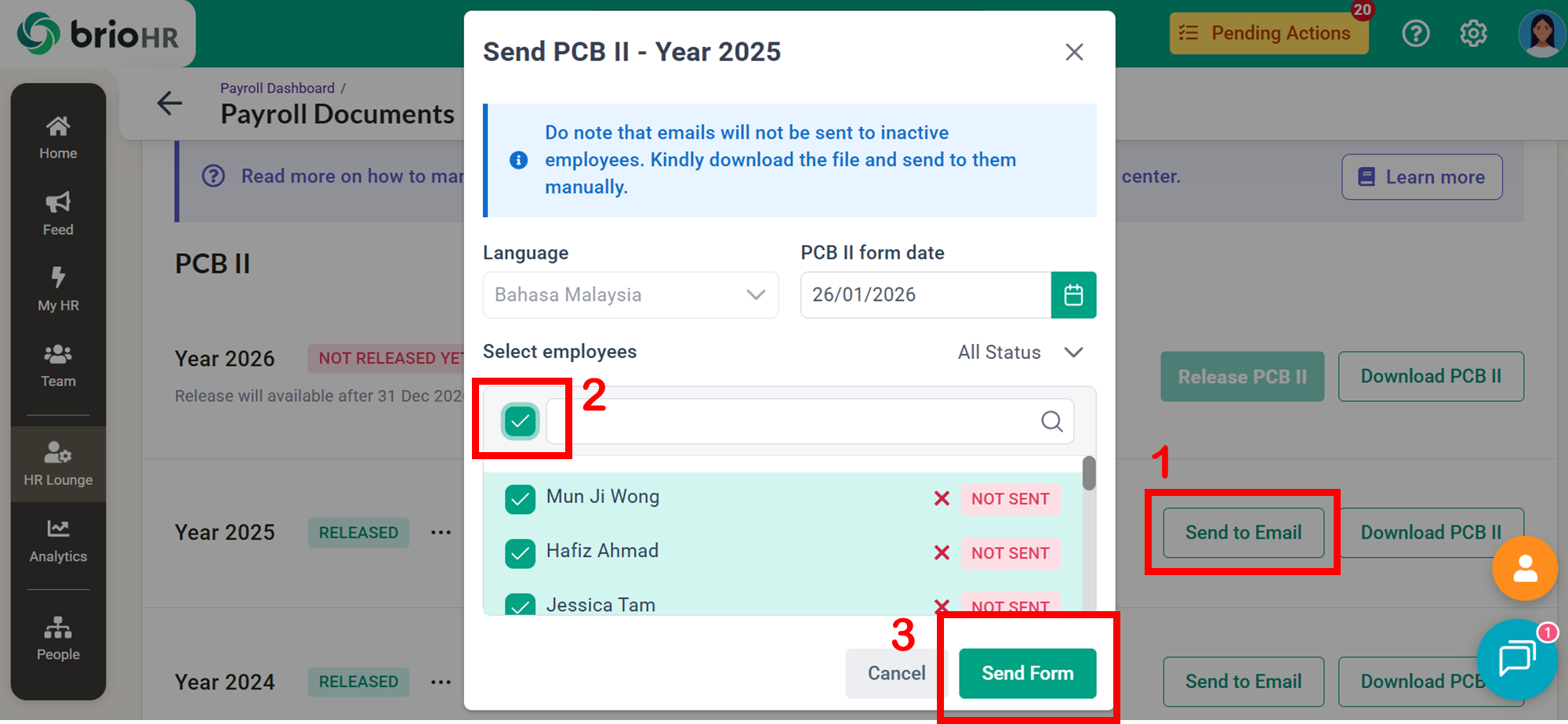
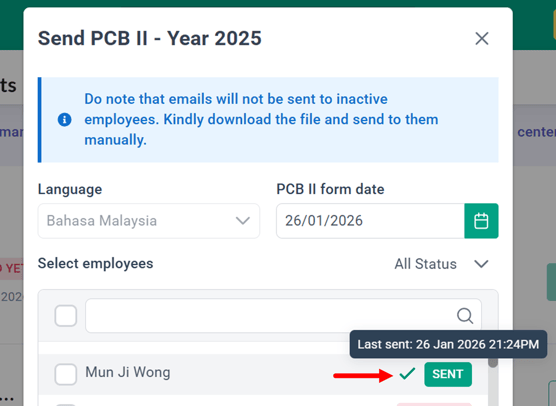
Click Send to Email to email the released PCB II Form to active employees' email addresses.
C (ii) Download EA Form
Click Download EA Form to download the released EA form.
A ZIP file will be sent to your email.
Document 4: PERKESO Borang 2
PERKESO Borang 2 (Borang Pendaftaran Pekerja) is a mandatory document used to register new employees with Pertubuhan Keselamatan Sosial (PERKESO) under the Employees' Social Security (General) Regulations 1971.
Employers are required to register their company's new employees whenever there are new joiners.
You can download PERKESO Borang 2 in text file format and upload to the
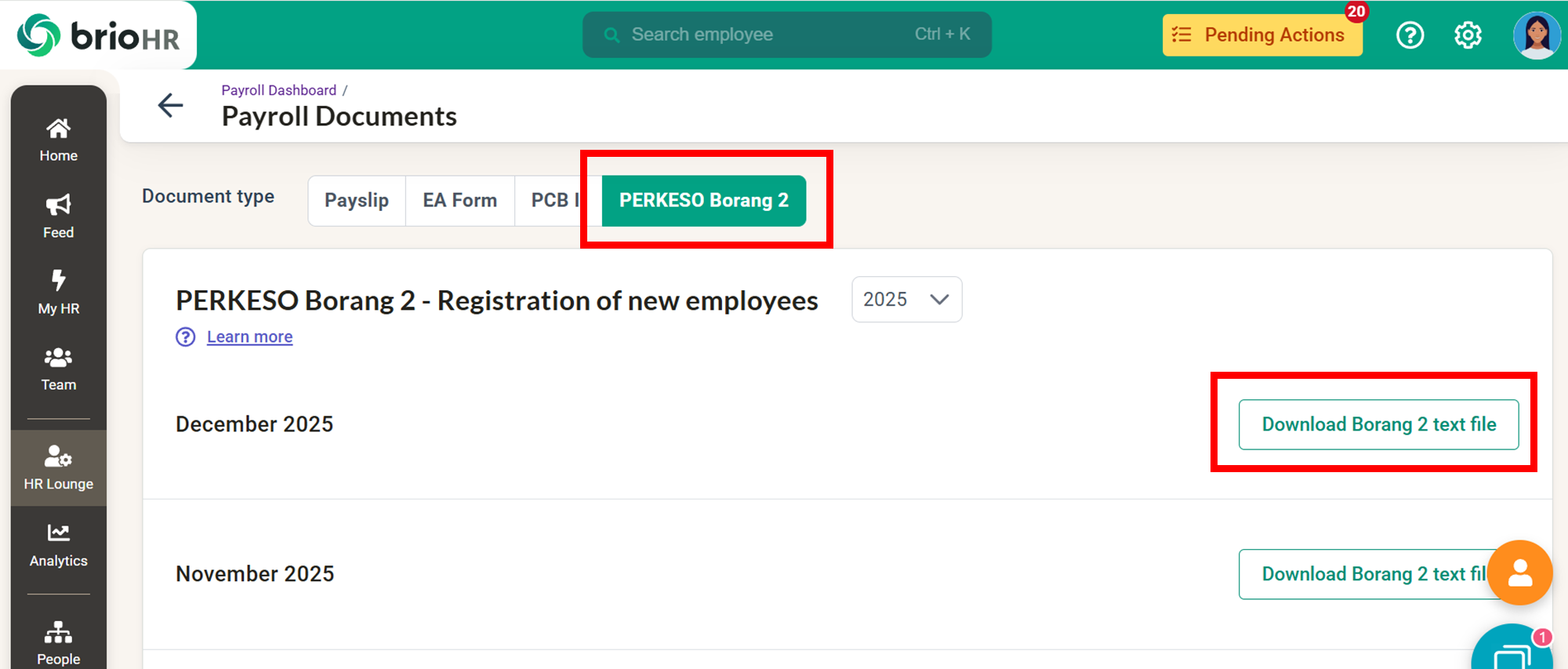
A. Download Borang 2 Text File
-
Search for the month that has new employees.
-
Click Download Borang 2 Text File.
The downloaded text file can be uploaded directly to the PERKESO portal.
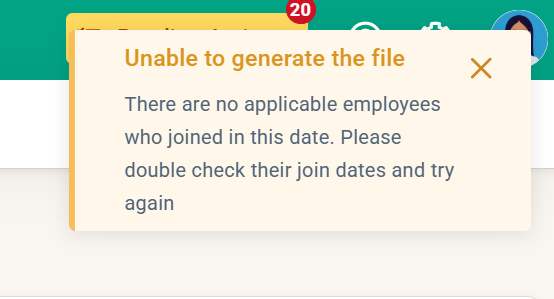
NOTE:
If there are no new employees for the selected month, the system will display a notification message.
Frequently Asked Questions (FAQs)
Q1: Can I resend a payslip after it has already been sent?
A: Yes. Payslips can be resent multiple times, and the latest send date will be recorded.
Q2: Where can employees view their released EA or PCB II Forms?
A: Employees can access them via MyHR > Payroll Documents.
Q3: Will I receive bulk downloads immediately?
A: No. Bulk downloads are processed by the system, and a ZIP File will be emailed to you once ready.
Last Updated & Ownership
Last Updated: 26 January 2026
By: Syakirah Jalil
Need Assistance?
If you have any questions or require assistance, please reach out to our support team via live chat or email us at support@briohr.com.