![brioHR-logo-color.svg]](https://support.briohr.com/hubfs/brioHR-logo-color.svg)
Audience & Scope
Audience: HR Admin
Module: Organization Chart
Country: Global
Pre-requisites: Access to Organization Chart
The organization chart displays the breakdown structure of your company in a diagram form. You can view it horizontally or in a compact format, apply filters to narrow or widen your search, and print the page.
A short video is attached below, detailing the following features of the Organization Chart:
- Enabling access to the Org Chart and accessing it on the system
- Selecting filters to narrow or widen your search
- Printing the Org Chart and zooming in/out
- Changing the view from compact to horizontal
- Expanding and collapsing the Org Chart
- Editing information, viewing employee profiles
- Managing vacant positions: edit, add, or delete positions
Step by Step Guide to Access and Manage the Organization Chart
Step 1: Enable Organisation Chart Access
Before accessing the Organisation Chart, ensure that your user group has the required permissions.
- Go to Settings.
- Select User Group.
- Locate the Admin user group and click Edit.
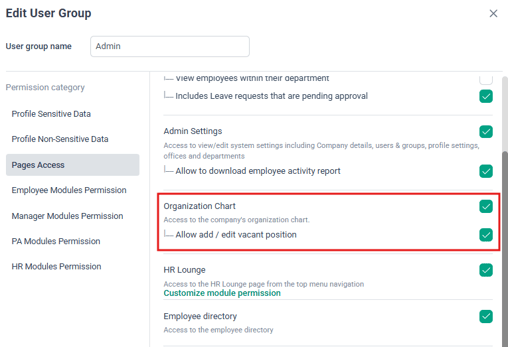
- Under Pages Access, ensure the following permissions are enabled:
- Organisation Chart – View
- Allow Add/Edit Vacant Positions
- Click Save.
Step 2: Access the Organization Chart
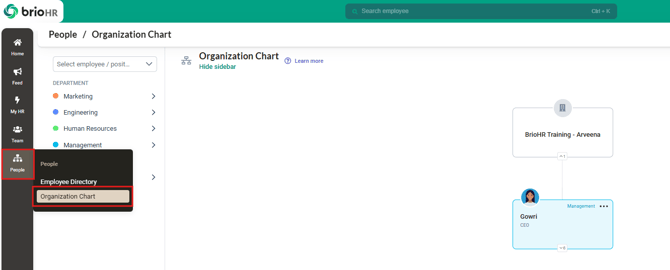
- Go to People.
- Select the Org Chart tab.
- The Organization Chart displays your company's reporting structure.
Step 3: Navigate the Organization Chart
You can use the available filters and controls to find and view information more easily.
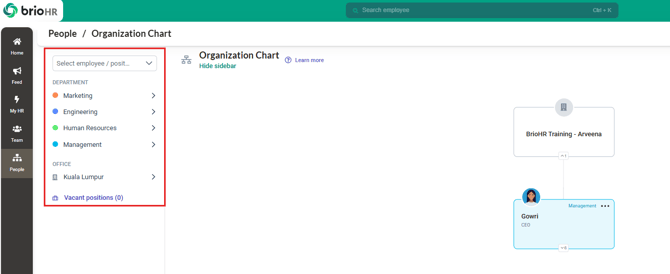
Use the Filters
You can filter or search the Organization Chart by:
- Department
- Office
- Vacant Positions
- Employee or Position
Note: there is no entity (company) filter on the chart or on the download at the moment. Only the filters above (Department, Office, Vacant Positions, Employee or Position) are available to generate the Org Chart.
Adjust the View
You can:
- Zoom in or Zoom out to adjust the chart size.
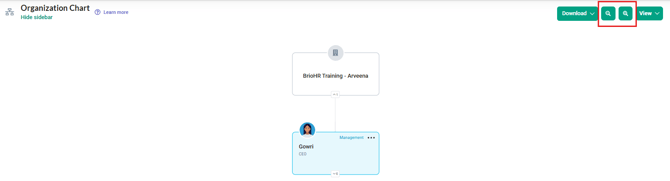
- Switch between Compact and Horizontal views.
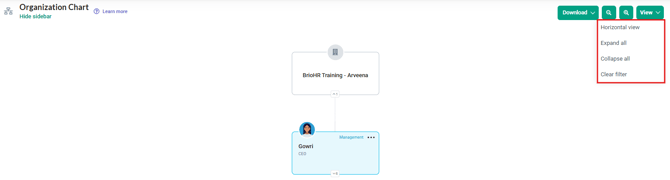
- Move or scroll around the chart to view different sections.
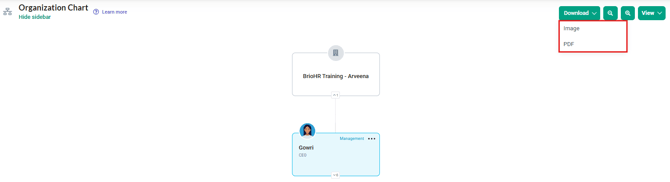
- Click the Download button to download the Organization Chart as an Image or PDF .
Step 4: Expand or Collapse the Chart
To view more details:
- Click the dropdown on a manager or position.
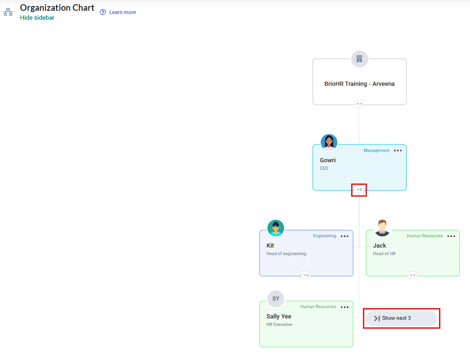
- Select Expand All to view the employees reporting under the manager.
- Select Collapse to return to the main organizational structure.
- Use Clear Filter to remove any filters that have been applied.
Employees are colour-coded by department to make the organizational structure easier to understand.
Step 5: View Employee Details
Click the three-dot menu on an employee's profile to access additional options.
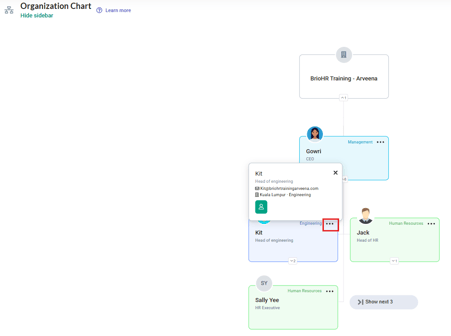
You can:
- View Profile – Go directly to the employee's profile.
Step 6: Manage Vacant Positions
Created vacant positions can be viewed under the Vacant Positions section.
Click the three-dot menu on a vacant position to:
Assign an Employee
- Select Assign Employee.
- Enter the required information.
- Click Save.
- The position will no longer be shown as vacant.
Delete a Vacant Position
If the position is no longer required:
- Click the three-dot menu.
- Select Delete.
- Confirm the deletion.
Last Updated
By: Arveena