![brioHR-logo-color.svg]](https://support.briohr.com/hubfs/brioHR-logo-color.svg)
Audience & Scope
Audience: HR Admin
Module: Payroll
Country: Global
Pre-requisites: Access to HR Lounge Payroll module, access as Payroll Manager
Managing unpaid leave efficiently in your payroll system is crucial for accurate compensation. Here are two methods you can use to add and import unpaid leave into your payroll:
Method 1: Manually Add the Number of Unpaid Leave Days
- Enter the number of unpaid leave days in the designated text box.
- The system will automatically calculate the amount to be deducted from the payroll.
Method 2: Import Unpaid Leave Days from Employee Records
- Import the number of unpaid leave days directly from the employee’s personal leave dashboard.
- Choose the date range for which you want to import leave data.
- The system will automatically update the payroll based on the selected date range.
IMPORTANT:
Unpaid leaves applied and approved through the Leave module does not automatically get deducted in payroll, the Unpaid Leaves will need to be imported into the payroll cycle for the deduction to be captured.
For a detailed guide on the second method, please watch the accompanying video.
NOTE:
For Payroll Malaysia: if you would like to know how the daily rate for unpaid leave is calculated, you can refer to this guide.
For Payroll Singapore: Unpaid leave is calculated following the guidelines from MoM. Learn more about it here. You can also refer to our salary proration article for more details on the calculation.
2. 1 Previous months Unpaid Leave data can be added into Payroll.
1) Add the Unpaid Leaves payitem into payroll
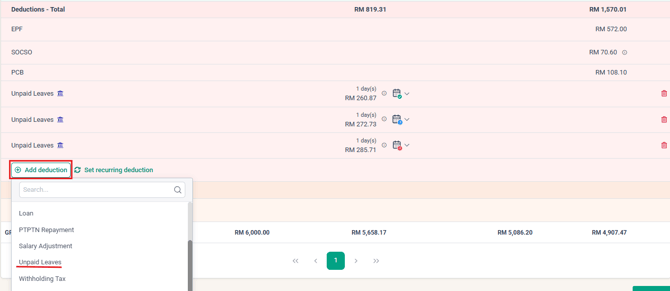
2) Add the days

3) Click on the dropdown and select if the Unpaid Leave is from a previous month, the amount will be automatically calculated
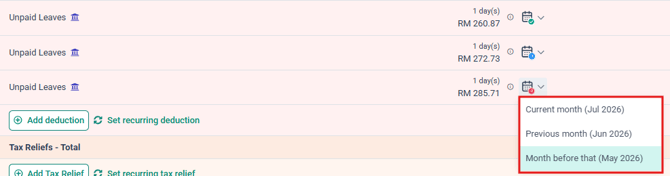
Here is the view of all unpaid leave options that can be included into payroll
*Green icon: Current Month unpaid leave
*Blue icon: Previous Month unpaid leave
*Red icon: Month before that unpaid leave
The formula is automatically captured for current and previous month selection made.
TIP:
When you add a pay item whose unit is Hours or Days manually in a payroll run, a source month selector lets you choose which month the quantity relates to: the current month, the previous month, or two months back.
Last Updated
By: Arveena