![brioHR-logo-color.svg]](https://support.briohr.com/hubfs/brioHR-logo-color.svg)
Introduction
Collecting employees' identity documents are important as part of company's internal records of their employees. The identity documents are also will be used during payroll process especially when downloading statutory text files for statutory contributions.
There are 4 defaults field readily available for Identity Documents:
- MyKad
- NRIC
- Passport
- Employment Pass
Each of the field has been pre-assigned to respective
You can create as many custom fields as you need under Personal Details. In this example, we'll add "Confirmation Date" to an employee's Personal Details. All custom fields created will appear on the Employees' My Profile page.
To do this, go to Settings > Personal Data > Go to the second tab: Identity documents.
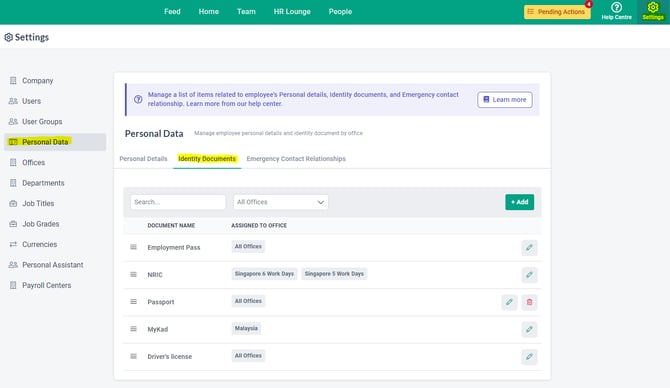
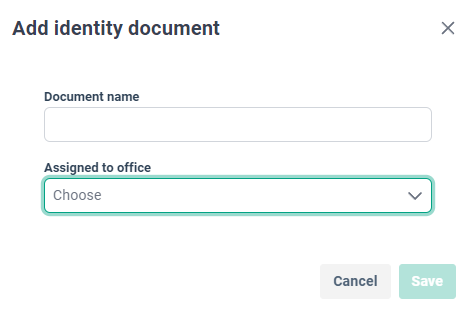
From here, you can click "+Add" to insert any other identity documents that you require from the employees for record-keeping purposes.
You will be able to assign the identity documents to specific offices. (Eg. NRIC for Singapore, MyKad for Malaysia, etc)
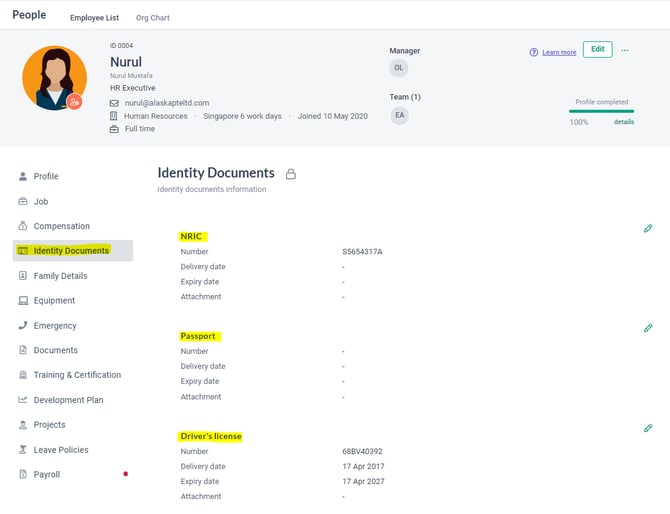
Once that is done, you will be able to see it in the employee's profile, as shown in the screenshot below.
To make any edits to the custom fields, go back to Settings > Personal data > Identity documents.
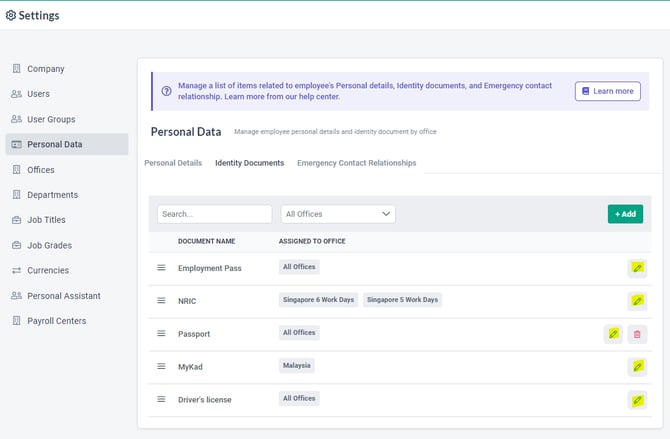
You will be able to edit the field name, as well as the assigned offices.
To delete any of the custom fields, you will be able to do so by clicking the red dustbin icon.