![brioHR-logo-color.svg]](https://support.briohr.com/hubfs/brioHR-logo-color.svg)
Audience & Scope
Audience: HR Admin
Module: Employee Management & Admin Settings
Country: Global
Pre-requisites: Access to Payroll Sensitive Information, Access to Admin Settings
Method 1: Change for an individual employee through Employee Profile
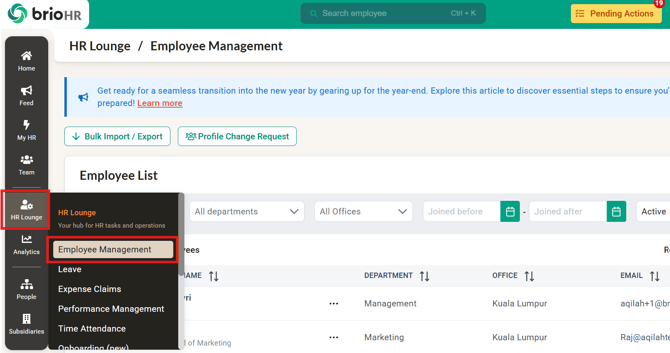
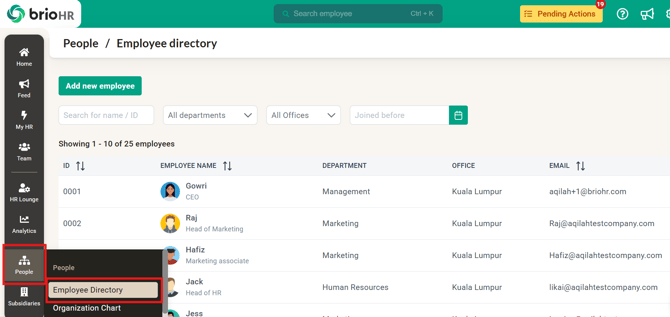
1. At HR Lounge > Employee Management or People > Employee Directory, find and click on the respective employee to view the profile.
2. Navigate to the Payroll section.
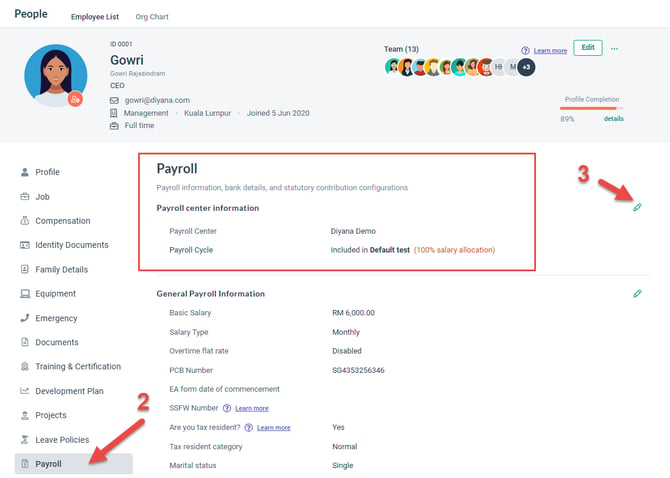
3. Click on edit pencil icon to change the Payroll Center.
4. Choose the Payroll Center from the drop-down list.
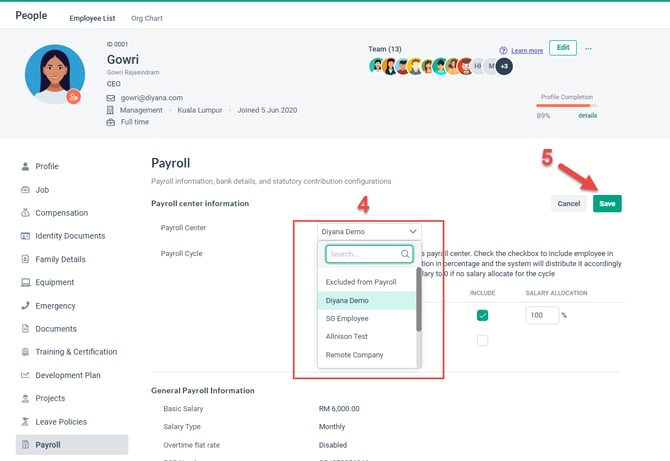
5. Click on Save button to save the setting.
Method 2: Change for multiple employees through Payroll Center in Admin Settings
To change/transfer multiple employees between payroll centers, you will need to first unassign them from their current payroll center, then assign them to the new payroll center:
1. Go to Admin Settings > Payroll Center
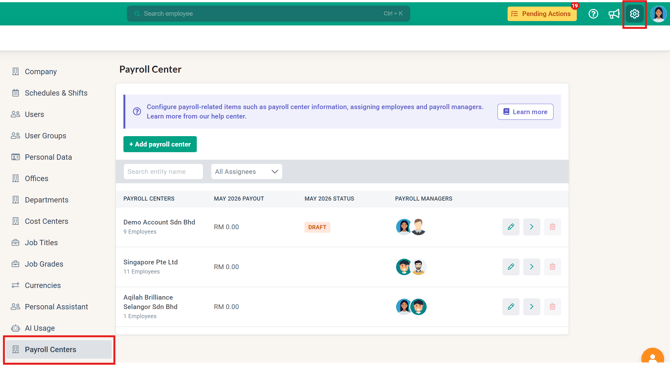
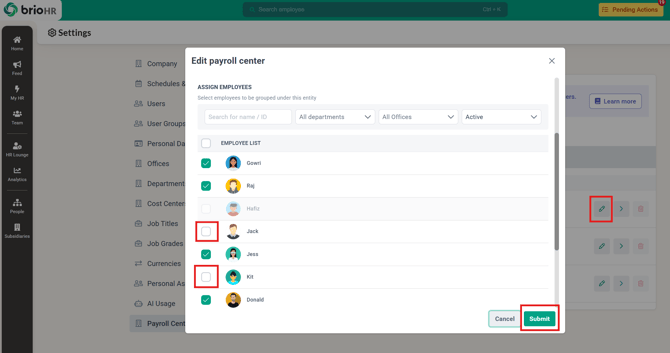
2. Click the Edit button (pencil icon) of the payroll center you wish to remove the employee(s) from
3. Find the employees you want to change/transfer and untick the box to unassign them from the payroll center
4. Click Submit
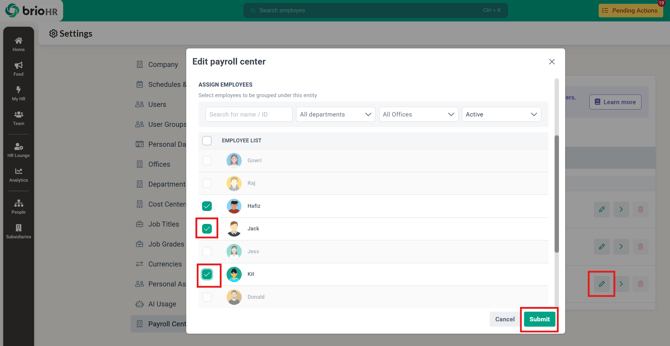
5. Click the Edit button (pencil icon) of the new payroll center you want to change/transfer the employees to
6. Find the employees you want to change/transfer and tick the box to assign them to the payroll center
7. Click Submit
Need Assistance?
If you have any questions or require assistance, please reach out to our support team via live chat or email us at support@briohr.com.