![brioHR-logo-color.svg]](https://support.briohr.com/hubfs/brioHR-logo-color.svg)
Audience & Scope
Audience: HR Admin, Manager, Employees
Module: User Groups
Country: Global
Pre-requisites: Access to Admin Settings, User Group
Ensuring that employees are assigned to the correct user groups and have the appropriate access permissions is important for maintaining data security and ensuring they can access the right modules and information in brioHR.
As an HR Admin, you can review the user groups, check the assigned employees, and verify the permissions configured for each group by following the steps below.
Step 1: Navigate to User Groups
- Go to Settings > User Groups.
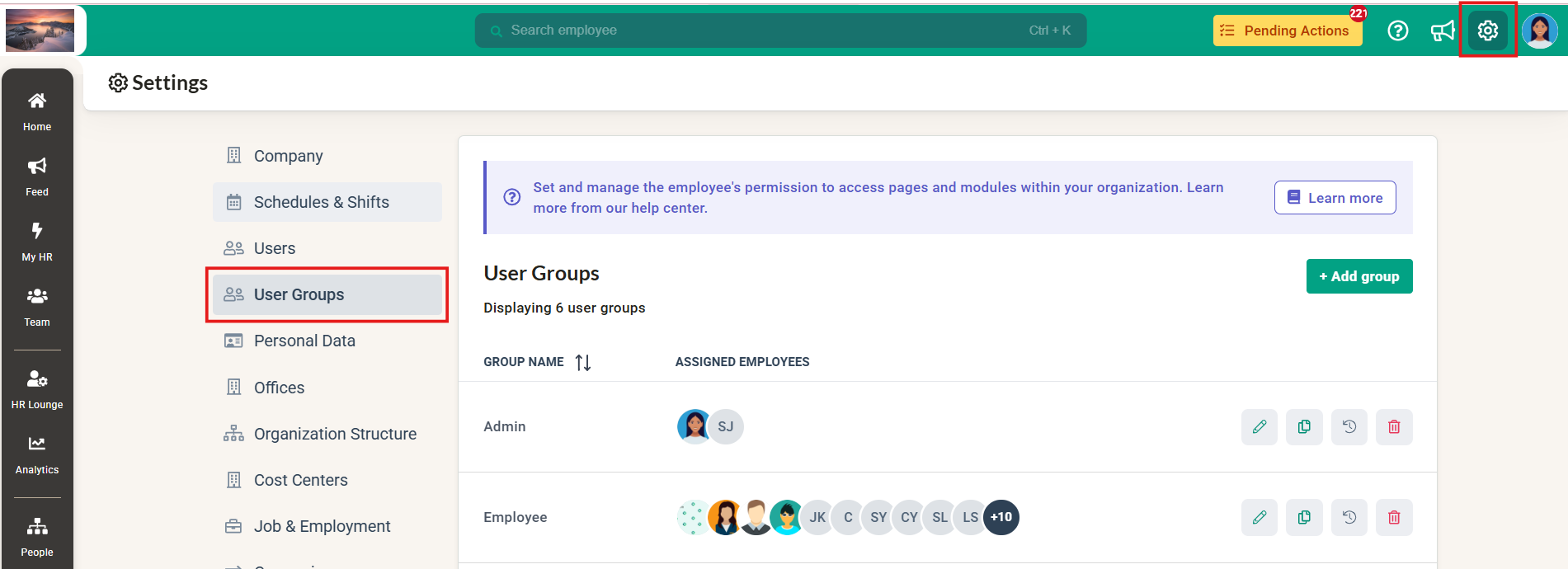
- Review the list of user groups configured in your brioHR account.
Step 2: Review User Group Permissions
- Locate the user group you wish to review.
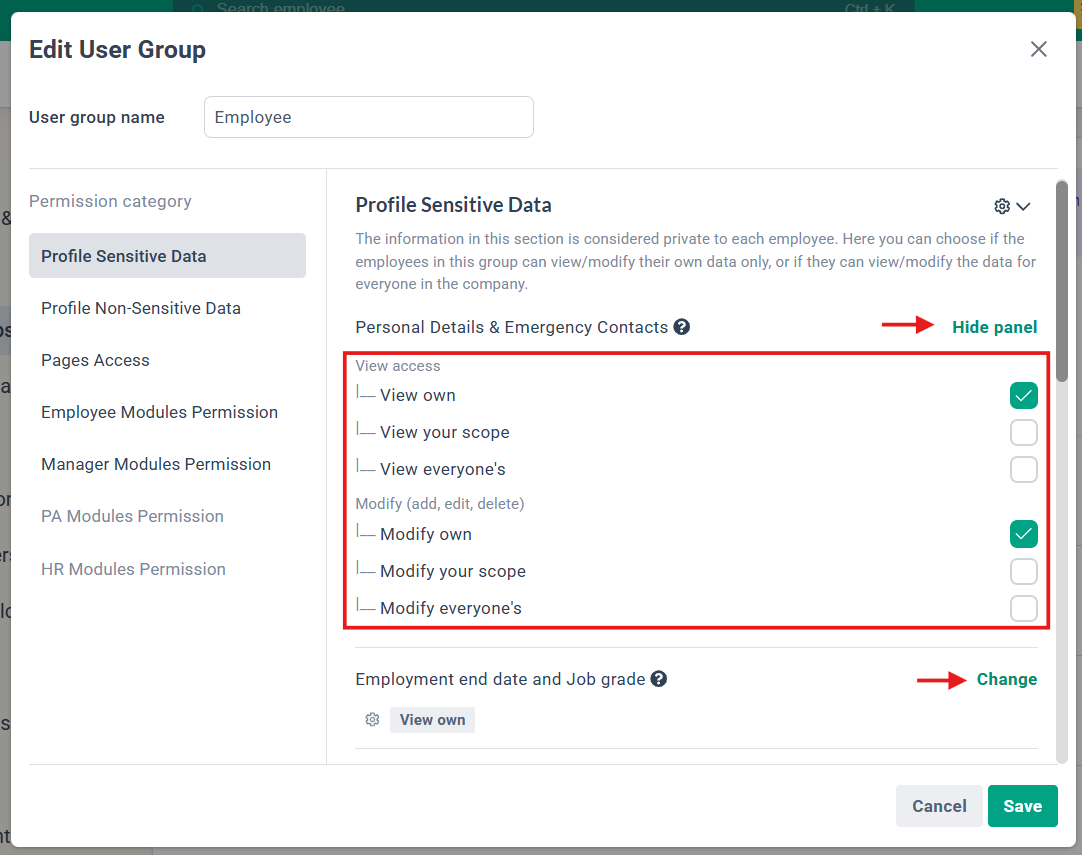
- Click on the Pencil Icon to edit and view the group's configured permissions.
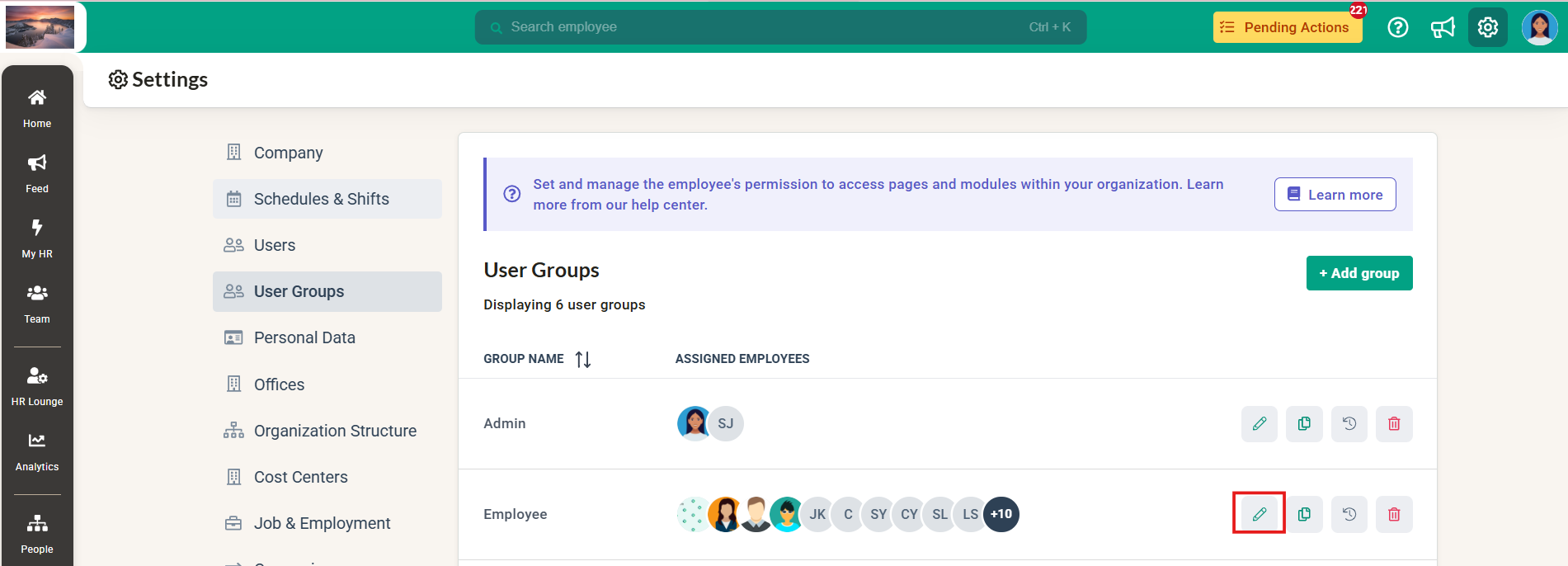
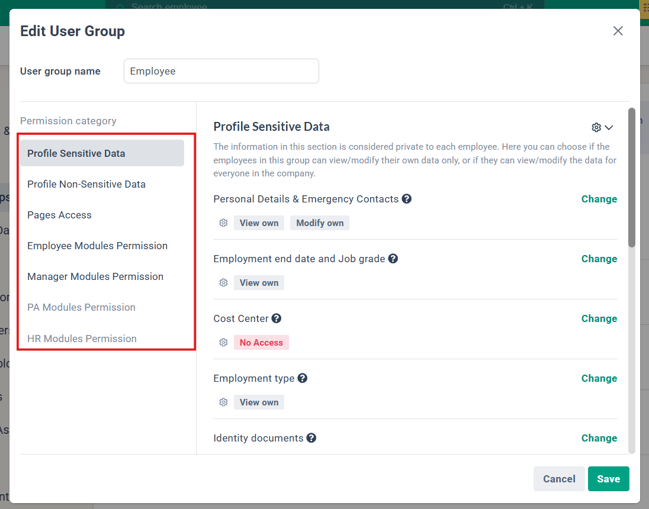
- Go through each Permissions Category available.
- Review the permissions enabled under each category and ensure they are accurate based on the group's intended access level and responsibilities.
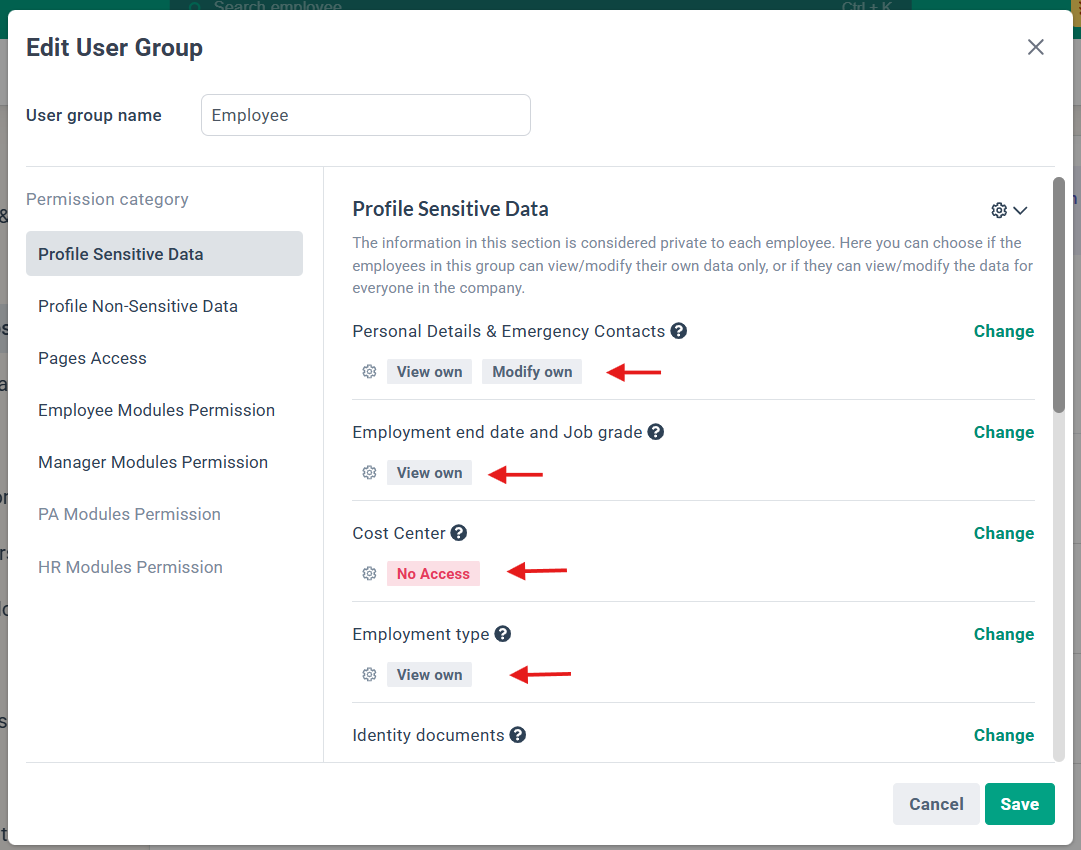
- Click Change to make any necessary adjustments to ensure users have the appropriate permissions.
NOTE:
View own - the ability to view their own information for that section
View your scope - the ability to view the information of their direct reports/reporting scope for that section
View everyone's - the ability to view everyone's information for that section
The same applies for the Modify options which allow the user to make changes to those information.
Step 3: Review Employee Group Assignments
- Go to Settings > Users.
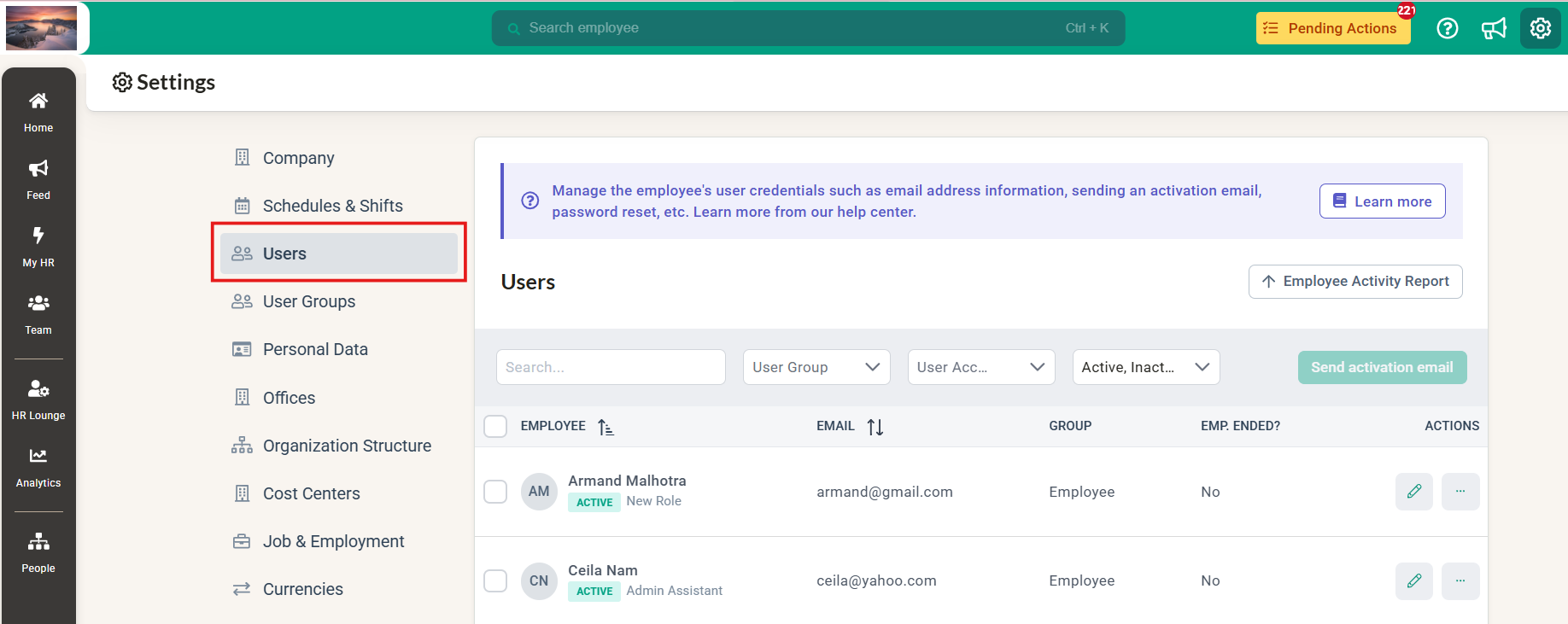
- Check the employees assigned to each user group.
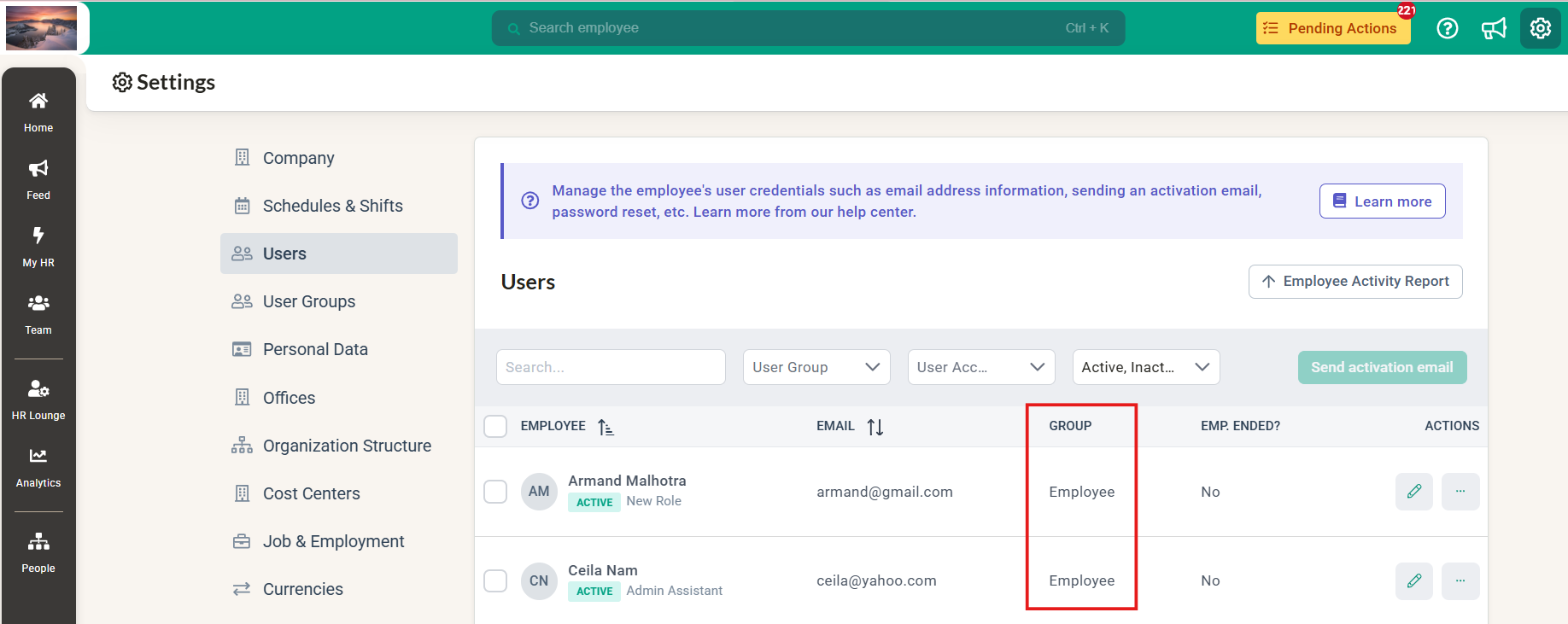
- Ensure that every employee is assigned to the appropriate group based on their role and responsibilities.
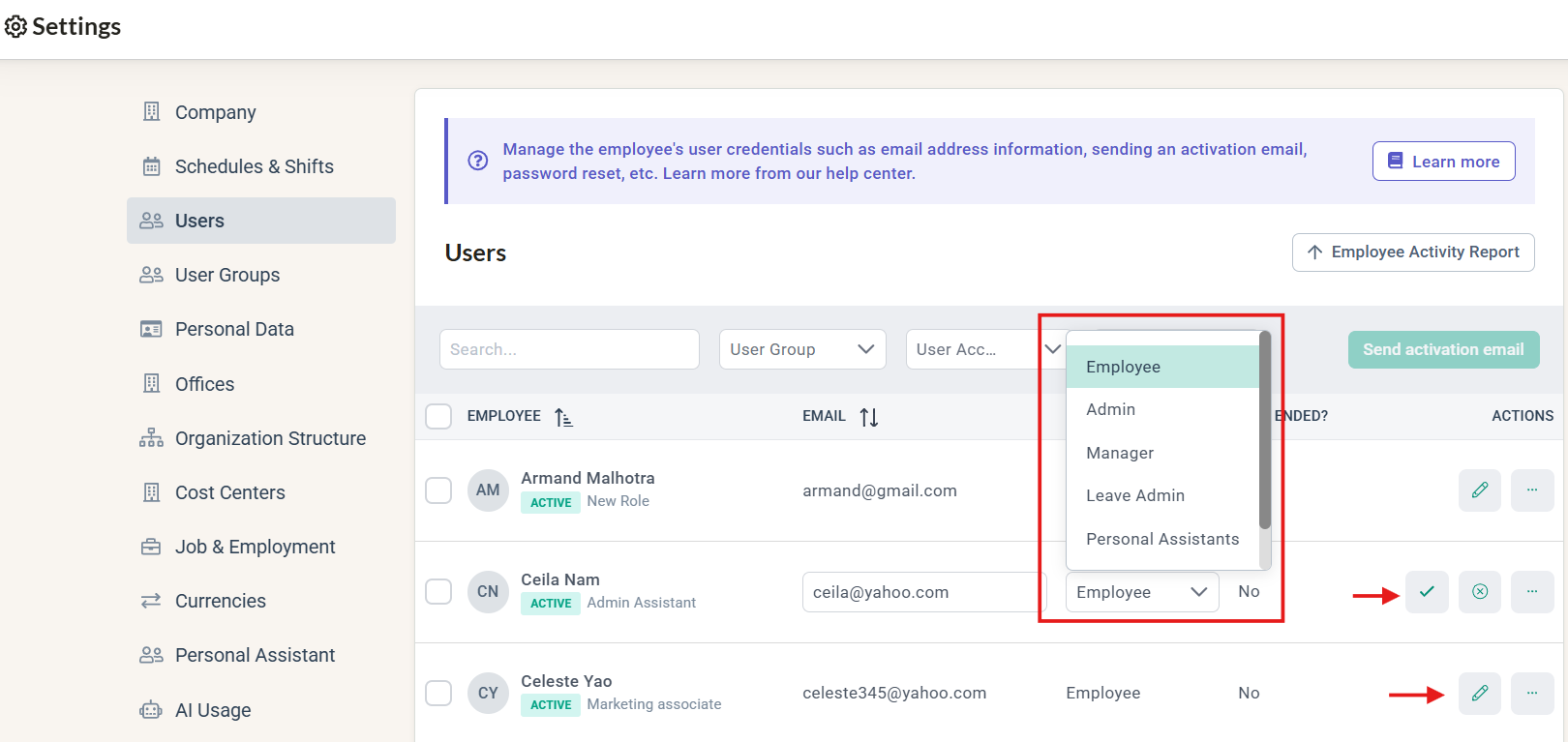
- If an employee is assigned to the wrong group, click on the Pencil Icon to update their group assignment accordingly and Tick to Save the changes to ensure they have the correct level of access.
Important Reminders
- Review access regularly: Periodically check user group assignments and permissions to ensure they remain up to date.
- Follow the principle of least privilege: Only grant users access to the modules and information required for their roles.
- Check permissions carefully: Review all permission categories to avoid granting unintended access to sensitive employee information or HR functions.
By regularly reviewing your user groups and access permissions, you can help ensure that employees have the right level of access to the relevant modules and information in brioHR.
Ownership
By: Arveena