![brioHR-logo-color.svg]](https://support.briohr.com/hubfs/brioHR-logo-color.svg)
Audience & Scope
Audience: HR Admin
Module: Time Attendance
Country: Global
Pre-requisites: Access to HR Lounge Time Attendance module & Admin access to Settings page
How to Configure Your Work Schedules
IMPORTANT:
Before setting up your schedules, make sure your company has had Split Shift Time disabled by brioHR Customer Support.
Refer to this article to understand and learn more about this new enhancement before configuring your work schedules.
Step 1: Review your existing shifts
- Go to your Settings > Schedules & Shifts > Work Shifts settings.
- Click the Edit button to review the shifts configured for your employees.
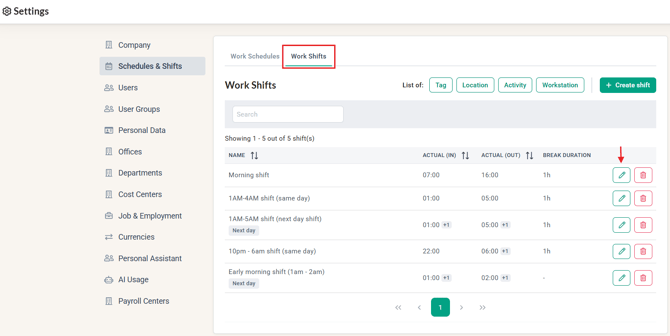
- Identify which shifts need to cross midnight or start on the following calendar day.
Step 2: Configure the shift
- At the Edit Shift page, set the required Clock In and Clock Out times.
- Under Shift starts on, select either:
- Same day ; if you want employees to work on that day and count the hours worked to that day
- Next day ; if you want employees to work on the next day but count the hours worked for the previous day (current day)
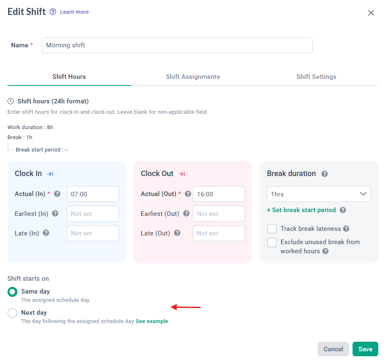
- Review the displayed clock-in and clock-out dates to ensure they match your intended schedule.
- Save your changes.
Step 3: Update your employee roster
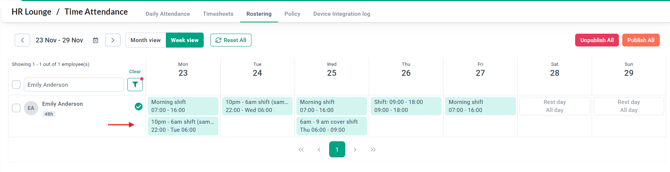
- Go to HR Lounge > Time Attendance > Rostering.
- Select the relevant employee and roster date.
- Assign the appropriate shift to the employee.
- Ensure overnight shifts are assigned to the day they are intended to belong to.
NOTE:
1) Remember to Publish the roster once changes have been applied to the employees roster.
2) If the roster had previously been published, select the employee and Unpublish the roster for them, then proceed to make the changes to their roster and Publish the roster once again to have the updated schedules appearing for employees.
Step 4: Verify your attendance records
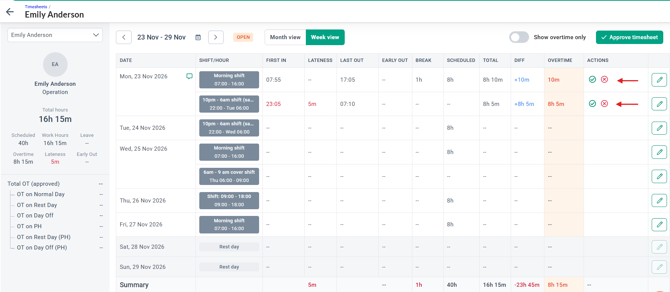
Once employees start clocking in, review their Daily Attendance and Timesheets to ensure their clock-in and clock-out records are reflected on the correct roster date.
Watch this video guide below on the steps to configure your schedules using this new feature!
Practical Examples: Applying the Enhancement to Your Schedules
Here are some common scheduling scenarios to help you understand how to apply the new setting.
Example 1: Regular Overnight Shift
Scenario: An employee works from 10:00 PM until 6:00 AM the following morning.
| Configuration | Details |
|---|---|
| Roster date | Monday |
| Clock In | 10:00 PM |
| Clock Out | 6:00 AM |
| Shift starts on | Same day |
Expected result:
- Monday, 10:00 PM – Employee clocks in.
- Tuesday, 6:00 AM – Employee clocks out.
- Attendance and working hours are recorded under Monday's roster.
When to use this: When employees begin their overnight shifts on the same calendar day as their assigned roster date.
Example 2: Overnight Shift Starting on the Following Day
Scenario: An employee is assigned to Monday's roster but is required to start working on Tuesday early morning.
| Configuration | Details |
|---|---|
| Roster date | Monday |
| Clock In | 1:00 AM |
| Clock Out | 2:00 AM |
| Shift starts on | Next day |
Expected result:
- Tuesday, 1:00 AM – Employee clocks in.
- Tuesday, 2:00 AM – Employee clocks out.
- Attendance and working hours are recorded under Monday's roster.
When to use this: When your company's operational schedule requires the shift to take place on the following calendar day but remain associated with the original roster day.
Example 3: Multiple Shifts Within a 24-Hour Operation
Scenario: A company operates around the clock and has several shifts throughout the day.
You can configure multiple shifts under the same work schedule, including shifts that cross midnight.
For example:
| Shift | Working Hours | Shift starts on |
|---|---|---|
| Shift A – Morning | 7:00 AM – 3:00 PM | Same day |
| Shift B – Afternoon | 4:00 PM – 10:00 PM | Same day |
| Shift C – Night | 11:00 PM – 6:00 AM | Same day |
| Shift D – Early Morning | 1:00 AM – 4:00 AM | Next day |
How it works:
- Assign the available shifts to the employee's roster.
- Employees can view the shifts assigned to them through the Clock In/Clock Out widget.
- Employees can select the shift they are required to work.
- Shifts are displayed according to their actual starting times, with the earliest shift listed first.
Important: If an employee does not clock in for an assigned shift, that shift will be marked as absent.
Example 4: Rotating Between Day and Night Shifts
Scenario: Employees rotate between day and overnight shifts on a weekly or monthly basis.
For example:
| Schedule | Shift | Configuration |
|---|---|---|
| Day Shift | 7:00 AM – 3:30 PM | Same day |
| Night Shift | 11:00 PM – 7:30 AM | Same day |
With Split Shift Time disabled, both day and night shifts can be configured within the same schedule.
This means you can assign employees to different shifts according to their weekly or monthly rotation without needing separate schedules just because their shifts cross the previous attendance-day boundary.
How Employees Clock In and Clock Out
Once the schedules have been configured, employees can clock in as usual through brioHR Web or Mobile.
The Clock In/Clock Out widget will display the current or upcoming shifts assigned to the employee.
A few things to note:
- If the employee has not clocked in: The widget displays the current or next available shift, allowing the employee to clock in.
- If the employee has already clocked in: The widget continues displaying the active shift with the Clock Out option.
- Multiple shifts: Employees can view their assigned shifts and select the shift they are required to work.
For example:
An employee has the following shifts:
- Shift A: 11:00 PM – 8:00 AM
- Shift B: 6:00 AM – 12:00 PM
At 6:01 AM:
- If the employee has already clocked in to Shift A, the widget will continue displaying Shift A with the Clock Out option. They cannot clock in to another shift until they clock out.
- If the employee has not clocked in to Shift A, the widget will display Shift B as the next available shift.
Important Things to Take Note Of
Before applying this enhancement to your schedules, here are some important considerations:
| 1. Split Shift Time must be disabled by BrioHR Customer Support | Company admins cannot disable Split Shift Time themselves. Please contact BrioHR Customer Support if your company requires this setup. |
| 2. Review your schedules before switching | Review all existing shifts and confirm the correct Same day or Next day configuration before employees begin clocking in. |
| 3. Configure late clock-out times where necessary |
When no late clock-out time is configured, the system uses a 12-hour buffer after the latest shift ends to determine the attendance-day boundary. This may cause attendance records to appear later than expected. To avoid unnecessary delays, configure an appropriate late clock-out time for shifts that finish later. |
| 4. Existing timesheets will not be recalculated | Timesheets that have already been calculated will retain their existing values. Only timesheets calculated after the setting is changed will follow the new configuration. |
| 5. The roster date determines where working hours are recorded |
The Next day option does not change the original roster date. Working hours, overtime and payroll remain associated with that roster date. When configuring Next day shifts, ensure that the roster assignment reflects your company's actual working-day arrangements and applicable rest-day and overtime requirements. |
| 6. No Previous day option is available |
If an employee is required to start a shift on Sunday at 11:00 PM, assign the shift to Sunday rather than Monday and select Same day. The shift should be rostered on the calendar day it physically starts. |
| 7. Check for overlapping shift hours |
BrioHR will display a warning on the roster if an employee's combined shift hours exceed their scheduled working hours within the same day or a rolling 24-hour period. |
Frequently Asked Questions (FAQs)
Q1: Can company admins disable Split Shift Time themselves?
No. This setting is managed by brioHR Customer Support. Please reach out to the team if you would like to use this configuration.
Q2: Will disabling Split Shift Time affect my existing timesheets?
No. Previously calculated timesheets will retain their existing values. Only newly calculated timesheets will follow the updated configuration.
Q3: Can we switch back to the original Split Shift Time setting?
Yes. brioHR Customer Support can switch the setting back if required.
Q4: Why are attendance records appearing later than usual?
When no late clock-out time is configured, brioHR uses a 12-hour buffer after the latest shift ends to determine the attendance-day boundary. This may delay attendance processing.
You can configure a late clock-out time for the relevant shift to address this.
Q5: Does the Next day option change how payroll calculates working hours?
No. Payroll continues to read the calculated timesheet as before. However, the Next day setting determines which roster date the working hours belong to, which may affect how the hours are classified.
Q6: Can I assign multiple shifts to an employee on the same day?
Yes. You can assign multiple shifts to an employee's roster. Employees can view the available shifts through their Clock In/Clock Out widget and select the shift they are required to work.
Any assigned shift that is not attended will be marked as absent.
Q7: Can I move an employee's clock-in record to another shift if they selected the wrong one?
This functionality is not included in the current enhancement. HR admins cannot reassign an employee's clock-in to another shift through this feature.
Ownership
By: Arveena