![brioHR-logo-color.svg]](https://support.briohr.com/hubfs/brioHR-logo-color.svg)
Introduction
The Ad-Hoc Performance Cycle is an exciting feature in the BrioHR Performance Management module. It allows HR Admins to create a separate appraisal cycle for specific employees, independent of the main performance cycle.
This feature is especially useful when an employee should not be included in the standard annual appraisal but still requires a structured performance review.
When Should You Use an Ad-Hoc Performance Cycle ?
The Ad-Hoc cycle is useful to support the following scenarios (but not limited to):
-
Probation Appraisal
For new joiners who are not yet eligible for the main appraisal cycle. -
Promotion Appraisal
For promotion-related evaluations that are not part of the annual performance review. -
Performance Improvement Plan (PIP)
For employees undergoing a structured performance improvement process.
NOTE:
The Ad-Hoc cycle uses the same competencies and company/department objectives configured in the main performance cycle.
Important: Before You Start
Before creating an Ad-Hoc cycle, ensure that:
-
The intended employee is assigned to an appraiser, and
-
The employee is excluded from the main active performance cycle
This prevents duplicate appraisals and ensures accurate performance records.
Ste-by-Step Guide: Creating an Ad-Hoc Performance Cycle
Step 1 - Log In to Your BrioHR Account
Log in to your BrioHR account using your registered credentials.
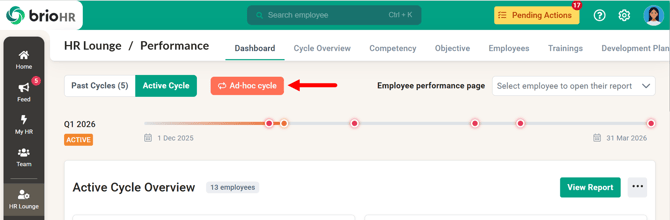
Step 2 - Access the Adhoc Cycle in the Performance Module
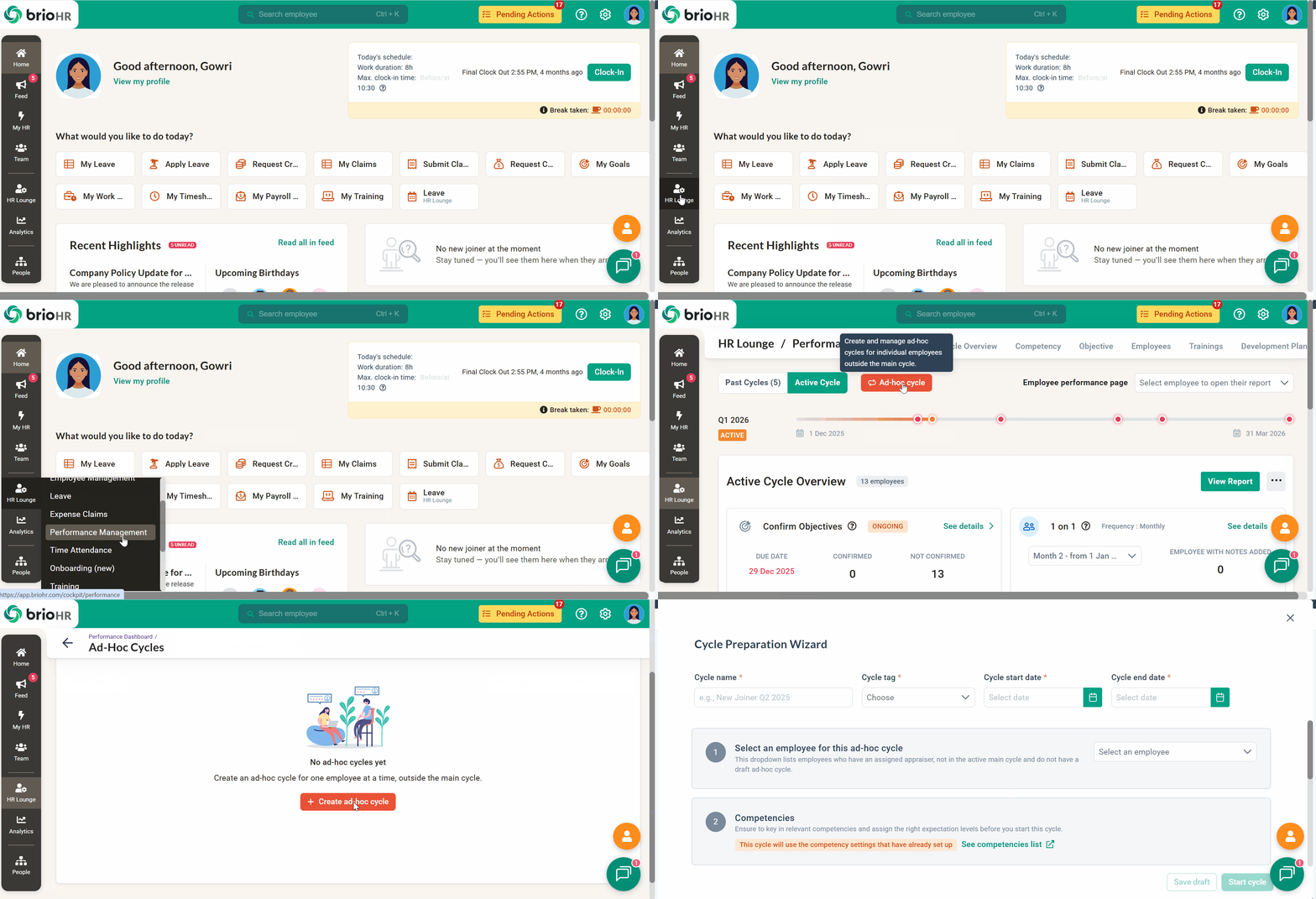
1. Go to HR Lounge > Performance.
2. On the Performance dashboard, click Ad-hoc Cycle.
3. You will be directed to the Ad-hoc Cycle Dashboard.
4. Click +Create ad-hoc cycle to continue.
Step 3 - Set Up the Ad-hoc Cycle
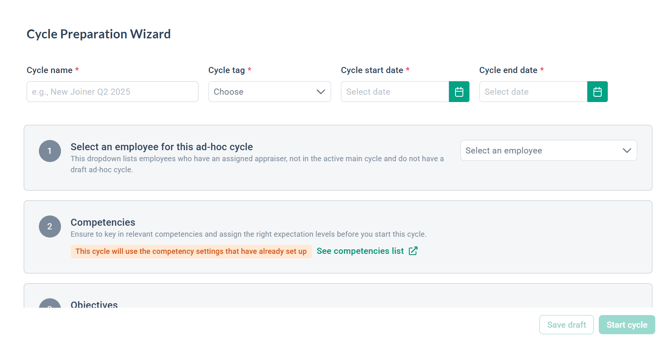
3.1. Name the Cycle and Define the Period
- Enter the cycle name.
- Select a cycle tag.
- Create a one-time tag if needed
- Once and Ad-Hoc cycle exists, you can manage and add more tags later.
- Define the cycle start and end dates.
3.2. Select An Employee
NOTE:
Only one employee can be selected per Ad-Hoc cycle.
1. Click the employee dropdown.
2. Choose the relevant employee.
3.3. Competencies
The Ad-hoc cycle automatically follows the competencies configured in the main performance cycle.
3.4. Objectives
The Ad-Hoc cycle uses the existing company and department objectives from the main cycle.
If you need to create individual objectives, you can do so from the employee’s personal performance page after the cycle has started.
3.5. Configure Appraisal Milestone (Mandatory!)
You must define all appraisal milestones, including:
- Individual objectives confirmation due date
- Appraisal start date
- Employee self-appraisal due date
- Open-ended questions for employee self-appraisal
- Manager appraisal due date
- Open-ended questions for manager appraisal
- Appraisal rating configuration
- Employee acknowledgement due date (usually toward the end of the cycle)
3.6. Enable 1-on-1 Sessions
Enables reminders for employees and managers to schedule 1-on-1 meetings.
-
If disabled, no reminders will be sent.
-
Employees and managers can still schedule sessions manually.
3.7. Enable Others' Feedback
Allows anyone in the company to submit feedback via the employee’s profile.
-
Feedback does not affect appraisal scores.
-
Only managers and HR can view submitted feedback.
3.8. Enable 360 Feedback (Upwards, Peer & Downwards)
Allows HR and managers to select feedback givers from any department.
You can configure feedback to be:
-
Competency-based, or
-
Question-based
To include 360 feedback ratings in the appraisal score, enable:
“Use the average rating given by 360 feedback givers as appraisal’s competencies rating.”
3.9. Configure the 360 Feedback Ratings
Define the rating levels and labels for 360 feedback.
3.10. Set 360 Feedback Period
Specify the start date and due date for 360 feedback submissions.
Step 4 - Start the Ad-Hoc Cycle
Once all configurations are complete:
-
Click Start Cycle to launch the appraisal, or
-
Click Save Draft to continue setup later.
Frequently Asked Questions (FAQs)
Q1. Can I add more than one employee to an Ad-Hoc cycle?
No. Each Ad-Hoc cycle supports one employee only.
Q2. Does the Ad-Hoc cycle affect the main appraisal cycle?
No. The Ad-Hoc cycle runs independently and does not impact the main cycle.
Q3. Can I use different competencies for an Ad-Hoc cycle?
No. Ad-Hoc cycles inherit competencies from the main performance cycle.
Q4. Is 360 feedback mandatory in an Ad-Hoc cycle?
No. 360 feedback is optional and can be enabled or disabled based on your needs.
Q5. Can I create individual objectives before starting the cycle?
Individual objectives can only be added after the Ad-Hoc cycle has started.
Need Assistance?
If you have any questions or require assistance, please reach out to our support team via live chat or email us at support@briohr.com.