![brioHR-logo-color.svg]](https://support.briohr.com/hubfs/brioHR-logo-color.svg)
Introduction
BrioHR now offers an enhanced way to manage employee documents by allowing you to create Custom Folders for employee profiles. This feature helps HR teams organize documents more efficiently by grouping files into clearly defined folders.
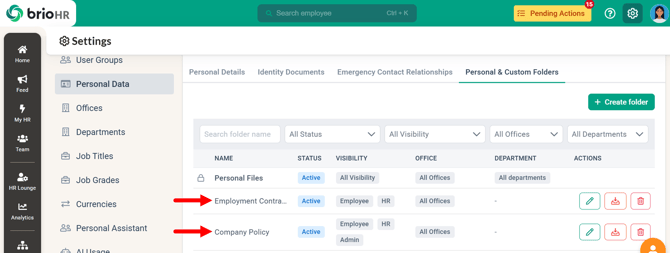
For example, you can create a "Company Policy" folder to store policy-related documents only, keeping them separate from other employee records.
With Custom Folders, you can:
- Apply folders to all employees, or
- Restrict folders to specific offices and departments, based on your organizational needs.
Who Can Create Custom Folders?
Users with access to Company Settings only have permission to create custom folders. Typically, this includes HR Admin, or Account Admins users.
Step-by-Step Guide: How to Create Custom Folders in BrioHR
Step 1 - Log In to BrioHR Account
Log in to your BrioHR account using your registered credentials.
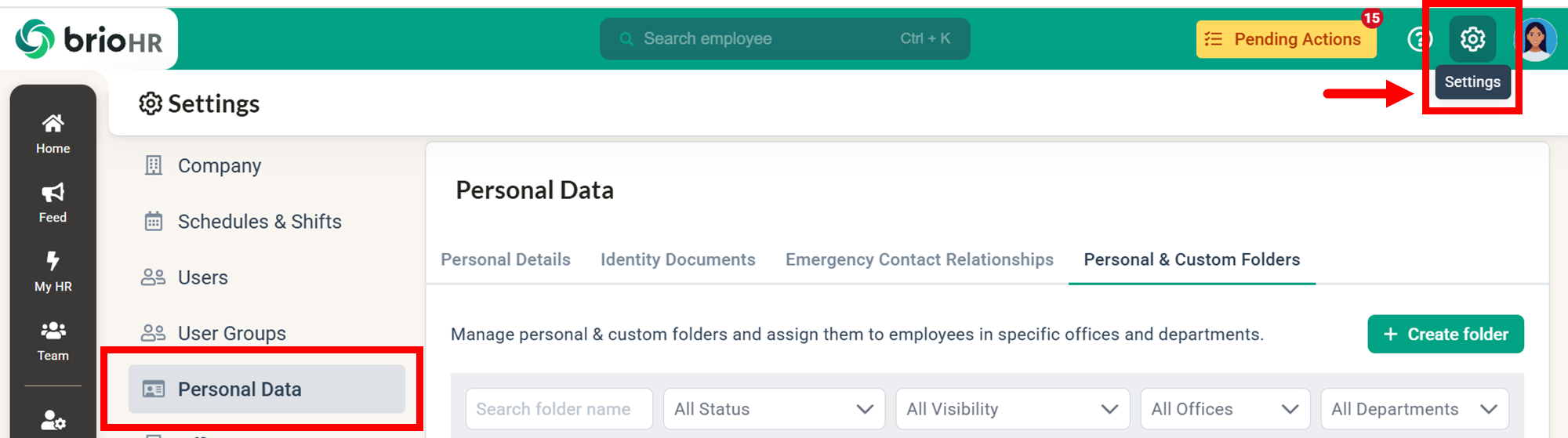
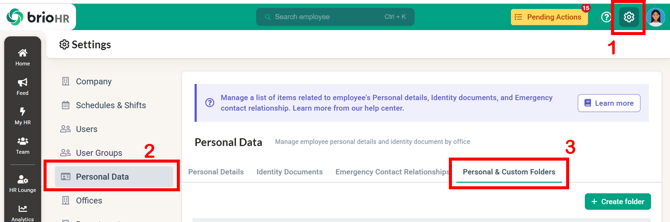
Step 2 - Access Personal Data Settings.
1. Click Settings (top-right corner next to your profile picture).
2. Navigate to Personal Data.
3. Select Personal & Custom Folders.
Step 3 - Create a Custom Folder
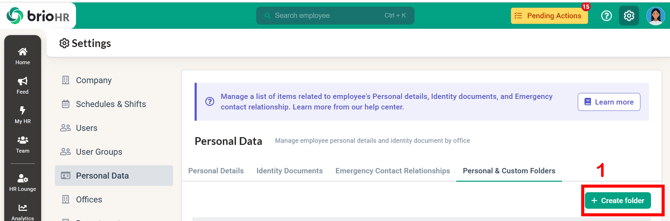
1. Click +Create Folder.
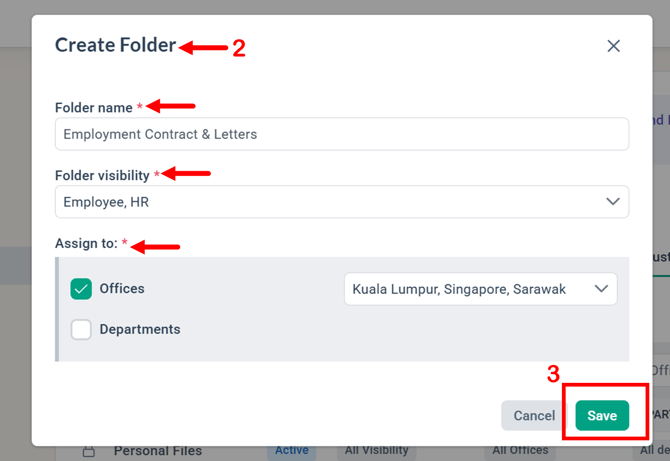
2. A pop-up window will appear. Complete the following details:
- Folder Name
Enter a clear and descriptive folder name (e.g, Employment Contracts, Company Policy) - Folder Visibility
Choose who can view this folder in the employee profile's Documents section:- Admin - Users who have access to the Company Settings.
- HR - Users with access to the HR Lounge and/or assigned as an Office HR Manager.
- Manager - Users who can access folders based on their assigned team access scope.
- Employee - Users who are not a Manager, or HR/Admin.
- Assign Folder Access Criteria:
- Offices,
- Departments
- If both criteria are selected, the condition is AND.
- Example: Office 'Kuala Lumpur', Department 'Human Resources'
- Only employees who belong to both the Kuala Lumpur office and Human Resources department will see this folder.
3. Click Save.
View Custom Document Folders in Employee Profiles
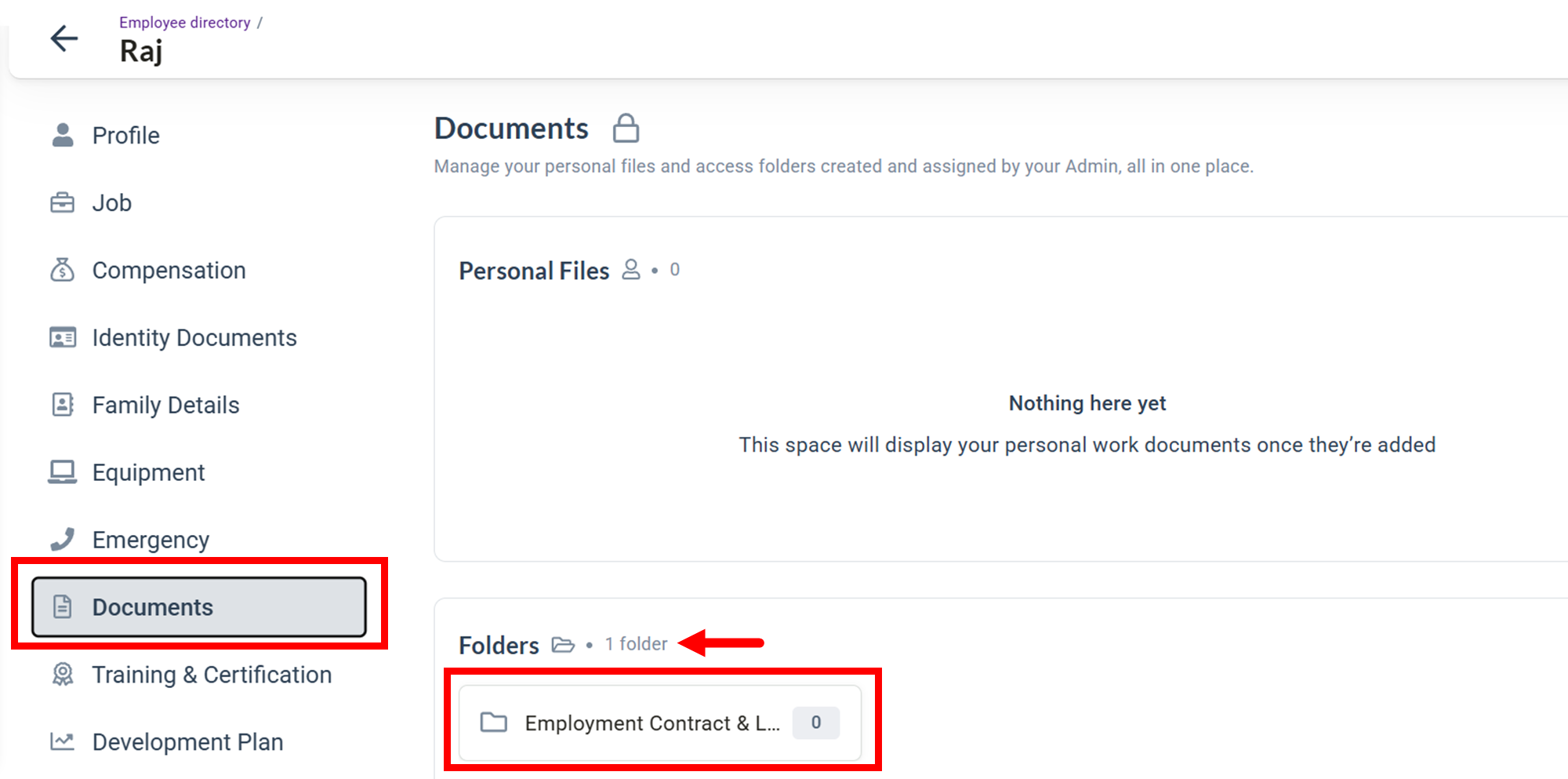
Custom document folders will appear in the employee profile under "Documents."
They are separated from Personal Files and organised in a dedicated Folders section that stores all custom folders.
Benefits of Using Custom Folders in BrioHR
- Better organization of employee documents.
- Improved record security with controlled visibility.
- Flexible folder assignments by office and department.
- Cleaner and more structured employee profiles.
Frequently Asked Questions (FAQs)
1. Who can create Custom Folders in BrioHR?
Only users with access to Company Settings (typically Admin users) can create Custom Folders.
2. Can Custom Folders be applied to all employees?
Yes, you can make a folder available to all employees or restrict it to specific offices and departments.
3. What happens if I select both Office and Department?
The system applies an AND condition. Only employees who meet both criteria will see the folder.
4. Can employees upload files into Custom Folders?
Yes, provided they have the appropriate document permissions enabled.
5. What is the difference between Personal Files and Custom Folders?
Personal Files is the default document storage area for employee-specific documents, while Custom Folders allow HR to organize files into specific categories.
Need Assistance?
If you have any questions or require assistance, please reach out to our support team via live chat or email us at support@briohr.com.