![brioHR-logo-color.svg]](https://support.briohr.com/hubfs/brioHR-logo-color.svg)
In this article, we will illustrate the process of customizing leave approvers for employees.
For example, if you wish to customize a second approver level for specific employees or if certain employees' approval workflows do not follow the general configuration, this guide will help.
If you would like to know how to set up or edit a General Leave Approver, please refer to this article:
How to Set or Edit the General Leave Approver
To make these adjustments, navigate to the leave custom configuration section. Refer to the article below for detailed instructions on accessing the custom configuration of the leave policy:
How to Set Up Leave Configuration
Please watch this video to learn how to:
- Customize the first approver
- Customize and add the second approver
Step by Step Guide to Set Up Custom Configuration
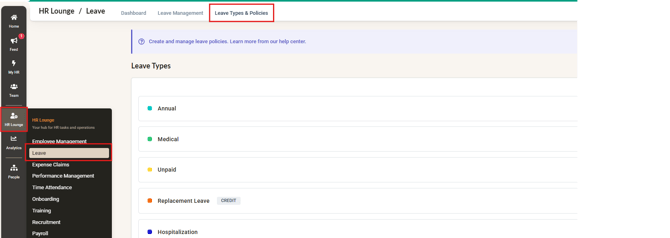
1) Go to HR Lounge and click into the Leave module, then click into Leave Types & Policies
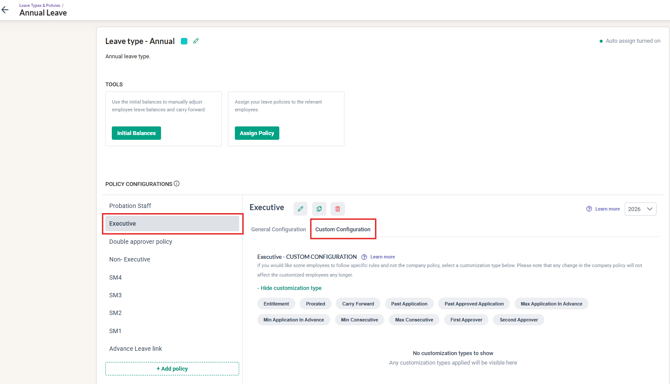
2) Select the leave type then click into the chosen Policy
3) Click on Custom Configuration
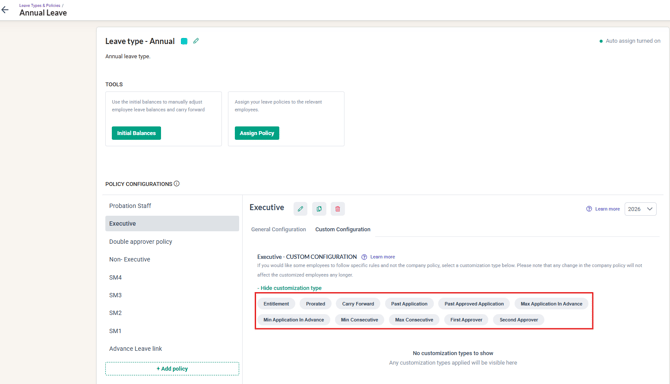
4) Choose the customization option preferred (Entitlement, First Approver, Second Approver, etc). In this example, we will choose First Approver
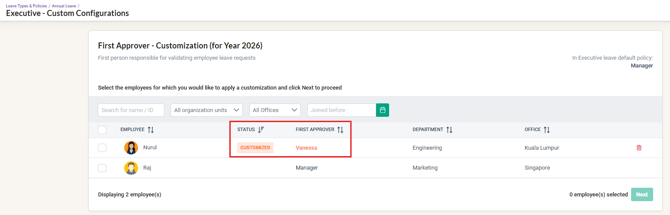
5) Select the employees that require this customization
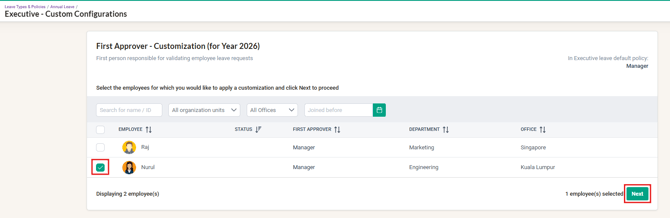
6) Click Next
7) Choose from the dropdown and provide the details required, then click Apply Customization
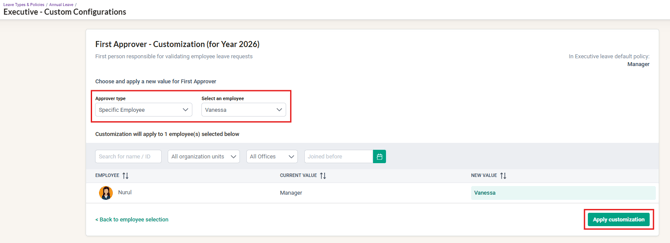
8) The changes made will be shown on the customization page
NOTE:
1) Customization can be performed using any of the available options provided and can be applied to those employees assigned to the policy chosen.
2) If the employee has already submitted their leave before the customization had been applied, the HR/Admin will need to Reopen the leave submitted. This way the leave will be redirected to the new manager assigned for approval.
Frequently Asked Questions
Q1: Can I change the approver of a leave that is already approved?
A: No — once the leave is already approved, the approver cannot be changed. The only way to proceed would be to cancel the leave and have the employee reapply the leave on the system.
Q2: Can an approver be from another entity (another company account)?
A: No. An approver must have a profile in the same account as the employee. If the same person approves leave in two entities, they need a profile in each account and must be set as approver in each of them.
Related Articles
Streamline Your HR Process: Assigning Leave Policies to Employees
Backdate, Modify, or Reopen an Approved Leave