![brioHR-logo-color.svg]](https://support.briohr.com/hubfs/brioHR-logo-color.svg)
Audience & Scope
Audience: HR Admin & Payroll Manager
Module: Payroll
Country: Malaysia & Singapore
Pre-requisites: Payroll module access for HR Module Permission in User group settings
NOTE:
Editing Previous Months: To edit a payroll from a prior month, you must delete the latest month's completed or ongoing payroll first.
Re-Processing Deleted Payroll: After deleting a payroll cycle, you must redo the deleted payroll cycle once you have completed and submitted the reopened previous month's payroll.
Example:
- Current Completed Payroll Month: July 2026
- Desired Edit: June 2026 Payroll
- Required Action: Delete the July 2026 payroll cycle(s) to reopen and edit the June 2026 payroll. After completing and submitting the June 2026 payroll, redo the July 2026 payroll.
This article covers 3 different ways to reopen/edit a payroll month:
-
Reopen and Edit a Completed Payroll Cycle for an Ongoing Payroll Month
-
Reopen a Completed Payroll Month to Add a New Payroll Cycle
-
Reopen a Completed Payroll Month to Edit a Payroll Cycle
Steps to Reopen and Edit a Completed Payroll Cycle for an Ongoing Payroll Month:
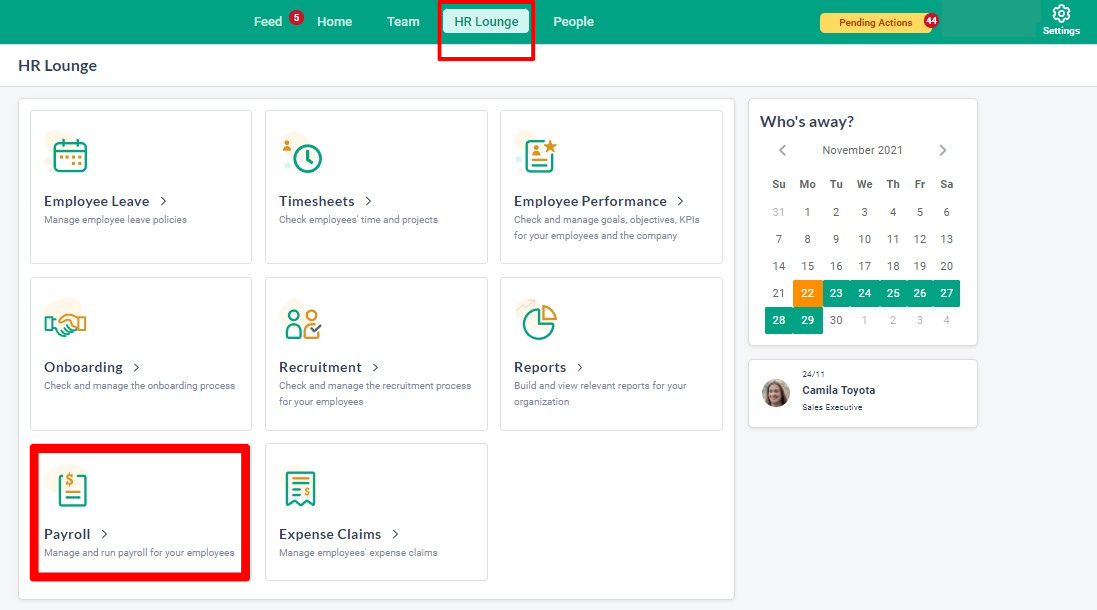
- Log In: Access your brioHR account and navigate to HR Lounge > Payroll.
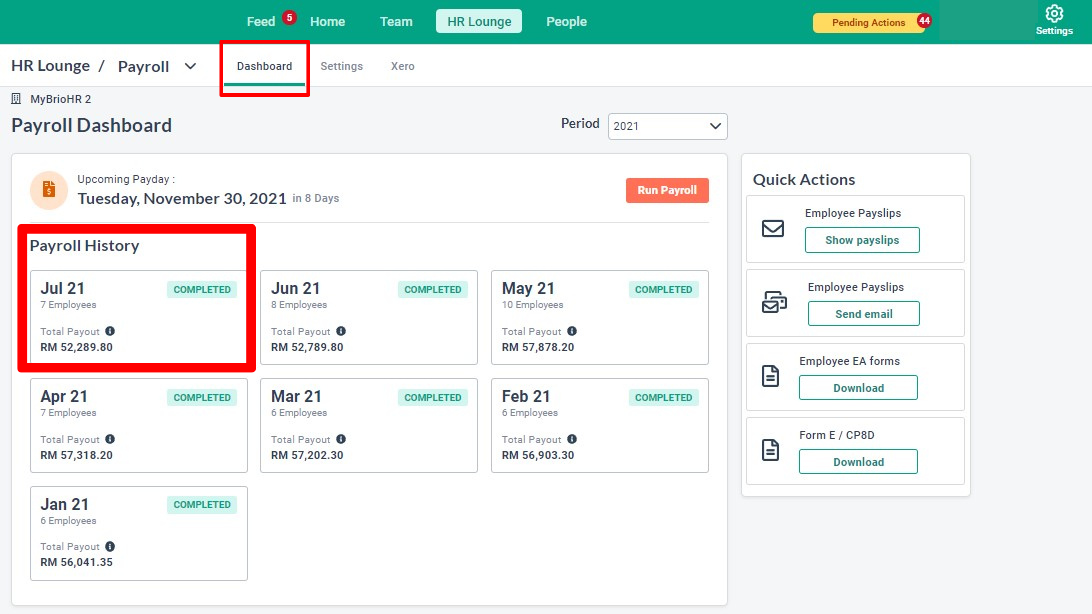
- Go to the Payroll Dashboard > Payroll History and click on the ongoing payroll month.
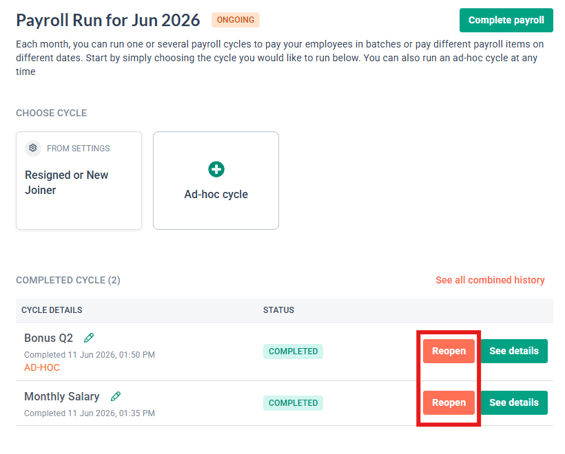
- Click Reopen for the cycle you want to edit
IMPORTANT:
If you have an ongoing cycle, you will not be able to reopen any other cycle. The 'Reopen' button will not be visible.
You must complete the ongoing cycle first before you can reopen another cycle.
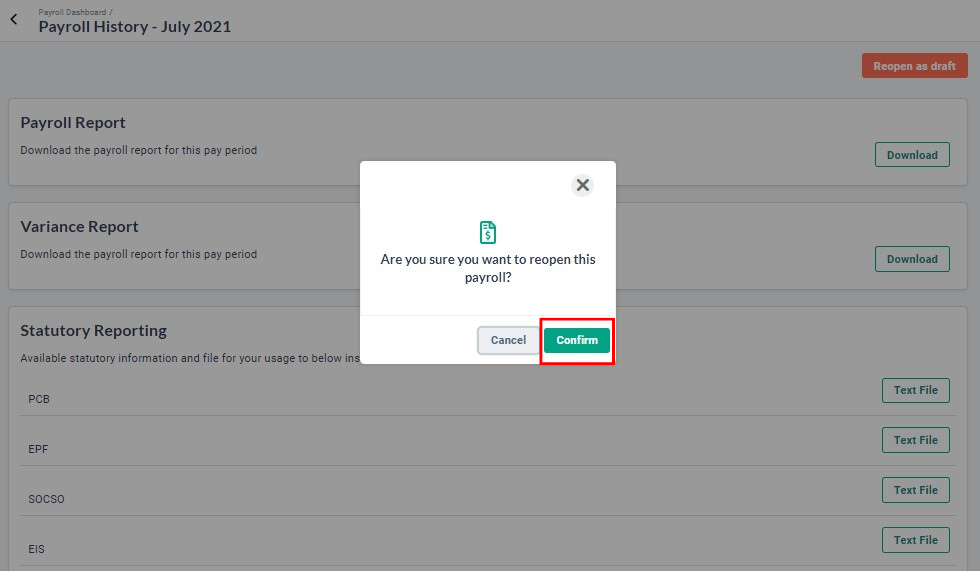
- Confirm Reopening: In the pop-up window, click Confirm to re-open the completed payroll cycle or Cancel to abort the action.
- Edit Payroll: A notification will appear confirming that the payroll cycle has been reopened.
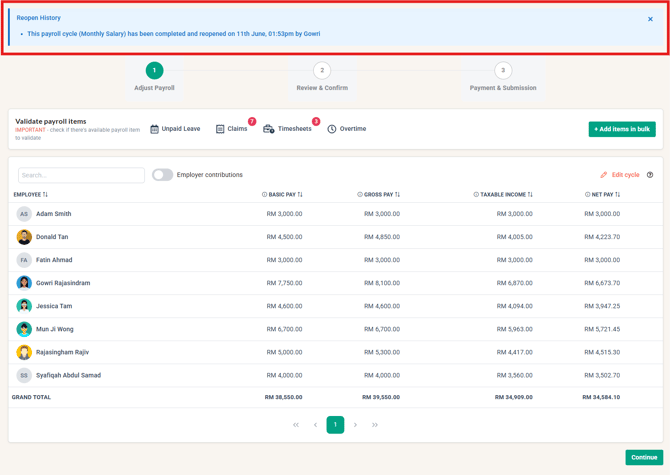
- Proceed with editing the payroll by following these steps: Adjust Payroll > Review & Confirm > Payment & Submission.
- Complete Payroll: After finalizing Steps 1, 2, and 3, click Complete Payroll to finish the process. The system will redirect you back to the Payroll Dashboard, completing the payroll process.
Steps to Reopen a Completed Payroll Month to Add a New Payroll Cycle:
- Log In: Access your brioHR account and navigate to HR Lounge > Payroll.
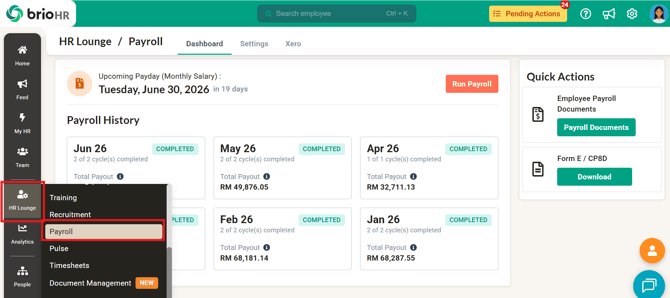
- Go to the Payroll Dashboard > Payroll History and click on the most recent completed payroll month.
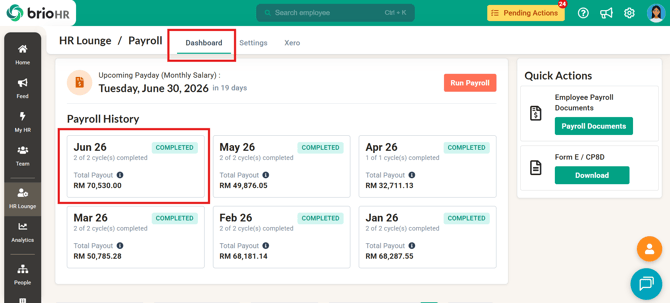
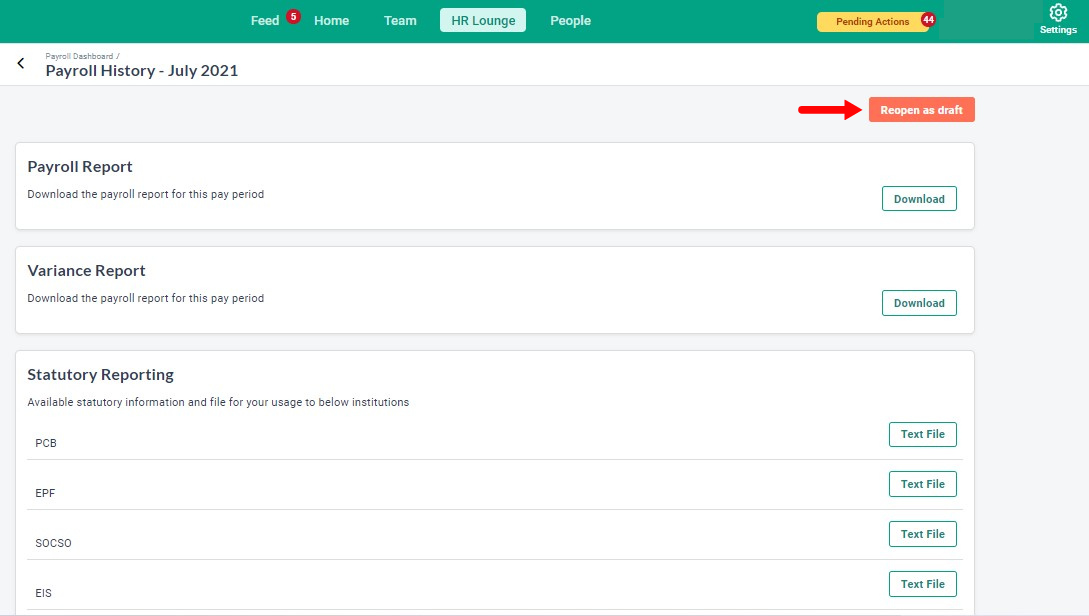
- Click Reopen payroll month
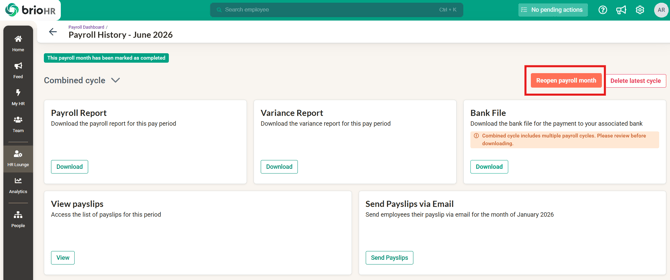
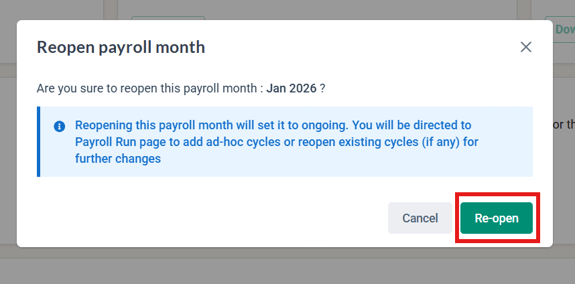
- Confirm Reopening: In the pop-up window, click Confirm to re-open the completed payroll month or Cancel to abort the action.
- You will be taken to the Payroll Run page. You can add a new payroll cycle to the payroll month.
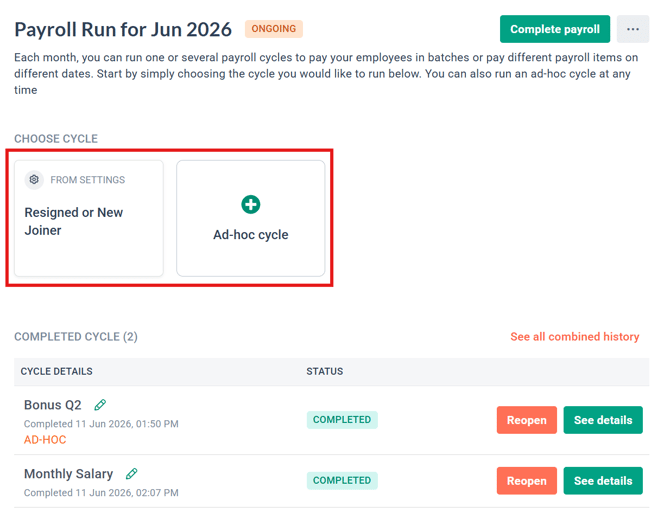
- Proceed with running the new payroll cycle by following these steps: Adjust Payroll > Review & Confirm > Payment & Submission.
- Complete Payroll: After finalizing Steps 1, 2, and 3, click Complete Payroll to finish the process. The system will redirect you back to the Payroll Dashboard, completing the payroll process.
Steps to Reopen a Completed Payroll Month to Edit a Payroll Cycle:
- Log In: Access your brioHR account and navigate to HR Lounge > Payroll.
- Go to the Payroll Dashboard > Payroll History and click on the most recent completed payroll month.
- Choose the specific payroll cycle you want to reopen from the cycle dropdown.
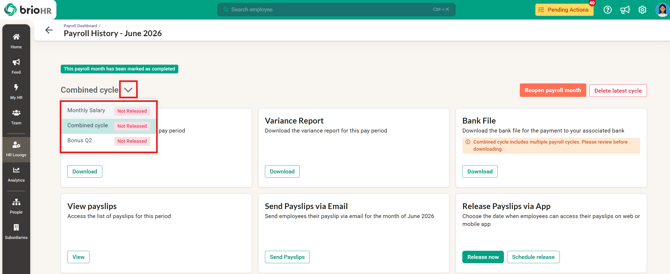
- Click Reopen payroll > Reopen this cycle
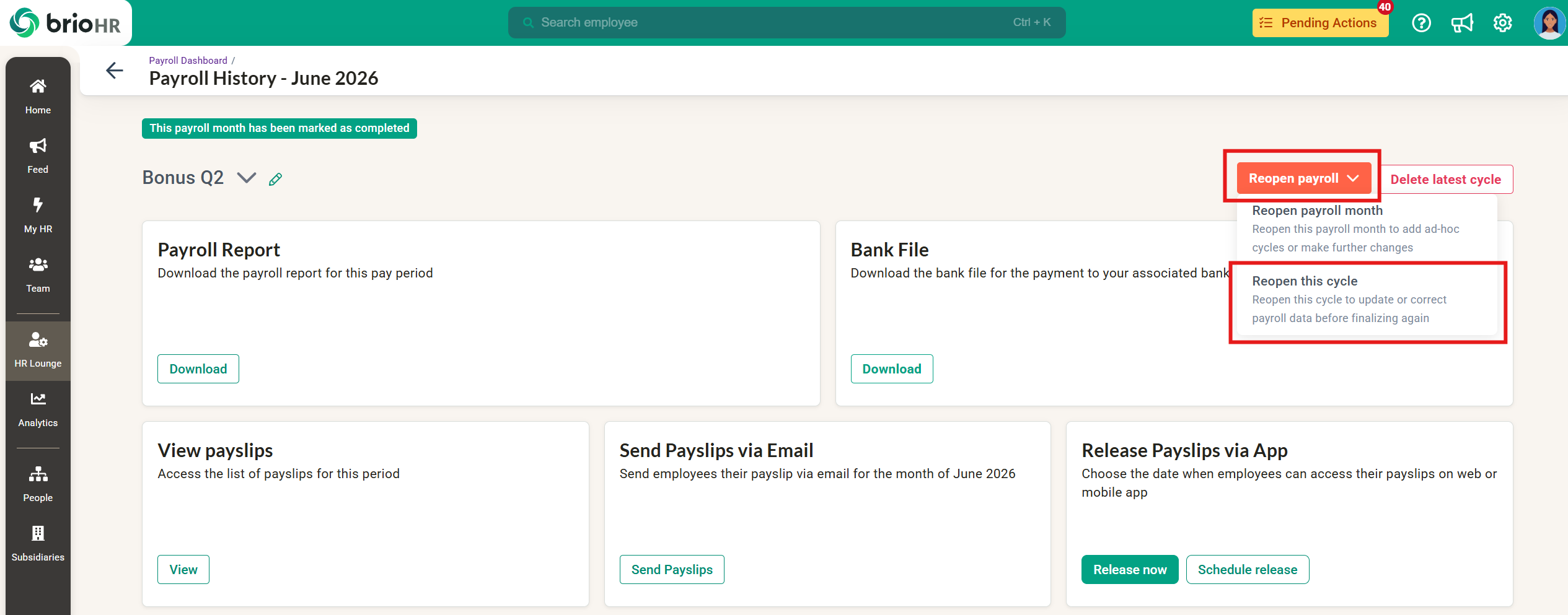
- Confirm Reopening: In the pop-up window, click Confirm to re-open the completed payroll month or Cancel to abort the action.
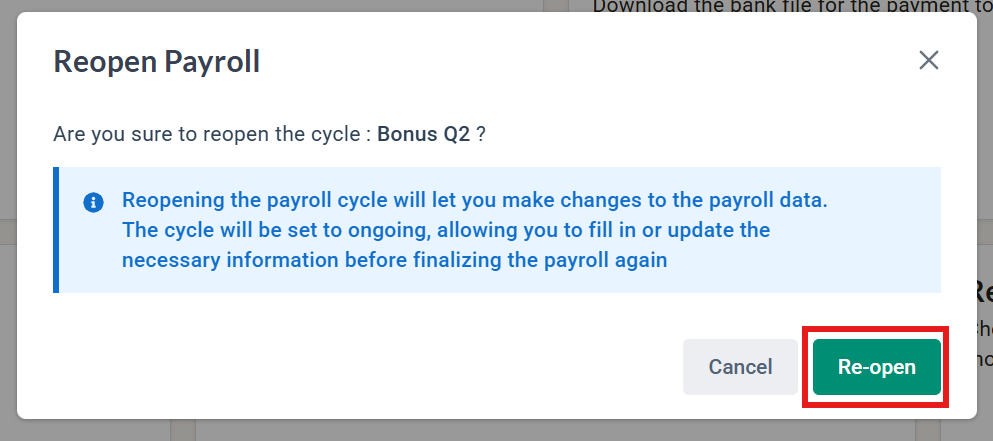
- Edit Payroll: A notification will appear confirming that the payroll cycle has been re-opened.
- Proceed with editing the payroll by following these steps: Adjust Payroll > Review & Confirm > Payment & Submission.
- Complete Payroll: After finalizing Steps 1, 2, and 3, click Complete Payroll to finish the process. The system will redirect you back to the Payroll Dashboard, completing the payroll process.
IMPORTANT POINTS TO REMEMBER:
- Handle the reopening of payroll cycles with care to ensure all changes are accurately reflected.
- If you need to reopen a previous month's payroll cycle, you must first delete the current payroll month. Be cautious, as this action can affect financial records and should only be done when absolutely necessary.
- Reopened payroll cycles are logged in the system for audit trail purposes, allowing you to track historical changes.
Common Issues/FAQ
Q1: I completed a cycle that processes salary, but noticed an employee's salary was not updated. What do I do?
A1: Reopen the cycle you completed (that processed the employee's salary), but do not proceed with processing the cycle (remain in step 1 - adjust payroll). Then, update the employee's compensation. Once done, check that the new salary is reflected in the ongoing cycle you reopened and proceed to process the cycle till completion.
Related Articles
How to Manage BrioHR Multicycle Payroll: Guide + Video
How to Process Payroll in the Correct Order with BrioHR
Ownership
By: Aqilah