![brioHR-logo-color.svg]](https://support.briohr.com/hubfs/brioHR-logo-color.svg)
Introduction
Every year, at midnight on December 31st, the system automatically carries forward all employees' leave in a single process, provided that the "Carry Forward" function in the leave policy has been enabled before December 31.
However, upon returning to work on January 2 of the new year you discovered that the "Carry Forward" function was not enabled. You would like the unused leave balance from the previous year to be reflected on every employee's new year leave dashboard as "202X Carry Forward."
If you would like to know how an employee can apply leave of previous year in the current year, please refer to this article.
This article is divided into two parts:
Part (A): Enable and configure the Carry Forward 202X function in the previous year leave policy.
Part (B): Recompute the employee's Carry Forward balance to reflect accurately.
IMPORTANT!
Please complete BOTH parts to ensure the updated carry forward is reflected correctly!
We will use Annual leave as an example. Part (A) and Part (B) work for other leave types as well.
DISCLAIMER:
We will use 2025 as an example for the previous year, and 2026 as an example for the current year.
The year will be different for you if you are reading this in 2027 onwards.
Part (A): Enable and Configure the Carry Forward 2026 Function in the 2025 Leave Policy
To open a leave policy page:
1. Go to HR Lounge > Leave > Leave Policies.
2. Select the leave type you would like to enable last year's carry forward (e.g., Annual)
3. Click "View Leave Details."
4. You will be directed to the leave page (e.g., Annual leave page).
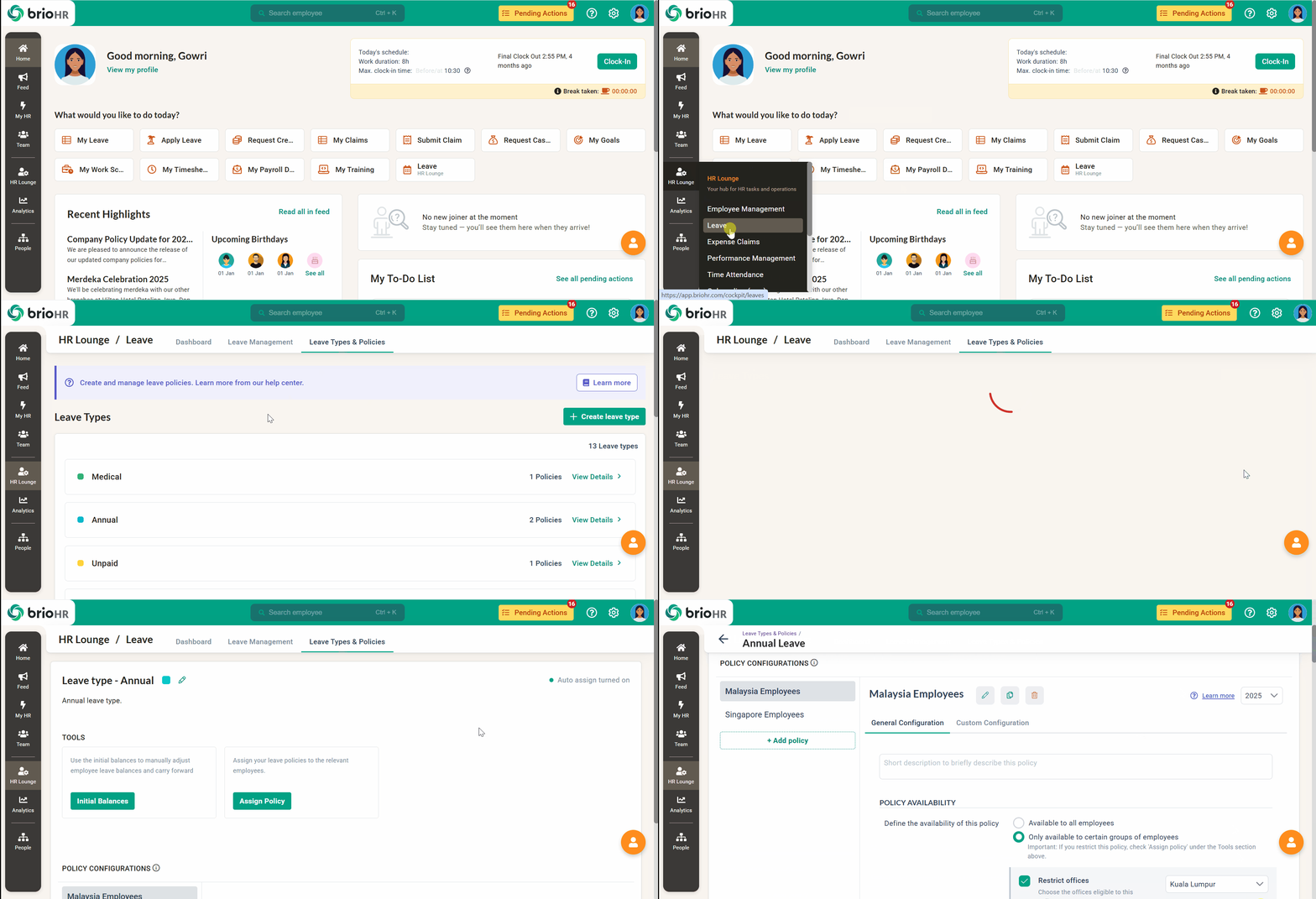
Steps to Enable Carry Forward in the Previous Year's Policy:
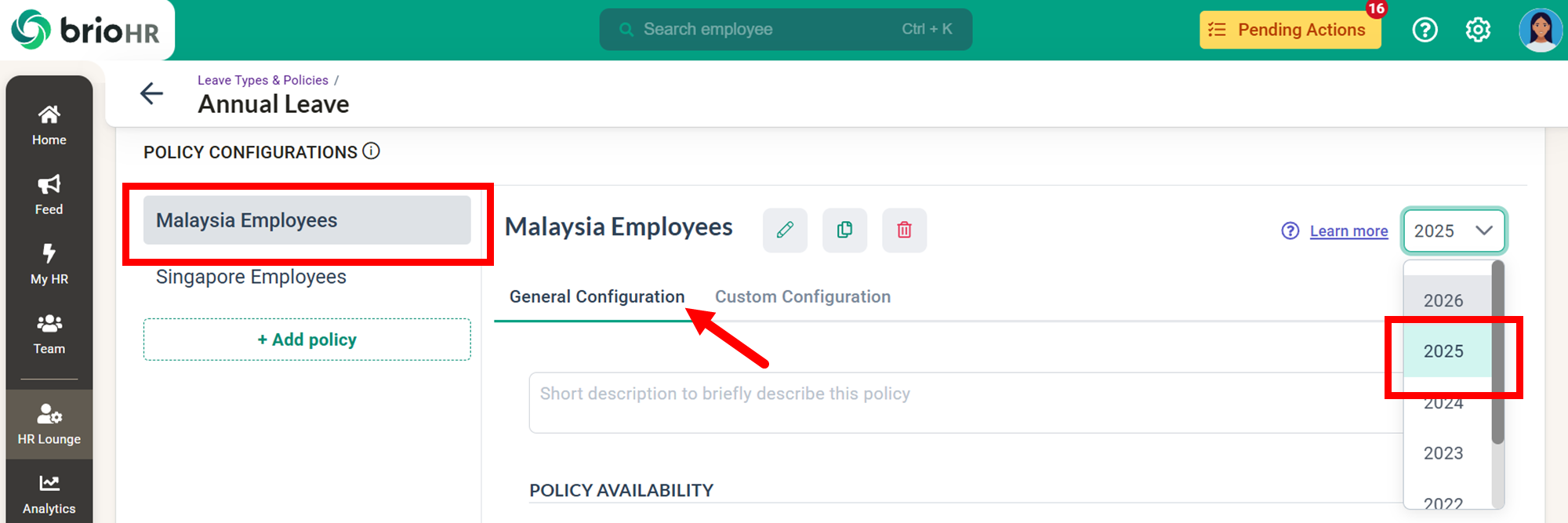
1. Select the policy you want to edit > Click General Configuration.
Select "Year" and choose 2025.
NOTE:
Please select the correct previous year (e.g., 2025) because we are making changes to last year's leave policy to reflect the carry-forward balance in 2026 (current year)!
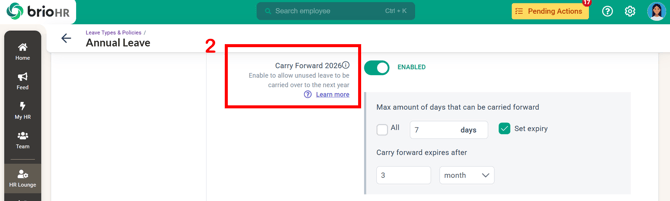
2. Search for "Carry Forward 2026" > Toggle ON the button > Set up configuration.
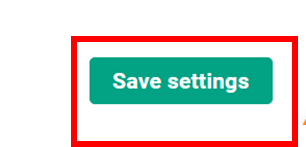
3. Once done, click "Save Settings."
NOTE:
If you want to edit all policies, please repeat the above steps for each policy.
Part (B): Recompute the Employee's Carry Forward Balance to Reflect Accurately
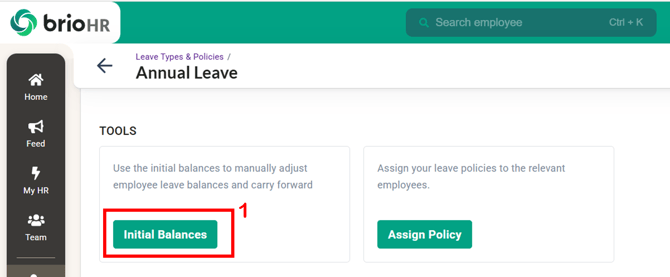
1. Go back to the leave page (e.g., Annual) > Click "Initial Balances."
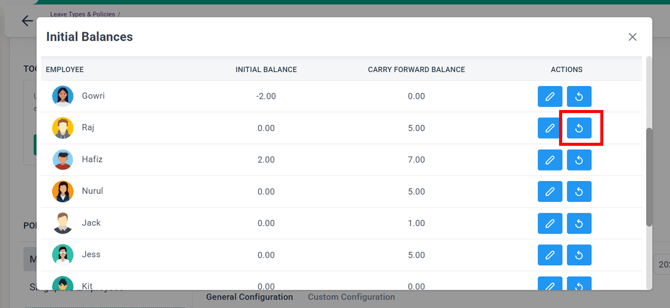
2. Click the "Refresh" icon to recompute the carry-forward balance.
- Do this for all employees if you would like to recompute for everyone.
- If you want to recompute for specific individuals only, please recompute for the selected individuals.
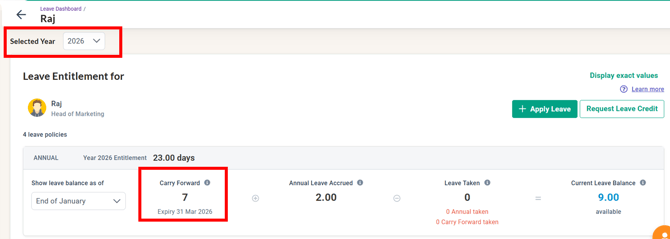
The new carry-forward balance will be reflected on the employee's current year (e.g., 2026) leave dashboard.
IMPORTANT
- The system rolls over any used leave from the previous year to the next year.
- If part of an employee's carry-forwarded leave expires on December 31st, that expired portion will not be carried over into the new year.
Need Assistance?
If you have any questions or require assistance, please reach out to our support team via live chat or email us at support@briohr.com.