![brioHR-logo-color.svg]](https://support.briohr.com/hubfs/brioHR-logo-color.svg)
Introduction
BrioHR supports Personal Data Retention to help organizations comply with data protection and privacy regulations. This feature allows HR users to retain or delete personal data once it exceeds a defined retention period.
Personal Data Retention applies to:
-
Resigned or terminated employees
- Candidate profiles in the Recruitment module
NOTE:
This feature does not affect active employees. Personal data for currently employed staff will not be removed.
Step-by-Step Guide: Enable Personal Data Retention Setting
Follow the steps below to activate the Personal Data Retention feature.
Step 1 - Access Company Settings
1. Go to Settings > Company.
2. Click the pencil (Edit) icon.
Step 2 - Enable Personal Data Retention
1. Scroll down to Personal Data Retention.
2. Tick the checkbox to enable the feature.
3. Set the retention period (e.g. 7 years).
4. Assign the user(s) to be notified when data reaches the retention limit.
Click Save to apply the changes.
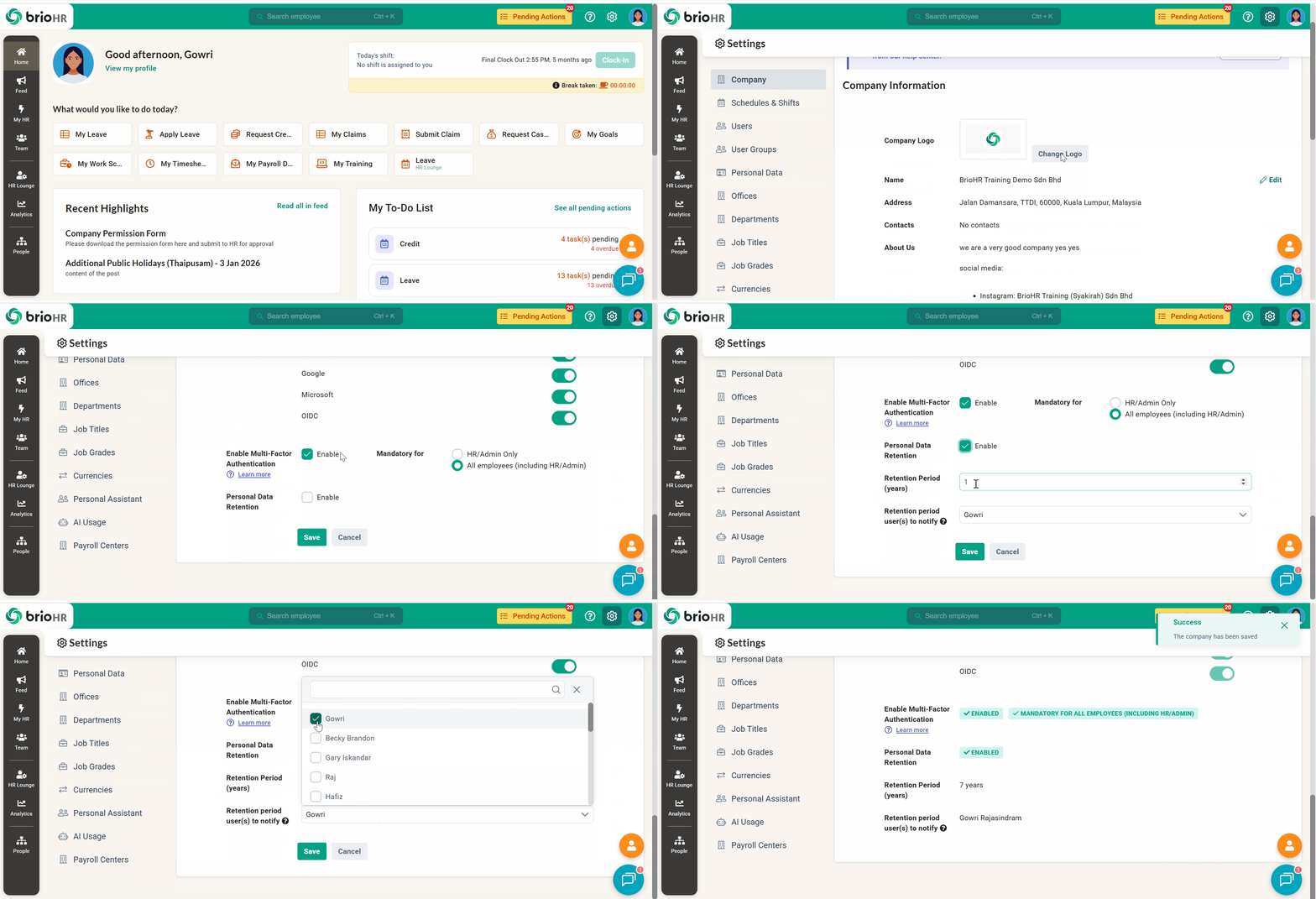
Step-by-Step Guide: Manage Personal Data Retention
Step 1 - Open the Personal Data Retention Page
1. Go to HR Lounge
2. Select Employee Management
3. Click Personal Data Retention.
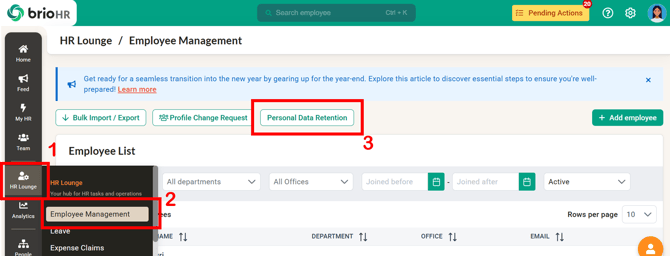
A pop-out window will appear.
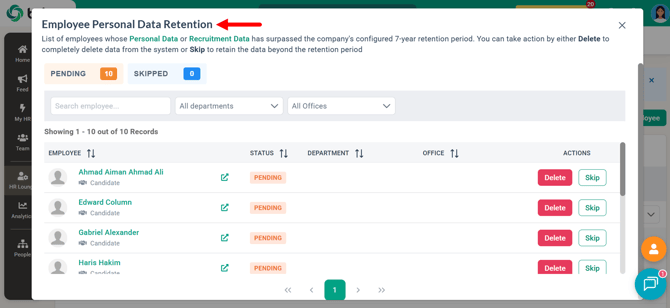
Step 2: Review Retained Data
There are two categories of data you can manage:
Type 1: Personal Data (Resigned/Terminated Employees)
The following data can be deleted once the retention period is reached:
-
Personal details (Address, Date of Birth, Gender, Mobile Phone, Marital Status)
- Professional Experience
- Education
- Identity documents
- Family details
- Emergency contacts
- Documents
Type 2: Recruitment Data (Candidates)
The following candidate data can be deleted:
-
Hiring details
- Files & links
- Links
- Education & experiences
- Trainings & certifications
When a resigned employee’s employment end date + retention period (e.g. 7 years) is reached, the assigned users will receive a notification to take action. The same logic applies to candidate profiles, based on how long the data has been stored in the system.
Below is an example of a task in the Pending Actions for personal data retention notification.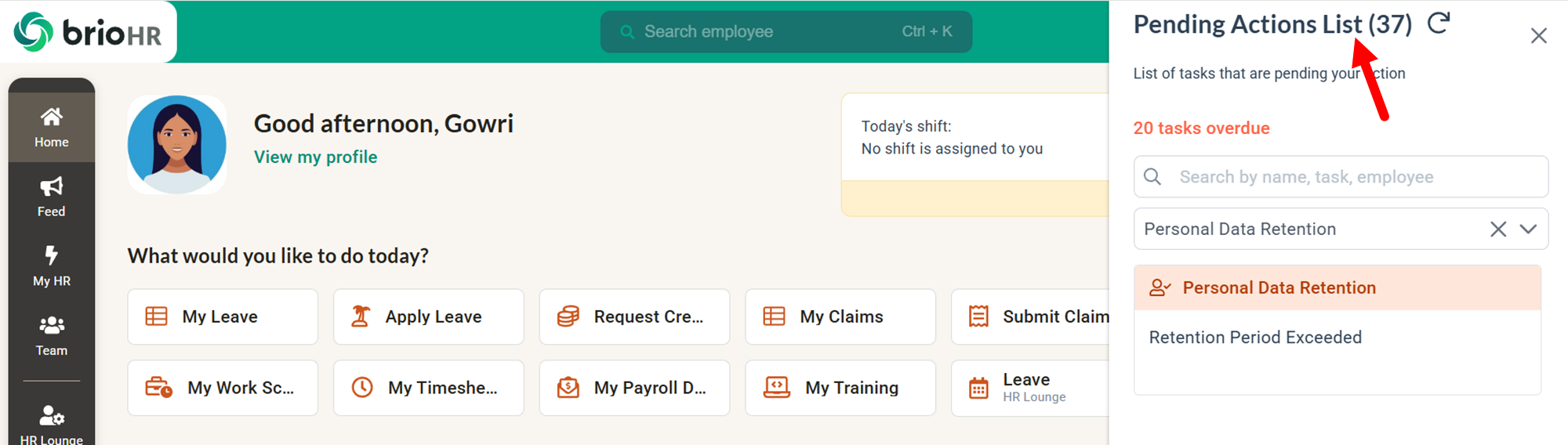
Step 3 (a) - Delete Personal Data
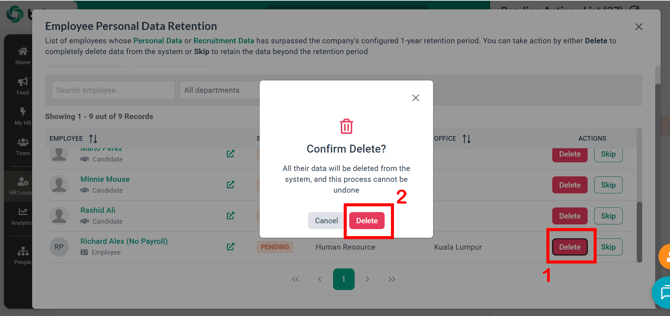
1. Click Delete next to the relevant record.
2. A confirmation pop-up will appear. Click Delete to proceed.
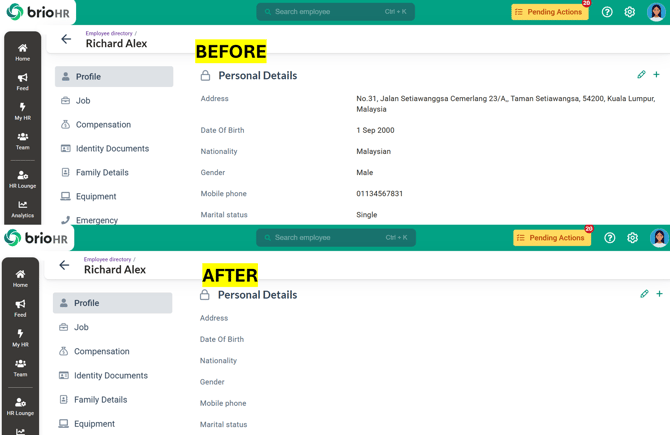
Below is an example showing how a resigned employee's personal details are deleted through Personal Data Retention.
IMPORTANT NOTES
-
Deleting personal data does not remove the employee or candidate profile.
- Only the listed personal data fields are deleted.
- The profile record remains in the system for reporting or audit purposes.
Step 3 (b) - Skip Deletion of Personal Data
1. Click Skip next to the relevant record.
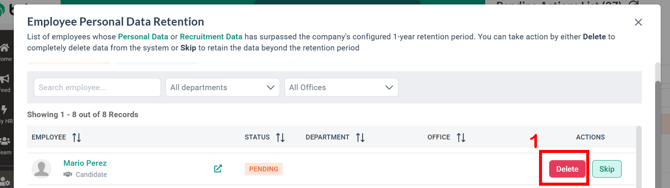
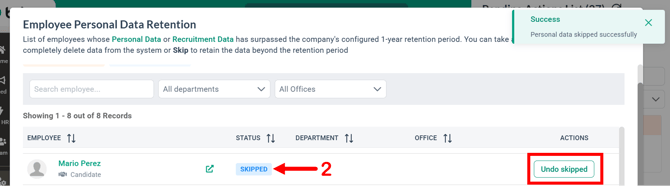
2. The status changes from 'Pending' to 'Skipped'
3. You can undo your action by clicking 'Undo Skipped' button.
Frequently Asked Questions (FAQs)
1. Does Personal Data Retention apply to active employees?
No. Personal Data Retention only applies to resigned/terminated employees and candidate profiles.
2. Can deleted data be recovered?
No. Once personal data is deleted, the action is permanent and cannot be undone.
3. Who receives notifications when data reaches the retention period?
Only the users assigned during the Personal Data Retention setup will receive notifications.
4. Does deleting personal data remove payroll or employment history?
No. Employment records remain, but personal information such as personal details, documents and identity details are removed.
Need Assistance?
If you have any questions or require assistance, please reach out to our support team via live chat or email us at support@briohr.com.