![brioHR-logo-color.svg]](https://support.briohr.com/hubfs/brioHR-logo-color.svg)
In certain situations, you may need to exclude specific employees from payroll processing. BrioHR allows you to easily do this directly from the employee's profile.
NOTE:
Ensure the employee is excluded from payroll before processing the payroll cycle.
Steps to Exclude Employees from Payroll
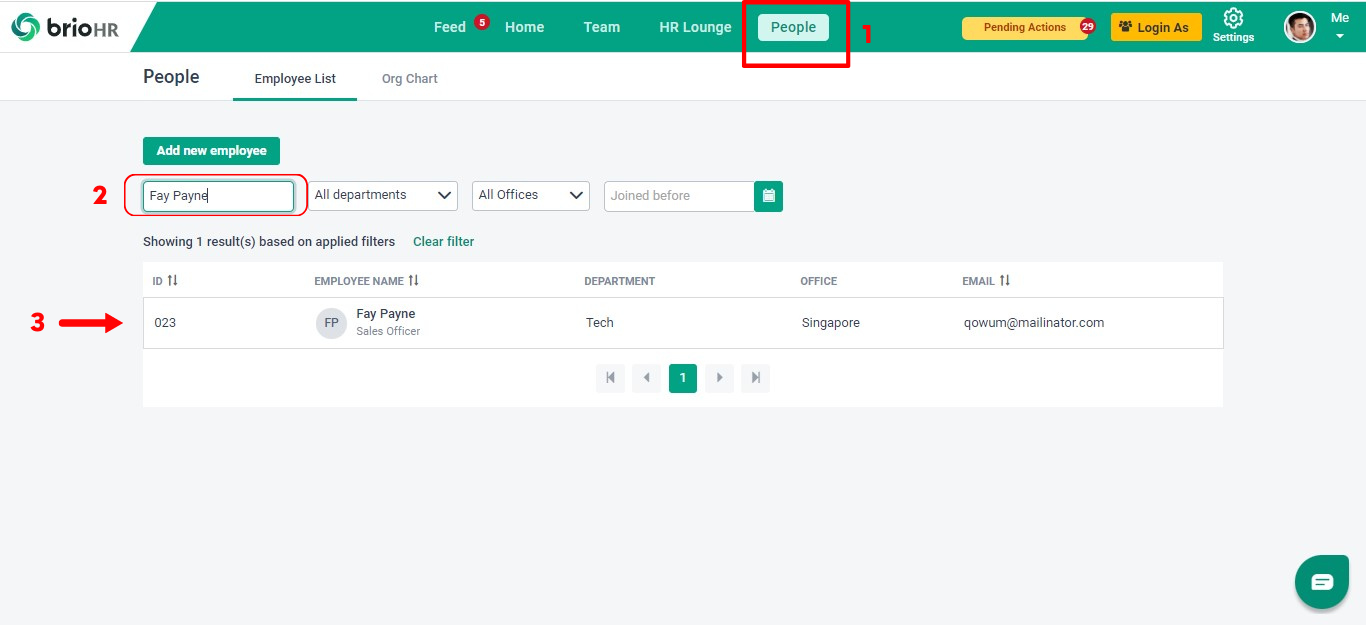
- Log in to your BrioHR account and click on the People icon.
- Use the Search column to find the employee by entering their Name or ID.
- Click on the employee's name to access their profile.
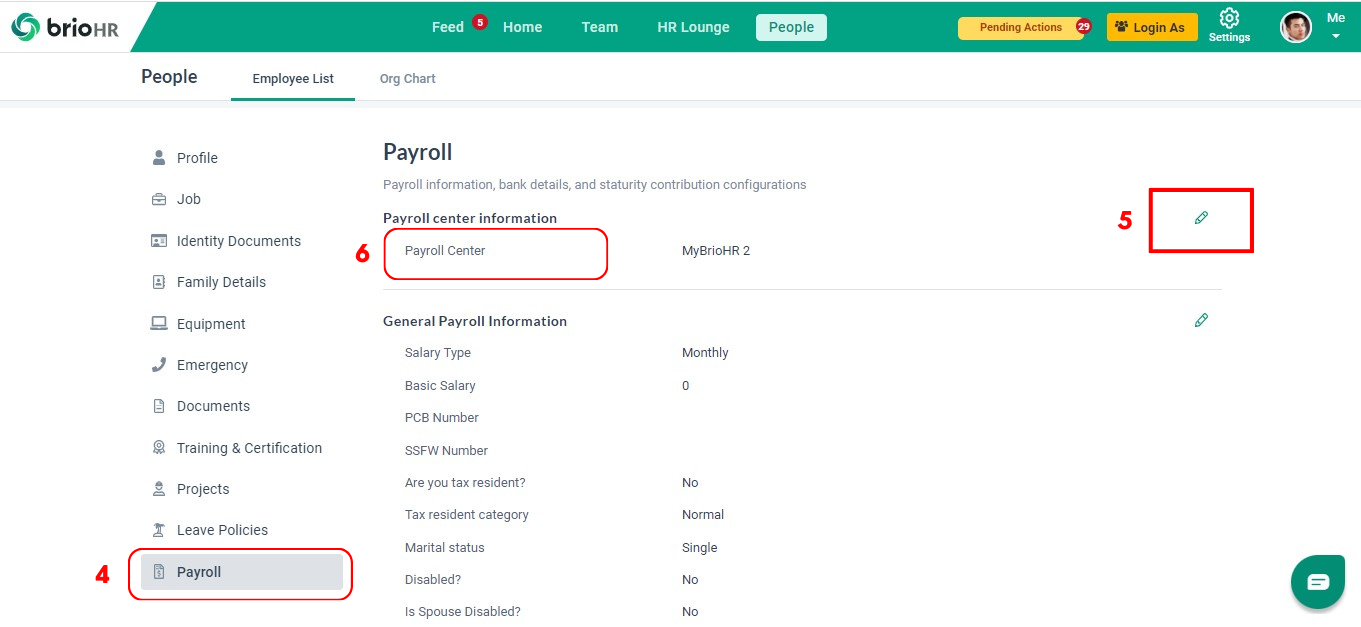
- In the employee's profile, click on the Payroll icon.
- In the Payroll section, click the Edit button.
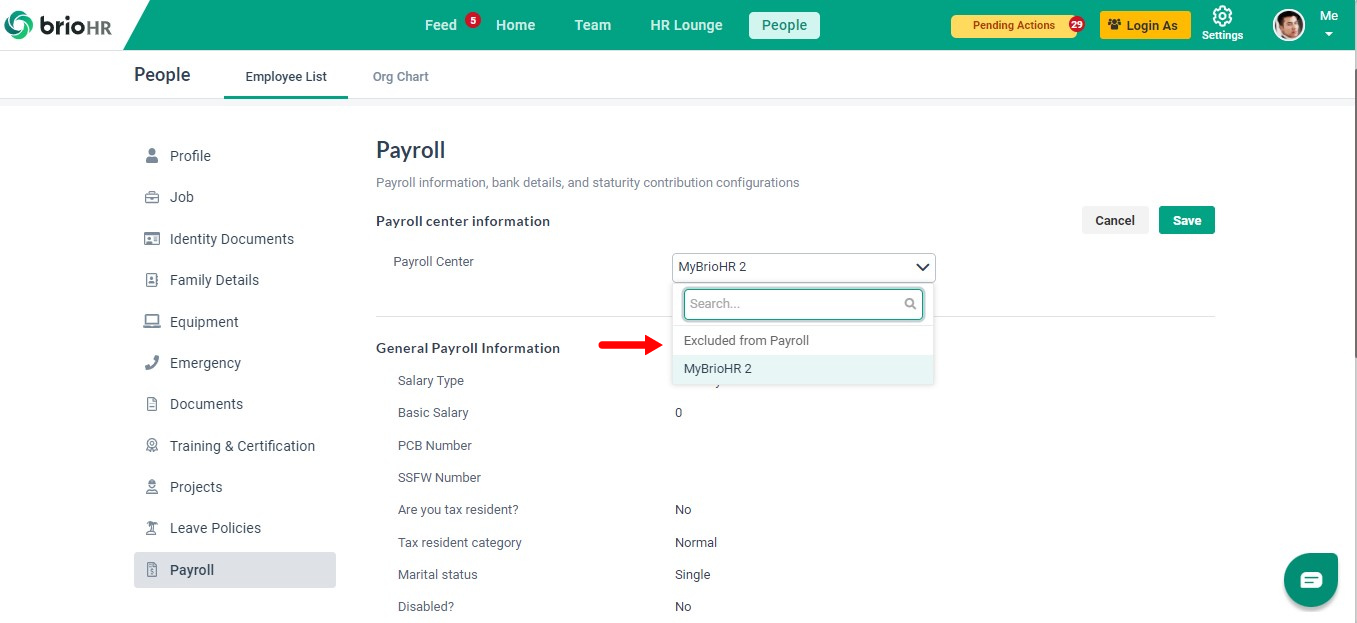
- From the dropdown menu, select Excluded from Payroll.
- Click Save to confirm your changes.
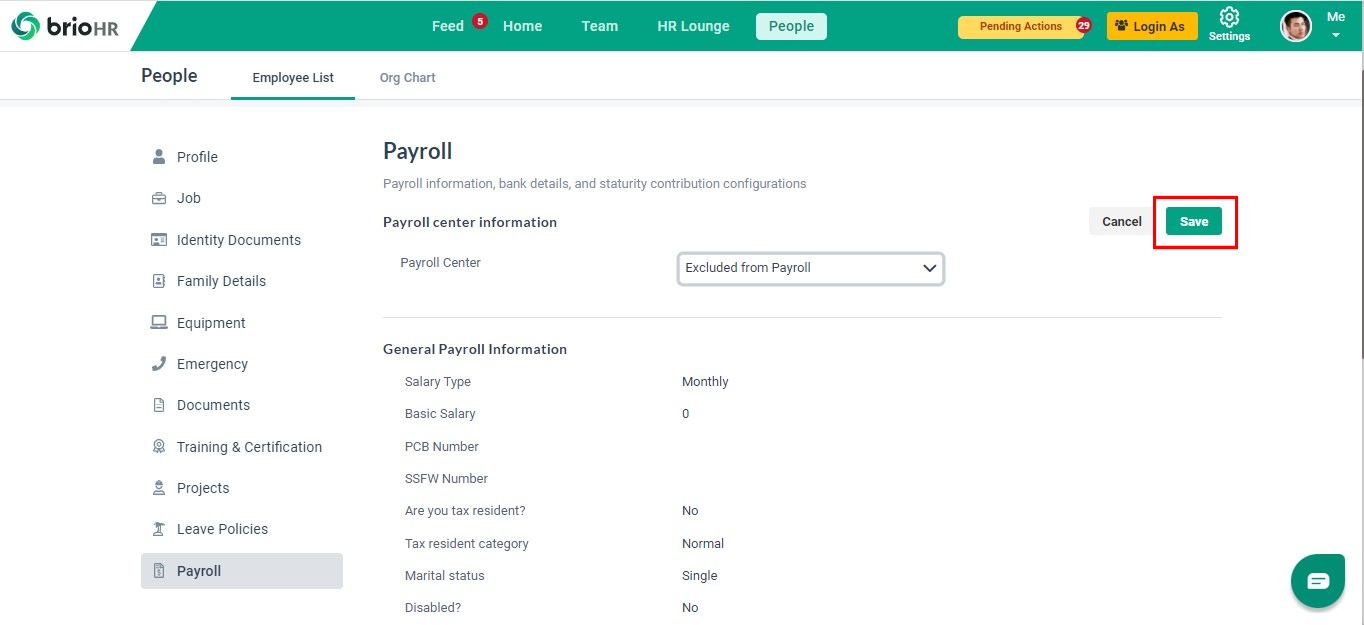
After completing these steps, the employee will be excluded from the payroll and the payroll report.
Frequently Asked Questions (FAQs)
Q: One employee is paid by a sister company — how do I keep them out of our payroll?
Exclude the employee from the payroll center: open the Employee Profile > Payroll (Payroll Center information) > click Edit > in the Payroll Center drop-down select Excluded from Payroll > Save. The employee profile stays active for all other modules (leave, claims, documents…).
Need Assistance?
If you have any questions or require assistance, please reach out to our support team via live chat or email us at support@briohr.com.