![brioHR-logo-color.svg]](https://support.briohr.com/hubfs/brioHR-logo-color.svg)
Audience & Scope
Audience: HR and admin teams setting up brioHR for the first time
Module: Time Attendance
Country: Malaysia, Singapore
Pre-requisites: Implementation kick-off meeting with your Implementation Manager (IM) completed; the Time Attendance migration template from your IM; Employee List loaded and verified (Profile & Dashboards)
This article is part of the Time Attendance data migration series. It follows the Time Attendance Data Migration Guide (PDF).
TA Policies tab
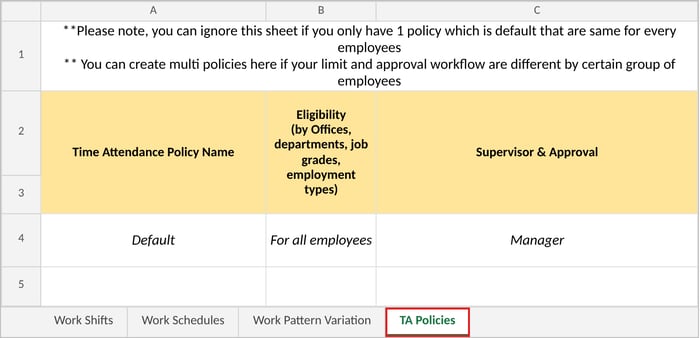
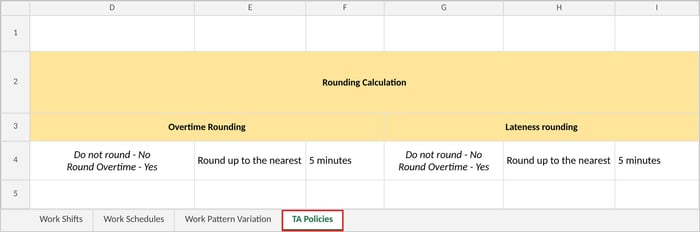
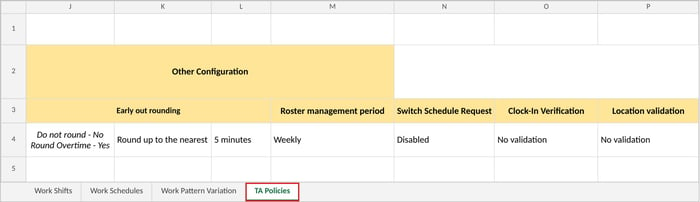
You can skip this tab if one policy fits everyone: the same supervisor, rounding and clock-in rules for every employee. Otherwise, add one row per policy, and start with your Default policy: the one every employee, including new joiners, starts in. Employees aren't moved out of it automatically, so set it up for most of your employees and tell your IM who belongs in each other policy (see Time Attendance Settings to Agree with Your IM). Rounding is set in three groups of three columns: overtime (D to F), lateness (G to I) and early out (J to L). Example of the TA Policies tab:
| Column | Required | Notes |
|---|---|---|
| Time Attendance Policy Name | If applicable | For example "Default" or "Operations Policy". |
| Eligibility | If applicable | Who the policy is for, by office, department, job grade or employment type, for example "For all employees" or "Department: Warehouse". Use the names you listed in your Company Data & Employee List Template for Offices, Departments and Job grade. Employment type options: Full time, Part time, Freelance, Intern, Contractor, Contract. Eligibility doesn't assign anyone: it only limits which policies can be chosen for an employee. |
| Supervisor & Approval | If applicable | Manager (each employee's manager from the Employee List), or the full name of a specific employee who supervises everyone in the policy and approves their overtime. Managers only see employees under Team > Time Attendance if they are their supervisor. |
| Overtime Rounding (D, E, F) | If applicable | In D, whether to round (the template's note: No = do not round, Yes = round). In E: Round up to the nearest, or Round down to the nearest. In F: 5, 10, 15 or 30 minutes, or 1 hour. |
| Lateness rounding (G, H, I) | If applicable | As for overtime, for the minutes an employee is late. |
| Early out rounding (J, K, L) | If applicable | As for overtime, for the minutes an employee leaves early. |
| Roster management period | If applicable | Options: Weekly or Monthly. Whether rosters for this policy are managed by the week or by the month. |
| Switch Schedule Request | If applicable | Options: Enabled or Disabled. If you aren't sure whether you need it, choose Disabled and ask your IM. |
| Clock-In Verification | If applicable | Options: No validation, Pin numbers or Facial recognition. With facial recognition, employees verify their face at every clock-in and clock-out, on the mobile app. |
| Location validation | If applicable | Write one of: No validation; track location without restricting it; only allow clock-ins at the shift's location; or only allow clock-ins at locations you list (give the addresses). Any location check means employees clock in on the mobile app. |
🔗 Related articles
← Previous: How to Fill In the Work Pattern Variation Tab
Next: Time Attendance Settings to Agree with Your IM →
Back to Time Attendance Data Migration and Verification: Start Here
Ownership
By: Aqilah