![brioHR-logo-color.svg]](https://support.briohr.com/hubfs/brioHR-logo-color.svg)
What is Per Day Allowance?
Per Day Allowance, also known as Per Diem, refers to expenses calculated based on daily rates. Employees must enter the relevant dates when submitting a claim.
Latest Update: Half-Day (0.5) Number of Days
Per Day Allowance claim types with “Allow edit number of days” enabled now accept half days. Employees and HR can enter values such as 0.5, 1.5 or 2.5 days in the Number of day(s) field, on both web and the brioHR mobile app.
Allow Editing Number of Days
When creating or modifying a claim type, you can enable the option "Allow edit number of days." This feature allows employees and HR to adjust the calculated number of days for a claim, even if it doesn’t align with the selected start and end dates.
For example, if the start date is 15 July 2026 and the end date is 17 July 2026, the system calculates the duration as 3 days. With the “Allow edit number of days” option enabled, users can adjust this duration to a different value, such as 2.5 days.
The total amount is calculated as number of days × rate per day, rounded to 2 decimal places. For example, with a rate of RM 140/day, entering 0.5 days gives a total amount of RM 70.00, and the formula shows as “0.5 x RM 140/day”.
NOTE:
- The number of days must be in steps of 0.5 (e.g. 0.5, 1, 1.5). The minimum is 0.5 days and the maximum is 365 days.
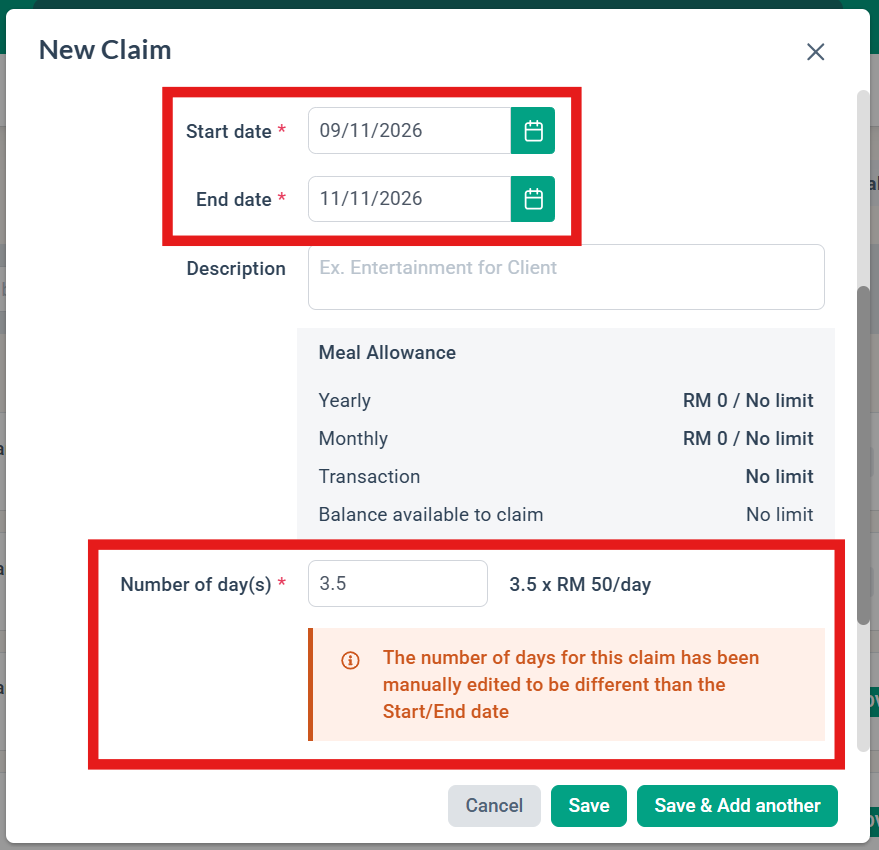
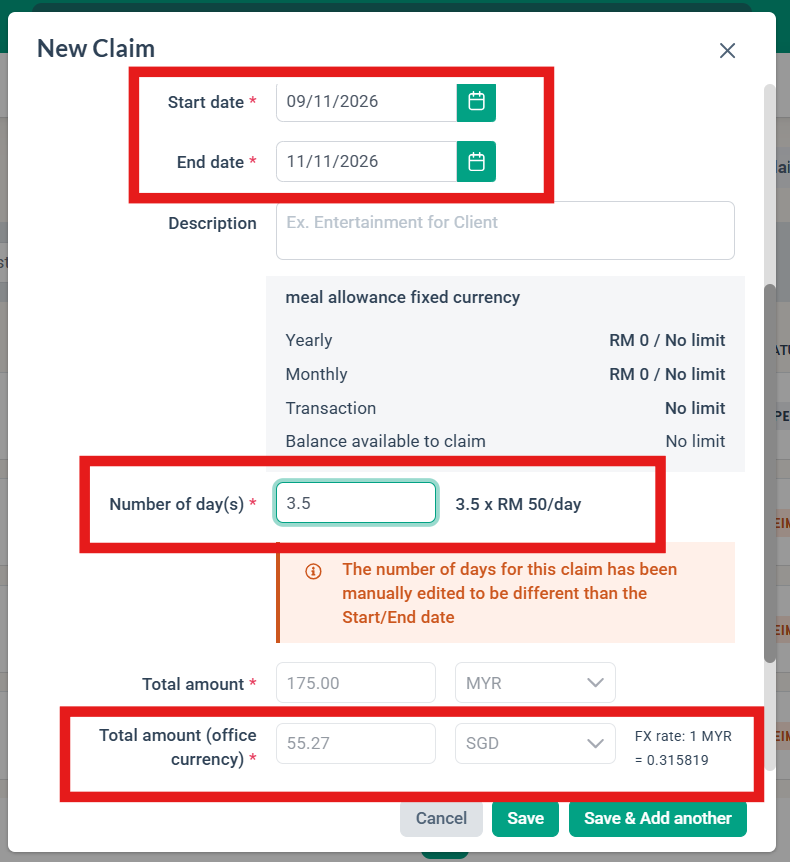
- When the number of days is changed manually, the message “The number of days for this claim has been manually edited to be different than the Start/End date” appears under the Number of day(s) field.
- If you change the start date, end date or time after editing the number of days, the system recalculates it as whole days from the selected dates and removes the message. Re-enter the half day if needed.
- Half days are not calculated automatically from the start and end time. They must be entered manually in the Number of day(s) field.
- Claim types without “Allow edit number of days” enabled continue to use whole days calculated from the selected dates.
- The same rules apply when HR or a Personal Assistant creates or edits a claim on an employee’s behalf.
- To enter half days on mobile, update the brioHR mobile app to the latest version. Older app versions accept whole days only.
Number of Day(s) Error Messages
If an invalid value is entered, an error appears under the Number of day(s) field. The claim can’t be saved, saved as draft or submitted until the value is corrected. Once you enter a valid value, the error clears.
| If the number of days is… | Message shown |
|---|---|
| Not in steps of 0.5 (e.g. 1.3 or 0.25) | Number of days must be in steps of 0.5 (e.g. 0.5, 1, 1.5) |
| 0 | Number of days must be at least 0.5 |
| Left empty after being cleared | Number of days must be at least 0.5 |
| More than 365 | Number of days can’t be more than 365 |

New Update: Start/End Time
The "Start/End Time" option can be enabled when creating or modifying the claim type. Employees are required to enter the Start/End Time when adding a claim if this option is enabled. Note that the time entry will not affect the total amount calculation, which is based solely on the selected dates. Half days are not calculated from the start and end time. To claim a half day, enable “Allow edit number of days” and enter the value manually in the Number of day(s) field.
How to Create a Claim Type Using Per Day Allowance:
- Go to HR Lounge > Expense Claims.
- Navigate to Claim Types.
- Click on the "+ Create Claim Type" button to create a new claim type.
- In the Basic Configuration form, select "Per Day Allowance" and choose the Allowance Currency:
- Use Office Currency: Follow the currency of your office's country.
- Set Fixed Currency: Choose an overseas currency applicable to all offices.
- Input the Rate per Day for each office. If "Set Fixed Currency" is selected, specify the currency for all offices.
- Tick the checkbox for "Start/End Time required" if necessary.
- Tick “Allow edit number of days” if employees need to enter a different number of days from the selected dates, including half days (e.g. 0.5).
- Fill in the remaining details on the form and click Save.
NOTE:
Please update the brioHR mobile app via the app store to submit this claim type, and to enter half days, through the mobile app.


Update for Set Fixed Currency Claim Type:
- The claim limit will follow the fixed currency (e.g., USD) instead of the office's currency (e.g., MYR).
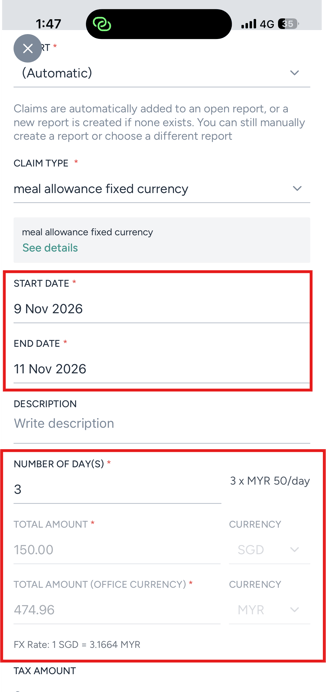
- The system will convert amounts from the fixed currency (e.g., USD) to the office's currency (e.g., MYR) if you have paired the currencies and set a fixed exchange rate. Refer to the article on currency exchange rates for more information.
- If no exchange rate has been set, employees will need to manually input the amount in the total amount field (office currency).
- Half days work the same way for fixed currency claim types. The amount in the fixed currency is calculated as number of days × rate per day, rounded to 2 decimal places, before being converted to the office currency.
Employee View When Adding a New Claim Request Using Per Day Allowance:
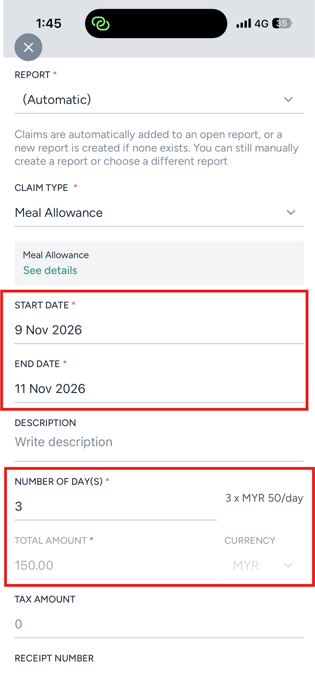
- Employees will need to enter the Start date and End date. The system will automatically calculate the number of days (in whole days) and the total amount for the claim request.
- If “Allow edit number of days” is enabled for the claim type, employees can then change the Number of day(s), including half days (e.g. 0.5).
- When a saved claim is reopened to view or edit, its saved number of days and total amount are kept. They are only recalculated if the dates or time are changed.
Website:
1. Use Office Currency
2. Set Fixed Currency
Mobile App:
1. Use Office Currency
2. Set Fixed Currency
Need Assistance?
If you have any questions or require assistance, please reach out to our support team via live chat or email us at support@briohr.com.