![brioHR-logo-color.svg]](https://support.briohr.com/hubfs/brioHR-logo-color.svg)
Introduction
Manual recomputation allows HR administrators to update employees’ initial leave balances and carry forward amounts, especially after changes are made to the previous year’s leave policy settings.
When you recompute leave balances, the system recalculates the initial balance and carry forward based on the latest rules defined in the leave policy. This feature is particularly useful when you want the current year’s carry forward to reflect newly updated rules from the previous year.
Learn More:
How to Enable and Configure Carry Forward of Previous Year Leave Balance in the New Year
When Should You Recompute Leave Balances?
You should recompute leave balances when:
- Leave policy rules for the previous year have been modified
- Carry-forward rules are updated after the year has started
- Initial balances need to align with the latest policy configuration
Step-by-Step Guide: How to Recompute Initial Balance and Carry Forward
Step 1 - Log In to Your BrioHR Account
Login to BrioHR account using your registered credentials.
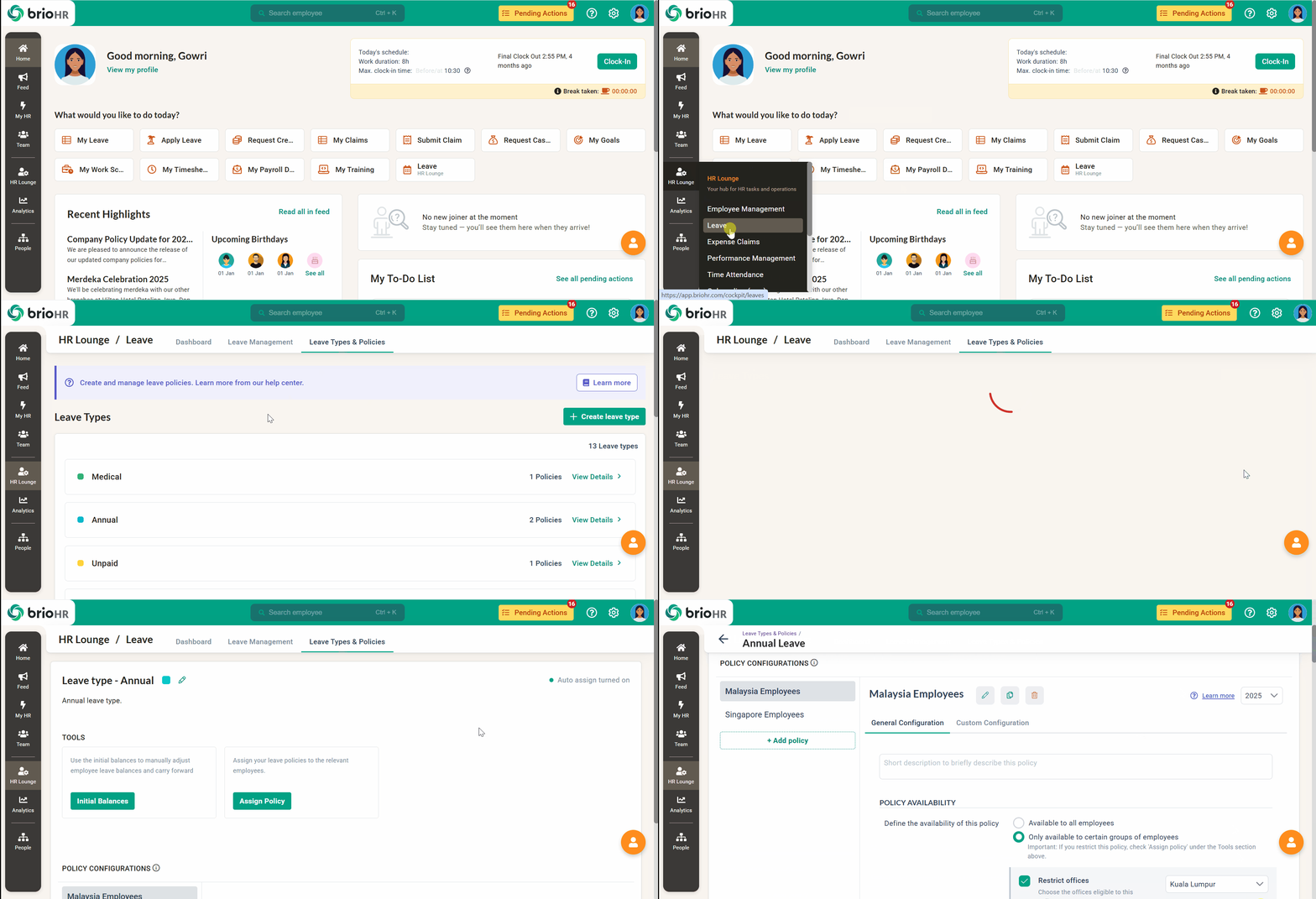
Step 2 - Open the Leave Policy Page
1. Go to HR Lounge on the navigation bar and click Leave.
2. Select Leave Types & Policies.
2. Choose the leave type you want to recompute (e.g., Annual leave).
3. Click View Leave Details.
4. You will be directed to the selected leave type page.
Step 3 - Access the Initial Balances Section
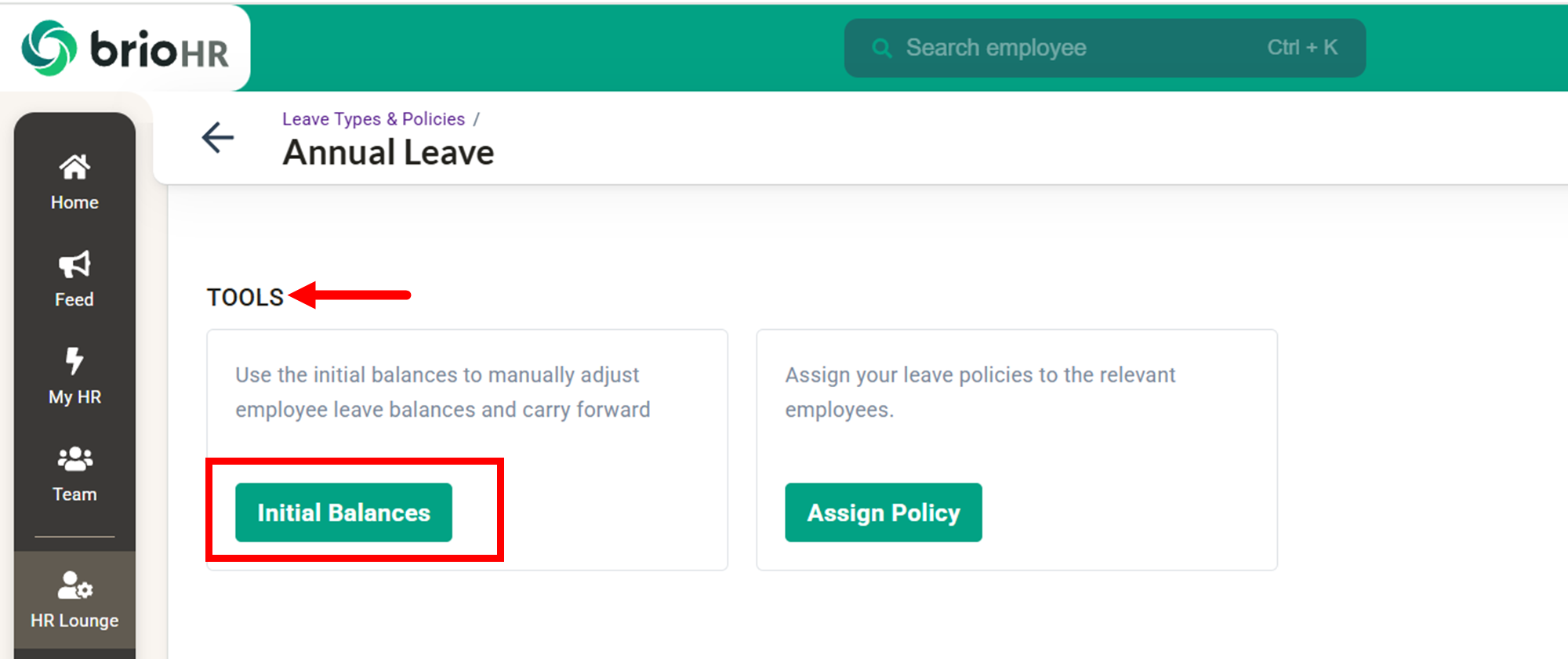
1. Navigate to Tools > Initial Balances.
2. A pop-up window will appear showing:
- Employee names.
- The initial balance amounts.
- Carry forward amounts.
- Edit (pencil icon)
- Recompute (refresh icon)

Learn More:
If you would like to know how to manually edit the employee's initial balance and carry forward amount, please refer to:
Recompute Leave Balances Options
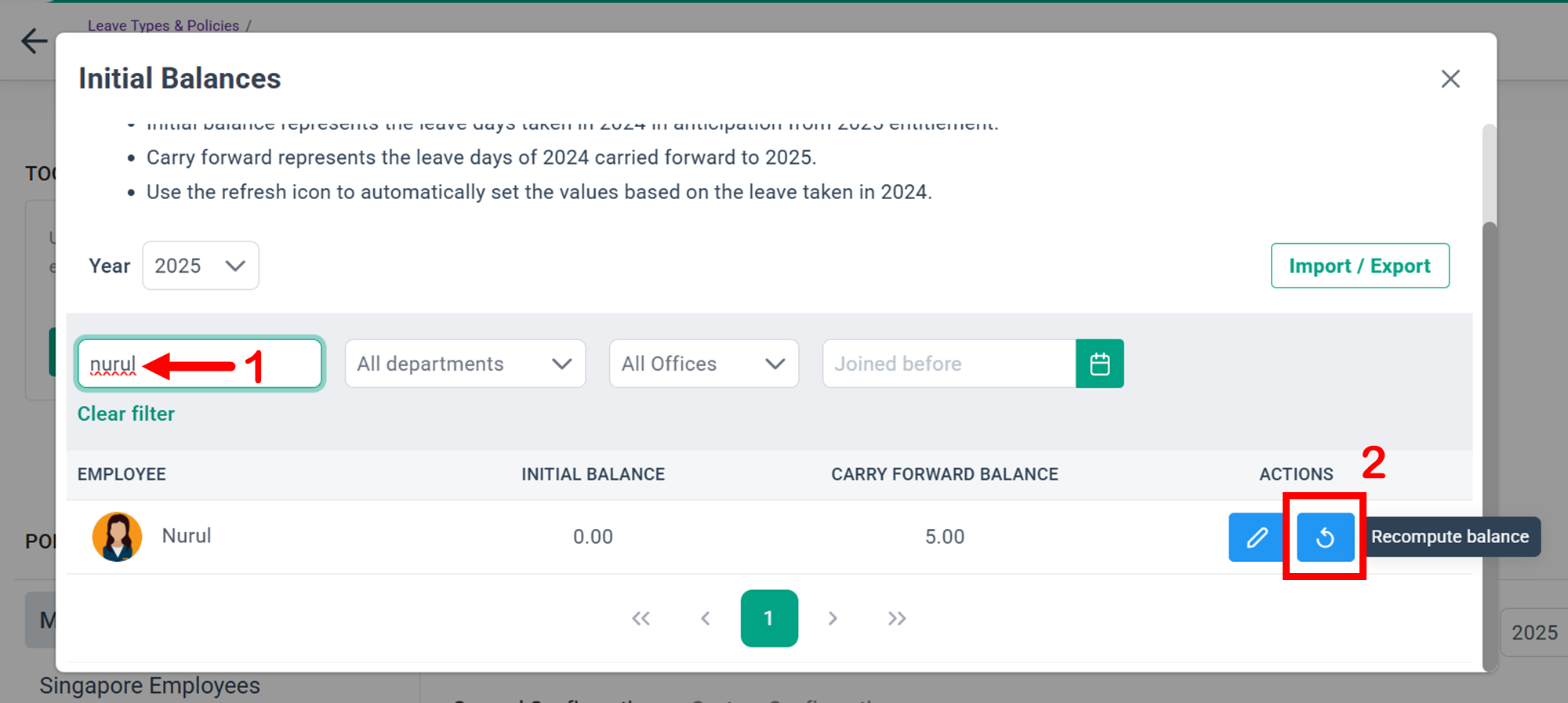
a) Recompute for Individual Employees
1. Search for the employee's name.
2. Click on the Recompute (refresh) button.
3. The system will recalculate both the initial balance and carry forward based on the latest leave policy rules.
b) Recompute Leave Balances in Bulk
Currently, bulk recomputation is not available for HR Admin users.
NOTE:
To recompute leave balances for all employees at once, please contact the BrioHR Support Team via Live Chat for assistance.
Frequently Asked Questions (FAQs)
1. What does recomputing leave balances do?
Recomputing recalculates an employee's initial balance and carry forward based on the latest leave policy rules.
2. Will recomputation affect leave already taken?
Recomputation updates balances based on policy rules but does not remove approved leave records.
3. Can I manually edit leave balances instead of recomputing?
Yes. You can manually adjust leave balances if needed.
Refer to How to Adjust Leave Balance or Carry Forward in HR Lounge.
4. Can HR Admins recompute leave balances in bulk?
No, bulk recomputation is not currently supported in the system. Please contact BrioHR Support for assistance.
5. When should I recompute leave balances?
You should recompute balances after updating carry forward rules or modifying last year’s leave policy settings.
Need Assistance?
If you have any questions or require assistance, please reach out to our support team via live chat or email us at support@briohr.com.