![brioHR-logo-color.svg]](https://support.briohr.com/hubfs/brioHR-logo-color.svg)
To set an employee's employment end or resign date:
1. Navigate to the HR Lounge > Employee Management and open the profile of the employee whose end date you want to set.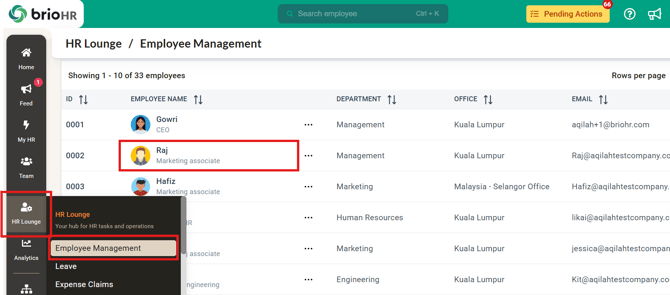
2. In the profile's top header, locate the ellipsis icon (three dots) next to the Edit button.
3. Click on the ellipsis icon to open a drop-down menu, then select "End Employment."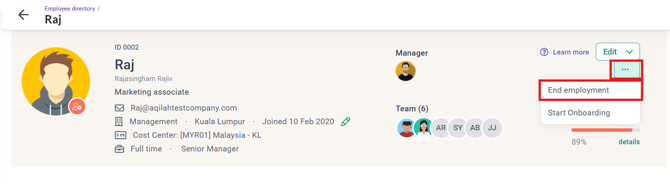
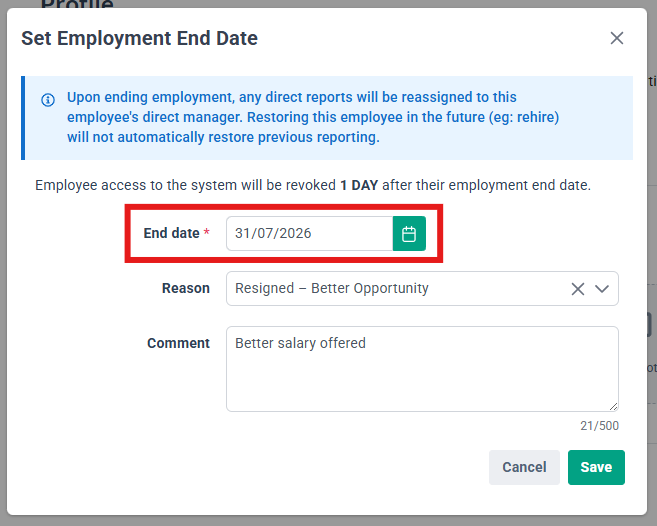
4. A pop-up window will appear. Enter the end date in the "End Employment Date" field. Enter the termination reason and comment (optional).
NOTE:
The employment end date is the employee's official last working day (e.g. if the last day of work is 30 June, enter 30 June — not 1 July).
5. Click "Save" to confirm the changes.
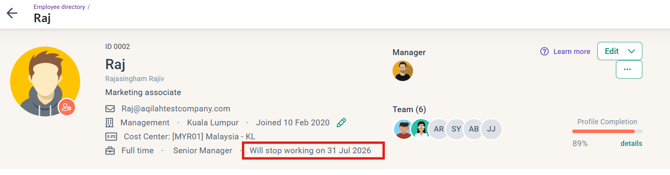
6. Once saved, the end date will be displayed in the profile header.
NOTE:
Setting an employment end date will automatically prorate the employee’s salary and leave balance.
Troubleshooting: "I cannot set the end date" (an error or notification appears)
This usually means a future-dated history event is recorded for the employee between the intended end date and today — the system prevents ending employment while records exist after the end date. Clear them first:
1. Open the employee's profile and check the Job tab → Job History: edit or remove any entry with an effective date after the intended end date.
2. Check the Compensation tab → review Salary and Fixed Remuneration history: remove or update any record dated after the intended end date.
3. Then set the end date as usual: click the "..." (More) button next to Edit → End Employment → enter the date and save.
Need Assistance?
If you have any questions or require assistance, please reach out to our support team via live chat or email us at support@briohr.com.