![brioHR-logo-color.svg]](https://support.briohr.com/hubfs/brioHR-logo-color.svg)
NOTE:
For CIMB Bank Berhad and CIMB Islamic Bank Berhad only.
For CIMB ISLAMIC BANK BERHAD, click here.
Step 1: Bank Account Setup
- In HR Lounge, click on Payroll.
- Click on Settings, in the General tab, then scroll down to the Bank Account section.
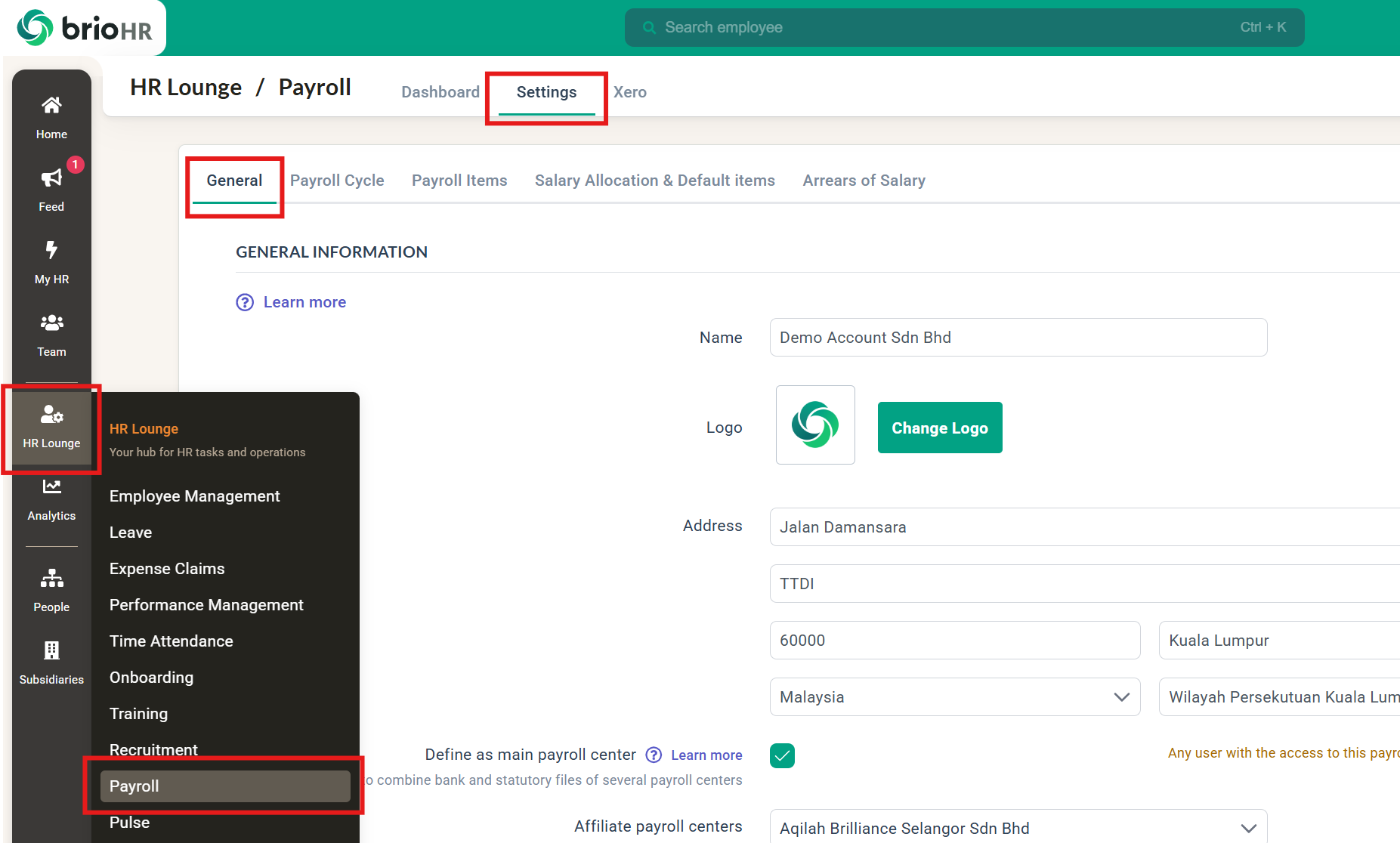
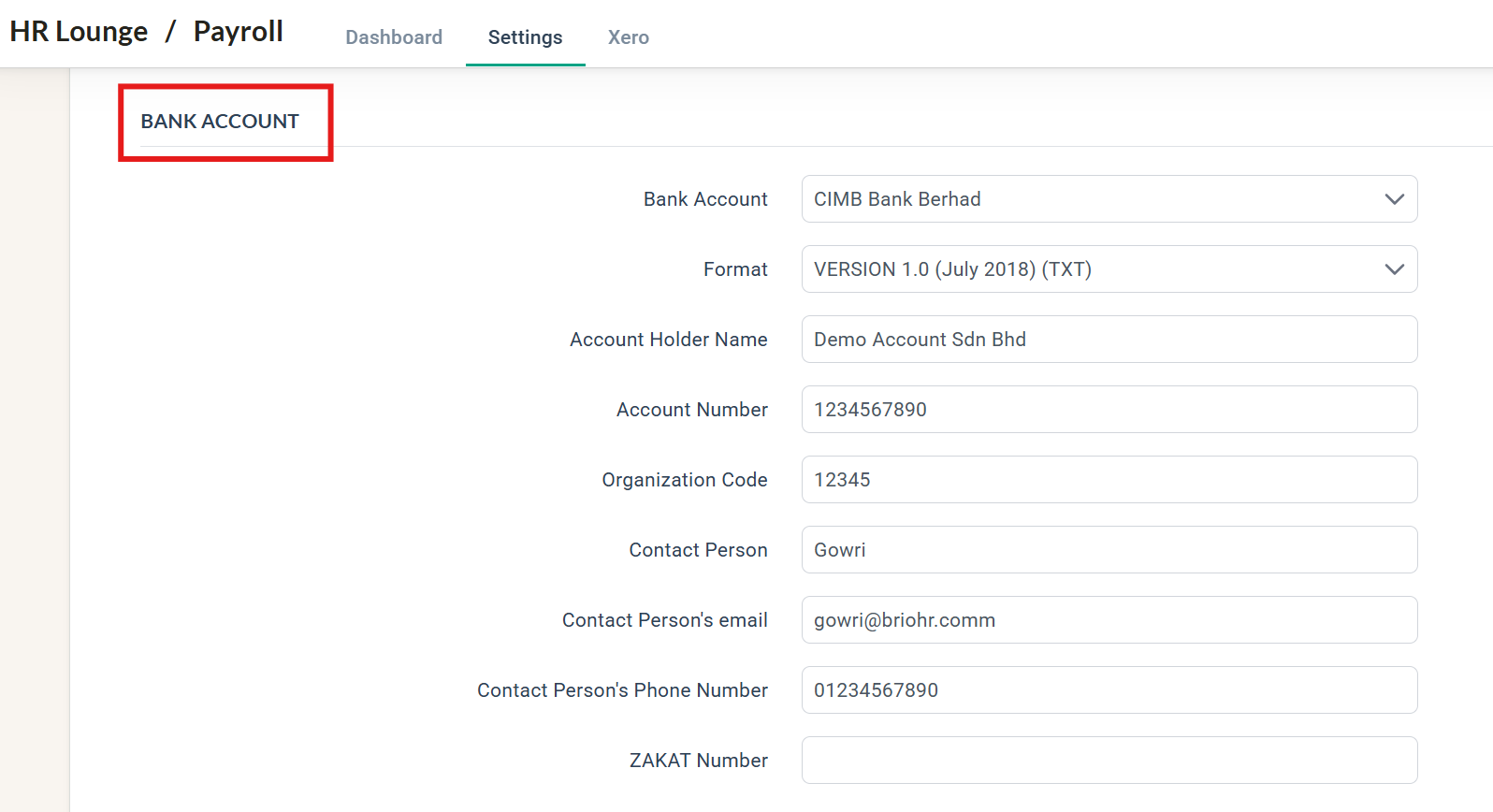
- Choose CIMB Bank Berhad for Bank Account field, and input the information in the fields and click Save (at the bottom of the Settings page) to complete the action.
NOTE :
-
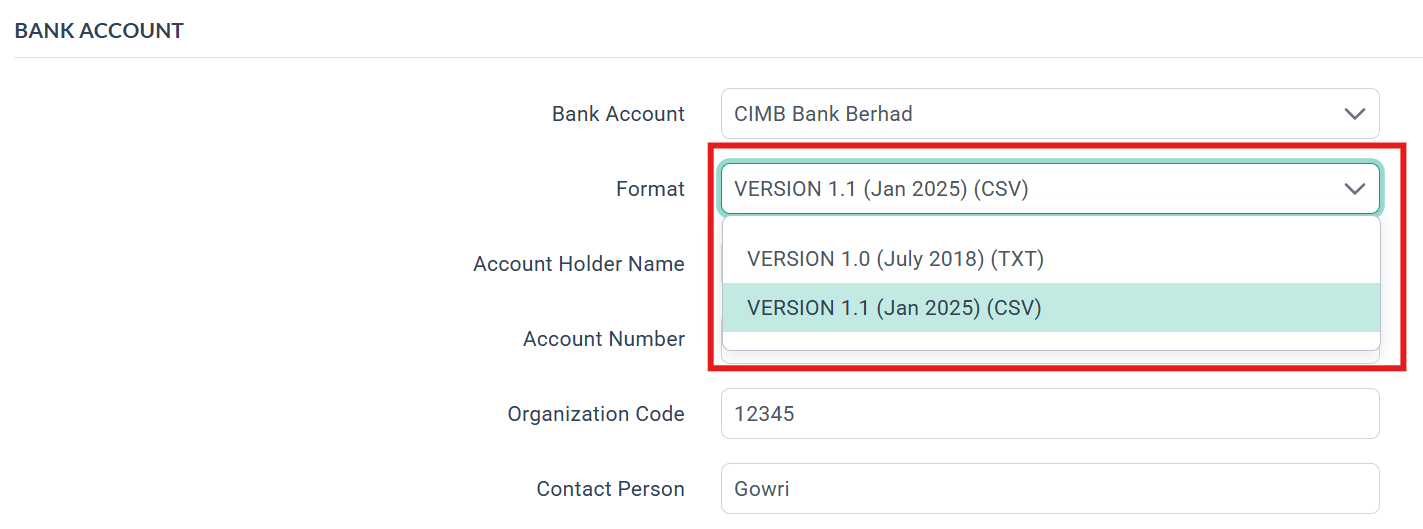
For the Format dropdown, there are two versions, Version 1.0 (TXT) and Version 1.1 (CSV). Version 1.1 supports payment to employees using Touch N Go.
-
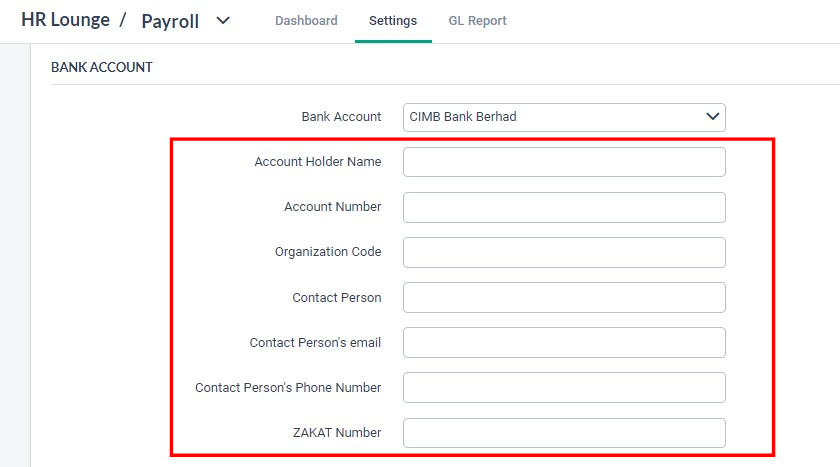
To successfully download the bank file(s) containing the complete information, you must fill in all the fields as highlighted in the screenshot below.
Step 2: Downloading The Bank File
- In HR Lounge, click on Payroll.
- In the Payroll History dashboard, click on the COMPLETED payroll cycle for which you wish to process payments.
- Find the Bank File section and click on the Download icon to download the bank file for payment to your associated bank.
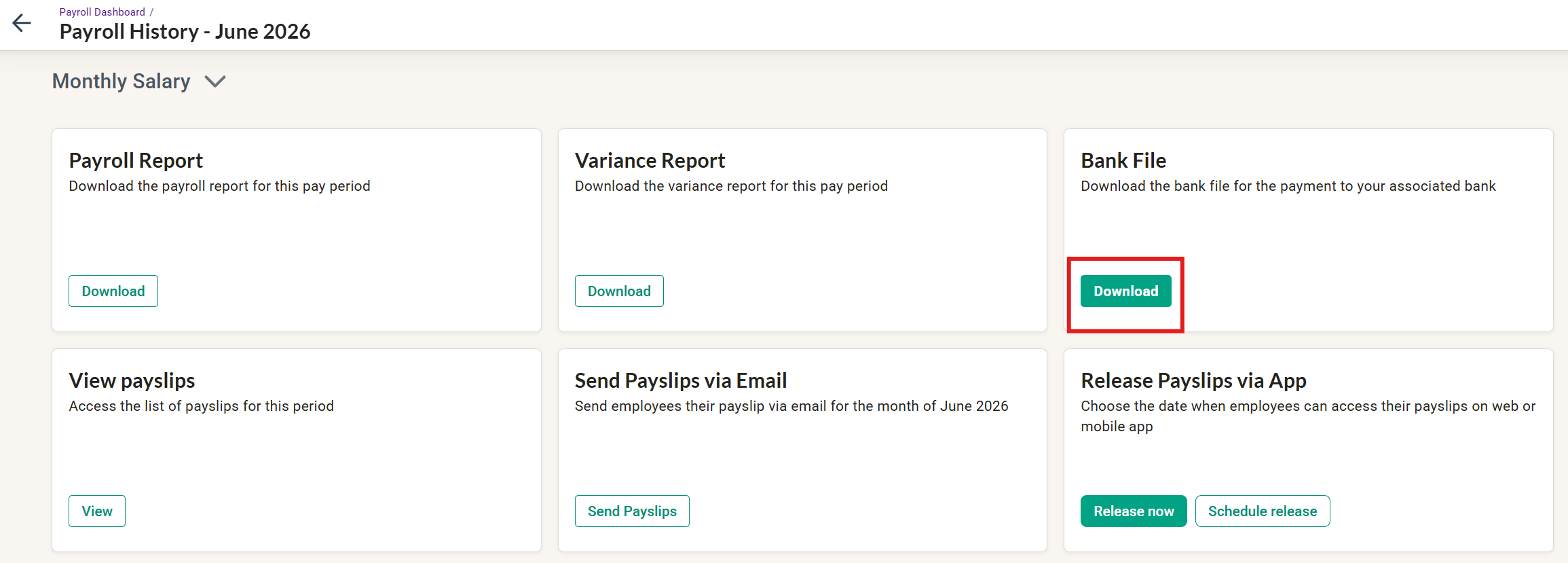
- After downloading the bank file, you can upload it to the bank's portal for payment.
NOTE:
If any information is missing, you will not be able to generate the bank file. A warning prompt will appear (as shown in the screenshot below).

Need Assistance?
If you have any questions or require assistance, please reach out to our support team via live chat or email us at support@briohr.com.