![brioHR-logo-color.svg]](https://support.briohr.com/hubfs/brioHR-logo-color.svg)
Audience & Scope
Audience: HR Admin, Managers
Module: Employee Profile, Employee Profile Change
Country: Global
Pre-requisites: Access to view and modify employee compensation, access as approver in profile change requests.
BrioHR now allows you to require approval for basic salary changes before they are applied to an employee's profile. With Salary Change Approval Requests, managers can submit proposed salary changes for review, helping your organisation maintain better control over salary adjustments and ensuring changes are reviewed before being recorded in the employee's compensation history.
This feature uses the existing Profile Change Request (PCR) workflow, allowing approvers to review, approve, reject, or edit proposed salary changes before they take effect.
Setting Up Salary Change Approval Requests
Before managers can submit basic salary change requests, an HR Admin must configure the relevant settings.
Step 1: Enable Compensation Access for Managers
- Go to Settings > User Groups.
- Select the relevant Manager user group.
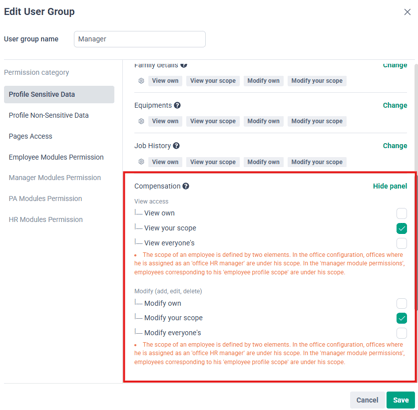
- Under Profile Sensitive Data > Compensation, enable View Your Scope and Modify Your Scope.
- Save your changes.
Step 2: Configure Approval Requirements
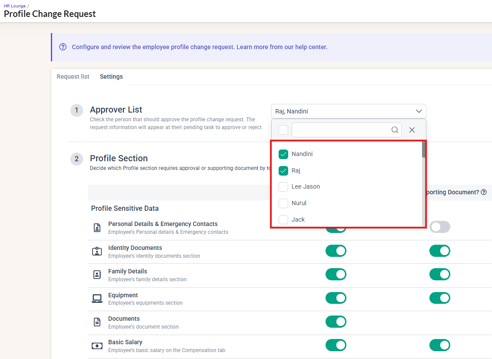
- Go to HR Lounge > Employee Management > Profile Change Request
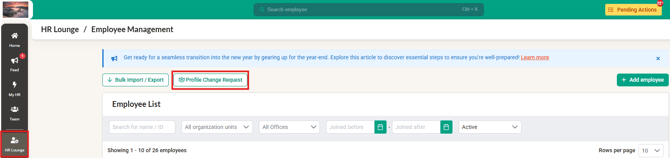
- Click into Settings.
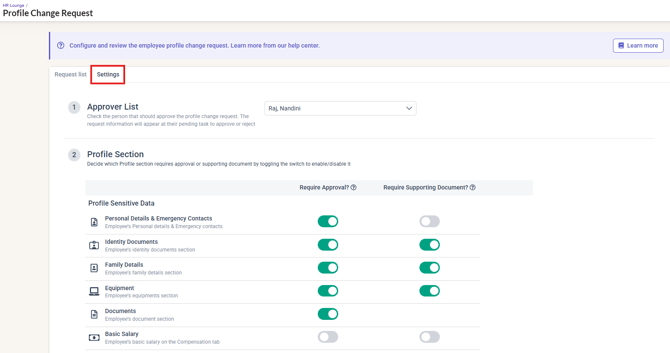
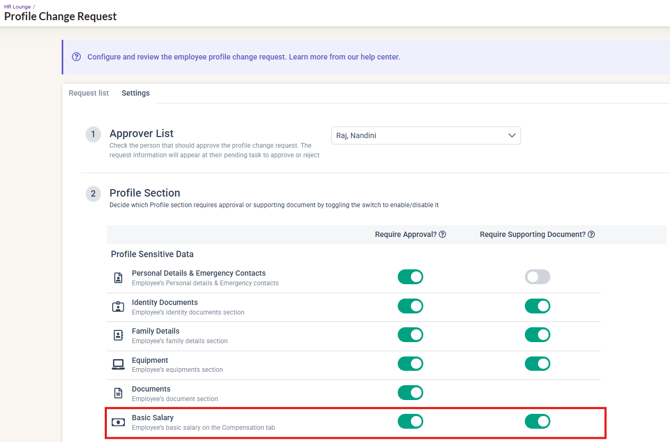
- Under Profile Sensitive Data, locate Basic Salary.
- Enable Require Approval to ensure proposed basic salary changes go through the approval process.
- Enable Require Supporting Documents if managers must attach supporting documents when submitting salary change requests.
- Confirm that the approver list is correctly configured. Add on approvers if needed.
NOTE:
When approval is required for Basic Salary, compensation changes made through Modify Your Scope must also go through the Profile Change Request workflow. These changes cannot bypass the approval process.
Submitting a Basic Salary Change Request
Managers can submit a proposed basic salary change for their direct reports by following these steps.
- Open the employee's profile.
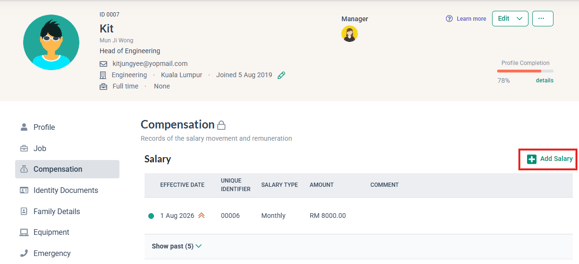
- Navigate to the Compensation tab to view the employee's current basic salary.
- Use the existing +Add Salary button to add a new basic salary row.
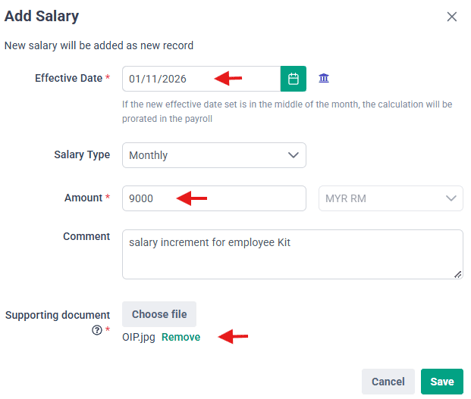
- Enter the proposed salary amount and effective date.
- Attach a supporting document if required by your organisation's settings.
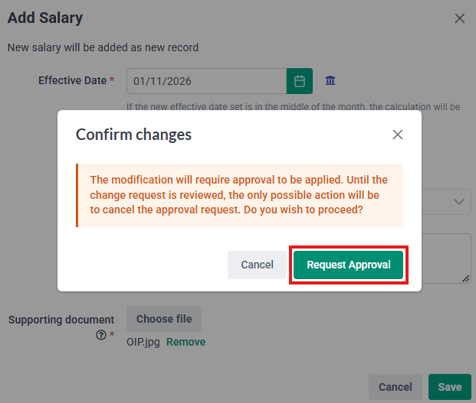
- Click Save then click on Request Approval to submit the salary change
- A success message appears and the salary change is now Pending Review.
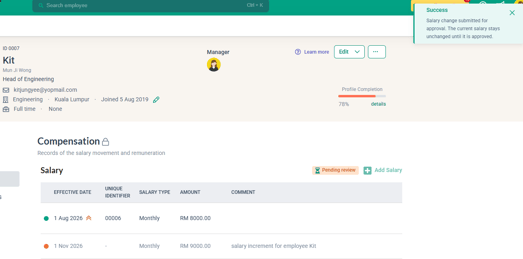
Once submitted, the employee's current salary remains unchanged until the request is approved.
IMPORTANT:
Only one basic salary change request can be pending for an employee at a time. If a request is already pending, the manager must wait until it is approved or rejected before submitting another request for the same employee.
Reviewing and Approving Salary Change Requests
Approvers receive the usual Profile Change Request email notification and a task under Pending Actions.
To review a request:
- Open the request from My To-Do List or navigate to HR Lounge > Profile Change Request > Request List.
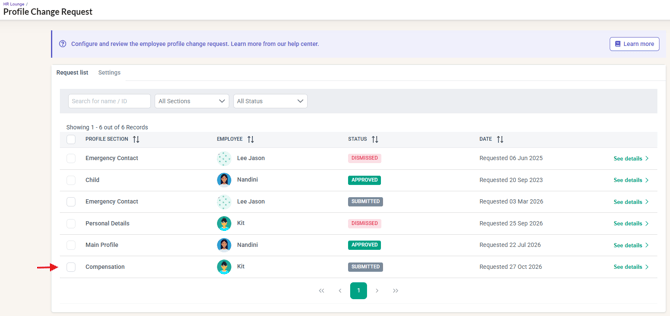
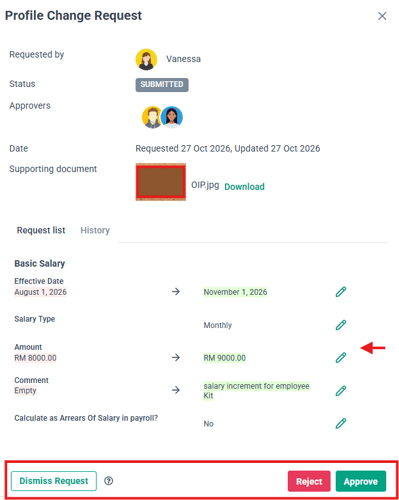
- Click See Details to review the request details, including:
- Employee name
- Current basic salary
- Proposed basic salary
- Proposed effective date
- Requester
- Supporting document, if attached
-
- Approve: Approve the proposed salary change.
- Reject: Reject the request and provide a reason.
- Dismiss: Dismiss the request.
- Edit (Pencil Icon) and Approve: Edit the proposal before approving it.
IMPORTANT:
A requester cannot approve their own salary change request, even if they are included in the approver list.
What Happens After Approval or Rejection?
If approved:
- The proposed basic salary is added as a new row in the employee's compensation history.
- The new salary is recorded with its proposed effective date.
- The previous salary record remains in the compensation history.
- Any applicable arrears are handled through the existing arrears function after approval.
If rejected:
- The proposed salary change is not applied.
- The employee's compensation history remains unchanged by the request.
- The requester is notified of the rejection and the reason provided.
The employee will not see or receive a notification about a pending proposal. They will only see the new salary once the change has been approved and is effective.
Frequently Asked Questions
Q: Will the employee's salary change immediately after a manager submits a request?
A: No. The employee's current basic salary remains unchanged while the request is pending approval. The proposed salary is added to the employee's compensation history only after the request is approved.
Q: Will the employee's salary change immediately after a manager submits a request?
A: No. The employee's current basic salary remains unchanged while the request is pending approval. The proposed salary is added to the employee's compensation history only after the request is approved.
Q: Can this feature be used to request salary increments for multiple employees at once?
A: No. Each request covers one employee, and bulk or multi-employee salary increment requests are not supported. The feature also applies only to Basic Salary, excluding fixed remuneration, deductions, allowances, and other compensation items.
Related Articles
How to Enable and Manage the Profile Change Requests Feature in BrioHR
How to Approve or Reject Profile Change Requests in BrioHR
How to Manage Salary History (Salary Increments & Revisions) in an Employee's Profile
Ownership
By: Arveena