![brioHR-logo-color.svg]](https://support.briohr.com/hubfs/brioHR-logo-color.svg)
Audience & Scope
Audience: HR Admin
Module: Onboarding
Country: Global
Pre-requisites: HR Module Permission for the Onboarding module's Dashboard and Module Settings
NOTE:
If your company is NOT subscribed to the BrioHR Onboarding module, you will not be able to see the module and access its features. The probation reminder is not a standalone notification setting; it is part of the Onboarding module.
Step-by-Step Instructions
1. Navigate to HR Lounge > Onboarding
2. In the Onboarding module, select the Process tab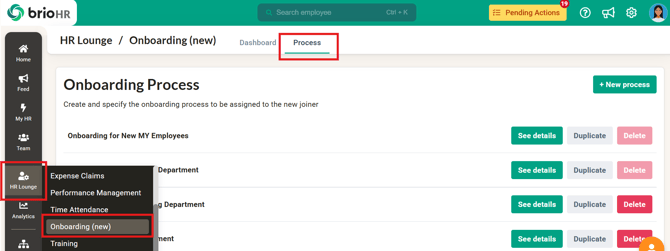
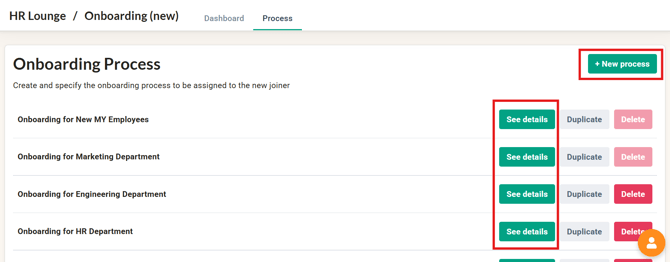
3. Create a New Process or Select an Existing Process – Click See Details to modify an existing process.
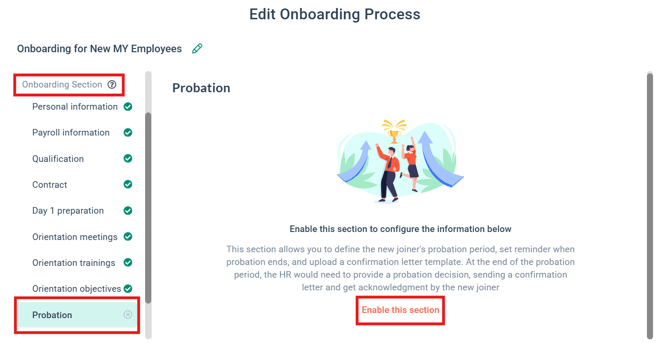
4. Select the Probation part of the Onboarding Section. Click 'Enable this section'.
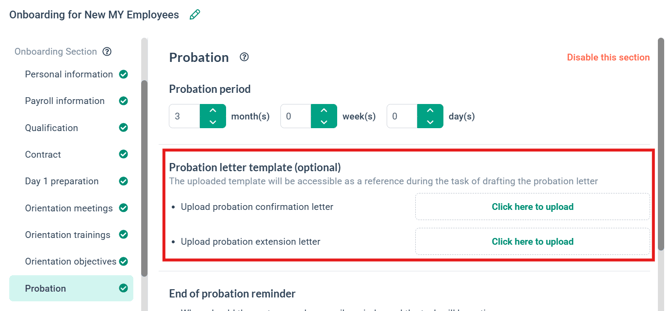
5. Set the probation period that any employee assigned to this onboarding process will observe.

6. Upload the confirmation letter template or probation extension letter template to be used when processing confirmation/extension (optional). The stakeholder in charge of processing the confirmation/extension can download the respective template for further action.
7. Set the End of probation reminder to tell BrioHR when to send the reminders and who to send the reminders to.
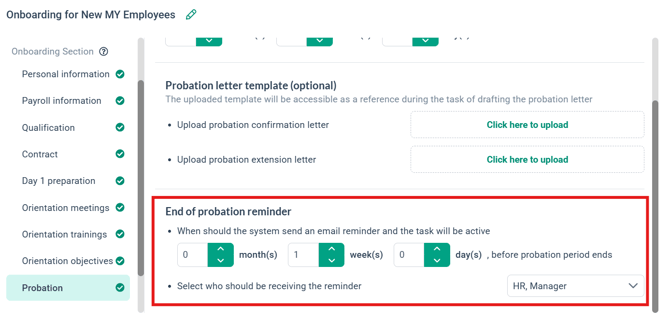
Example Scenario:
Adam is a new joiner who was assigned to an onboarding process that has the probation settings as follows:
-
Probation period: 3 months
-
End of probation reminder: 2 weeks
-
Stakeholder to receive reminder: HR and Manager
Adam joined the company 1st January 2026. Thus:
-
Probation end date (tentative): 1st April 2026
-
Probation task and reminder on: 18th March 2026 (2 weeks before probation end date)
- Probation email reminder sent to: HR (chosen when set roles) and the Manager of the new joiner.
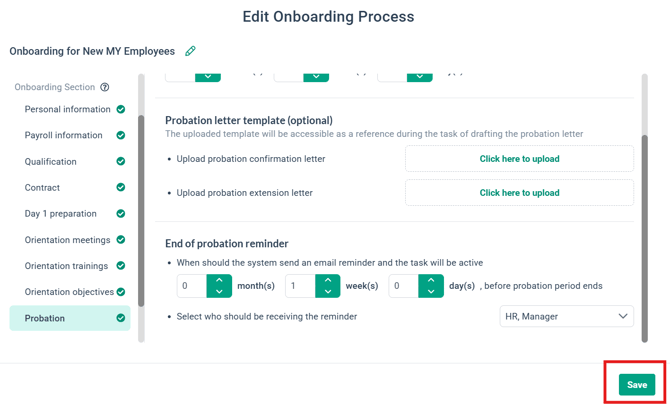
8. Click 'Save' to confirm the changes for the onboarding process.
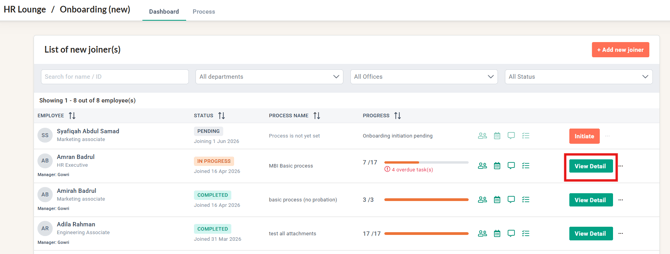
9. Once an employee is initiated (into the onboarding process with probation section set up), and roles have been set (status in progress), you can monitor their probation task by clicking View Detail > click Task List > scroll down to Probation.
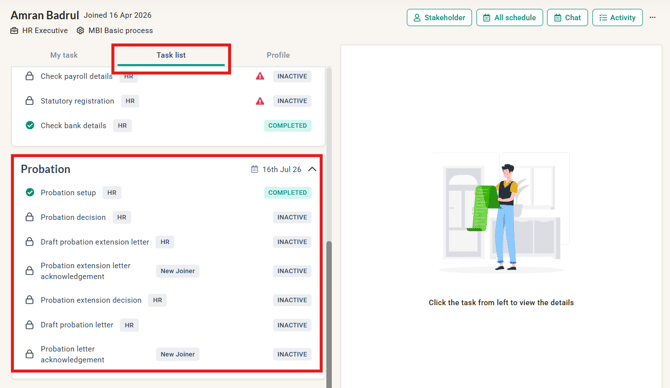
10. The HR person in your company assigned as the HR Role for the new joiner will be in charge of confirming the probation decision and other related tasks:
-
Confirm employment (enter Probation end date)
-
Extend probation (enter new probation end date)
- Terminate employment (enter employment end date)
Common Issues/FAQ
Q: I am a manager, and I do not see the task to confirm my subordinate.
A: The task to confirm an employee is done by the HR in charge of your subordinate's onboarding. You can view who the HR person is from the Team > Onboarding > Click the 'See stakeholder(s)' icon next to the subordinate's name.
Q: Can I change the probation end date for a new joiner?
A: You can change it under the new joiners Task list > Probation > Probation Setup.
Related Articles
Understanding BrioHR Onboarding Process (Sections)
How to see details, duplicate & delete onboarding process (Onboarding Module)
How to Add a New Employee to the Onboarding Process
How HR Can Complete Onboarding Tasks in BrioHR
Ownership
By: Aqilah