![brioHR-logo-color.svg]](https://support.briohr.com/hubfs/brioHR-logo-color.svg)
Log in to your BrioHR account:
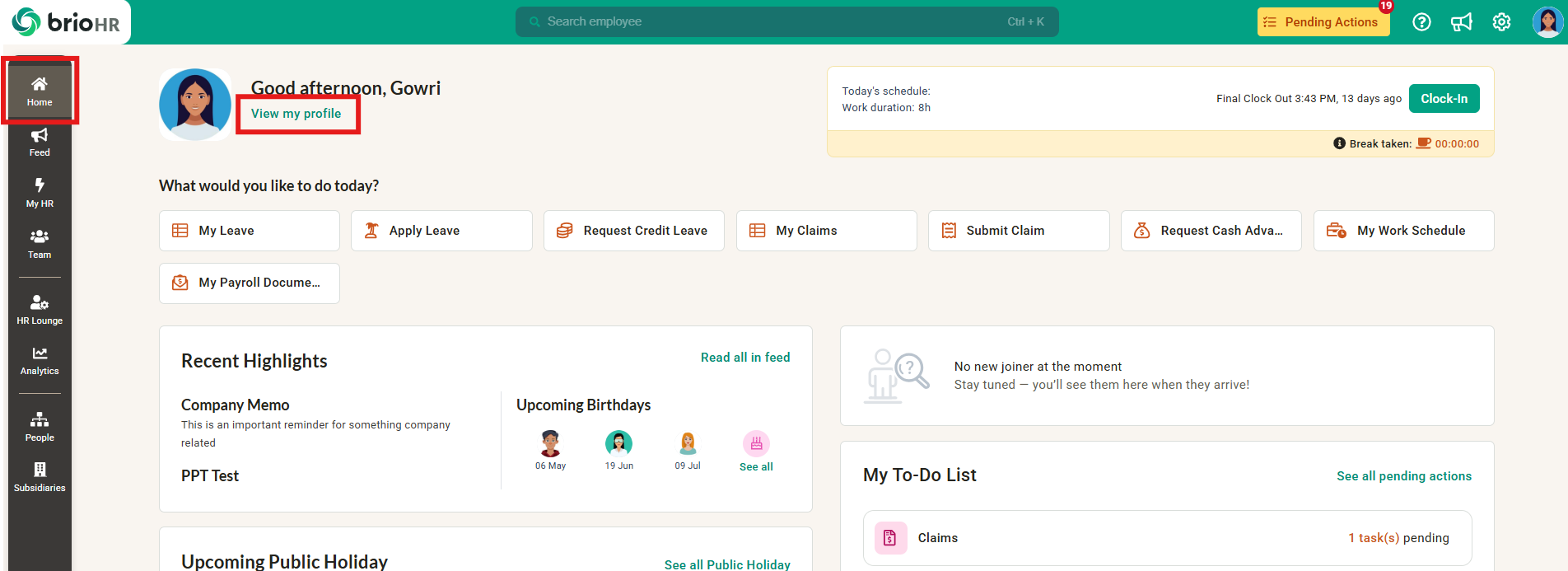
1. At Home, click View my profile.
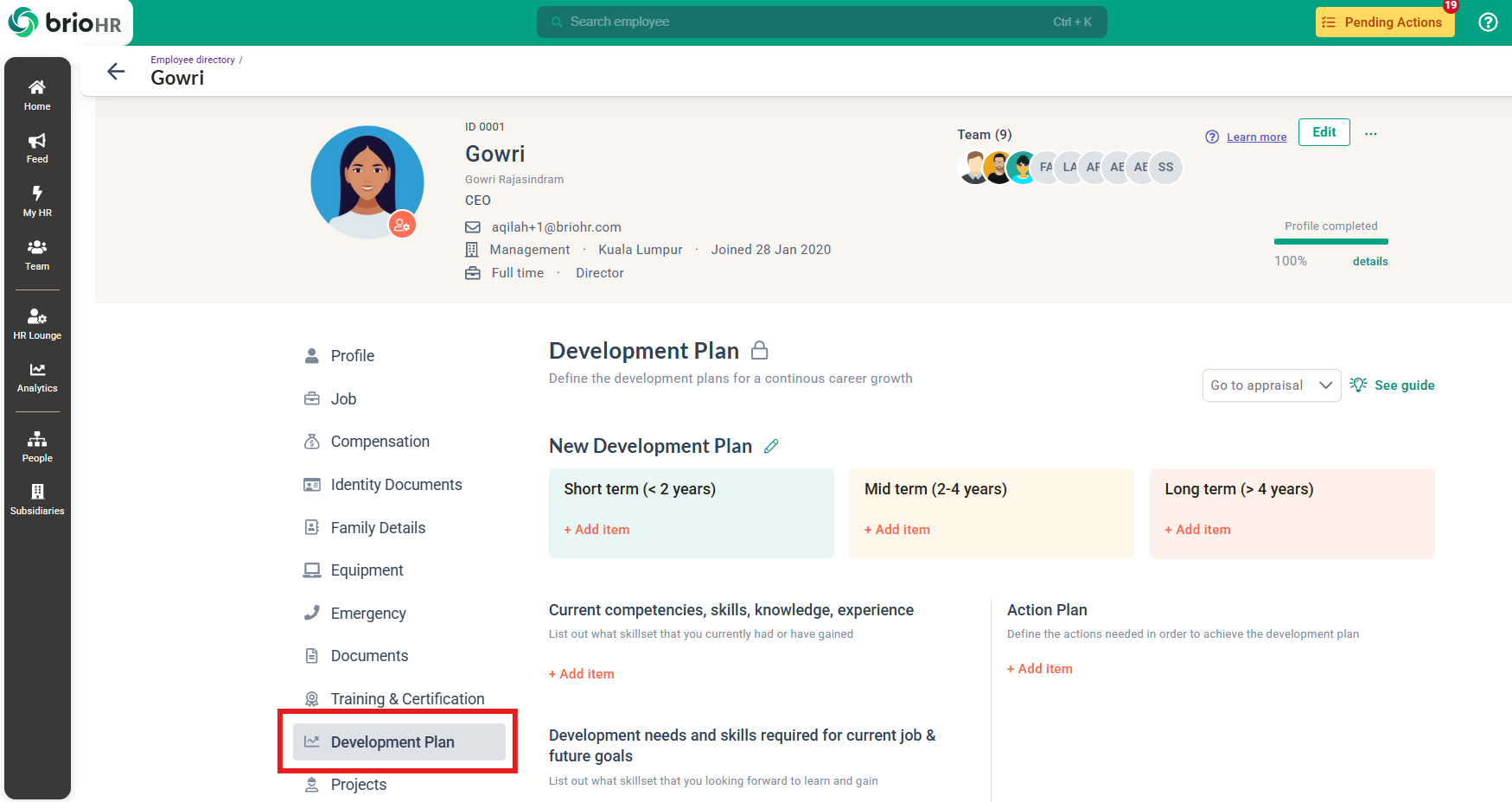
2. Navigate to Development Plan section.
NOTE:
If you do not see the 'Development Plan' tab in your profile, it is because your user group permission has not been enabled for this data. Contact your HR Admin to make necessary changes to your user group permissions.
To update the Development Plan
3. Click on 'Edit pencil icon' to edit the New Development Plan name.
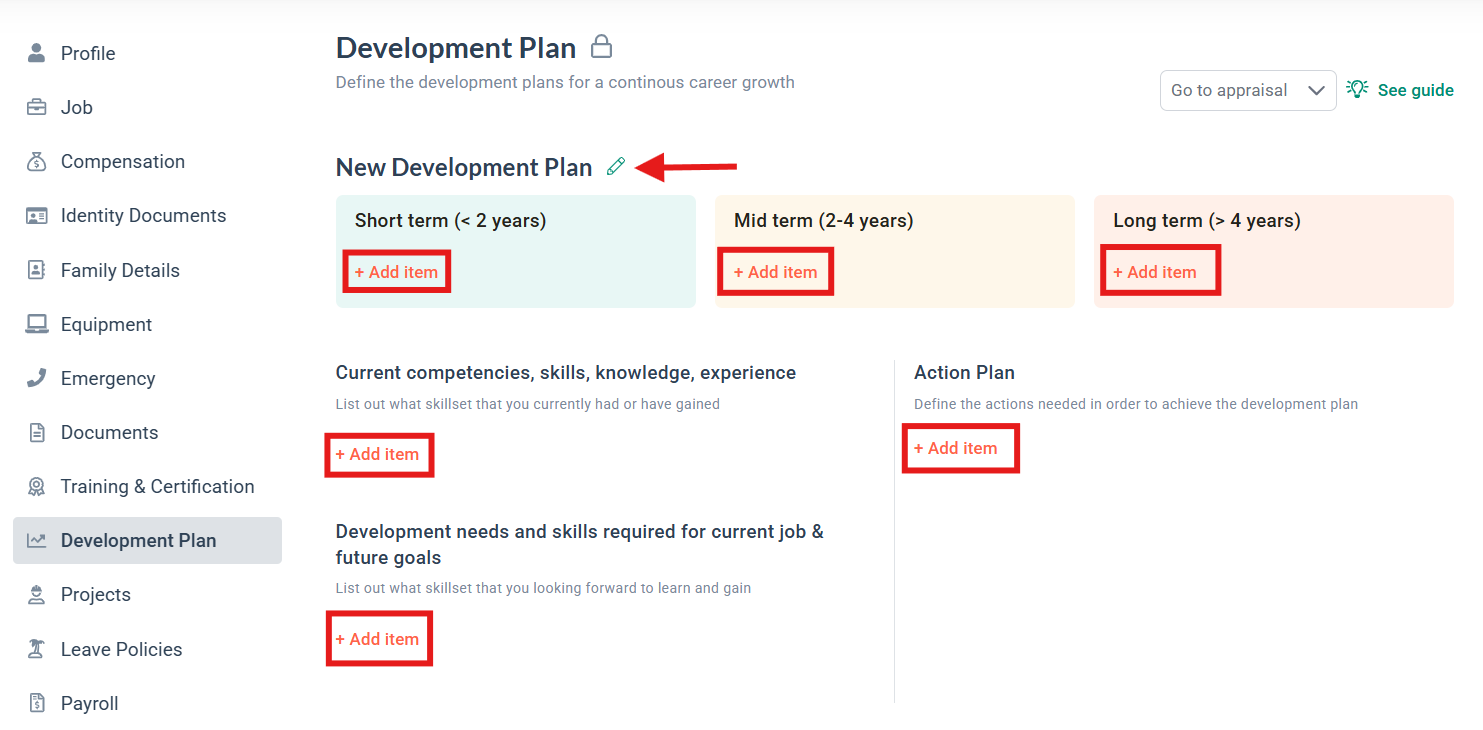
Click on + Add item to update the plan:
4. Short term (< 2 years), Mid term (2-4 years), Long term (> 4 years): Define the development plans for a continuous career growth.
5. Current competencies, skills, knowledge, experience: List out the skillset that you currently have or have gained.
6. Development needs and skills required for current job & future goals: List out what skillset you are looking forward to learning and gaining.
7. Action Plan: Define the actions needed in order to achieve the development plan.
Note for HR Admin:
Managers can access and make changes to their subordinates' Development Plan via the employee's profile. Before managers can fill in an employee's Development Plan, grant the right access to the manager's User Group:
-
Go to Admin Settings > User Group > Choose the manager's User Group > Edit (pencil icon) > Profile Sensitive Data > Development Plans > enable 'View your scope' and 'Modify your scope'.
-
Then, managers can go to the employee's Profile > Development Plan page to view and make changes.