![brioHR-logo-color.svg]](https://support.briohr.com/hubfs/brioHR-logo-color.svg)
Audience & Scope
Audience: HR Admin
Module: Feed
Country: Global
Pre-requisites: Admin access to Account Settings, access to Feed
The Feed Dashboard makes it easy to share important updates, announcements, and events with employees in one central place. Users with the appropriate permissions can create and publish posts, choose specific groups of employees who can view them, and pin important posts for easy access.
You can also create events directly from the Feed Dashboard, which will appear on the Event Calendar to keep employees informed of upcoming activities and important dates.
Enable the Permission to the Feed Dashboard
1) Click into Settings , then into User Groups
2) At the selected User Group, click Edit
3) Click into User Permission
4) Scroll to find the Feed and Enable the required permissions
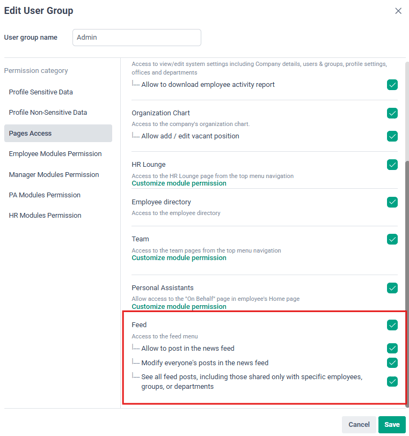
Definitions of the options available:
-
Allow to post in the news feed = Allowing this user to create posts in the Feed Dashboard
-
Modify everyone's post in the news feed = Allowing this user to edit any posts in the Feed Dashboard (even posts only for specific employees)
-
See all feed posts = Allowing this user to view all posts (even posts only for specific groups)
5) Click Save
How to Create Post, Edit or Delete posts on the Feed Dashboard
Create a New Post
1) Click into the Feed and click into the text box
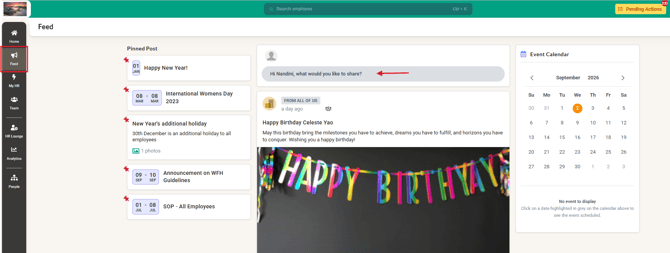
2) At the Create New Post pop up, provide the context of the post:
-
Choose the group that should be able to view this post
-
Provide the title
-
Share the context of the post
-
Add media or files
-
Select if this would be an event
-
Choose to Pin this post (to be easily viewed)
-
Choose to Notify all recipients by email and push notification
NOTE:
-
Ticking the 'Notify all recipients by email and push notification checkbox' triggers both an email and an instant mobile push notification to all employees in the selected "Share with" audience.
- If "This is an event" is checked alongside the notification box, mobile app users will receive a dedicated event notification ("New event in your feed").
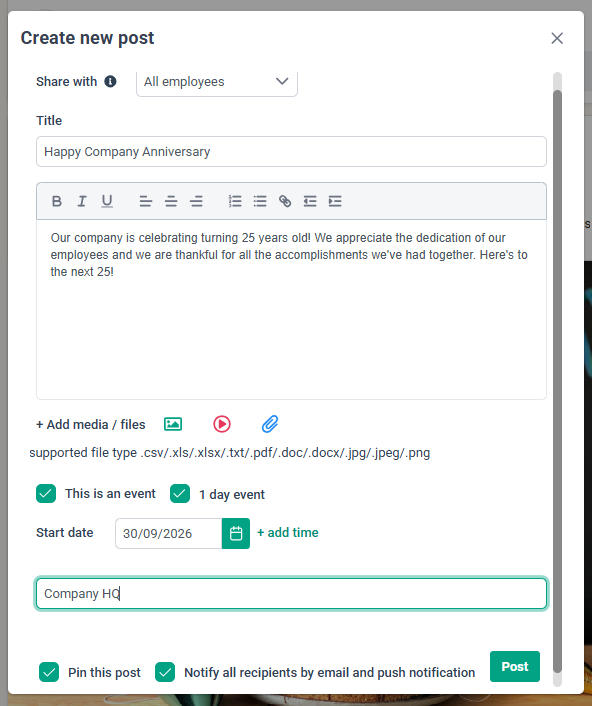
3) Click Post once all information is provided
4) The post can be viewed in the Feed dashboard
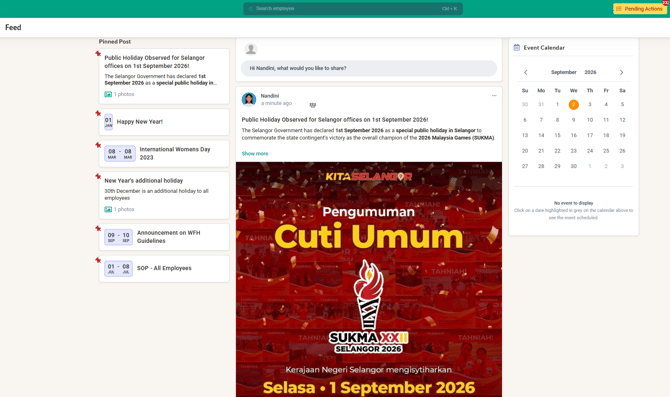
Edit or Delete a post
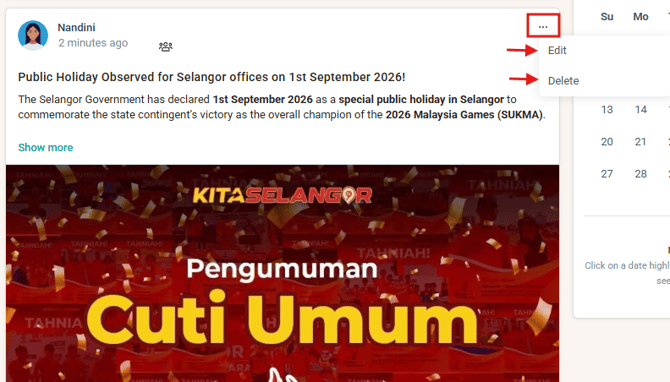
1) Click on the '...' button then choose to Edit or Delete the post
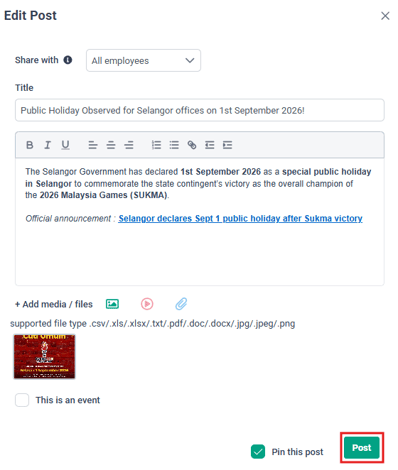
2) If you wish to Edit, click Edit then make the necessary changes and click Post
NOTE:
Editing an existing post will NOT resend a push notification or email, as the notification checkbox is not included in the Edit Post window.
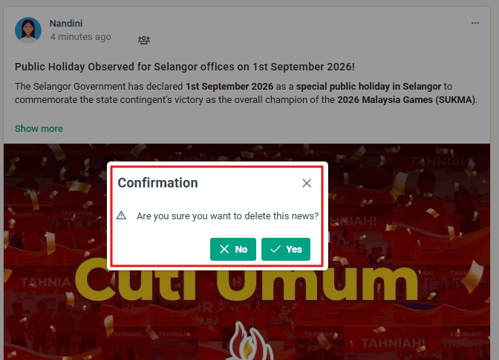
3) If you wish to delete the post, click Delete, then at the Confirmation, choose Yes to remove the post from the Feed
Step-by-Step Guide to Display Employee Birthday and Newcomers Welcome Message on Feed
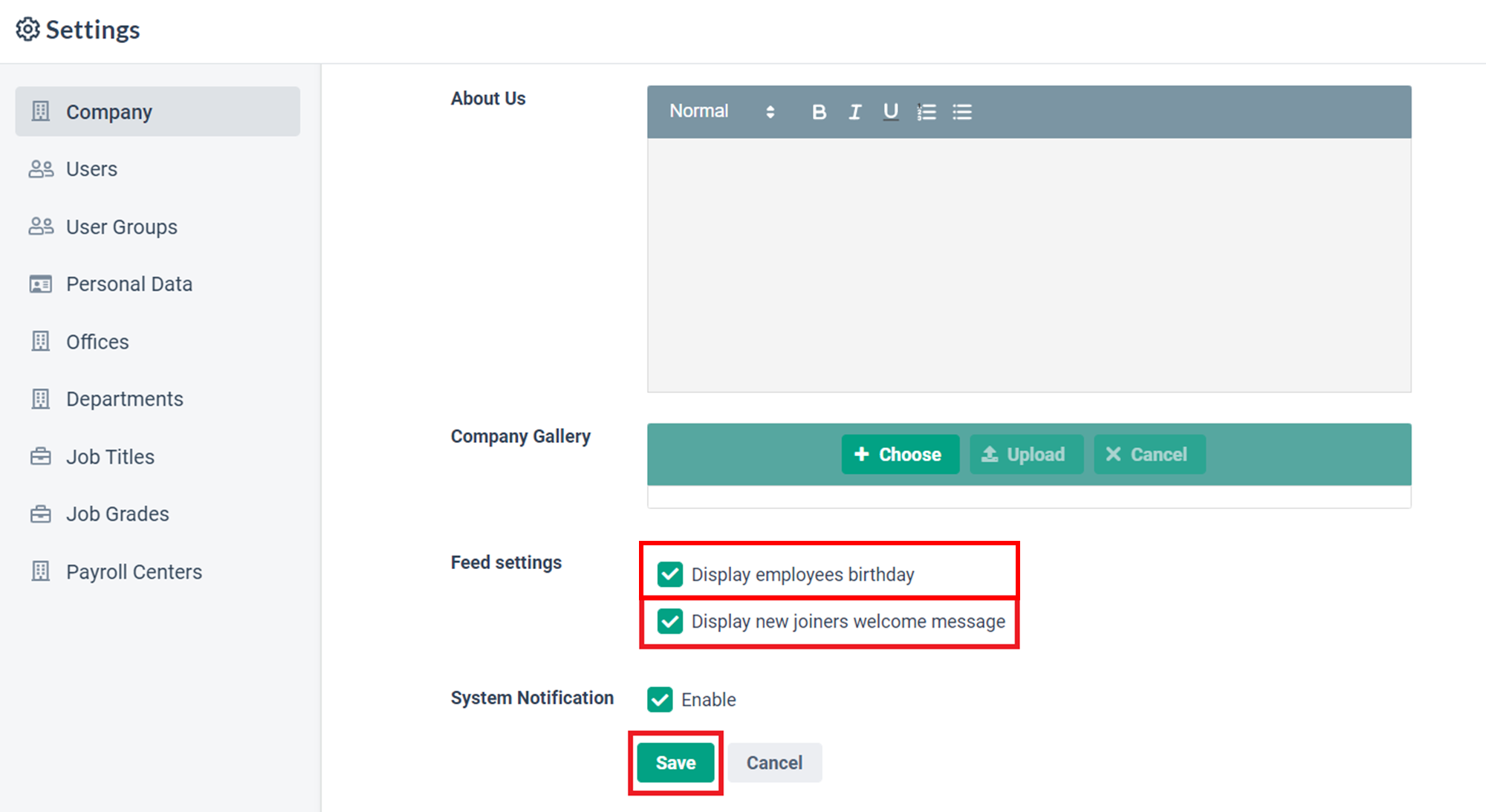
In the Feed Settings, you can now choose to 'Display Employees' Birthdays' and 'Display Newcomers Welcome Messages' on the feed.
NOTE:
These settings are enabled by default. However, if you disable them, the system will hide all related posts, including those from the past.
If you want to display welcome messages on the feed again, simply re-enable the setting, and the system will unhide all previous posts.
1. In the main account settings (top right corner of the screen), click on Company then click on Edit
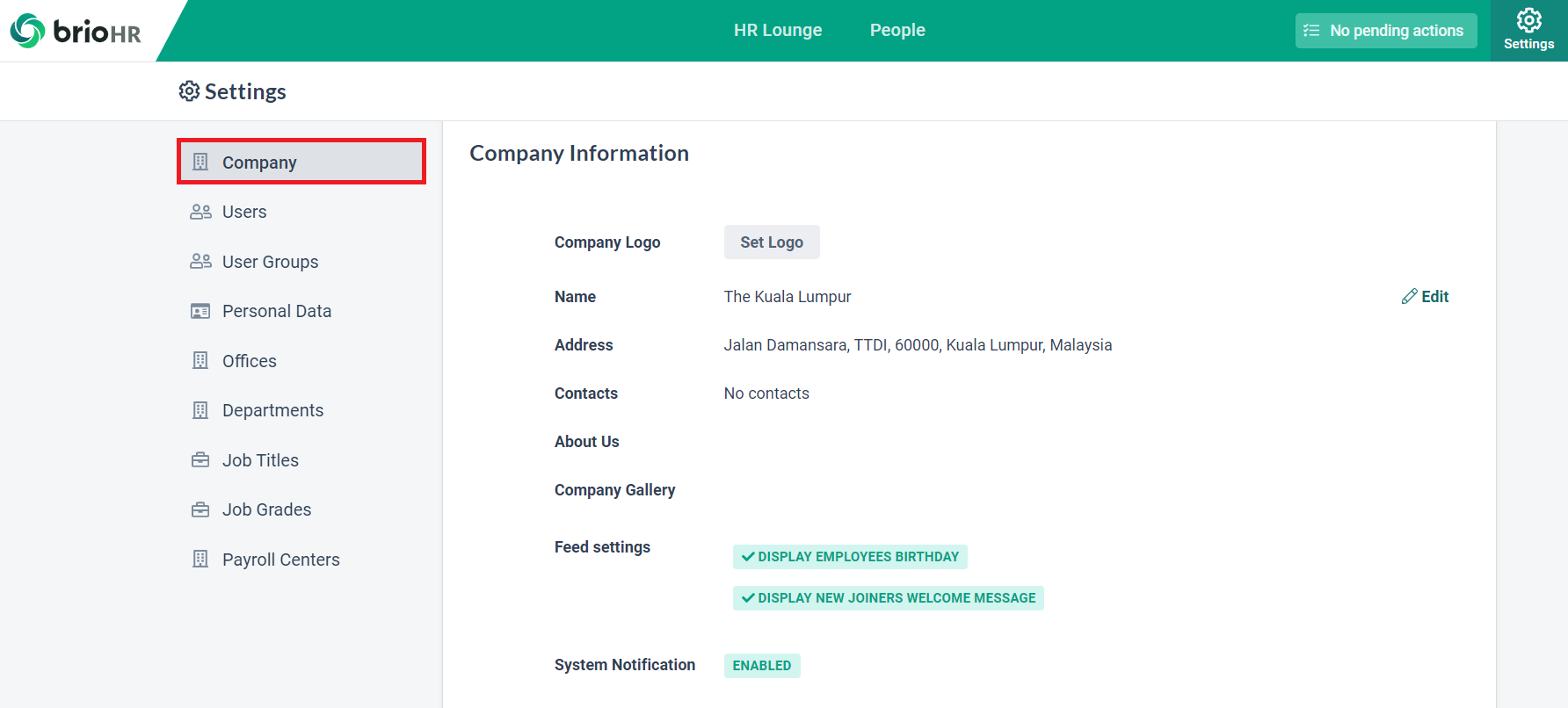
2. At Feed Settings, enable or disable the settings as needed, and click Save once you've made the changes.
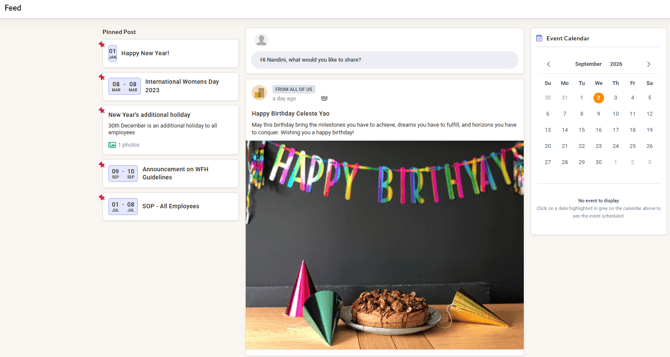
Example of Employee Birthday post:
Frequently Asked Questions
Q1: Where do I post a company announcement or memo?
A: The Feed can be used to post company announcements or memo to be shared with employees.
To post it, click into the Feed, then into the text box, and complete the Create New Post pop-up (see the steps above). Do not use the Document module for announcements: it stores employee documents, it is not a notice board.
Q2: Can I remove the event-calendar widget from the feed?
A: Nope, this event calendar cannot be removed from the Feed dashboard.