![brioHR-logo-color.svg]](https://support.briohr.com/hubfs/brioHR-logo-color.svg)
You can download your PCB II Form from Payroll Documents on the BrioHR web or mobile app once your HR department has released it.
Download on the Web
Log in to your BrioHR account.
- Go to My HR, click on "Payroll Documents".
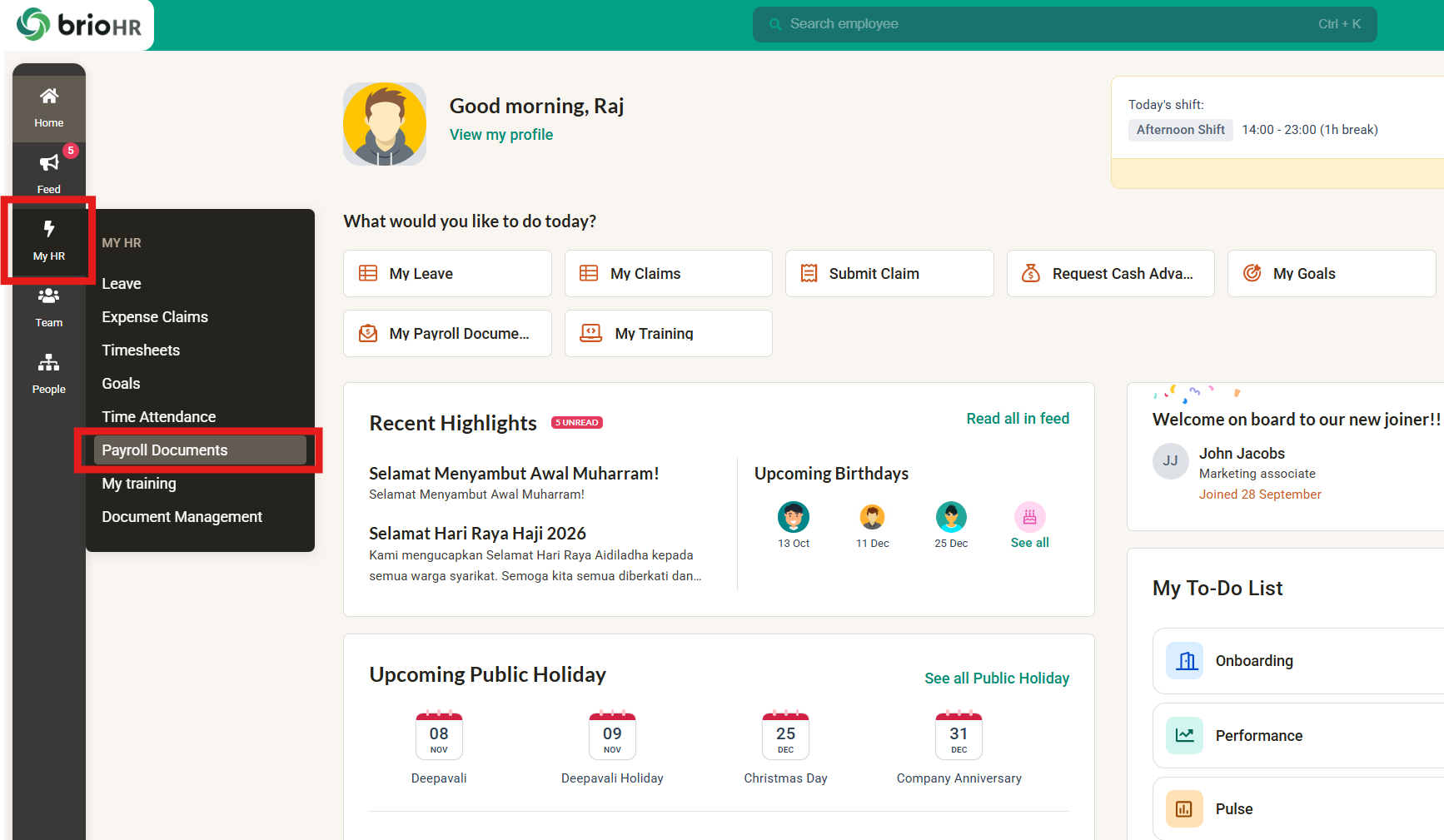
- Click on "PCB II Form" under Document Type.
- Choose the year of the PCB II form you want to download. For example, if you want to download the form for the latest year, make sure the status is marked as "Released".
- Click on the "Download" button.

- Your PCB II form will be downloaded as a PDF.
Here is a sample of the PCB II Form you will receive.

Download on the BrioHR Mobile App
- Open the BrioHR app and tap Payroll Documents on the Home screen.
- Tap the PCB II tab.
- Tap the year you need. Each row shows the year and your payroll centre.
- Your PCB II Form opens in a preview. Tap the [Download] button to save the PDF or open it in another app.
NOTE:
If a year is greyed out and marked Not yet released, your HR has not released the form for that year yet.
Need Assistance?
If you have any questions or require assistance, please reach out to our support team via live chat or email us at support@briohr.com.