![brioHR-logo-color.svg]](https://support.briohr.com/hubfs/brioHR-logo-color.svg)
Audience & Scope
Audience: HR Admin
Module: Employee Management
Country: Global
Pre-requisites: User Group permission to HR Lounge > Employee Management
Part 1: Enable access for Bulk Import/Export of Expense Claims
1. Go to Admin Settings > User Groups > Choose Your User Group
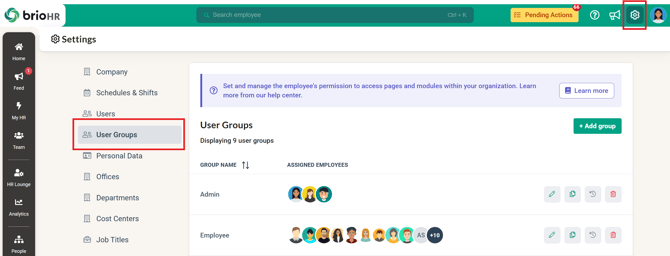
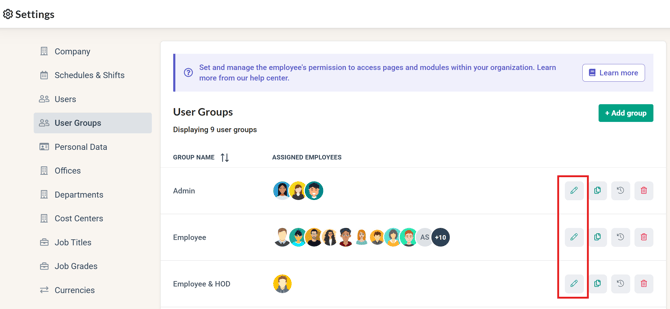
2. Click the Edit button
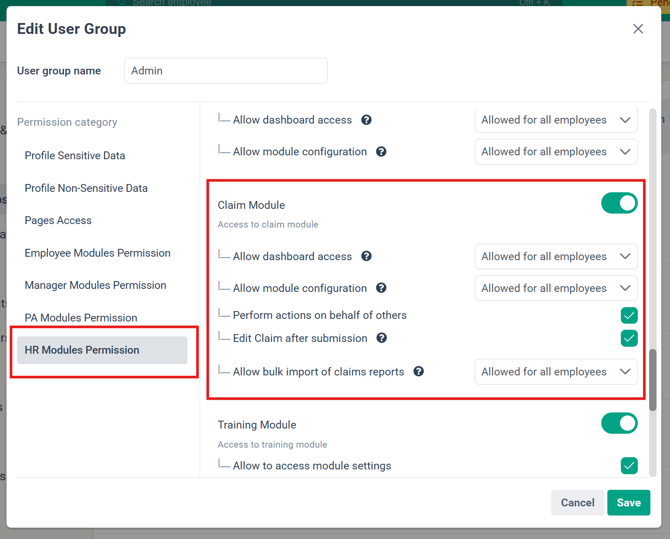
3. Under HR Modules Permission, find Claim Module
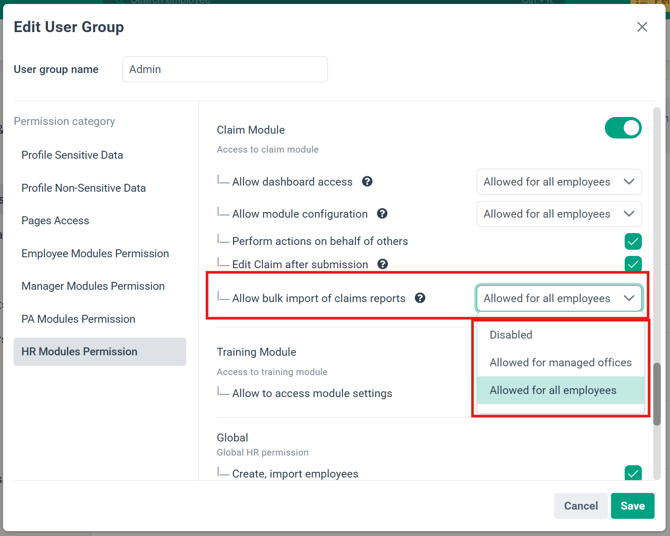
4. Choose the permission option from the 'Allow bulk import of claims reports' dropdown
You can choose 'Allowed for managed offices' if you want users in this user group to import claims reports only for employees in their managed offices. Or you can choose 'Allowed for all employees' if you want users to import claims reports for all employees in the company.
5. Click Save
Part 2: Import Expense Claim Records
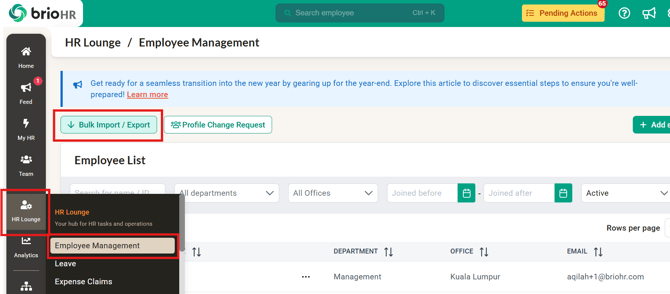
1. Go to HR Lounge > Employee Management > Bulk Import/Export
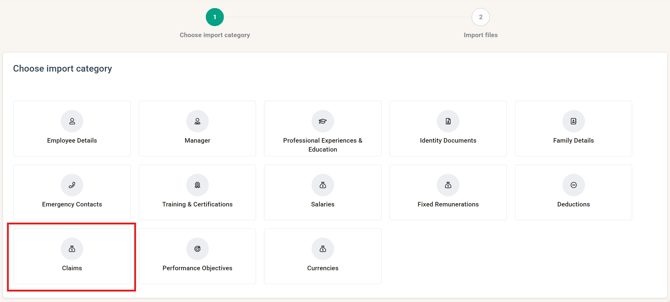
2. Click the Claims
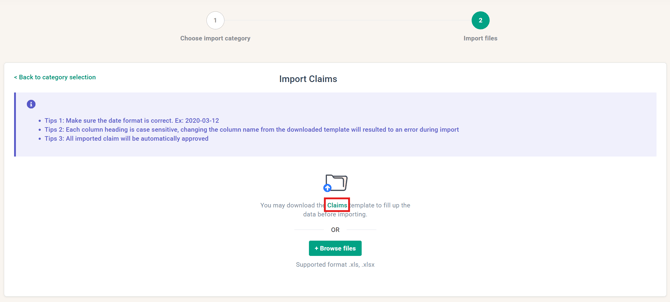
3. Download the Claims template in Green
NOTE:
-
By default, the downloaded template will contain the list of all claim records currently in the Approved status.
-
Please DELETE the existing claim records in the Excel and ONLY INCLUDE NEW RECORDS you want to import in the Excel before you upload it.
4. Fill in the necessary details for each employee, including all required fields such as:
- Employee email address
- Report (Claim Report Name)
- Claim type
- Transaction date
- Total amount
- Currency
NOTE:
- Cash Advance Claim Types are NOT supported.
- Claim type must exist in your claim type list (Expense Claims Module > Claim Types)
- Ensure that all dates and values are entered in the correct format as stated in the template instructions.
A sample of the template is shared below:

5. Once the information has been filled into the template accurately, save your file and reupload it into the system.
The system will process the data and update the employee claim records according to the data provided.
Once the file has been uploaded into the system, check and confirm the information uploaded, and then proceed to click on Save Import Data.
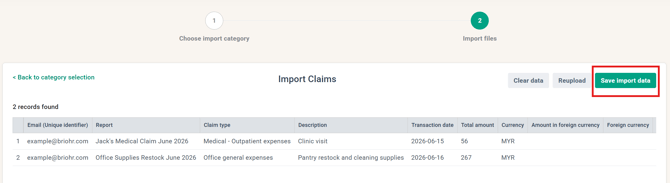
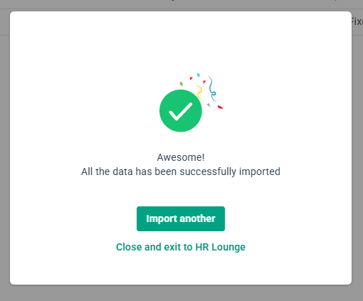
6. Once the data is imported, you will see the pop-up below. The data should reflect accordingly in Expense Claims > Claims Request section for the employees you included. You can filter for 'Approved' if needed.
NOTE:
All imported claims will be automatically APPROVED.
Common Issues/FAQ
1. Who can access the Bulk Import/Export Claims feature in brioHR?
Only users with HR or Admin access permissions can use the Bulk Import/Export feature. Refer to Part 1 of this article.
2. Can I edit the imported claim record?
As the imported claims will automatically be approved, you will need to reopen the individual claim, make your edit, and resubmit it for approval. You can approve the claim on behalf to change the status back to approved. But please note that the employee will receive an email notifying them of the reopening and approval of the claim.
3. What should I do if the import file shows an error?
Check for missing required fields, incorrect data formats (transaction date / Column Name), etc. Correct them and reupload the file.
4. How do I confirm that the claim records have been successfully imported?
After uploading, the system will show a confirmation message or import summary indicating the success or failure of the import process. You can check the Expense Claims > Claim Request section to check that the records reflect accordingly. You can also use Analytics > Report Builder > Expense Claims Report to verify the data.
5. Will the imported claims be counted towards the employee's claim limits and balances?
Yes, imported claims will also be counted towards the employee's claim limits and balances.
Related Articles
How to Create Expense Claims on Behalf of Other Employees
How to re-open claim (by HR/Admin)
How to approve, reject, reopen, cancel claims in bulk as HR
Ownership
By: Aqilah