![brioHR-logo-color.svg]](https://support.briohr.com/hubfs/brioHR-logo-color.svg)
Audience & Scope
Audience: HR Admin
Module: Employee Management
Country: Global
Pre-requisites: User Group permission to edit compensation under profile-sensitive data
Step-by-Step Instructions
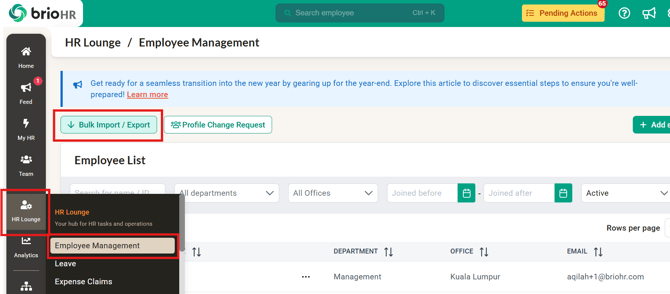
1. Go to HR Lounge > Employee Management > Bulk Import/Export
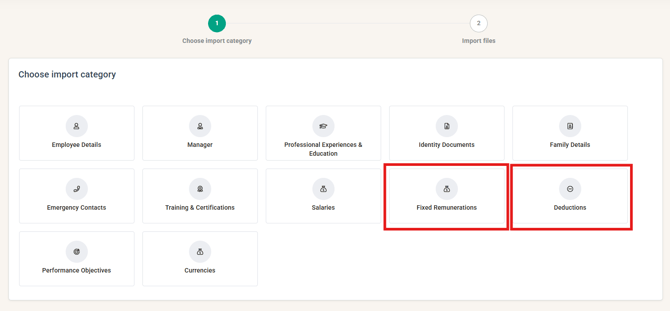
2. Click the Fixed Remunerations or Deductions option
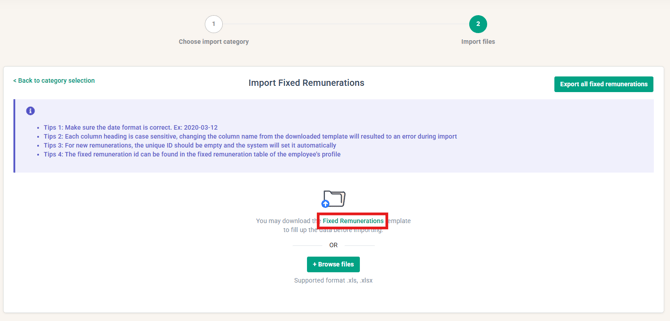
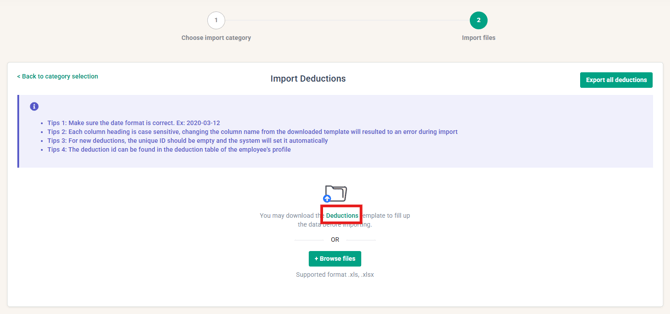
3. Download the Fixed Remunerations or Deduction template in Green
4. Fill in the necessary details for each employee, including all required fields such as:
- Employee email address
- Unique Identifier (only if you would like to update the existing fixed remuneration or deduction of the employee)
- Effective Date
- Apply prorate
- Item name
- Amount
- Currency
- Payroll Cycle
NOTE:
- For new fixed remunerations or deduction entries, leave the Unique ID column empty. The system will automatically assign a unique ID once the file is uploaded.
- Ensure that all dates and values are entered in the correct format as stated in the template instructions.
A sample of the template is shared below:

4a. Updating Existing Fixed Remuneration or Deduction information
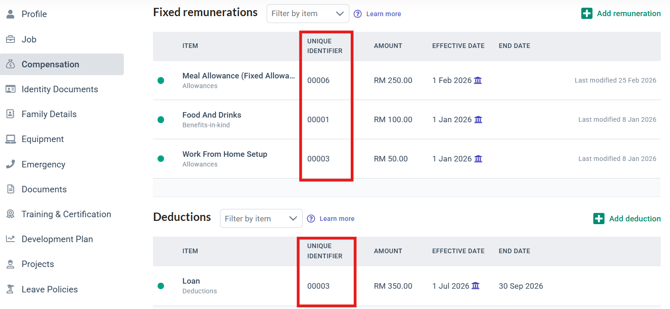
If you wish to update the existing item information of the employee, you can locate the Unique Identifier of the current items by following the steps below.
Click into the Employee Profile > Compensation > Fixed Remunerations/Deductions > Unique Identifier
You can copy the Unique Identifier here and paste it into the bulk template
4b. Adding New Fixed Remuneration/Deduction information
If you wish to add a new item for the employee, you will need to leave the column Unique Identifier empty, as the system will automatically assign this Unique Identifier for the employee.
NOTE:
The list of available fixed remuneration and deductions depends on the employees' payroll center. Go to HR Lounge > Payroll > Choose the Payroll Center > Settings > Payroll Items to view or add payroll items.
Learn more: How to Use the New Payroll Items Table in Malaysia and Singapore Payroll
5. Once the information has been filled into the template accurately, save your file and reupload it into the system.
The system will process the data and update the employee compensation records according to the data provided.
Once the file has been uploaded into the system, check and confirm the information uploaded, and then proceed to click on Save Import Data.

Based on the example in the screenshot above:
In Row 1, there was an update to an existing item. The unique identifier is based on a previously entered item.
Whereas, in Row 2, there was a new item added for the employee.
NOTE:
Please create a new item record if you want to keep the previous record of a fixed remuneration/deduction of an employee.
Example:
Employee A has an existing fixed remuneration for meal allowance of RM 200. Due to a promotion, he is now entitled to a meal allowance of RM 300. Instead of changing the record of the previous meal allowance (RM 200), create a new fixed remuneration for the meal allowance (RM 300 with a new effective date). The system will automatically set the previous meal allowance (RM 200) to have an end date the day before the new meal allowance (RM 300) is effective.
Tips for a Successful Import
- Double-check that all required columns are filled correctly.
- Make sure the date format is correct. Ex: 2026-03-12
- Each column heading is case sensitive; changing the column name from the downloaded template will result in an error during import
- Ensure there are no duplicate employee entries.
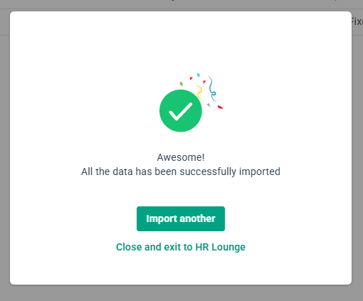
6. Once the data is imported, you will see the pop-up below. The data should reflect accordingly in the employee profile > compensation section for the employees you included.
Common Issues/FAQ
1. Who can access the Bulk Import Fixed Remunerations/Deductions feature in BrioHR?
Only users with HR or Admin access permissions can use the Bulk Import/Export feature.
2. What happens if I include an existing Unique ID in the import file?
If an existing Unique ID is provided, the system will update the existing item details for the employee instead of creating a new one.
3. Can I edit the uploaded fixed remuneration/deduction data later?
Yes, once the data is imported, you can edit the item records individually in the Employee Profile > Compensation module if needed; however, this edit will need to be done before the next payroll cycle is run on the system.
4. What should I do if the import file shows an error?
Check for missing required fields, incorrect data formats (Effective Date / Column Name), or duplicate entries. Correct them and reupload the file.
5. How do I confirm that the fixed remunerations/deductions have been successfully imported?
After uploading, the system will show a confirmation message or import summary indicating the success or failure of the import process. You can check the employee profile > compensation section to check that the records reflect accordingly.
Related Articles
How to Bulk Import Salary by Bulk
Ownership
By: Aqilah